Sign-in keeps looping
Sign in to AgentIntel directly in the same browser first. Restart the connection, complete the required checkbox only if its statement is true for you, and select Allow.
Bring your market intelligence into ChatGPT. Connect your account, then turn a question into a client-ready report.
Have your AgentIntel account ready, with an active subscription or trial.
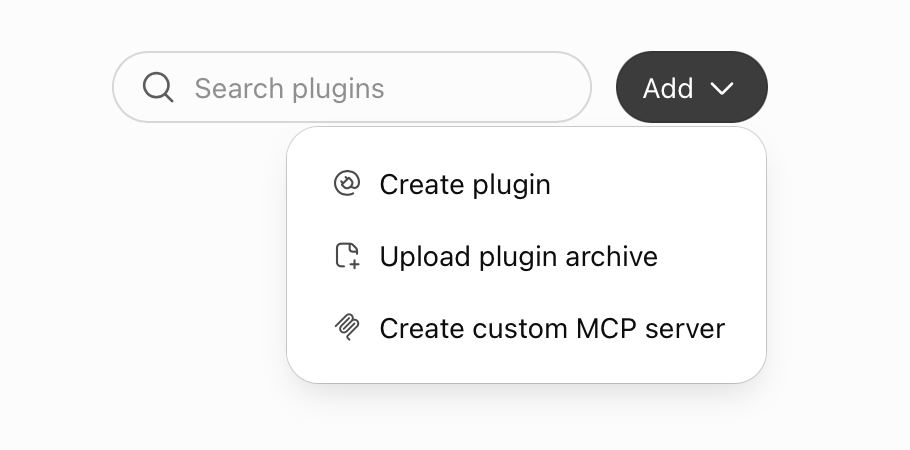
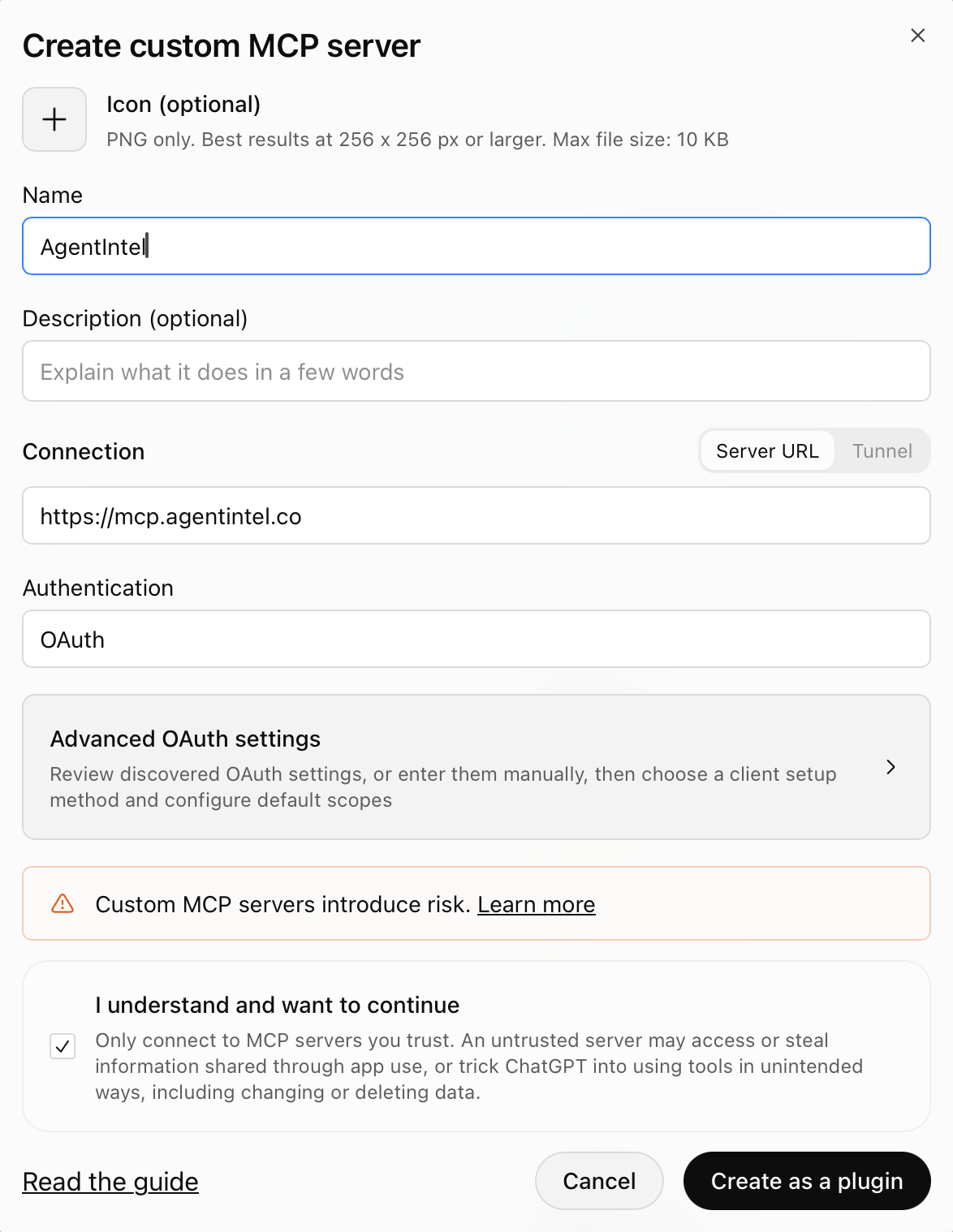
Choose Add → Create custom MCP server.
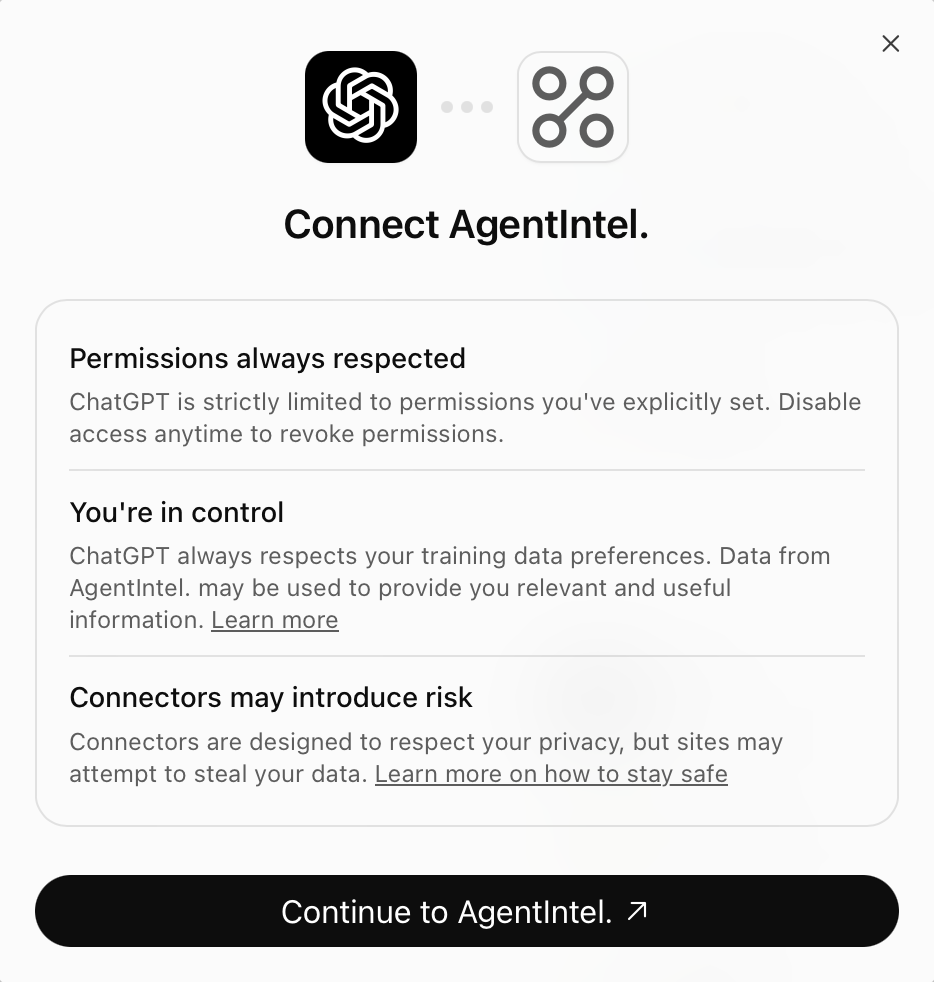
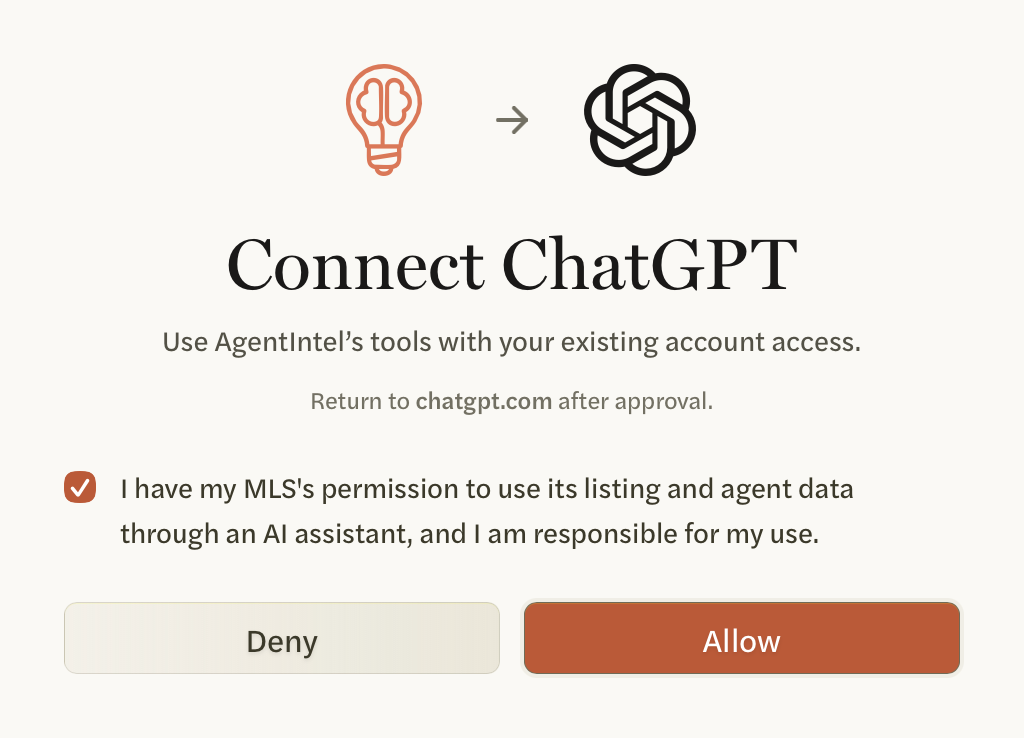
ChatGPT asks to connect AgentIntel. Choose Continue to AgentIntel, then sign in to your existing AgentIntel account.
Read the required checkbox and select it only if the statement is true for you, then choose Allow. This is required for every new authorization.
How’s inventory in Barton Hills — build me a report.
Last updated October 6, 2026
Sign in to AgentIntel directly in the same browser first. Restart the connection, complete the required checkbox only if its statement is true for you, and select Allow.
Return to Plugins and finish connecting AgentIntel. Use the same ChatGPT account and workspace, then select AgentIntel in a new Work chat.
Listing and agent tools require verified MLS access. Connecting an assistant does not add that access. If your subscription is inactive, manage it on your account page. For upgrade or access issues, contact support.
Manage your accountContact supportIn AgentIntel, open Integrations → Connected apps → Revoke access. Remove the connection in ChatGPT, then follow the steps above to connect again. Each new authorization requires the checkbox again.
Open AgentIntel integrations