Every Claude or ChatGPT you have connected to AgentIntel is listed under Connected apps. Select Revoke access beside one and it stops getting AgentIntel data straight away.
See your connected apps
Sign in at app.agentintel.co.
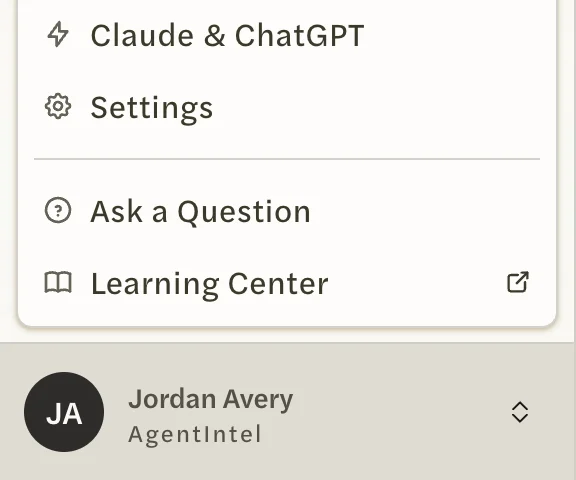
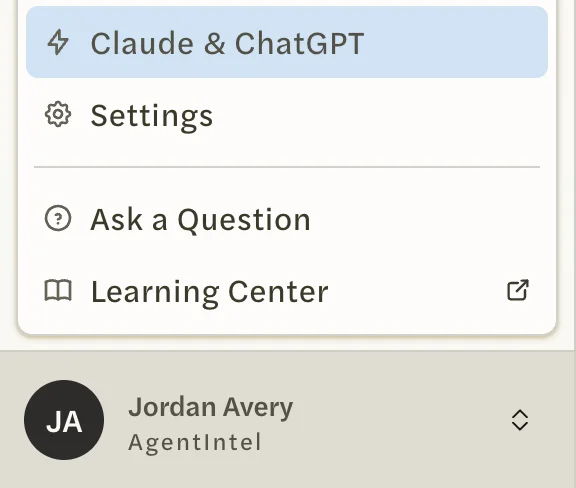
Select your name at the bottom of the left menu, then Claude & ChatGPT.
Look under Connected apps, at the bottom of the window that opens.
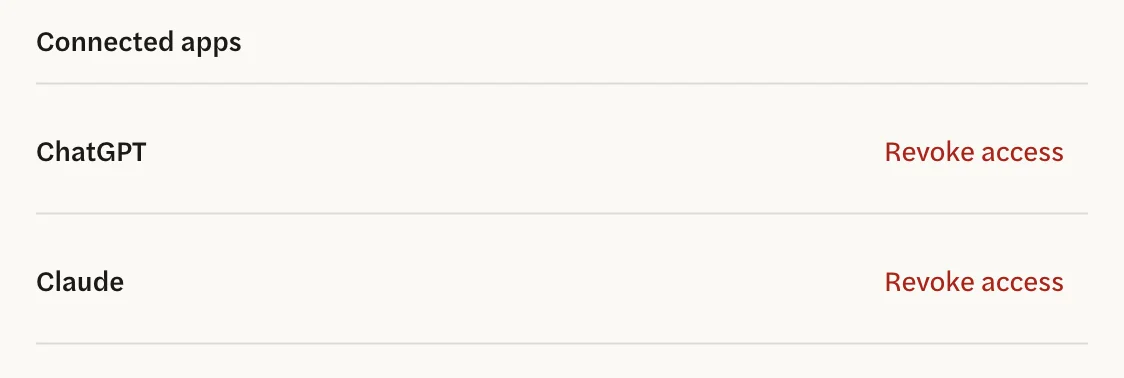
Each assistant you have connected is listed by name, such as ChatGPT or Claude. If you haven’t connected one, the list says “Apps you authorize will appear here.”
An assistant appears here once you have selected Allow on AgentIntel’s approval screen and your assistant has finished connecting. If one you connected isn’t listed, the connection didn’t finish; see Connect Claude or ChatGPT to connect it again.
Disconnect an assistant
Open Claude & ChatGPT as above.
Under Connected apps, select Revoke access beside the assistant.
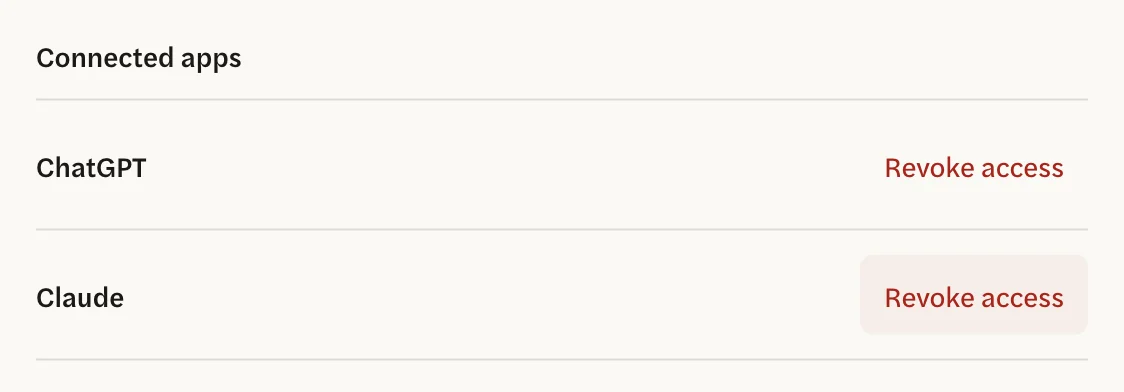
The assistant disappears from the list. There is no confirmation step, so select the right one.
The list shows the assistants connected with your own AgentIntel sign-in. On a team or brokerage account, each person sees and disconnects their own.
What happens when you disconnect
- Your assistant stops getting AgentIntel data immediately. It can’t answer with AgentIntel figures or make reports until you connect it again.
- Claude and ChatGPT aren’t changed. AgentIntel stays in your assistant’s own settings until you remove it there.
- Everything else stays as it is. Reports your assistant made stay under Reports, their links keep working, and your subscription isn’t affected.
If the same assistant is listed more than once, see Troubleshooting Claude and ChatGPT.
Connect again
Follow the setup guide for your assistant again, as described in Connect Claude or ChatGPT. AgentIntel’s approval screen asks you to confirm the checkbox again, and the assistant reappears under Connected apps.
After your subscription ends
You can’t open Claude & ChatGPT until you subscribe again, and no connected assistant gets AgentIntel data in the meantime. Connections you didn’t revoke stay in place and work again once your subscription is active. See Undo a cancellation or resubscribe.