Connect Claude or ChatGPT to AgentIntel and you can ask your assistant how a market is doing, get AgentIntel’s figures back in the conversation, and have it make a branded market report for you. With an MLS Connection, you can also ask about listings and agents in your MLS. Connecting is included with your subscription.
What you need
- An AgentIntel subscription or free trial. There is nothing extra to buy.
- A Claude or ChatGPT account that can add AgentIntel. AgentIntel doesn’t require any particular Claude or ChatGPT plan, but Anthropic and OpenAI decide which of their plans can add outside tools like AgentIntel. If your account doesn’t show the option the guide points to, check your plan with them.
- An MLS Connection, for listing and agent questions. Without one, you can ask about markets anywhere in the U.S. and make reports. With one, your assistant also uses your MLS’s own figures for the places your MLS covers, and can look up listings in your MLS and, for most MLSs, its agents. Connecting an assistant doesn’t add MLS access; see Connect your MLS.
What you can ask lists everything the connection can answer.
Connect
Open the setup guide for your assistant: agentintel.co/claude for Claude, or agentintel.co/chatgpt for ChatGPT. The ChatGPT guide sets it up in ChatGPT on the web, in your browser.
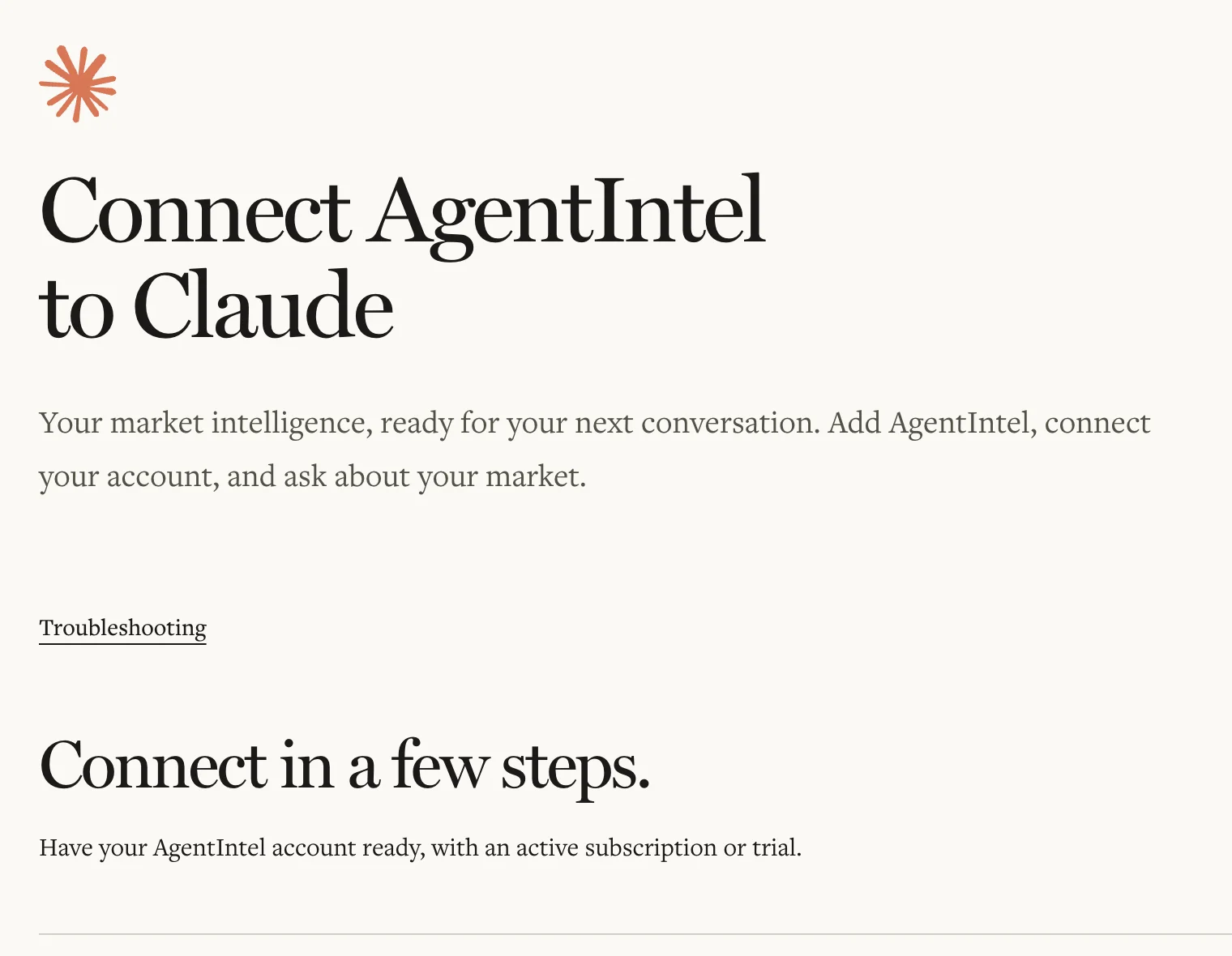
Follow the guide’s steps. Partway through, you are sent to AgentIntel to sign in and approve the connection, as described below.
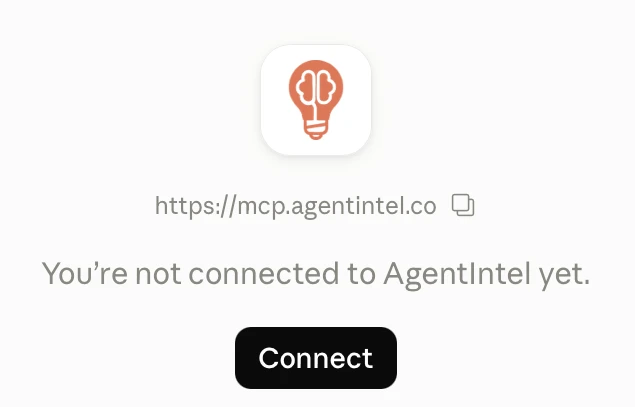
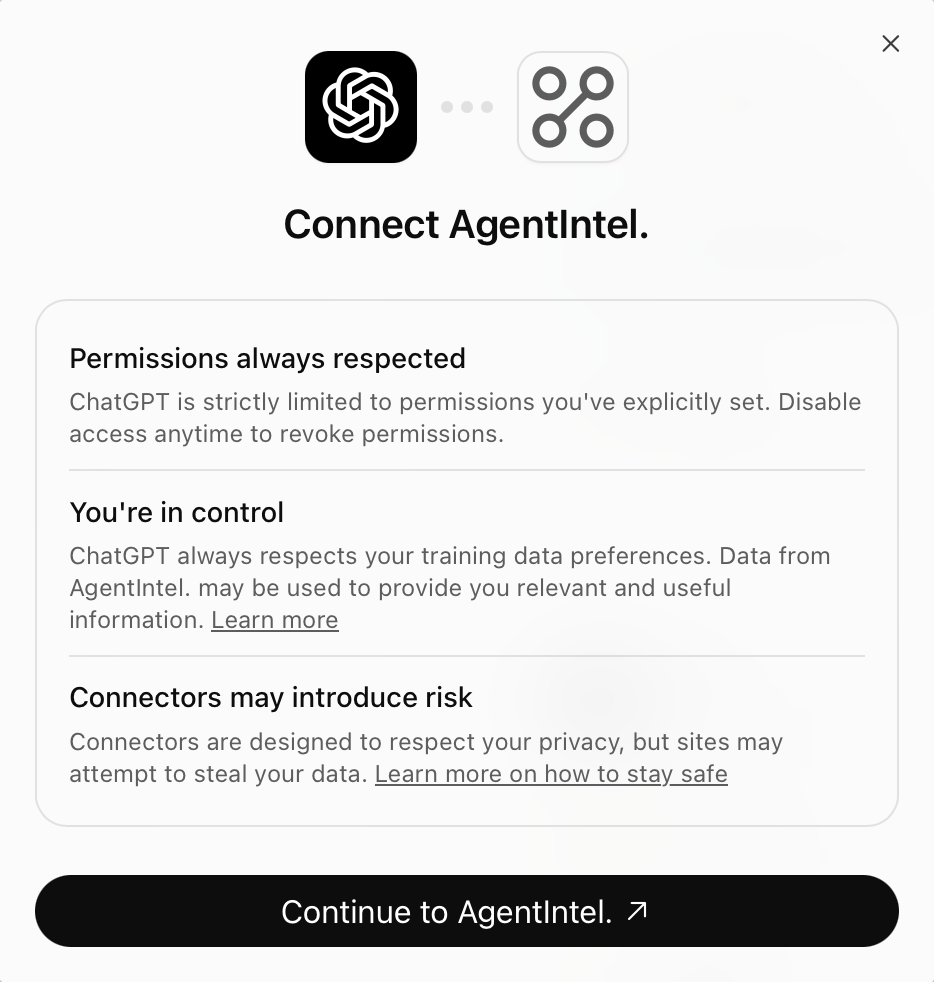
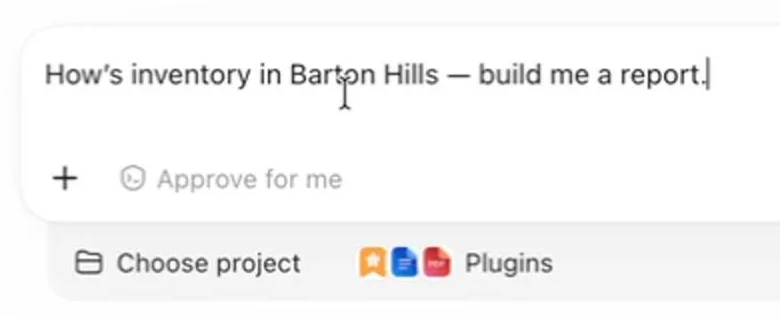
Ask your first question. The guide’s last step shows how to use AgentIntel in a conversation.
Once you have selected Allow on AgentIntel’s approval screen and your assistant has finished connecting, your assistant is listed under Connected apps in AgentIntel. To see the list, select your name at the bottom of the left menu, then Claude & ChatGPT. Links to both guides are there too.
Sign in and approve the connection
When you are sent to AgentIntel, its Sign In page opens. If you are already signed in to AgentIntel in that browser, you skip to step 3.
Enter the email address you use for AgentIntel and select Email Sign In Link.
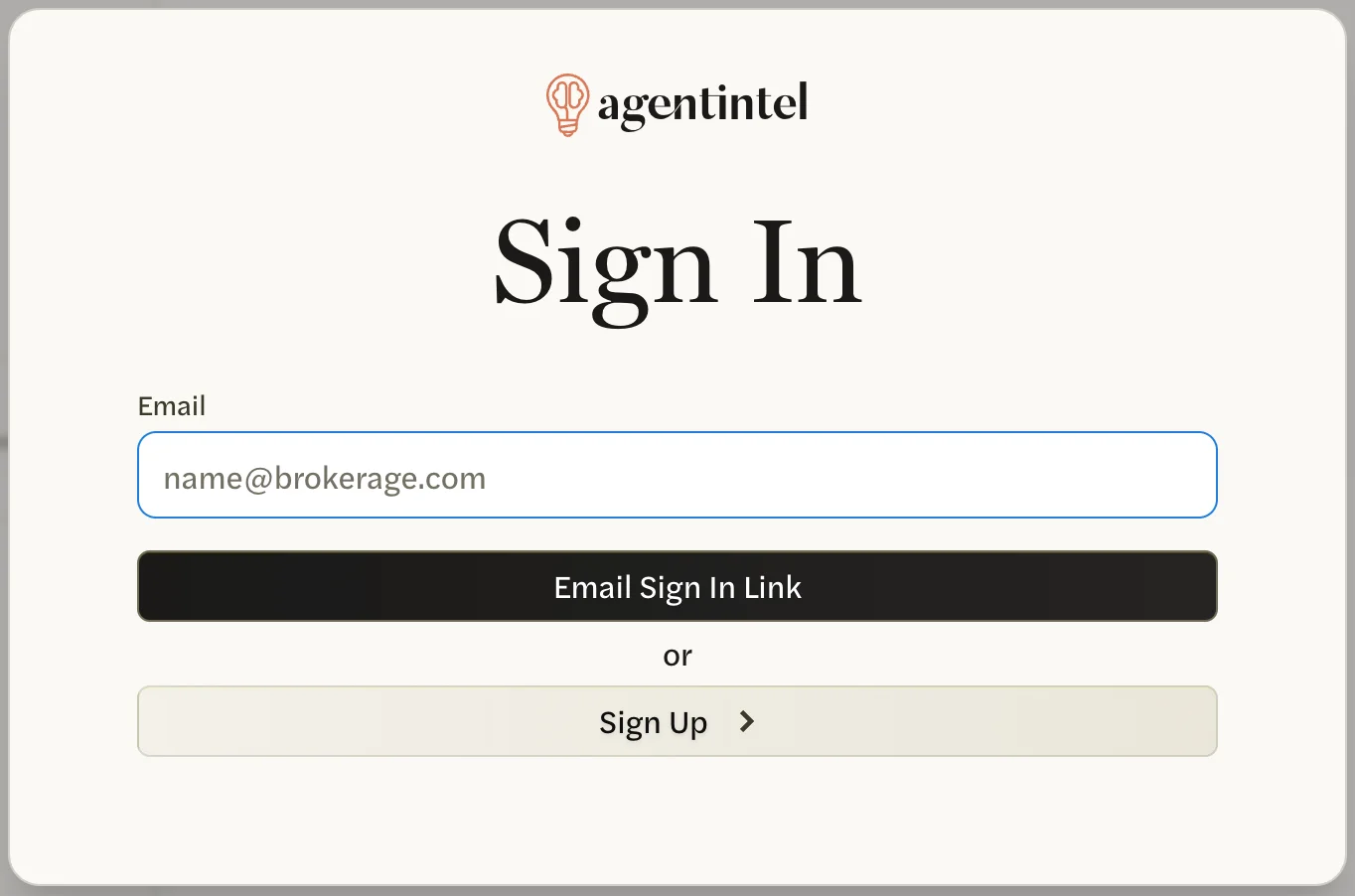
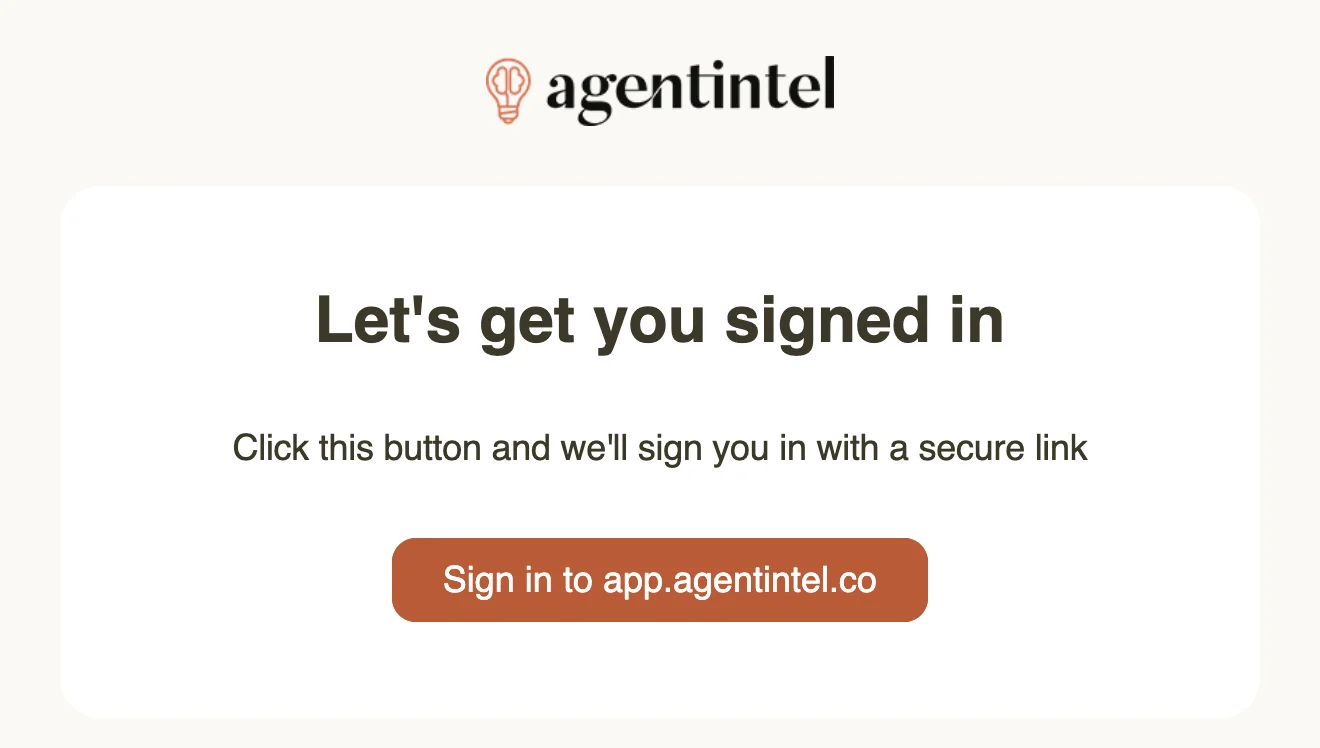
Open the sign-in link from that email on the same device, in the same browser. Opening it anywhere else signs you in there but doesn’t finish connecting.
On the approval screen, read the statement beside the checkbox: “I have my MLS’s permission to use its listing and agent data through an AI assistant, and I am responsible for my use.” Select the checkbox only if the statement is true for you. Allow can’t be selected until you do.
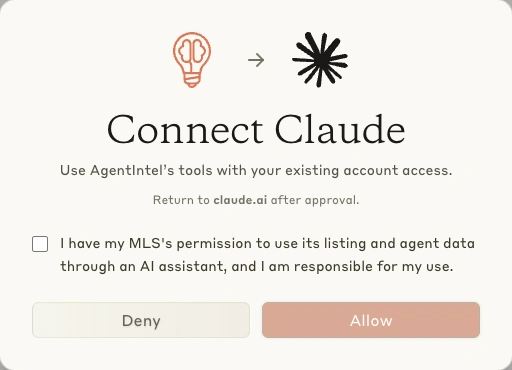
Select Allow. AgentIntel sends you back to your assistant.
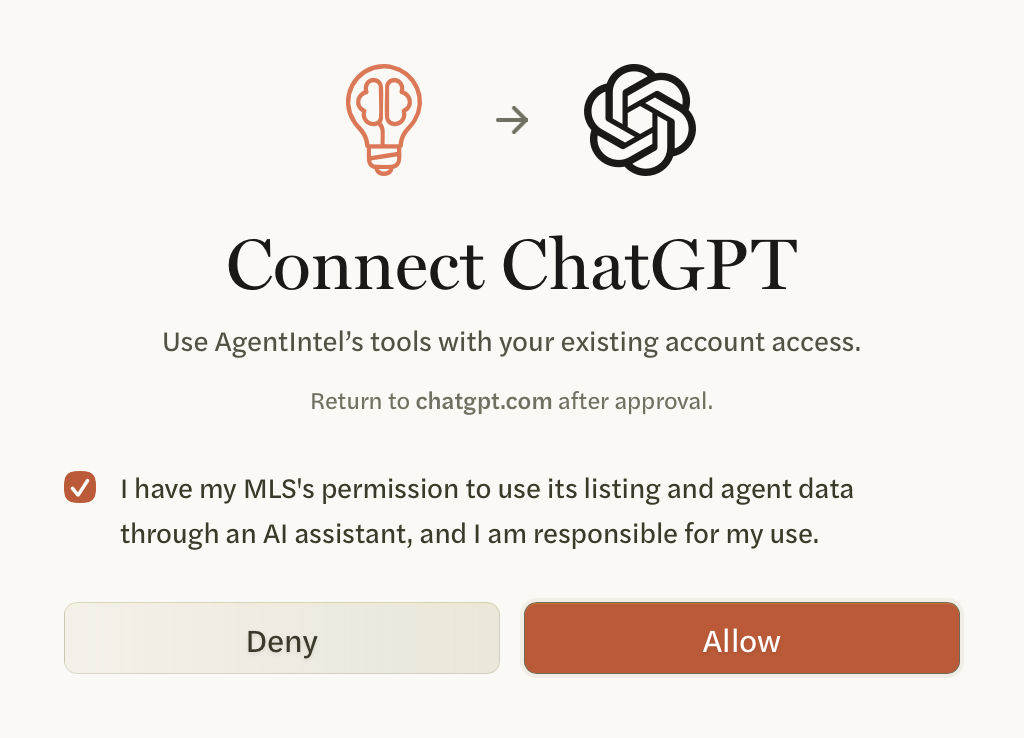
To stop without connecting, select Deny instead. If the sign-in email doesn’t arrive, see Didn’t get the email.
The approval screen asks every time you connect, including when you connect a second assistant or reconnect after removing one. Selecting the checkbox doesn’t change what your assistant can see: it gets only what your subscription includes.
On a team or brokerage account, each person connects with their own AgentIntel sign-in, and their assistant sees what their own account includes.
After you connect
- Your assistant uses the same figures you see in AgentIntel, updated on the same schedule. See Where the data comes from.
- Reports your assistant makes are saved with your other reports, under Reports in AgentIntel.
- If your subscription ends, your assistant stops getting AgentIntel data.
- To see which assistants are connected or disconnect one, see Manage connected apps. If something isn’t working, see Troubleshooting Claude and ChatGPT.