Admins can open AgentIntel the way one of their agents sees it, to check how the agent’s account is set up or to change something for them. Select Impersonate on the agent’s page in the admin area, and Stop Impersonating to come back. You stay signed in as yourself the whole time, and the agent isn’t notified.
View the app as an agent
Anything you change while viewing as an agent is saved to their account straight away, as if they had done it. Read what you can do while viewing before you change anything.
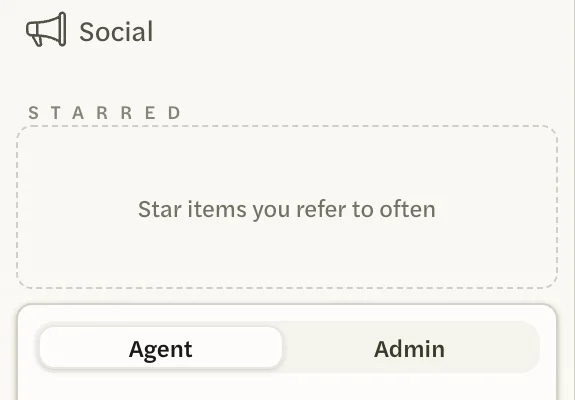
Select your name at the bottom of the left menu, then Admin. If you are an admin without the agent side of AgentIntel, the admin area opens as soon as you sign in.

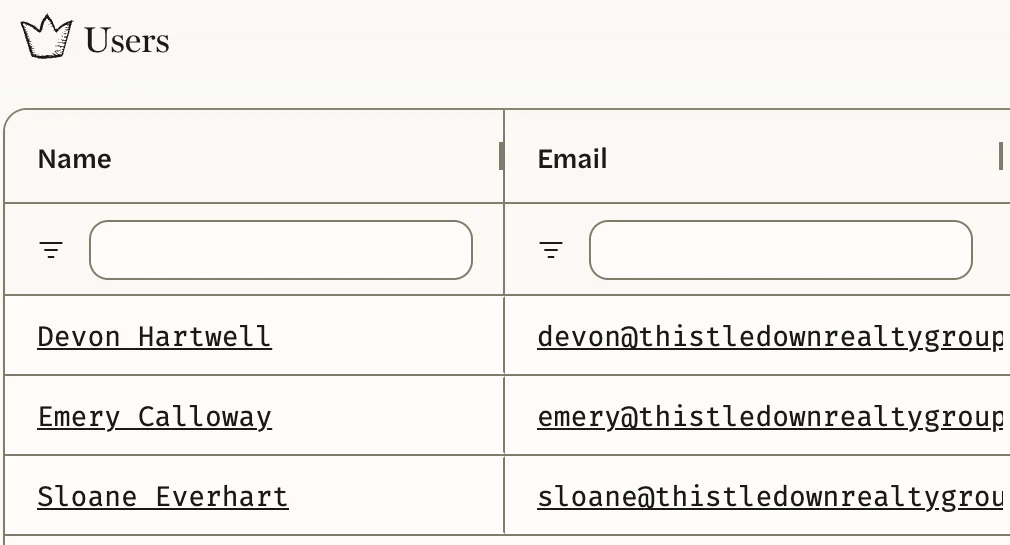
Select Users, then the agent’s name. You can also type their name in the search box on the admin area’s first page.
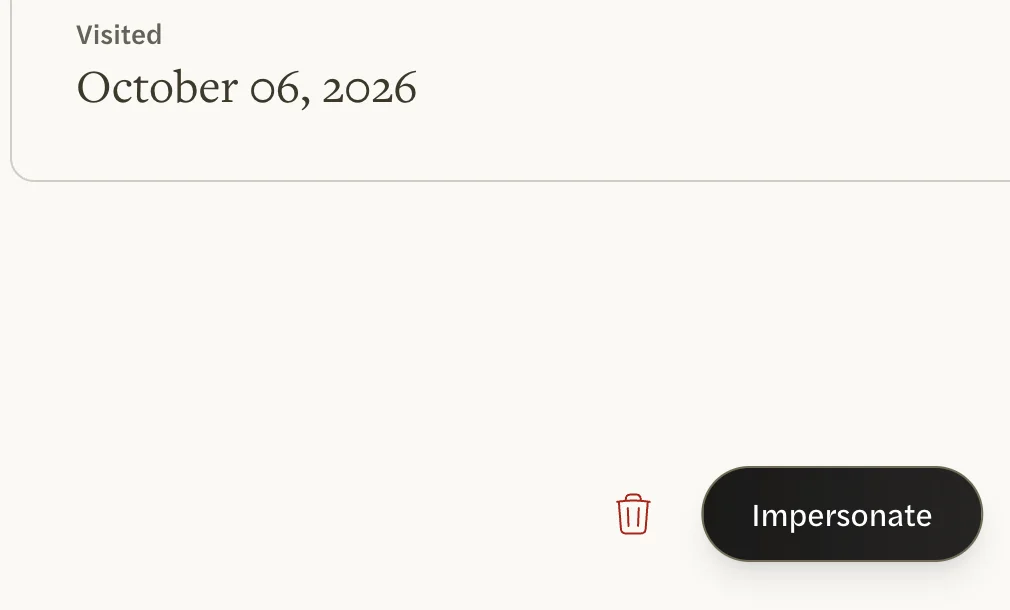
Select Impersonate at the bottom of their page.
The agent’s Dashboard opens, and you see AgentIntel as they do: their markets, reports, social posts and settings.
Admins and the account owner can view the app as any agent on the team; this page is about doing that. Agents can’t view the app as anyone else, and there is no Impersonate button on your own page.
How to tell you’re viewing as someone else
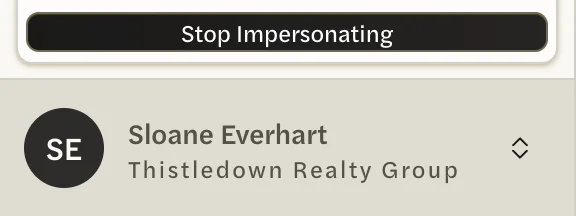
The bottom of the left menu shows the agent’s name and initials in place of yours. The menu that opens from their name starts with their email address and ends with Stop Impersonating, and it has the Agent and Admin switch only if the agent has one themselves. There is no banner across the page, so check the name before you change anything.
You stay in the agent’s view as you move from page to page, until you stop.
What you can do while viewing
- Changes are saved to the agent’s account. A market you add, a report you make, or a change to their report settings, social layouts or notification settings is theirs, exactly as if they had made it.
- Settings shows their settings. Account holds the agent’s name and email. A new name there changes theirs straight away. A new email address doesn’t take effect until it is confirmed from that address, so until then the agent keeps signing in with the old one.
- Logout signs you out. Selecting Logout on the Account tab while viewing signs you out of AgentIntel, not the agent.
- There is no Billing tab. Agents don’t have one, so you don’t see one while viewing as an agent.
- The admin area is closed until you stop. Opening it while viewing as an agent takes you to their Dashboard with the message Resource unavailable.
- It doesn’t count as the agent signing in. If they haven’t accepted their invitation yet, their page still says Invited afterwards, and Resend Invitation Email is still there.
Stop viewing as the agent
Select the agent’s name at the bottom of the left menu.

Select Stop Impersonating.
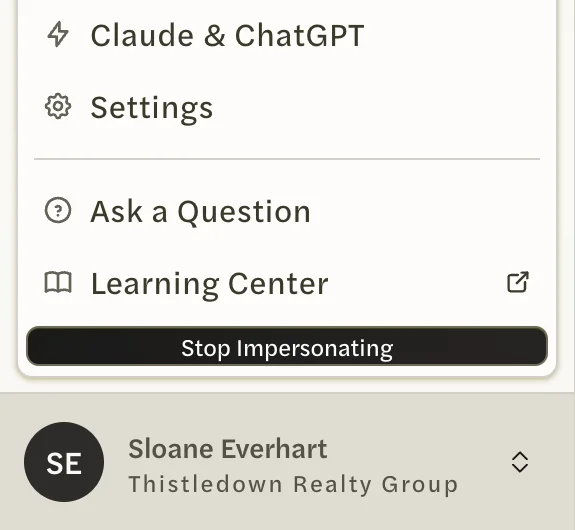
You’re back on the agent’s page in the admin area, as yourself, and the bottom of the menu shows your own name again.
Update an agent’s branding
A common reason to view the app as an agent is to update their report or social branding, for example to give an agent who joined before you set your team’s branding your team’s logo and colors. See Update agents already on your team.