Agents lists the agents in your MLS by what they closed in one market over a period you choose, with the highest sales volume at the top. It opens on your whole MLS over the last 12 months.
Rank the agents in a market
Select Agents in the left menu. The list opens on your whole MLS over the last 12 Months, with the highest total Volume first.
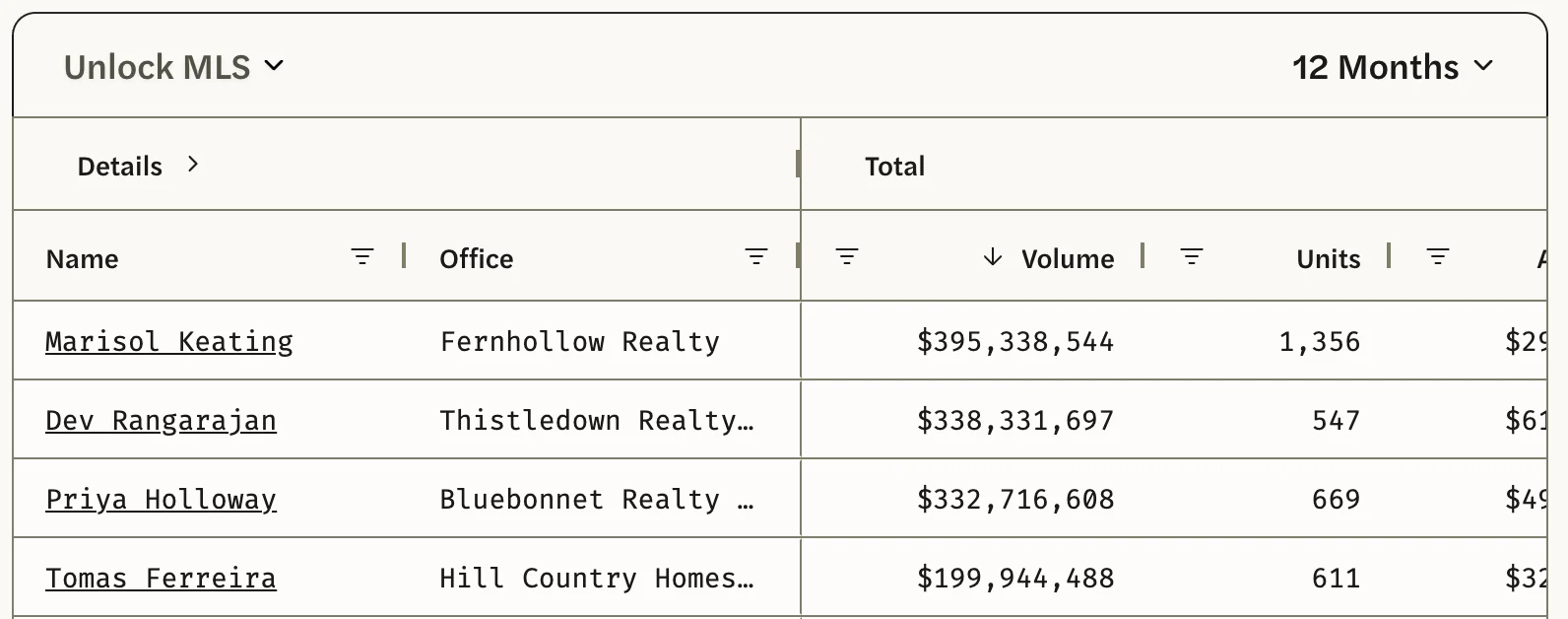
Select the market name at the top left of the list, which starts as your MLS’s name. Type the name of a neighborhood, city, county, zip code or metro. (The Search Agents box above the list finds one agent instead.)
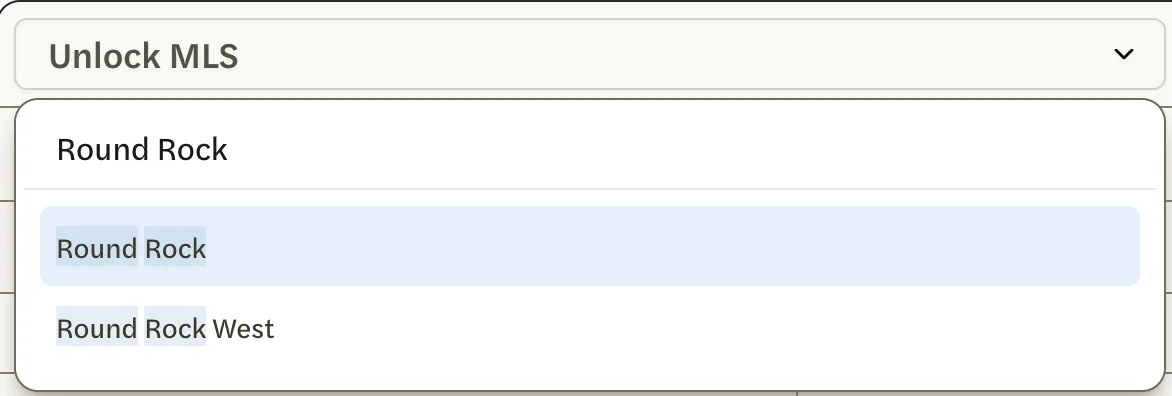
Select the market. The list reloads with that market’s agents.
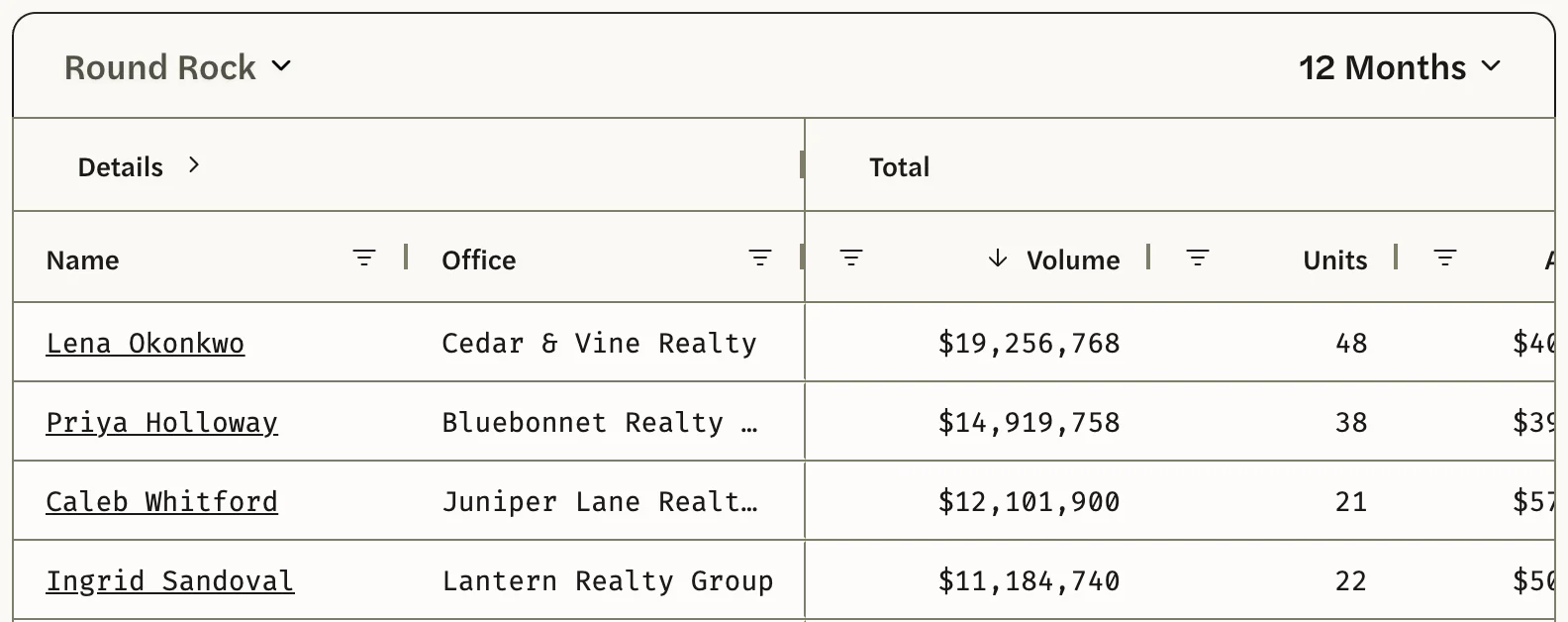
To change the period, select 12 Months at the top right of the list and choose 2 Years, 3 Years, 5 Years, 10 Years or Lifetime. The list reloads again.
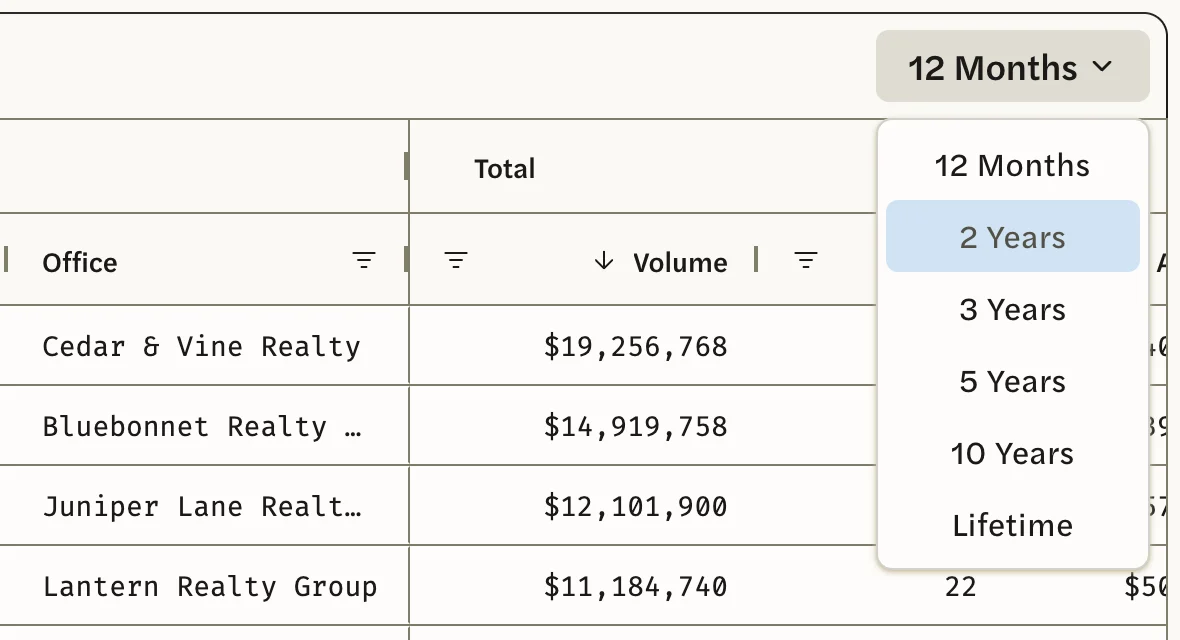
Wait for the list to finish. Agents arrive in batches, and the order shifts as they do. The Rows count at the bottom right of the list climbs as they arrive, and when it stops climbing, the list is complete.
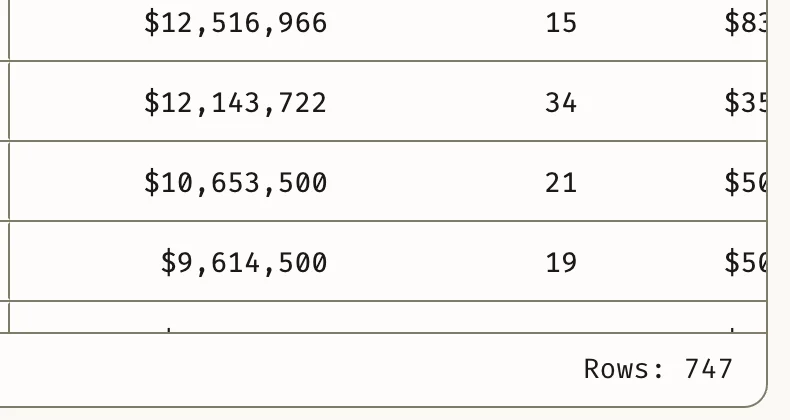
The agent at the top closed the most volume in that market and period. Each agent’s figures count only their sales in the market and period you chose, and an agent is listed only if they closed at least one sale there.
Before you type in step 2, the market list offers the markets you’ve starred or opened lately, including custom markets and versions such as Condos. Choosing one ranks agents on just that market’s sales.
Sort by another column
Select a column heading to sort by it, lowest first. Select it again for highest first, and a third time to clear the sort. An arrow beside the heading shows the direction.
- To rank by number of sales, sort by Units.
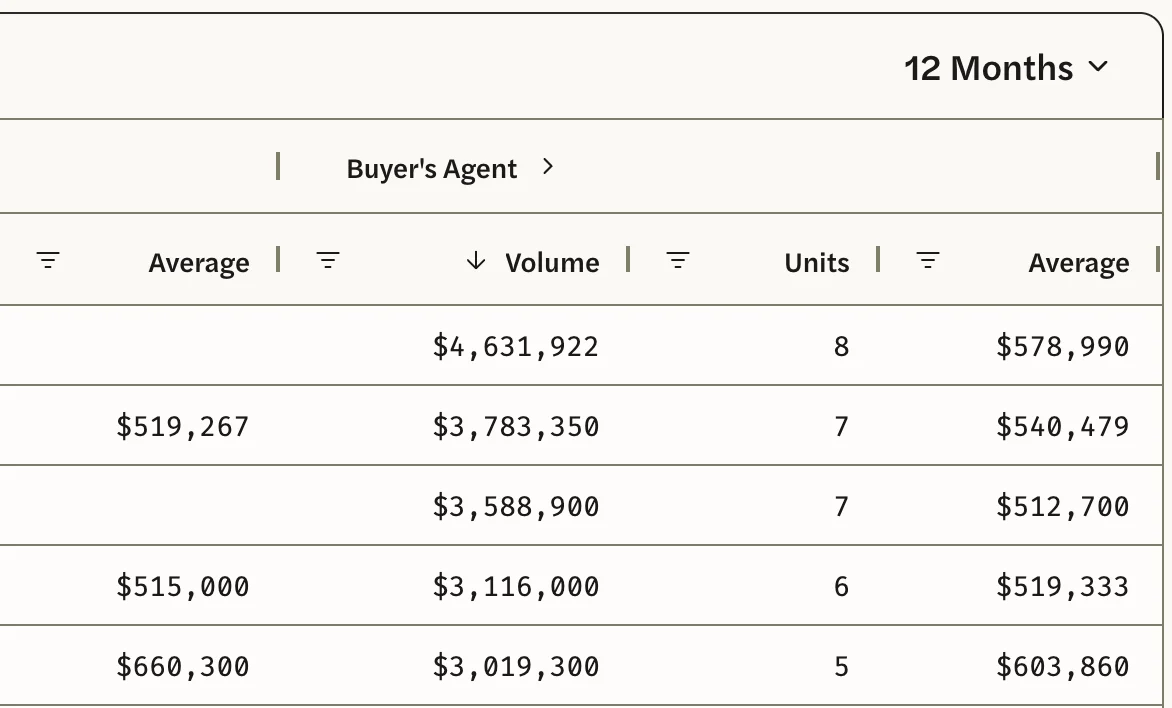
- To rank agents on the sales where they represented the seller, sort by a column under Listing Agent. For the buyer’s side, use Buyer’s Agent.
What the columns show
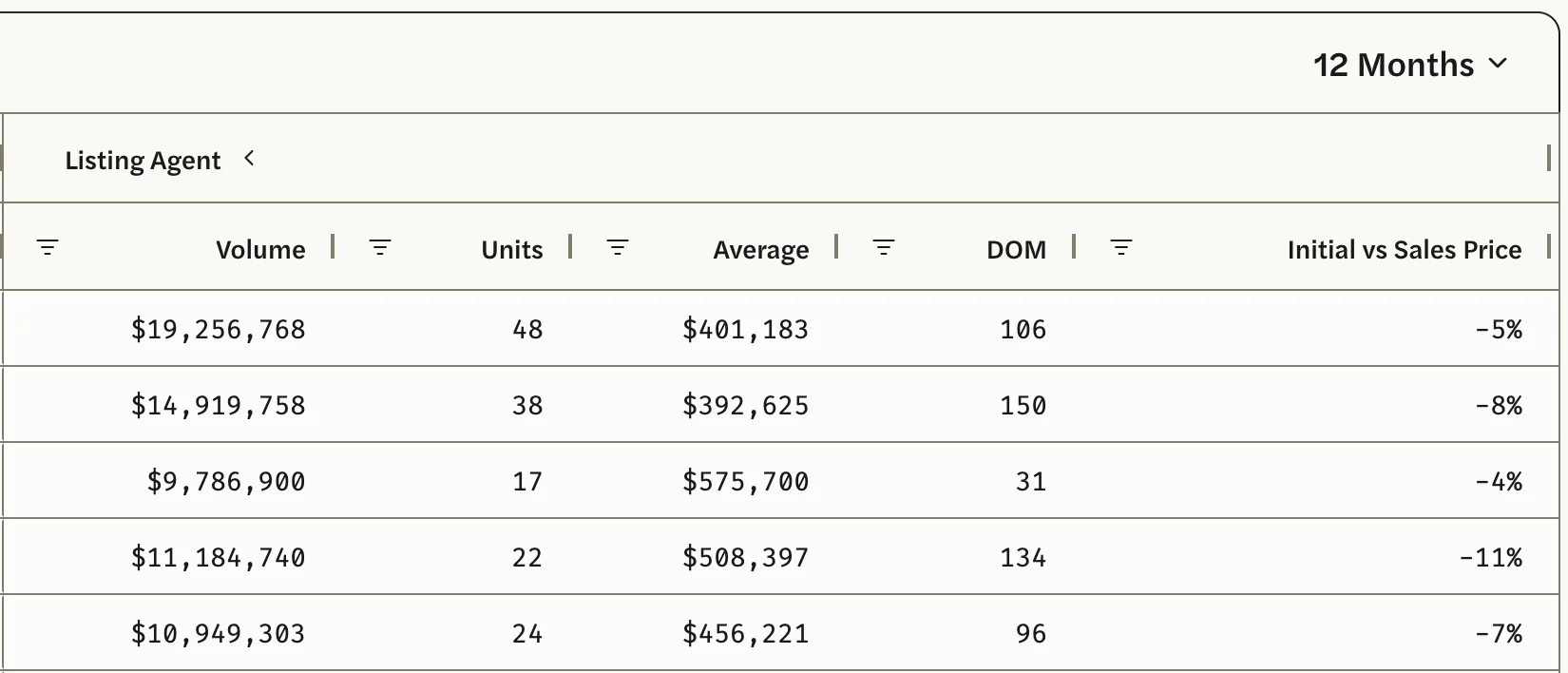
The columns sit in four groups. Scroll the list sideways to reach Buyer’s Agent.
- Details: Name and Office. Select the arrow beside Details to add Email, Phone and First Year.
- Total: Volume, Units and Average across both sides of the agent’s sales.
- Listing Agent: the same three for sales where the agent represented the seller. The arrow beside it adds DOM and Initial vs Sales Price.
- Buyer’s Agent: the same three for sales where the agent represented the buyer. The arrow beside it adds Asking vs Sales Price.
First Year is the year of the agent’s earliest sale in your MLS’s records, so for a long-serving agent it can be the year those records begin. How production is counted explains every number. Select an agent’s name to open their page: see Look up an agent.
Narrow the list
Every column has a filter. Select the icon of three short lines beside a heading, then choose a condition and type a value. For example, set Units under Total to Greater than and type 10 to see only agents with more than ten units. The bottom right of the list then shows how many agents match, such as Rows: 20 of 1,741.
To see the agents at one brokerage, filter Office: see See a brokerage’s agents.
Come back to the same list
The page address holds the market, the period and any filters, so a bookmark brings the same list back. The sort isn’t saved: the list reopens with the highest total Volume first.
Agents needs an MLS Connection, and covers only your own MLS’s agents and markets. Without an MLS Connection, or if agent data isn’t available for your MLS, Agents isn’t in the left menu. See Connect your MLS.
Good to know
- The first load can take a while. The first time a market and period are opened on a given day, a large market can take a minute or more to fill. After that, the same market and period open at once for the rest of the day.
- Places outside your MLS can’t be chosen. Typing one shows No results found. National markets have no agent data.
- Some MLSs offer fewer periods. The periods stop at what your MLS’s records cover, so where they go back less than ten years, 10 Years and Lifetime aren’t offered.
- Claude and ChatGPT can’t rank agents. They look up one agent at a time. See What you can ask.
- To work with the list in a spreadsheet, see Export agents to CSV. For agents who seem to be missing, see Troubleshooting agent data.