If you signed up without your MLS profile, you can connect your MLS at any time. Find your profile, and we email a link to the address your MLS has on file for you. Selecting that link connects your MLS straight away and adds an MLS Connection to your plan, billed with it. During a free trial, it’s free until the trial ends.
Connect your MLS
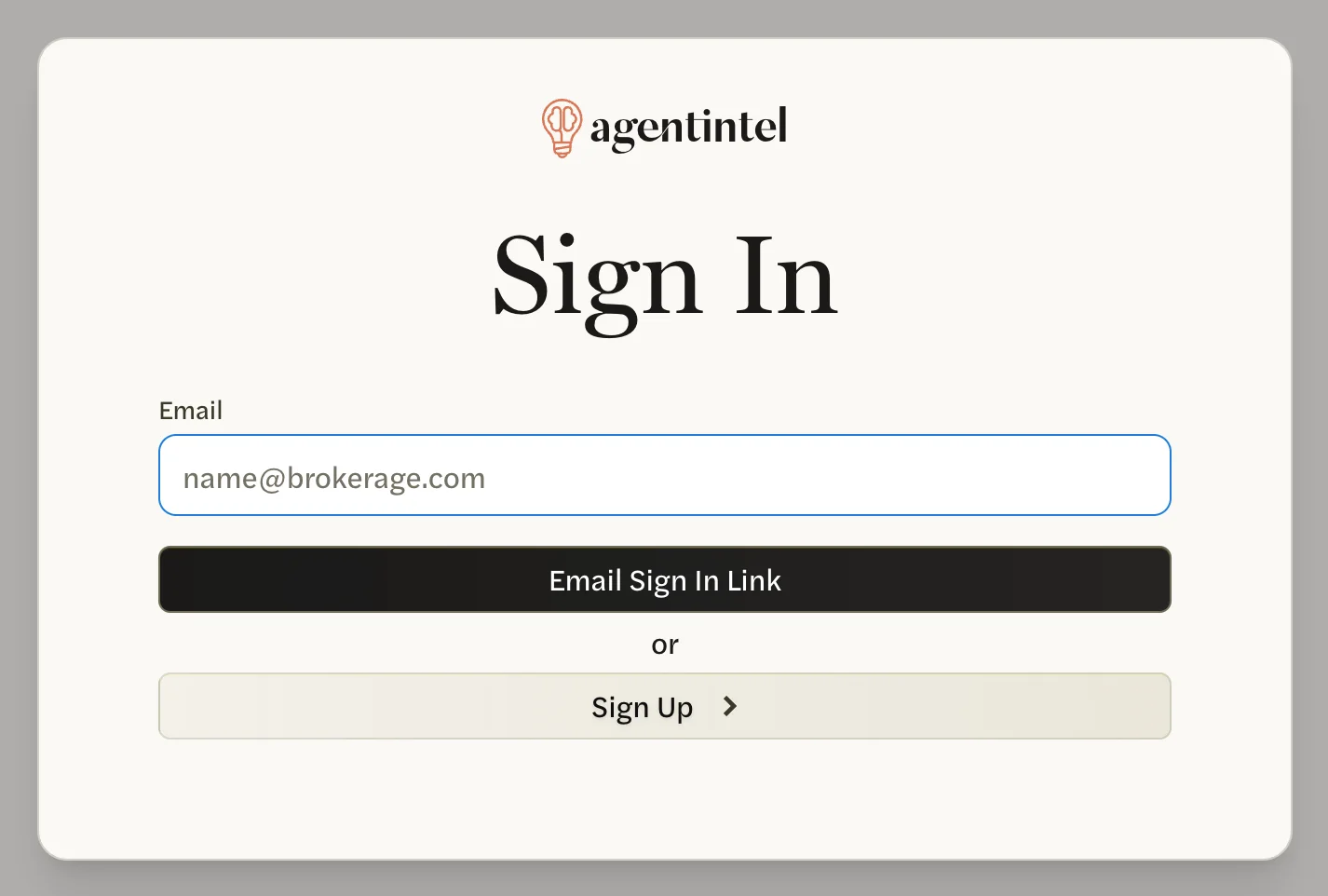
Sign in at app.agentintel.co.
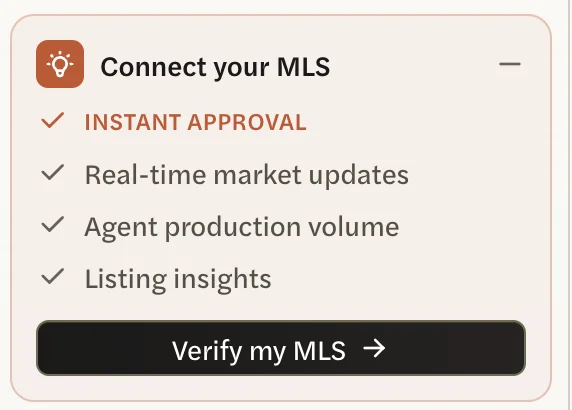
In the left menu, above your name, find the Connect your MLS card and select Verify my MLS.
If you don’t see the menu, or it shows only icons, select the button at the top left to open it out. If the card is folded down to one line, select the arrow beside it. If you dismissed the card, select your name at the bottom of the left menu, then Connect your MLS.
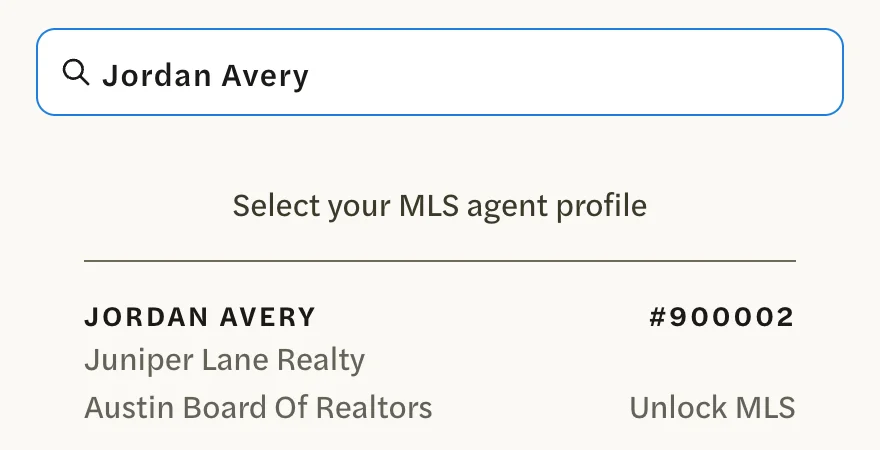
Unlock MLS Features opens. In the search box, type your name as your MLS has it, or your MLS ID. Matching profiles appear under Select your MLS agent profile as you type, each with its MLS ID, office, association and MLS. Up to 10 are listed, so if your name is common, search by your MLS ID.
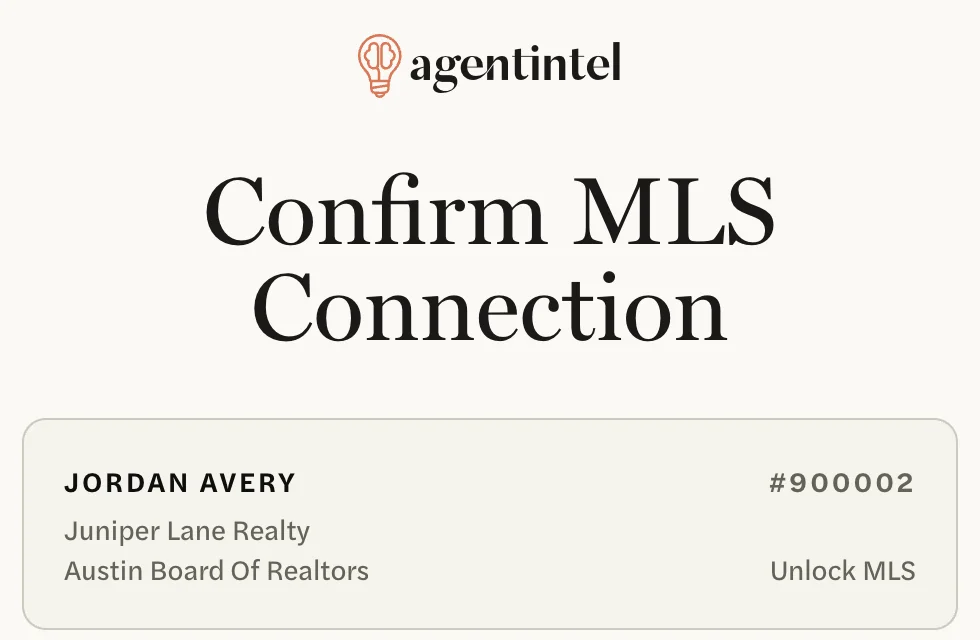
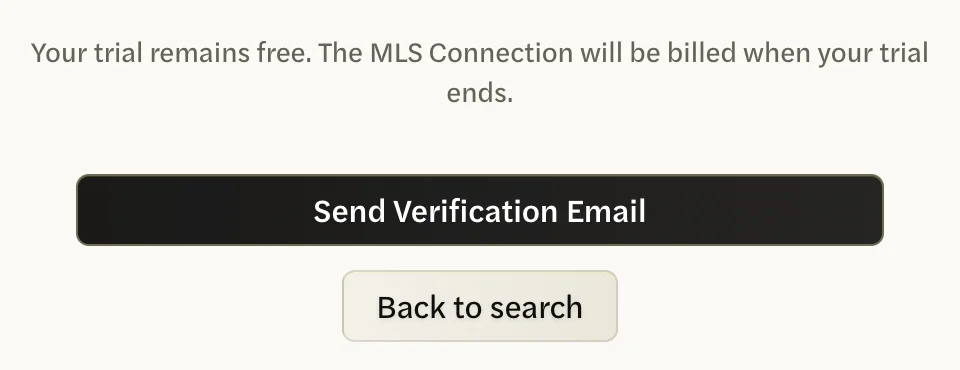
Select your profile. Confirm MLS Connection opens, showing the profile you chose, the price of the MLS Connection and what it adds. If the profile isn’t yours, select Back to search.
The email goes only to the address your MLS has on file for you, which may not be the one you sign in with. Select Send Verification Email. Nothing is charged at this step.
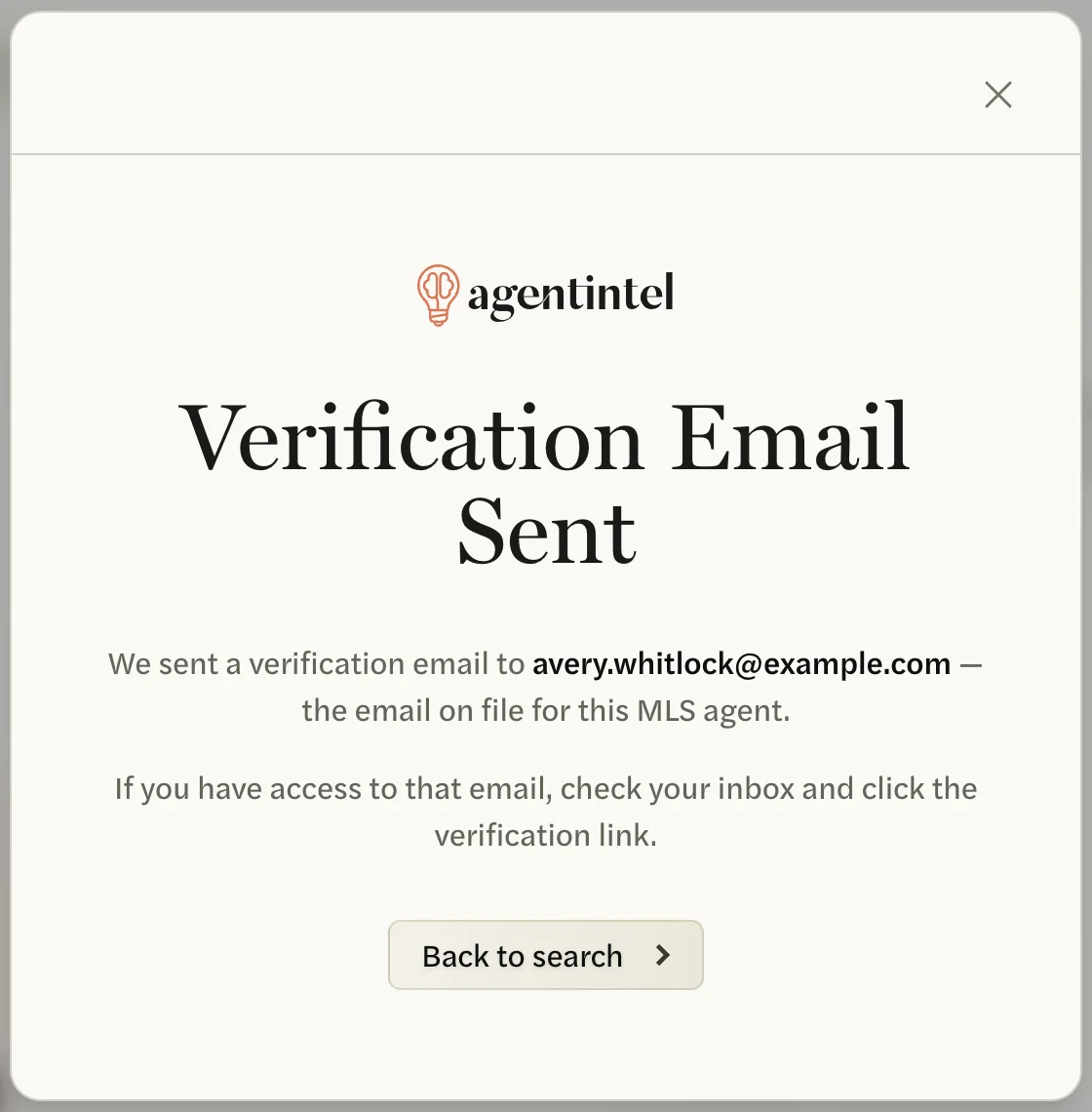
Verification Email Sent shows the address in full.
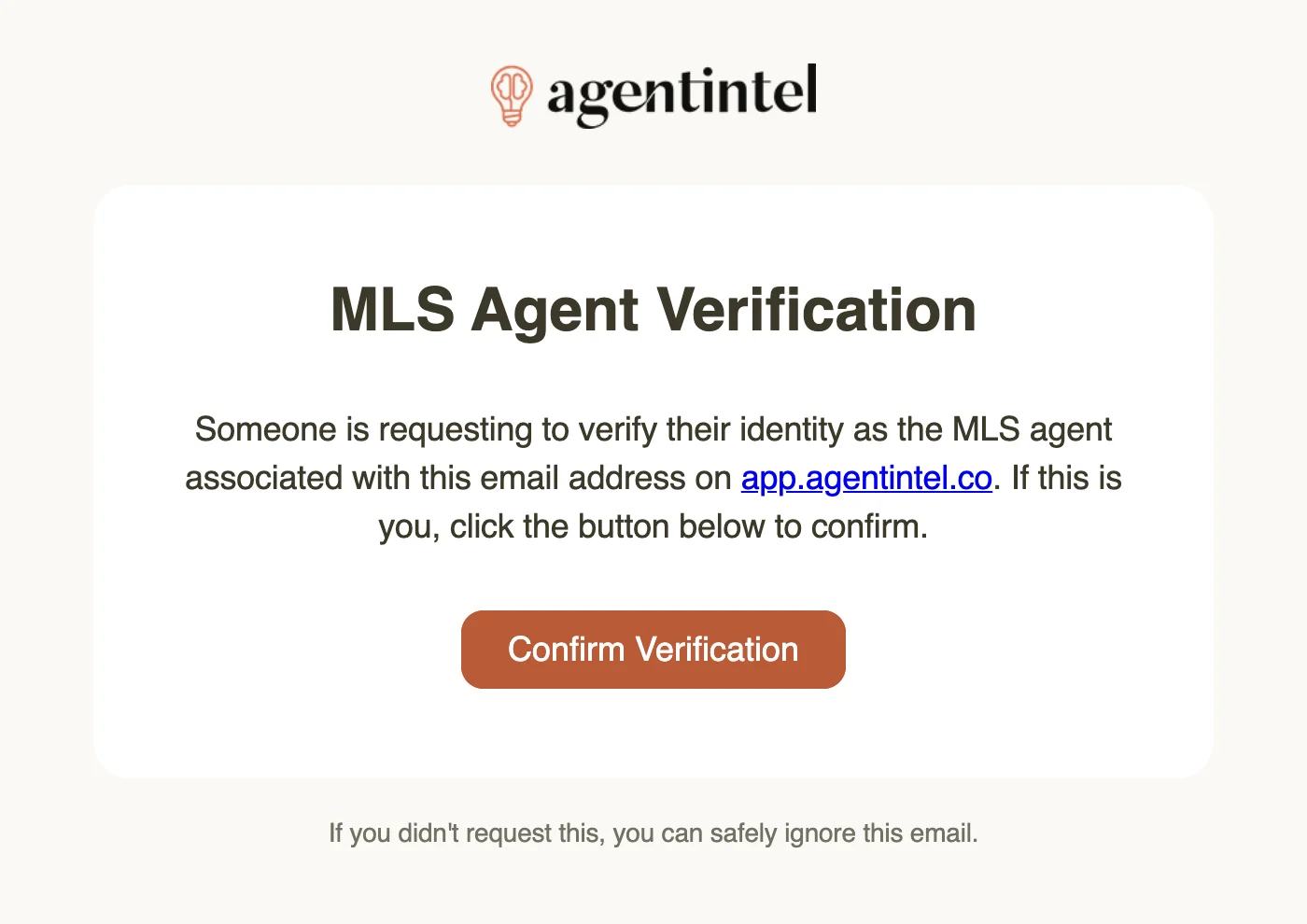
Open the email sent to that address, with the subject “MLS Agent Verification Request”, and select Confirm Verification. The link works for 24 hours, on any device.
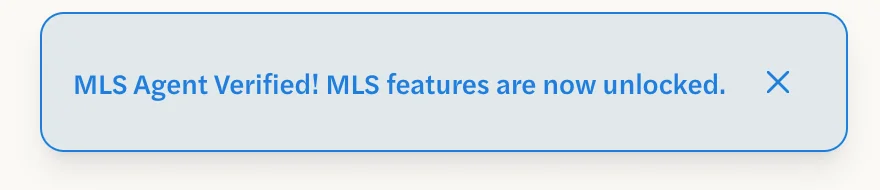
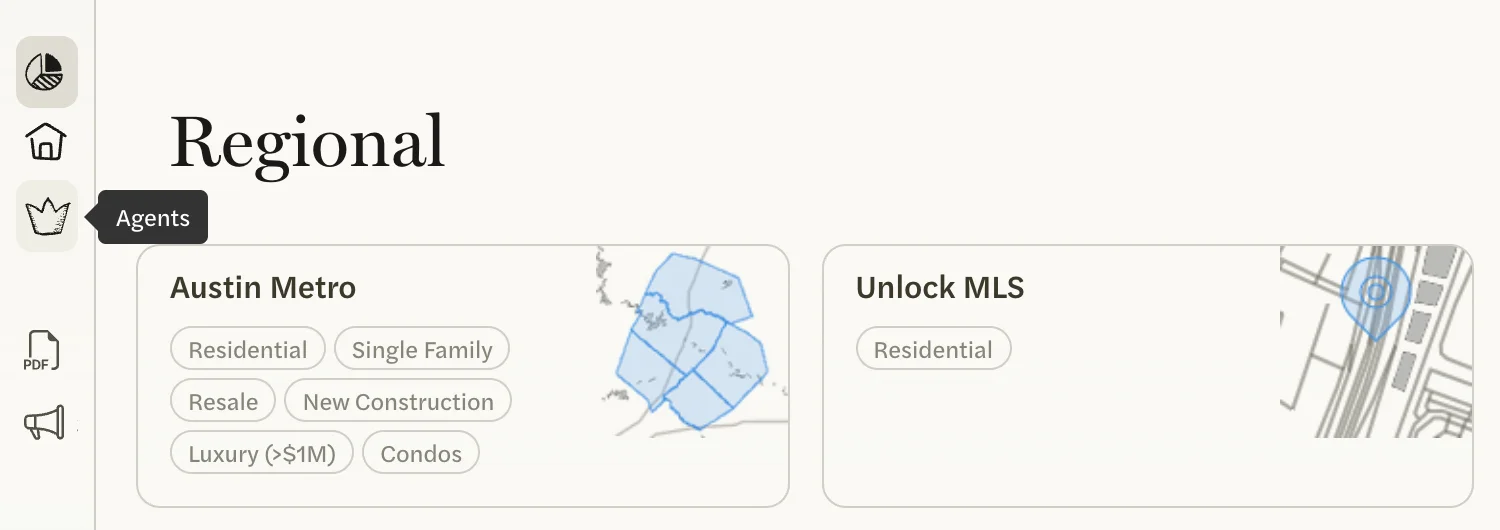
AgentIntel opens on your Dashboard with MLS Agent Verified! MLS features are now unlocked. Your MLS’s markets are on the Markets page, and Agents appears in the left menu if agent data is available for your MLS. We also email “MLS Agent Verified — MLS Features Unlocked” to the address you sign in with. If you opened the link on a device where you aren’t signed in, your MLS is connected all the same; sign in to see it.
Invited by your brokerage or team? You were connected to your team’s MLS when you were invited, so there’s nothing to do here.
If your profile isn’t listed
- Search by your MLS ID, or by your name exactly as your MLS has it.
- If it still isn’t listed, your MLS may not be one AgentIntel covers, your MLS may not show you as an active member, or it may have no email address on file for you. Your account carries on with national markets.
If the email doesn’t come
- Check the address. Verification Email Sent shows where it went. We can send it only to the address your MLS has on file for you, and you can’t change that address in AgentIntel. If it’s out of date, ask your MLS to update it.
- Look in your spam or junk folder at that address.
- The link has expired. Opening it after 24 hours shows “Verification link is invalid or expired.” Go through the steps again, and the new email carries a new link.
No card and no menu item
Connect your MLS appears only when AgentIntel works with an MLS in one of your metros. If you also work in a metro you haven’t chosen, add it in Settings under Metros; see Choose your metros. It also disappears once your MLS is connected.
What it costs
- Nothing is charged until you verify. The MLS Connection is added to your plan only when you select Confirm Verification in the email.
- During a free trial, it’s free until your trial ends, then billed with your plan.
- Outside a trial, it’s added to your plan the moment you verify, and Confirm MLS Connection notes that “A prorated charge will be applied to your current billing cycle.”
- It’s billed with your plan, monthly or annually to match, and moves with it if you switch; see Switch between monthly and annual.
- The price is on Confirm MLS Connection, before you send anything. Once you’re connected, your Billing tab names your plan AgentIntel + your MLS Connection, such as “AgentIntel + Unlock MLS Connection”.
What changes once you’re connected
- Your MLS’s markets. For the metros your MLS covers, Markets and the Dashboard search show your MLS’s markets, from your whole MLS down to neighborhoods. National markets everywhere else are still a search away. See MLS and national data.
- Custom markets. Custom Market appears at the bottom of Markets. See Create a custom market.
- Agents appears in the left menu, where agent data is available for your MLS. See Rank agents in a market.
- Your listings. My Listings and My Buyers fill in by themselves. See My Listings, My Buyers and Pre-MLS.
- Client Watch, a weekly email about your listings and past buyers. See The Client Watch email.
- Claude and ChatGPT can answer questions about listings and agents in your MLS. If you’ve already connected one, AgentIntel offers agent and listing lookups on the connection you already have. See What you can ask.
- Report branding you haven’t set yourself may be filled in for you. See Where your branding came from.
Good to know
- Your sign-in email doesn’t change. Keep signing in with the address you use now; connecting your MLS doesn’t change it.
- You can connect one MLS this way. Once you’re connected, Connect your MLS no longer appears.
- AgentIntel has no setting that removes an MLS Connection.