Every finished report has its own web page. To share a report, send the link to that page: anyone who has it can read the report in their browser and download the PDF, without an account or signing in.
Open a finished report
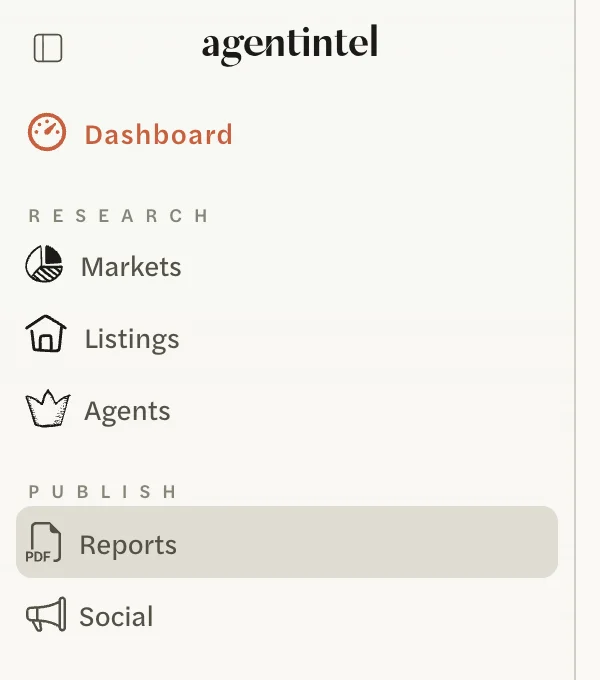
Sign in at app.agentintel.co and select Reports in the left menu.
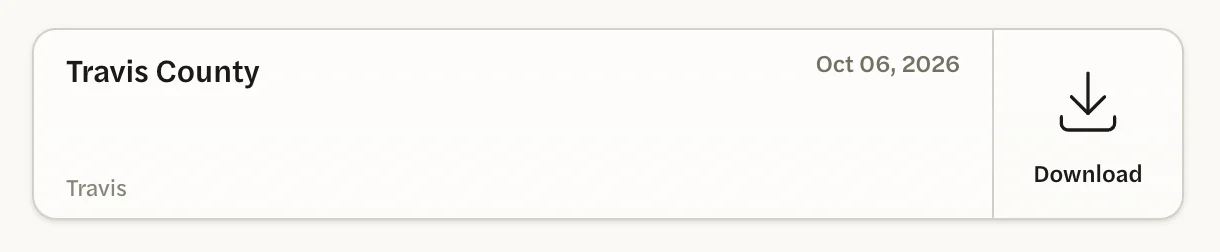
Select the report’s card. Although the card says Download, it opens the report’s page rather than a file.
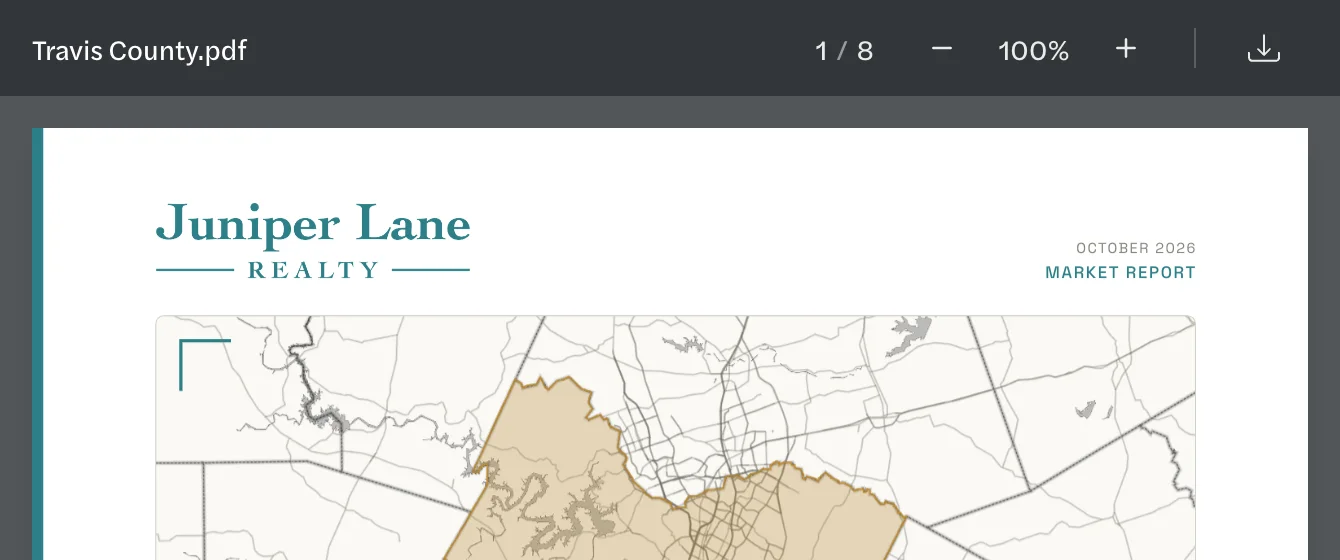
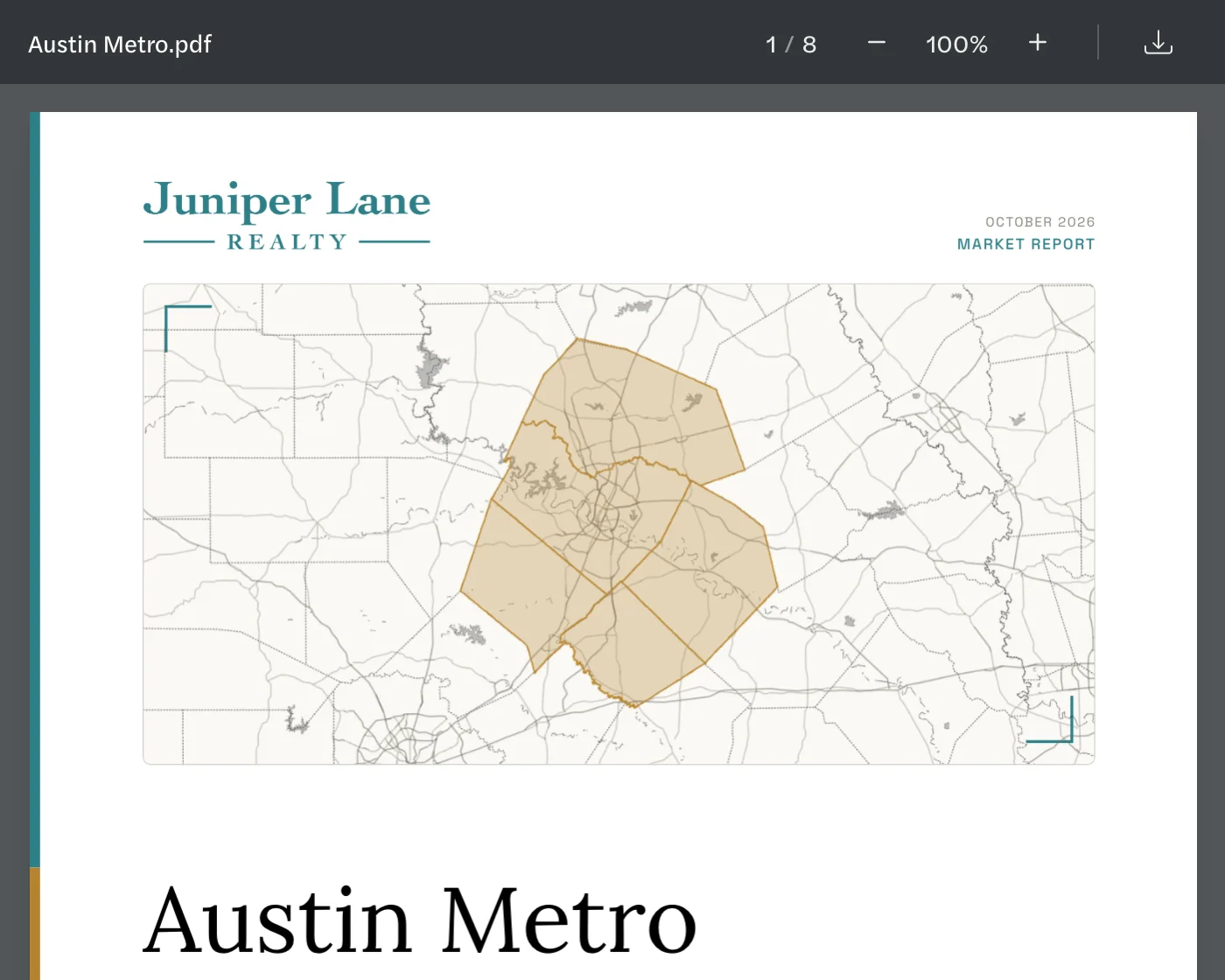
The report opens in a new tab, in a viewer like a PDF reader: the file name at the top left, and the page number, zoom buttons and download button at the top right.
Send the link to a client
Anyone who has the link can open the report, and a link can’t be turned off later, so send it only to the people you want to have it.
Open the report as above.
- Copy the address from your browser’s address bar. It starts with agentintel.co/reports/.
- Paste it into an email or a text message to your client.
There is no share button in AgentIntel: the page’s address is the link. The Download Report button in the email AgentIntel sends when a report is ready opens the same page.
Download the PDF
Open the report as above.
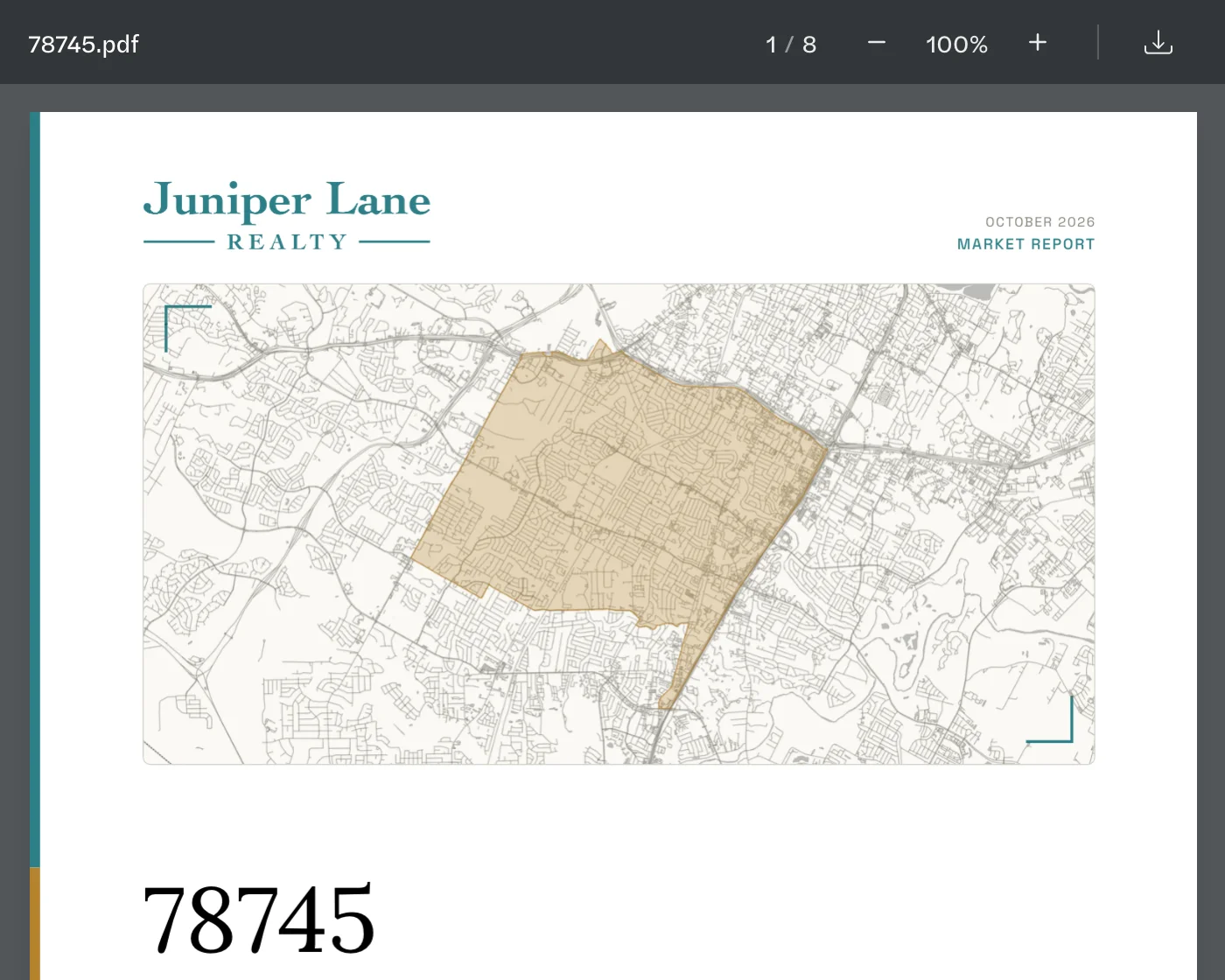
Select the download button, the arrow at the top right of the page. On a Mac you can press Cmd+S instead, and on Windows Ctrl+S.

The PDF is saved with the report’s name and the date it was made, such as Travis County 2026-10-06.pdf.
What your client sees
- The report and nothing else. The page shows your branded report with no AgentIntel menus, and asks for no sign-in.
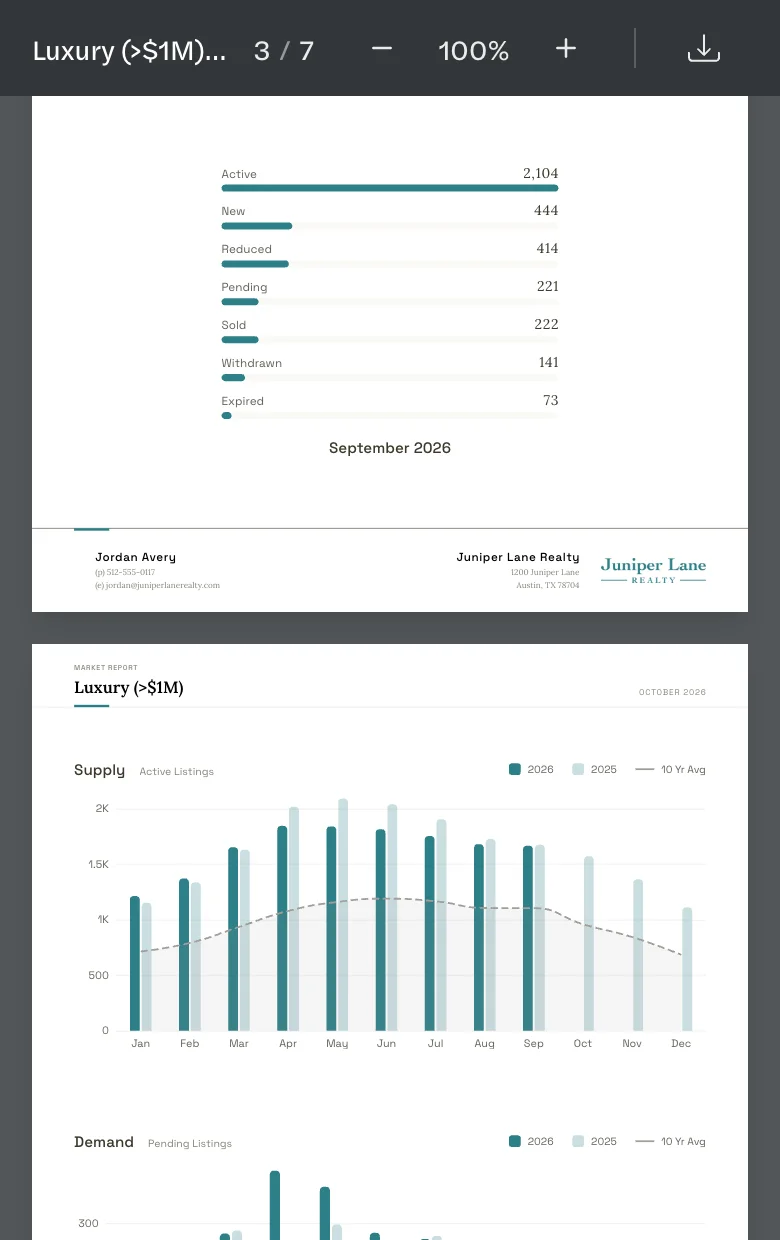
- The same tools you have. They can scroll through the pages, zoom from 50% to 300%, and download the PDF.
- It works on a phone. The pages fit the screen, and the page number follows as they scroll.
If AgentIntel emailed you a report and you don’t have an account, see I was emailed a report and don’t have an account.
Good to know
- Links don’t expire. There is no way to make a report private or take its page down.
- Links keep working if you cancel. Clients can still open reports you have already sent.
- A report doesn’t change. It shows the figures and branding it was made with. To send newer figures, generate a new report and send its link.
- Reports made by Claude or ChatGPT have a link too, and it works the same way. See What you can ask.