Pick a market on the Reports page, or select Generate Report at the bottom of the screen on a market page. The report opens in a new tab with your branding, ready to share, and is kept on your Reports page.
Generate a report from the Reports page
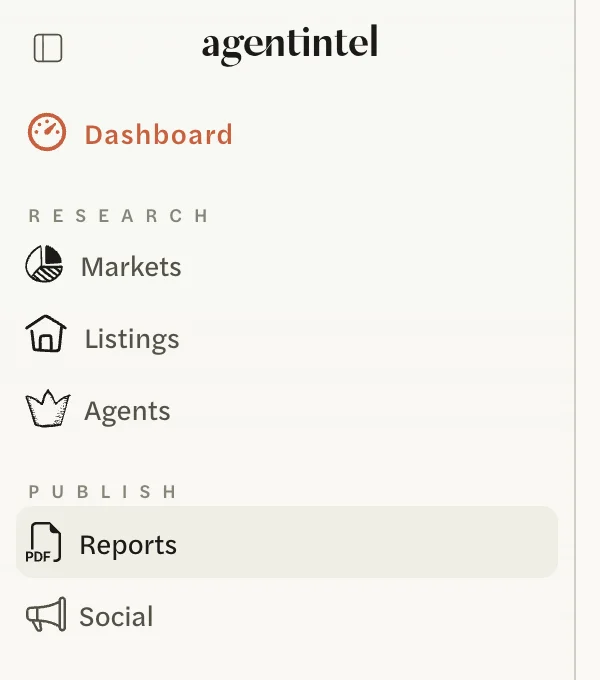
Sign in at app.agentintel.co and select Reports in the left menu.
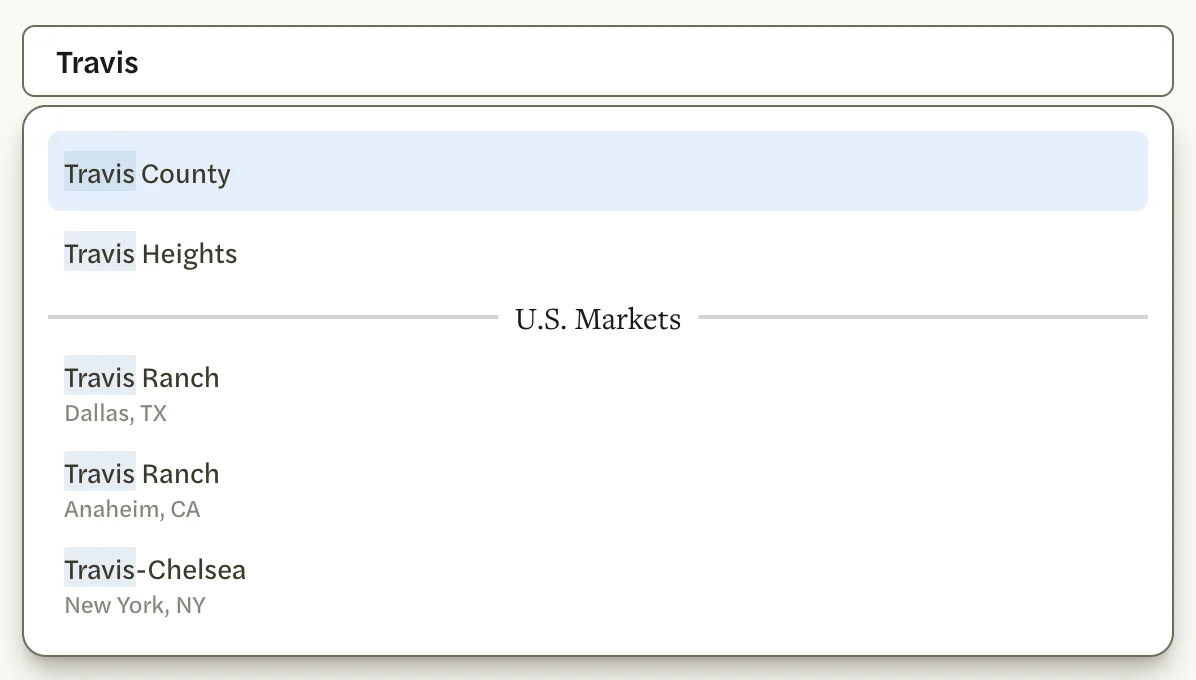
Select the Generate a Report box and type the name of a place, such as a city, county, zip code or neighborhood. Your MLS’s markets are listed first, then national markets under U.S. Markets. Before you type, the box lists your starred and recently used markets.
There is no confirm button: selecting a market starts the report straight away.
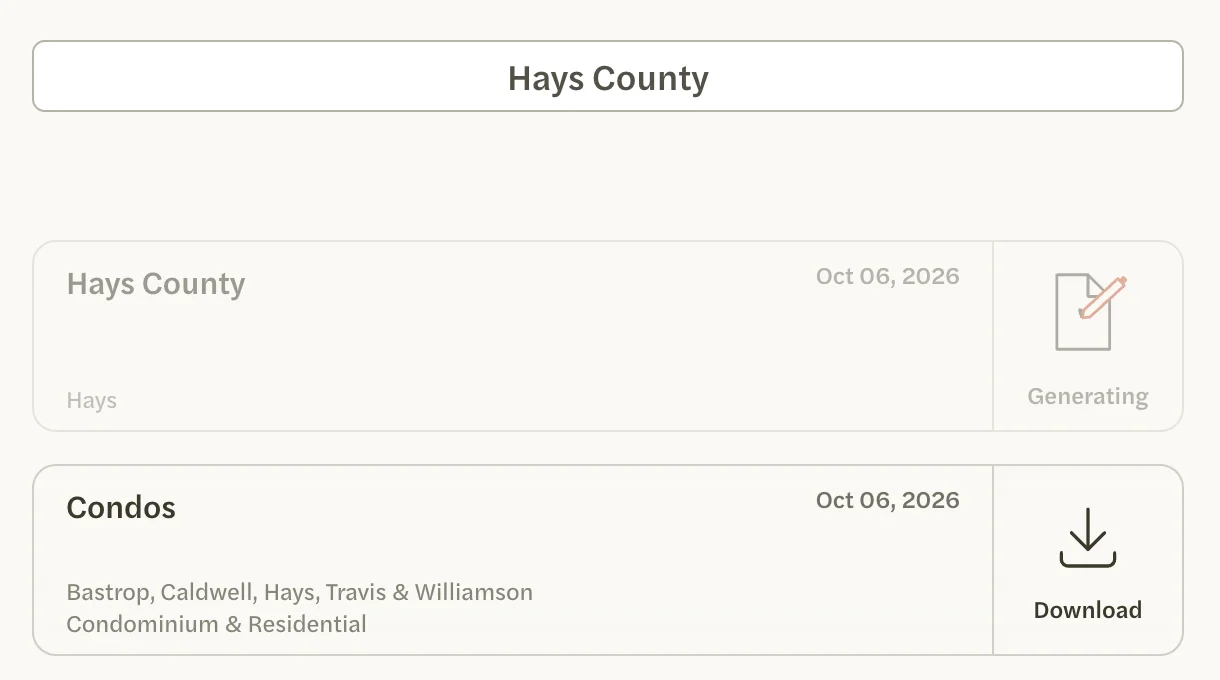
Select the market. A new tab opens, and the report’s card appears at the top of your list.
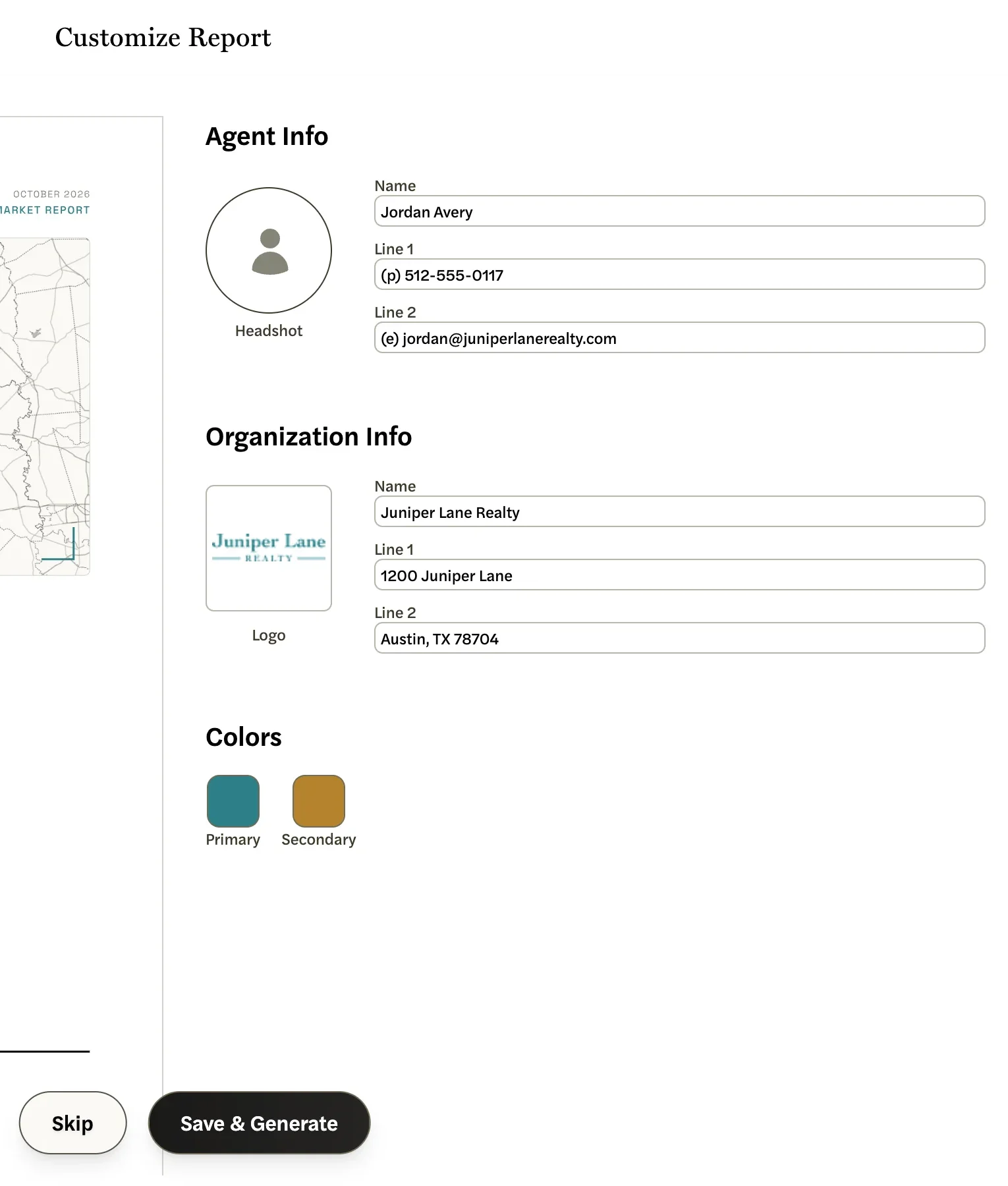
The first time you make a report, the new tab shows a Customize Report screen with your report settings beside a preview of a report. Check your name, contact lines, brokerage details and colors, then select Save & Generate. Changes you make on this screen save as you type. After Save & Generate, the screen doesn’t appear again.
While the report is built, the tab says “Generating Report”. Then it shows the finished report. To send it to a client or save the PDF, see Share or download a report.

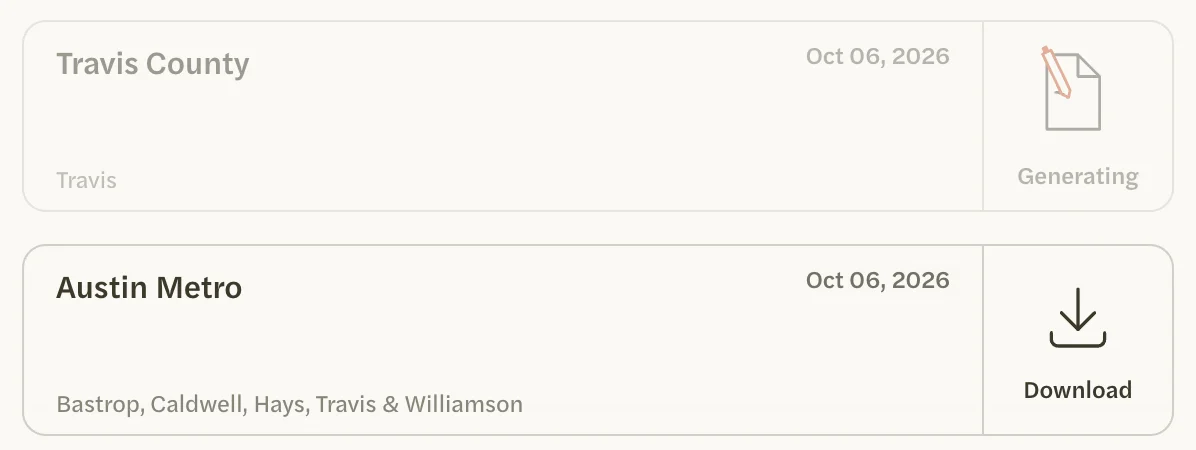
On the Reports page, the card says Generating while the report is being built, and changes to Download by itself once it’s ready. If the report has opened but its card still says Generating, reload the page.
If you select Skip instead of Save & Generate, the report is made the same way, but the Customize Report screen appears again with your next report. See Customize your report for what each setting changes.
If no new tab opens, or you close it before the report appears, the card keeps saying Generating. Select the card: the report opens in a new tab and finishes there.
Your MLS’s markets are offered only with an MLS Connection. Without one, you can make reports on national markets. See Connect your MLS.
Generate a report from a market page
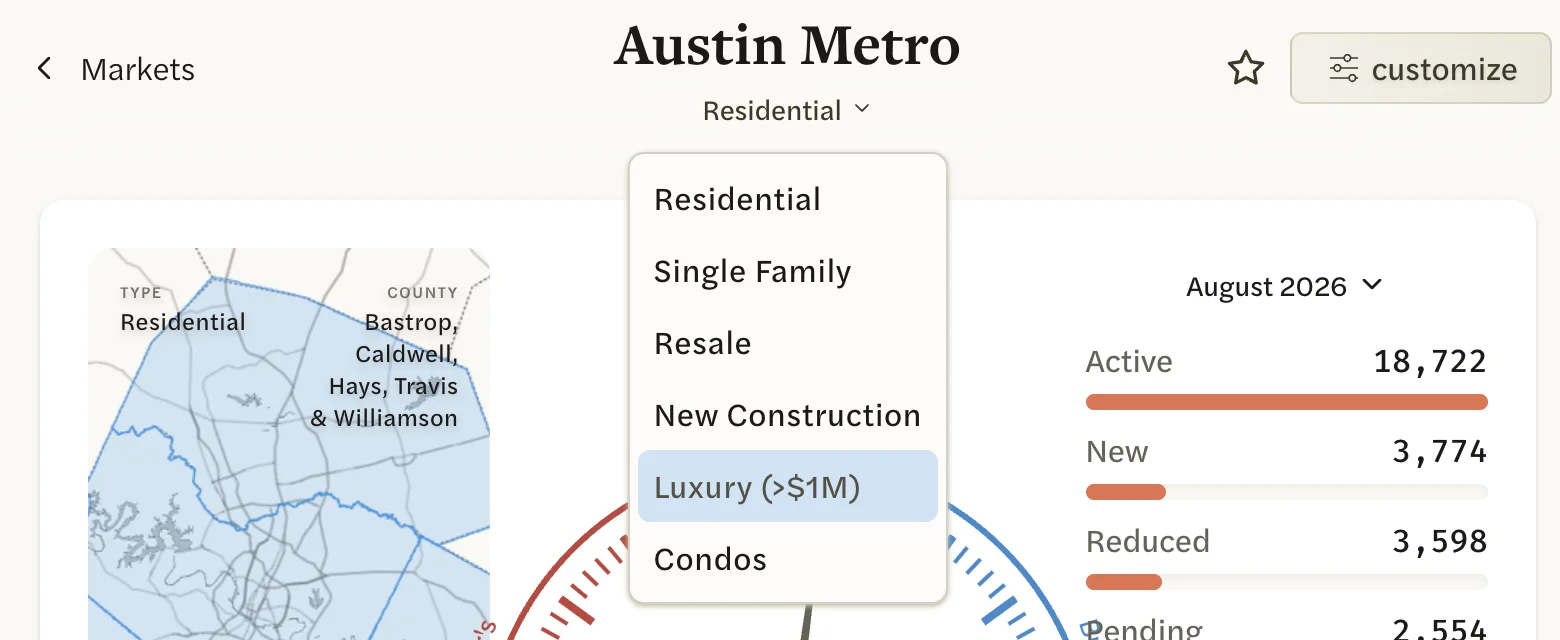
Open the market, and choose the version you want with the button under its name, such as Residential or Luxury (>$1M) on an MLS market, or Condo/Co-op on a national market. See Compare periods and property types.
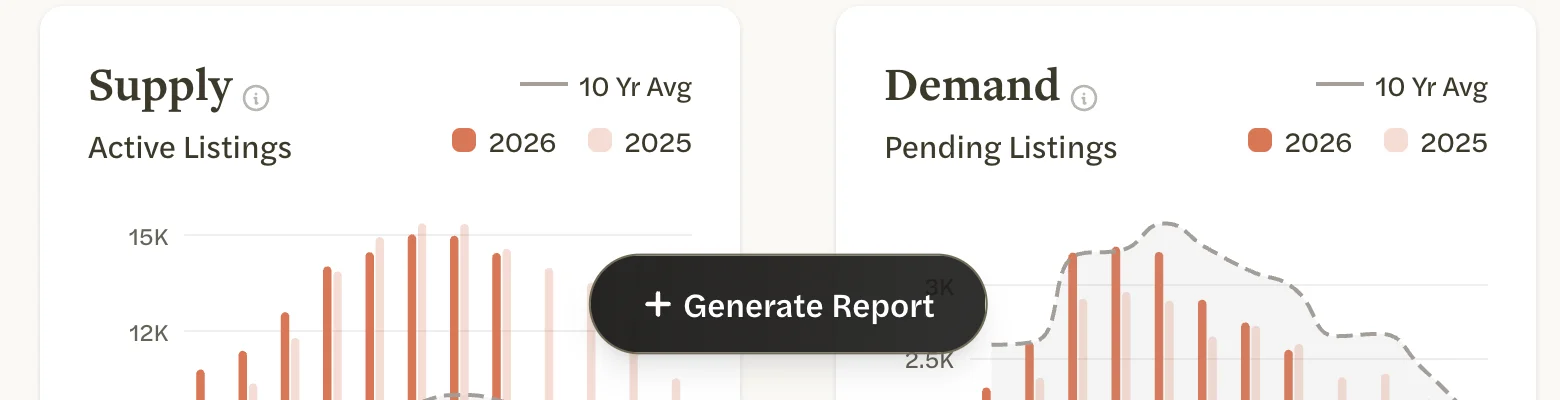
Select Generate Report. The button floats at the bottom of the screen, so you don’t need to scroll to it.
The report opens in a new tab, as above, and covers the version you were looking at:
- An MLS market report takes the name at the top of the market page. A version such as Luxury (>$1M) gives a report titled “Luxury (>$1M)”; its cover lists the area under GEOGRAPHY and the kind of home and price limit under CHARACTERISTICS.
- A national market report covers the property type you had selected, printed on the cover under CHARACTERISTICS. Its title is the place name only, whatever the property type.
A national market picked on the Reports page always gives an All Residential report. For another property type, start from the market page.
A report made from a listing’s page is titled with the listing’s street address instead of the market’s name. See Look up a listing or address.
Find your reports later
Every report you make is listed on the Reports page, newest first. Each card shows the report’s name and the date it was made. For an MLS market, the card also shows the area, unless it is the same as the name, and the kind of home and any price limit, such as “Residential & $1,000,000+”, unless it is plain Residential. A national report’s card shows only the place name, so two reports on the same place look alike; the cover shows which property type each one covers.
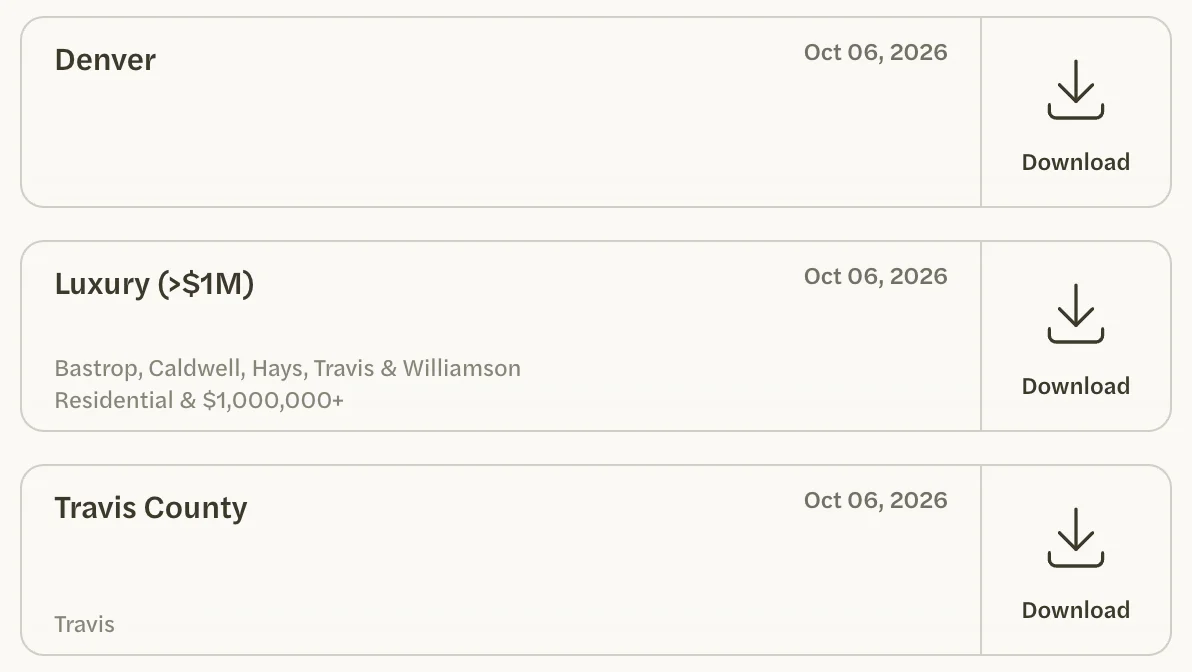
Select a card to open the report in a new tab.
Good to know
- AgentIntel emails you when the report is ready. The email, “Your Travis County Market Report is Ready” for example, has a Download Report button that opens the report.
- A report doesn’t change after it’s made. It keeps the figures and the branding it was made with. To update one, make a new report; the earlier one stays in your list.
- Reports can’t be deleted, renamed or remade. Every report you make stays on your Reports page.
- Claude and ChatGPT can make reports too. Those reports are listed on your Reports page like any other, but don’t send the email. See What you can ask.
- For what each page of a report shows, see What’s in a report.