Upload your logo in your report settings, then select the version you want printed. It appears at the top of each report’s cover and at the bottom right of every other page, beside your brokerage’s name and address.
Add a logo
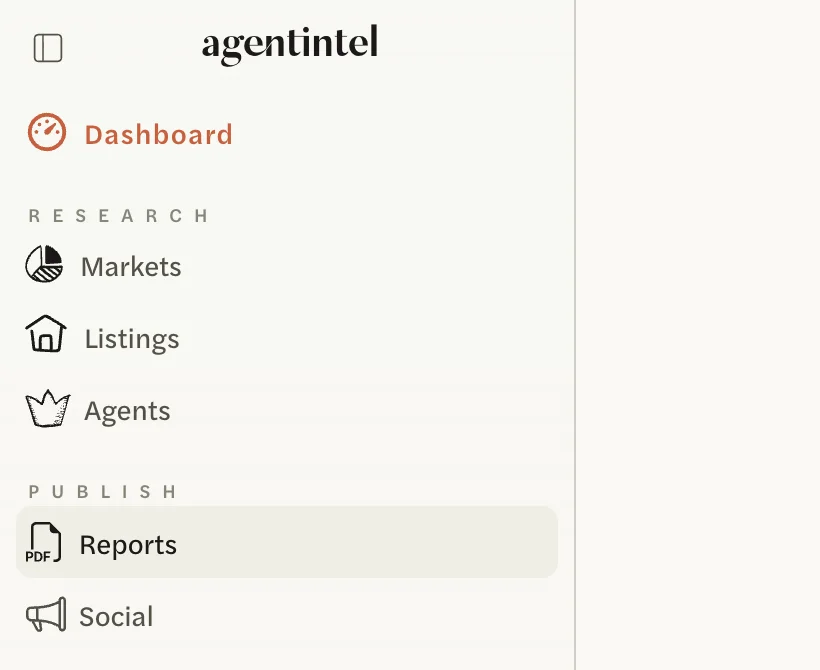
Sign in at app.agentintel.co and select Reports in the left menu.
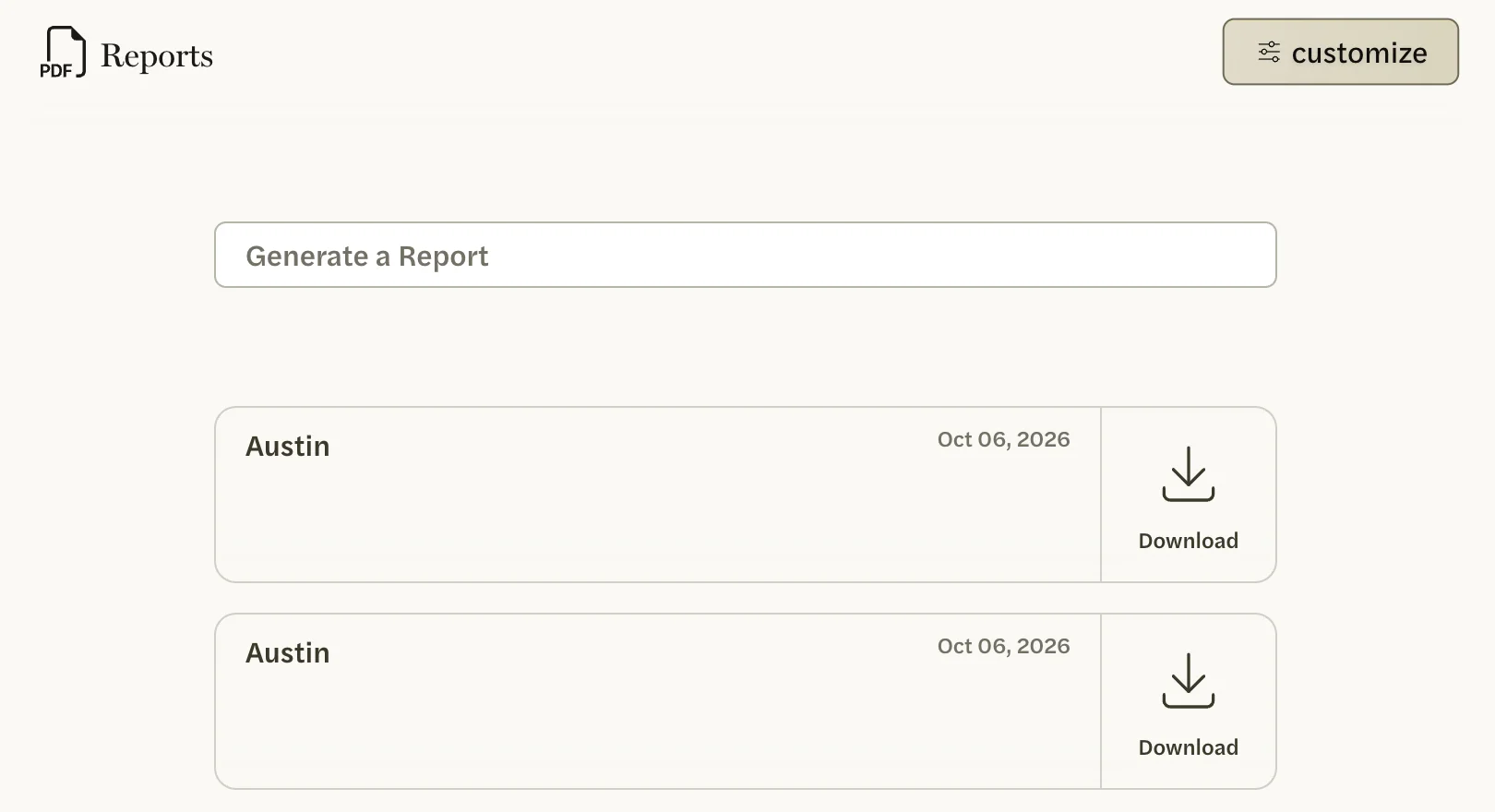
Select customize at the top right. On a phone or a narrow window, the button shows only its icon. The Headshot & Settings page opens, with a preview of a report on the left.
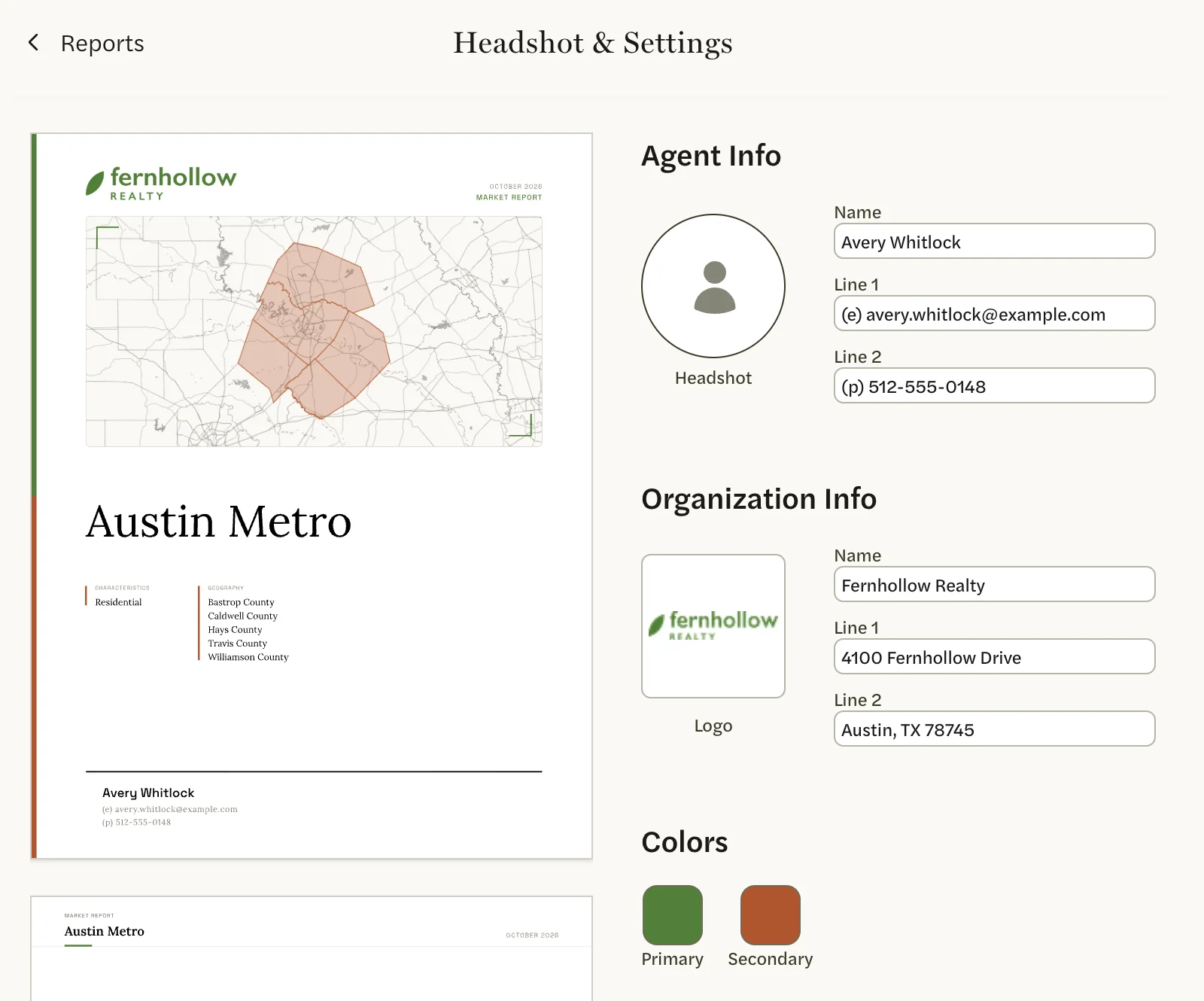
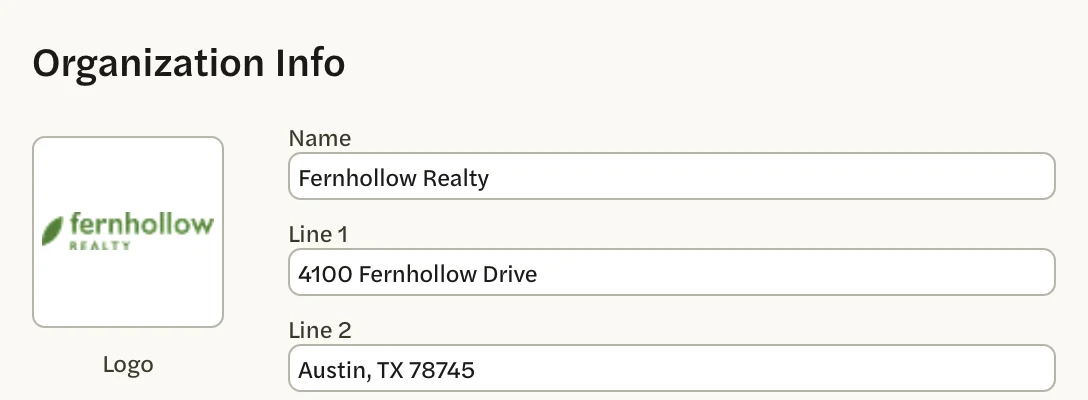
Under Organization Info, select the Logo square.
In the Logo Picker, select Manage.
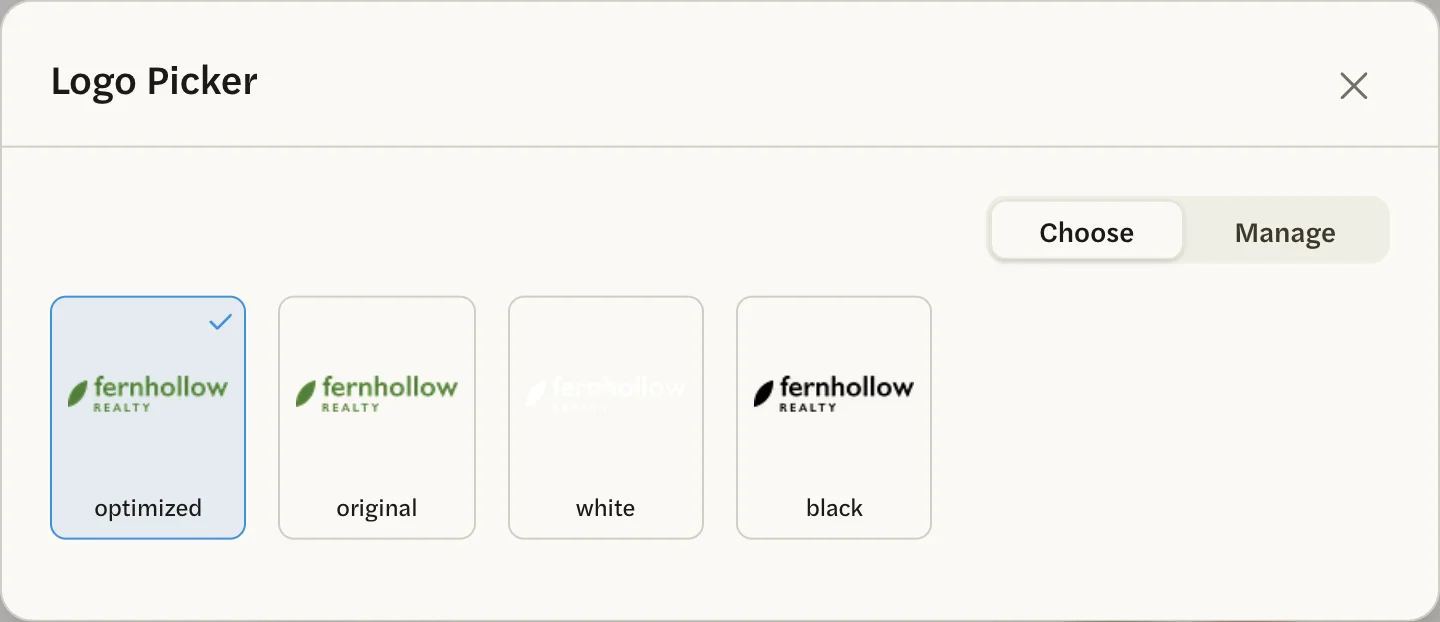
Select Click or Drag & Drop images anywhere and choose your logo file, or drag the file onto the window. PNG, JPG and SVG files all work.
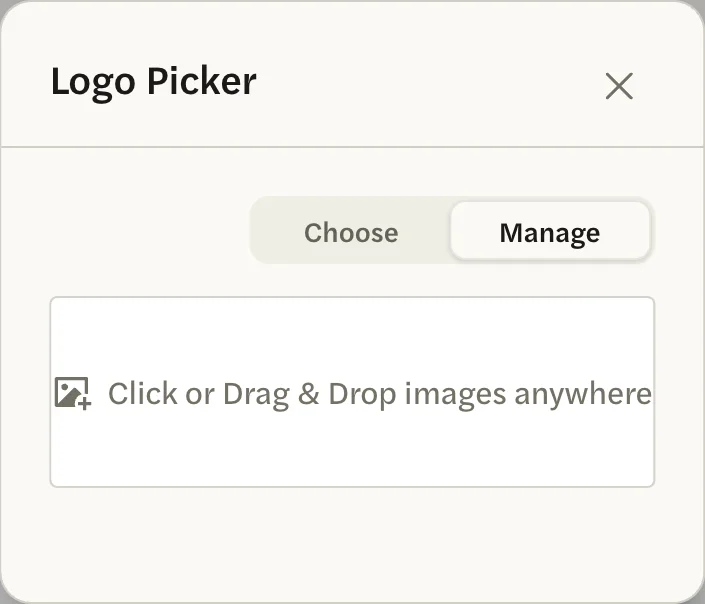
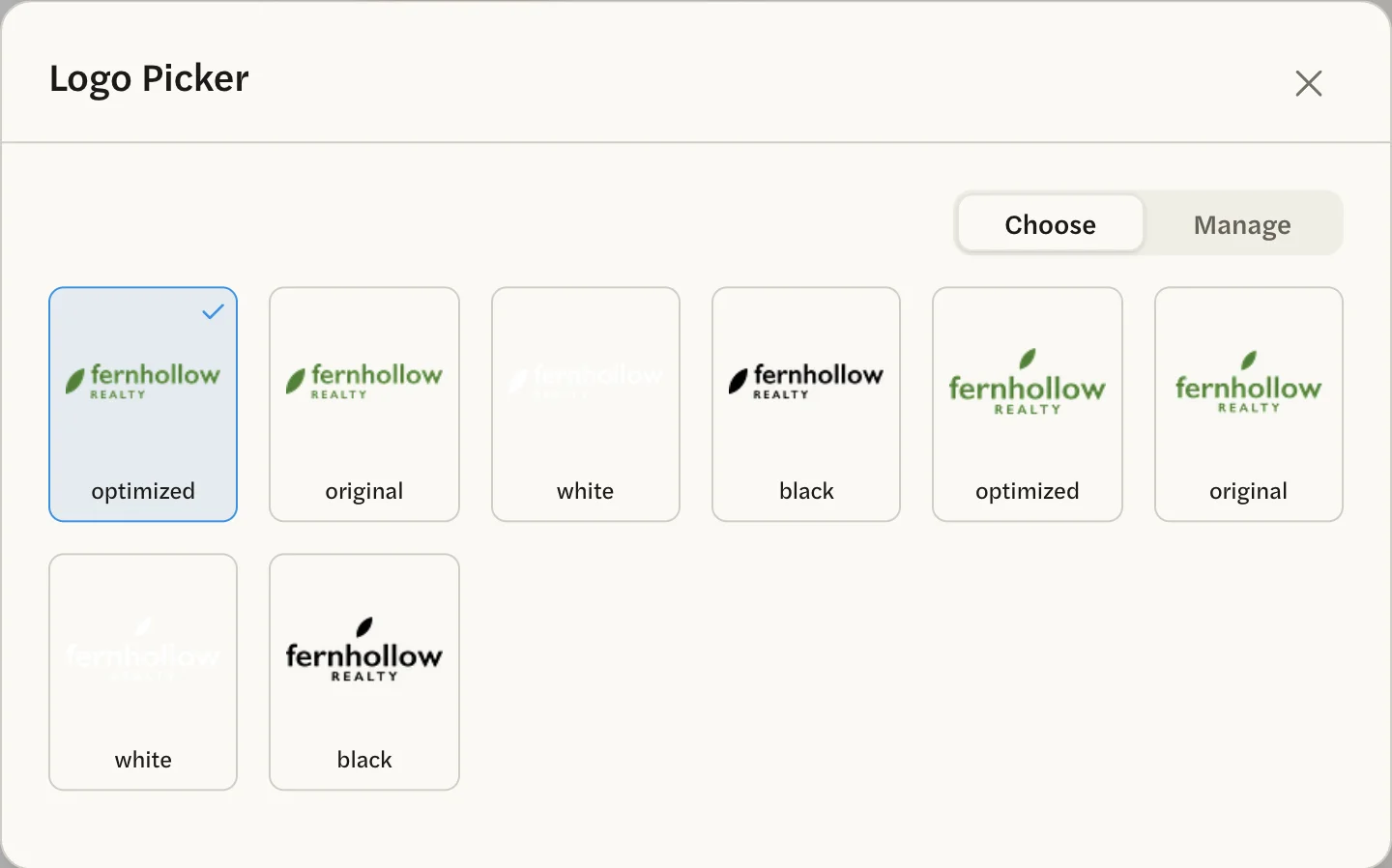
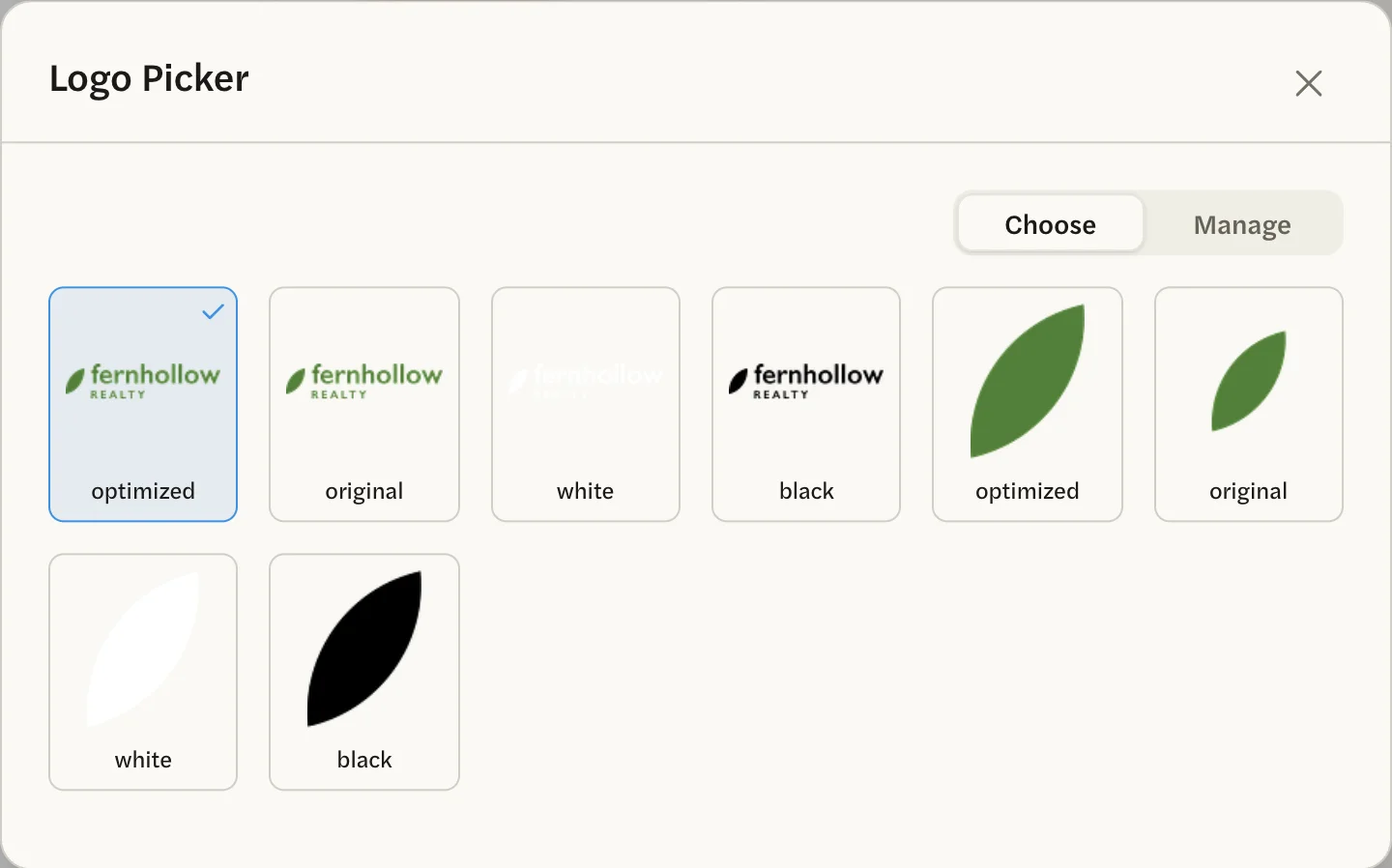
When the upload finishes, the picker shows the versions of your logo. Select the one you want on your reports (the versions are explained below). Select one even if a version already shows a tick: your choice is saved only when you select it.
The picker closes and the preview shows your logo on the cover.

Choose which version prints
To change the version later, select customize on the Reports page, then the Logo square. The picker opens on Choose, with every version of every logo you have added. Select one.
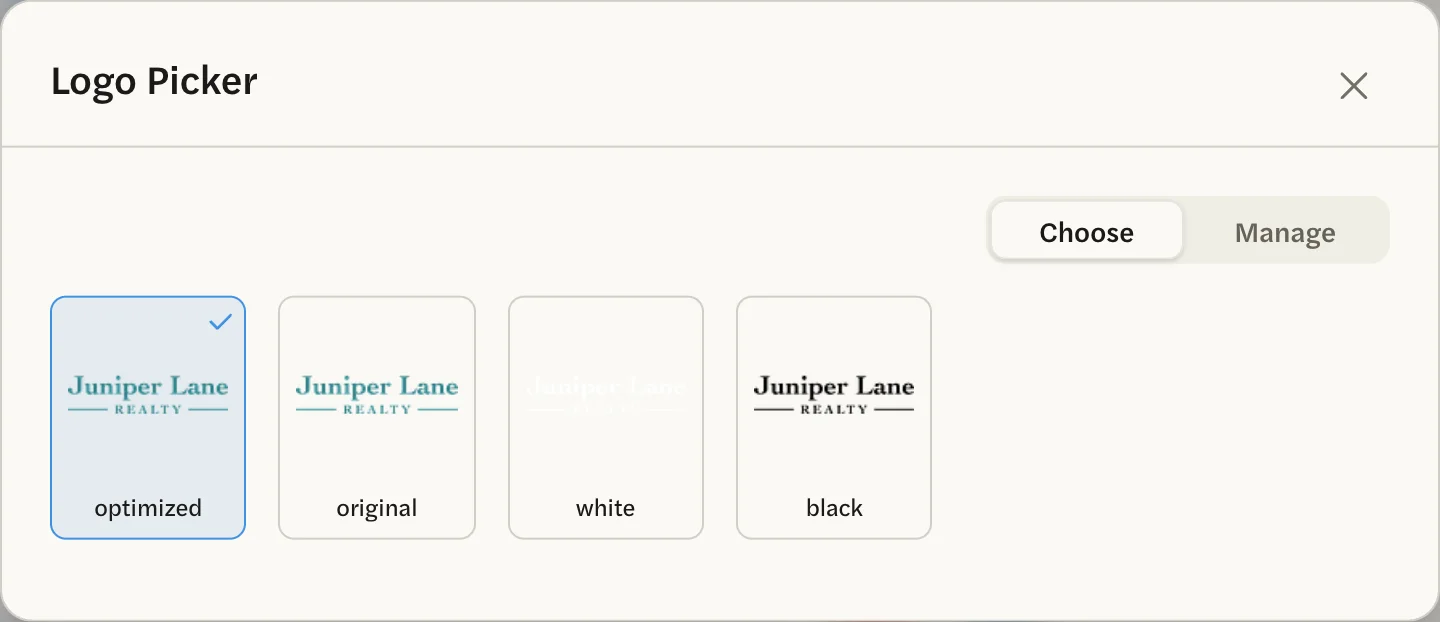
- optimized: for a file with a transparent background, your logo with the empty space around it trimmed away. For a file with a solid background, your logo with the background removed.
- original: the file exactly as you uploaded it.
- white and black: the whole logo in one solid color. Reports are printed on white, so the white version doesn’t show up on them.
- If AgentIntel filled in your brokerage’s colors for you, there is also a version in each of those colors, labeled with its color code. See Where your branding came from.
Add another logo
You can keep more than one logo, such as a wide version and a stacked one.
Open the Logo Picker and select Manage.
Add the file as above.
The picker shows the versions of all your logos, the new one last. Select a version of the new logo to start using it, even if one already shows a tick.
Adding a logo doesn’t change your reports until you select one of its versions.
Remove a logo
Open the Logo Picker and select Manage. Your logos are listed under the upload box, each with its file name.
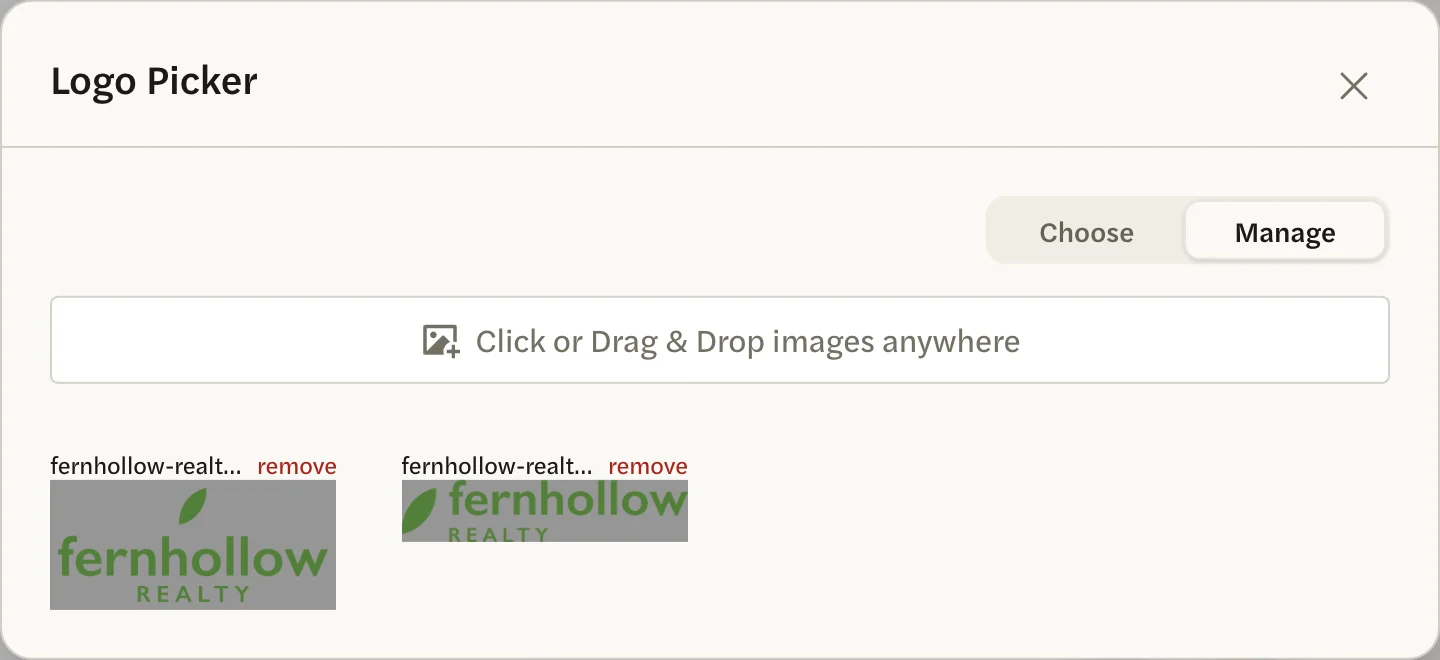
Select remove next to the logo’s file name. It is removed straight away.

If your reports, or any of your social post templates, were using that logo, they switch to the optimized version of one of your other logos. Reload the page to see the change in the preview.
Your last logo can’t be removed, and there is no option to print no logo. To change what prints, add the logo you want and select it.
Good to know
- Reports you have already made keep their logo. A new logo or version appears on reports you make from now on. To update an older report, make a new one.
- Your social posts choose their logo separately. The logos you add here are also offered when you style your social post templates, but choosing a version for reports doesn’t change your posts. See Style your templates.
- To change your colors, name, contact lines or headshot, see Customize your report.