Find what you’re seeing below.
No new tab opened, or my report keeps saying Generating
A report is built in the tab that opens when you pick a market. If that tab didn’t open, or you closed it before the report appeared, the report hasn’t been built, and its card on the Reports page keeps saying Generating.
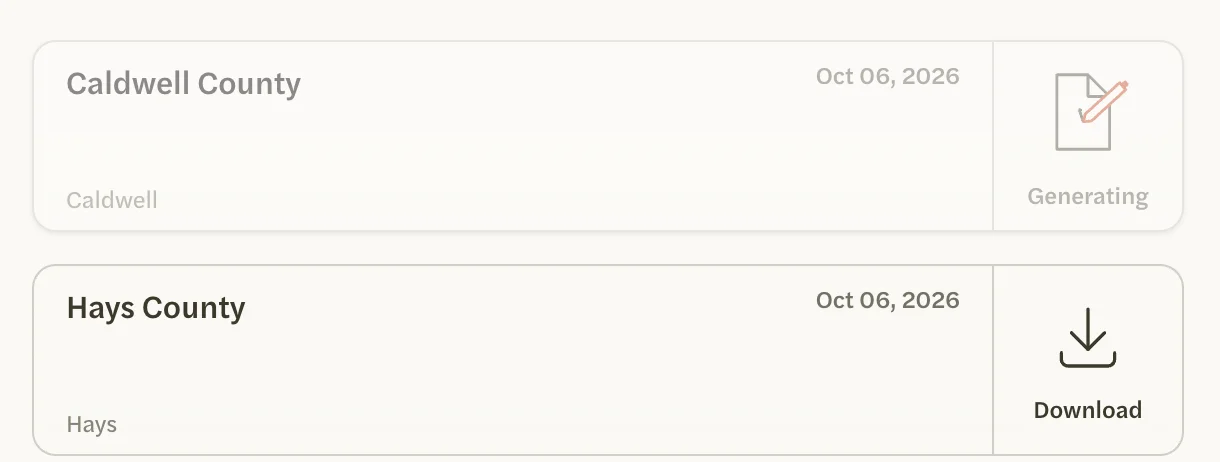
Select the card. The report opens in a new tab and is built there. If the Customize Report screen appears first, select Save & Generate.
If the report did open but its card still says Generating, reload the Reports page.
The Customize Report screen appears every time I make a report
The screen appears until you select Save & Generate on it. Skip makes the report but leaves the screen to appear again with your next one.
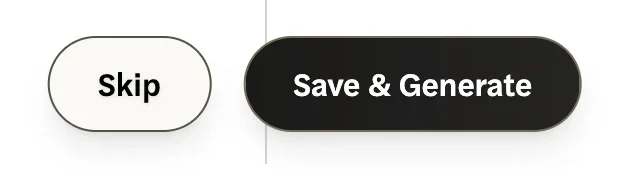
The next time it appears, select Save & Generate. Your settings on the screen save as you type, so this keeps them as they are, and the screen doesn’t come back. You can still change your settings at any time with customize on the Reports page. See Customize your report.
I can’t find my MLS’s markets when I make a report
Your MLS’s markets are offered only with an MLS Connection. Without one, the Generate a Report box offers national markets only. See Connect your MLS.
My national report is All Residential, not the property type I wanted
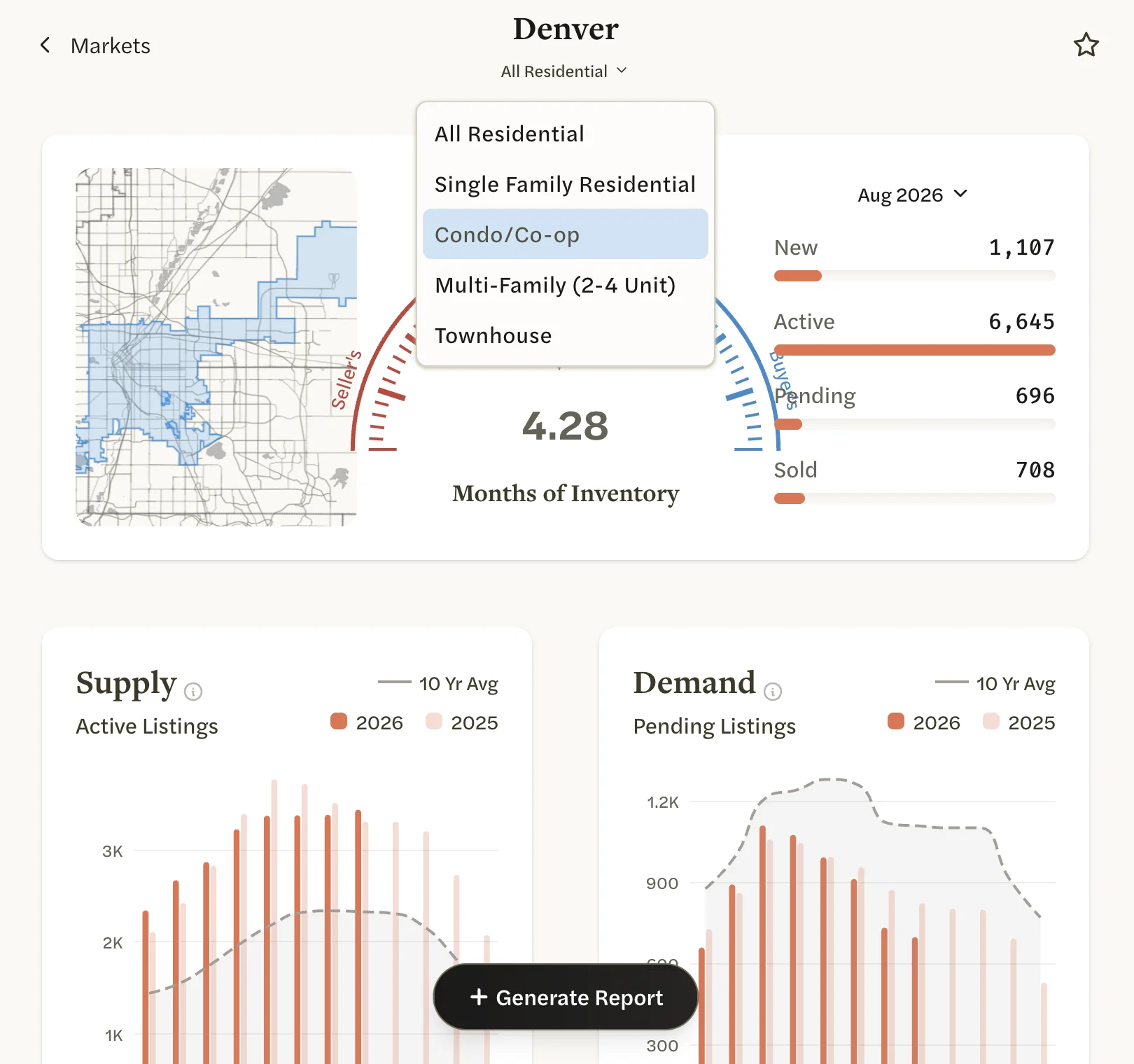
A national market picked in the Generate a Report box always gives an All Residential report. For a property type such as Condo/Co-op, open the market’s page, choose the property type with the button under its name, and select Generate Report at the bottom of the page. See Generate a report from a market page.
Two of my reports look the same in the list
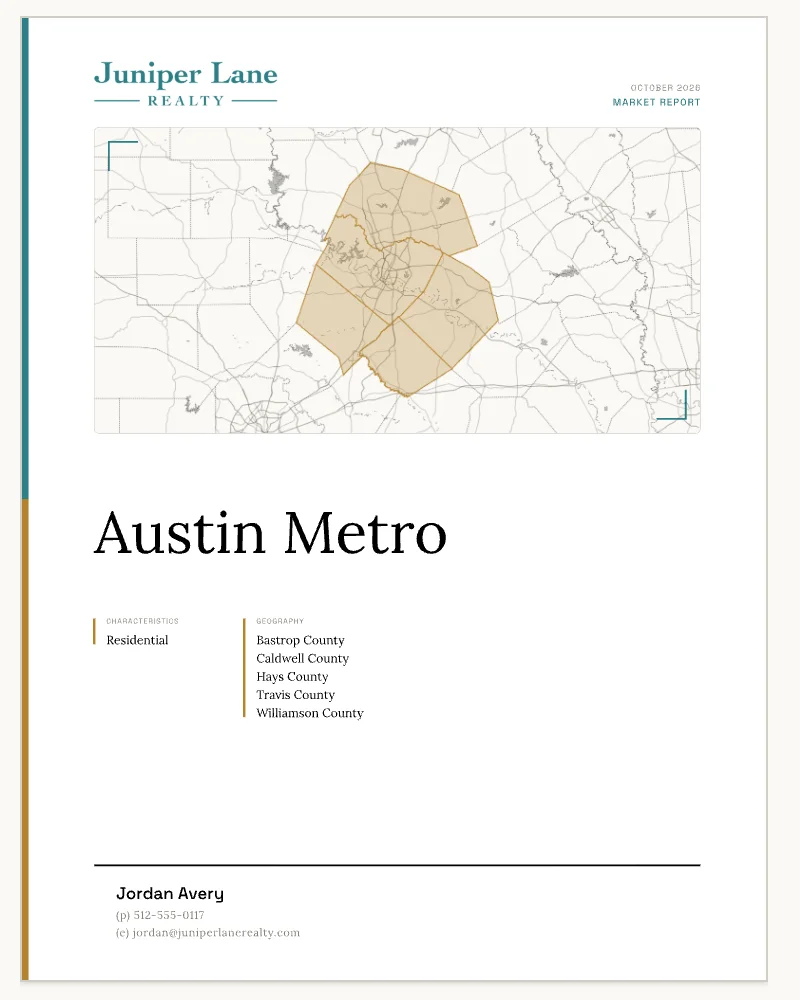
A national report’s card shows only the place name and the date, so two reports on one place, such as an All Residential report and a Condo/Co-op report of Denver, look alike. Open each one: the cover names its property type under CHARACTERISTICS.
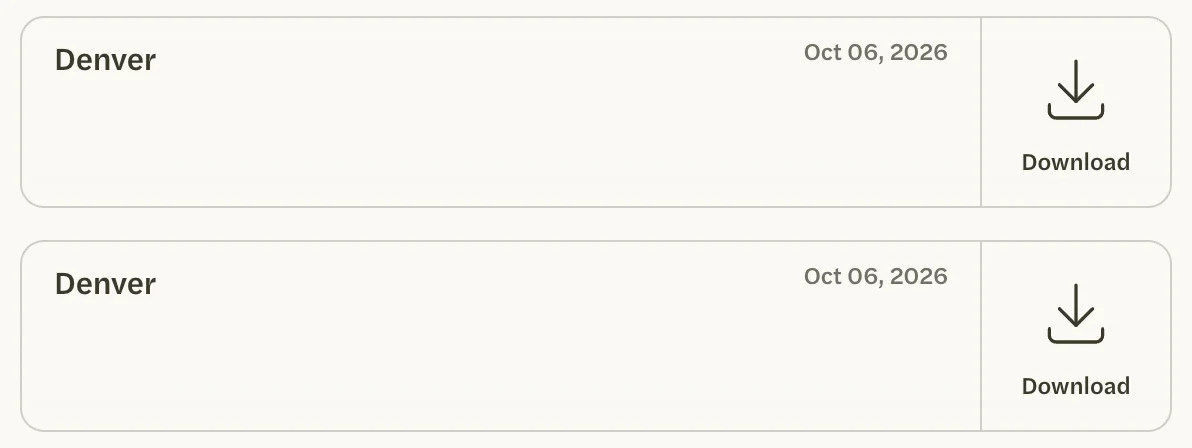
The card of an MLS report also shows the area, unless it is the same as the report’s name, and the kind of home and any price limit, such as “Residential & $1,000,000+”, unless it is plain Residential.
I can’t delete or rename a report
Neither is possible. Every report you make stays on your Reports page, and its link keeps working for anyone who has it. A report’s page can’t be taken down or made private.
A report is titled with the name of the market it was made from, or with the street address when it was made from a listing’s page. For an MLS report with another title, give the market a name of your own (see Rename a custom market), then select Generate Report on its page. The new name shows everywhere that market appears, and renaming a market AgentIntel made has effects of its own: see Customize a market AgentIntel made.
I changed my branding, but my report hasn’t changed
A report keeps the figures and the branding it had when it was made, and its link always shows that version. Changes to your logo, colors, lines or headshot apply to the reports you make after them.
To update a report, generate a new one for the same market and send its link instead. The preview on the Headshot & Settings page shows your current settings; if you have just removed a logo, reload the page to see it there.
My report has no Appreciation page
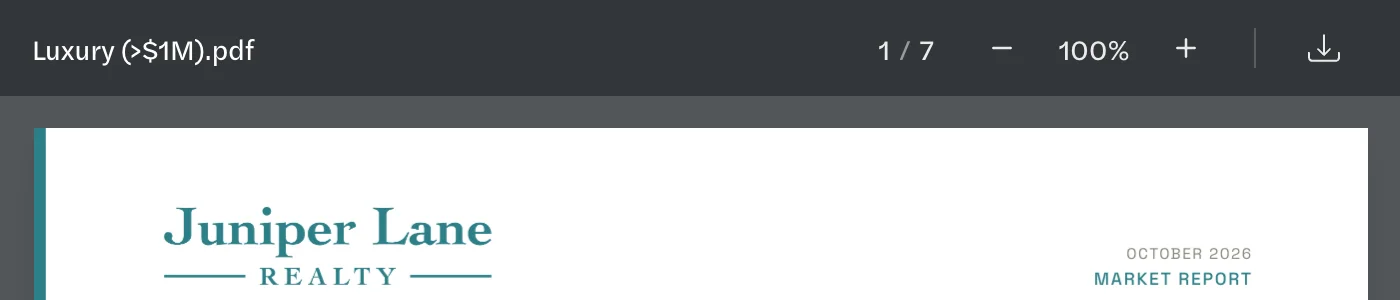
A market with a price limit, such as Luxury (>$1M), has no Appreciation page, so its report has seven pages. For the Appreciation page, make the report from a version of the market without a price limit, such as Residential. See What’s in a report.
I want to change the fonts or leave out a page
You can’t. The fonts and the pages are the same on every report. What you can change is your logo, colors, headshot and the lines of text: see Customize your report.
I added a new logo, but my reports still show the old one
A new logo is used once you select one of its versions in the Logo Picker.
On the Reports page, select customize, then the Logo square.
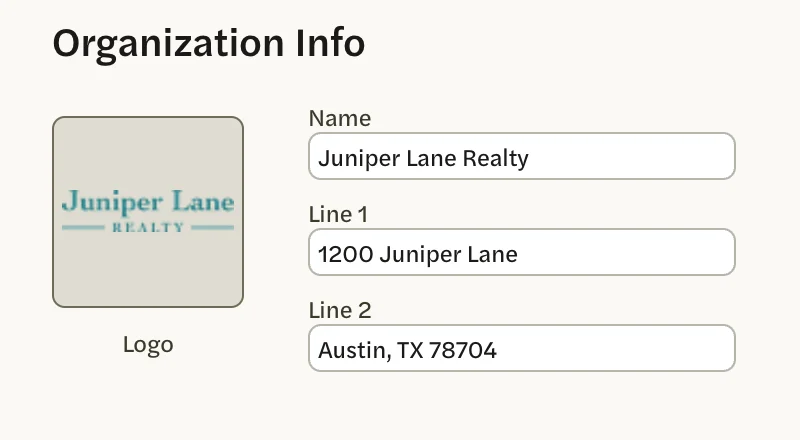
Select the version of the new logo you want, even if one already shows a tick. Only selecting a version saves your choice.
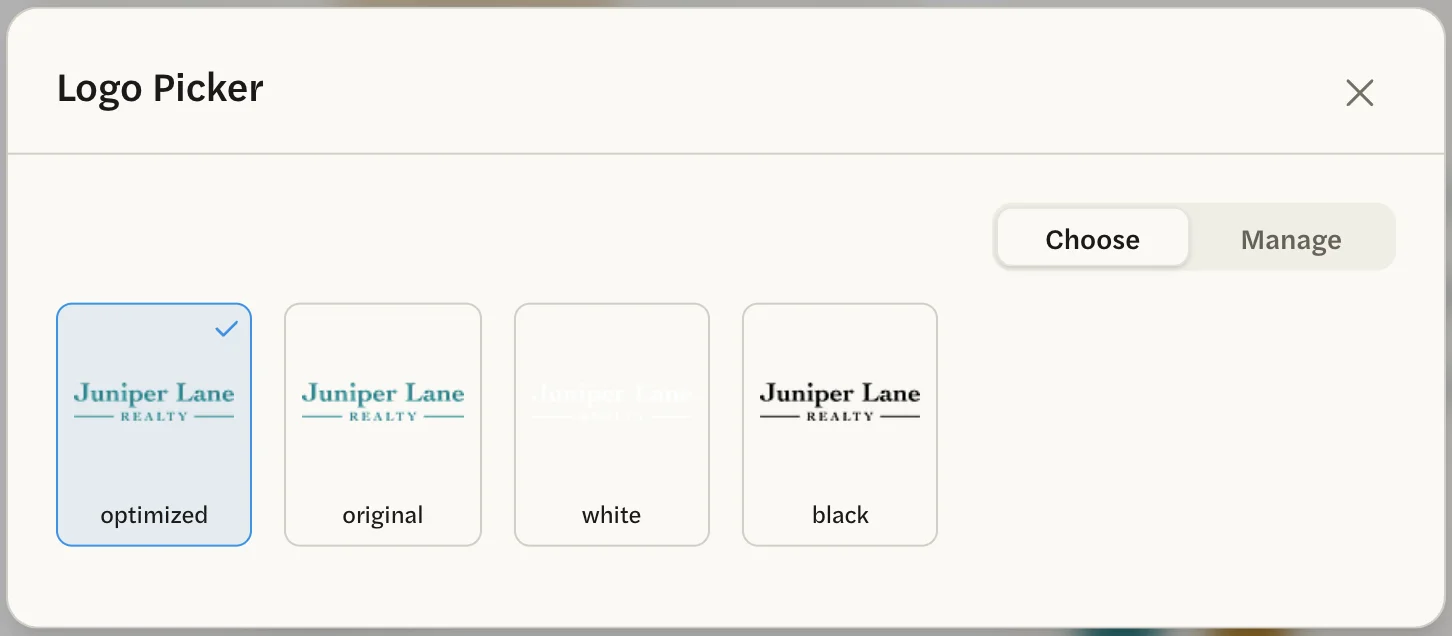
The picker closes and the preview shows the new logo. Reports you make from now on use it; reports you have already made keep the logo they were made with.
My logo is the wrong color, has lost its background, or doesn’t show
Each logo comes in several versions, and the one selected may not be the one you want:
- black, white, and versions labeled with a color code print the whole logo in one solid color. Reports are printed on white, so the white version doesn’t show.
- optimized trims the empty space around your logo and, for a file with a solid background, removes the background.
- original is your file exactly as you uploaded it.
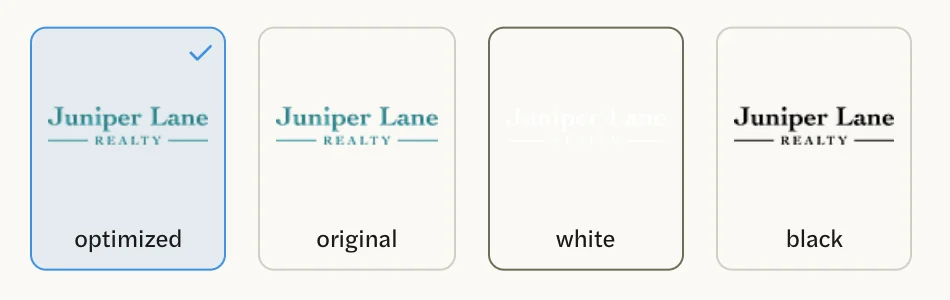
Select customize on the Reports page, then the Logo square, and select another version. See Choose which version prints.
There’s a lightbulb where my logo should be
That is AgentIntel’s mark. It prints when you haven’t chosen a logo. Add your logo and select the version you want.
I can’t remove a logo
Your only logo can’t be removed: with one logo, the Manage tab shows no remove link, and there is no option to print no logo.
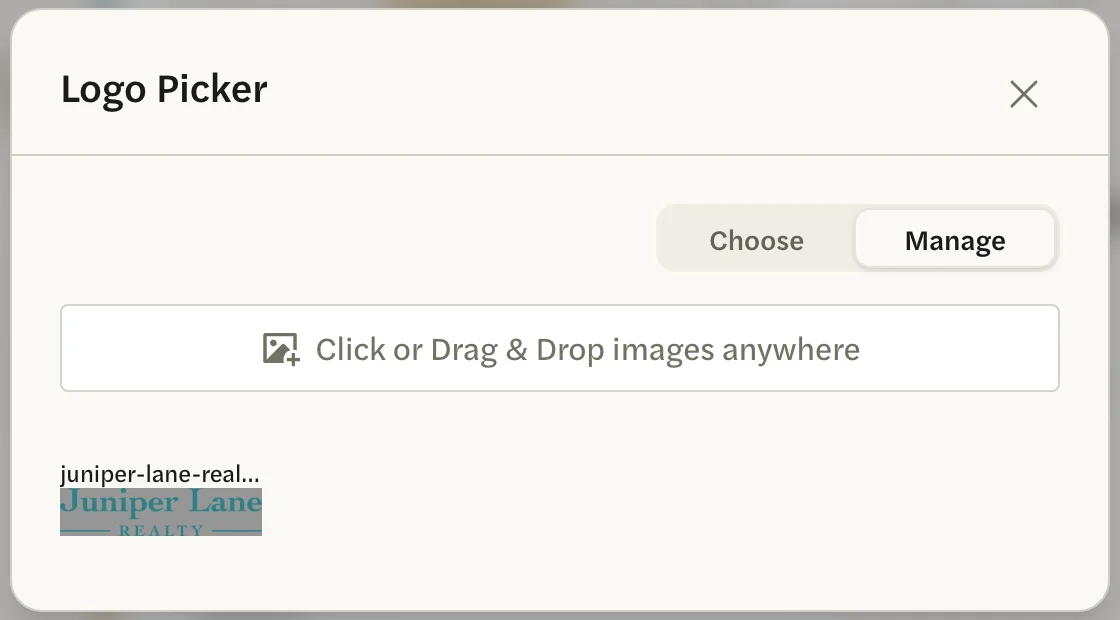
To replace it, add the logo you want and select one of its versions. Then, in Manage, select remove next to the old one. See Remove a logo.
If the Logo square still shows a logo you have removed, reload the page.
My color code won’t save
A color code needs a # followed by six characters, such as #2C7F87. A shorter code, such as #B58, or a code without the #, isn’t accepted: you see an error page instead of your settings, and nothing is saved.
- Use your browser’s back button to leave the error page and return to the Reports page.
Select customize. Your colors are as they were.
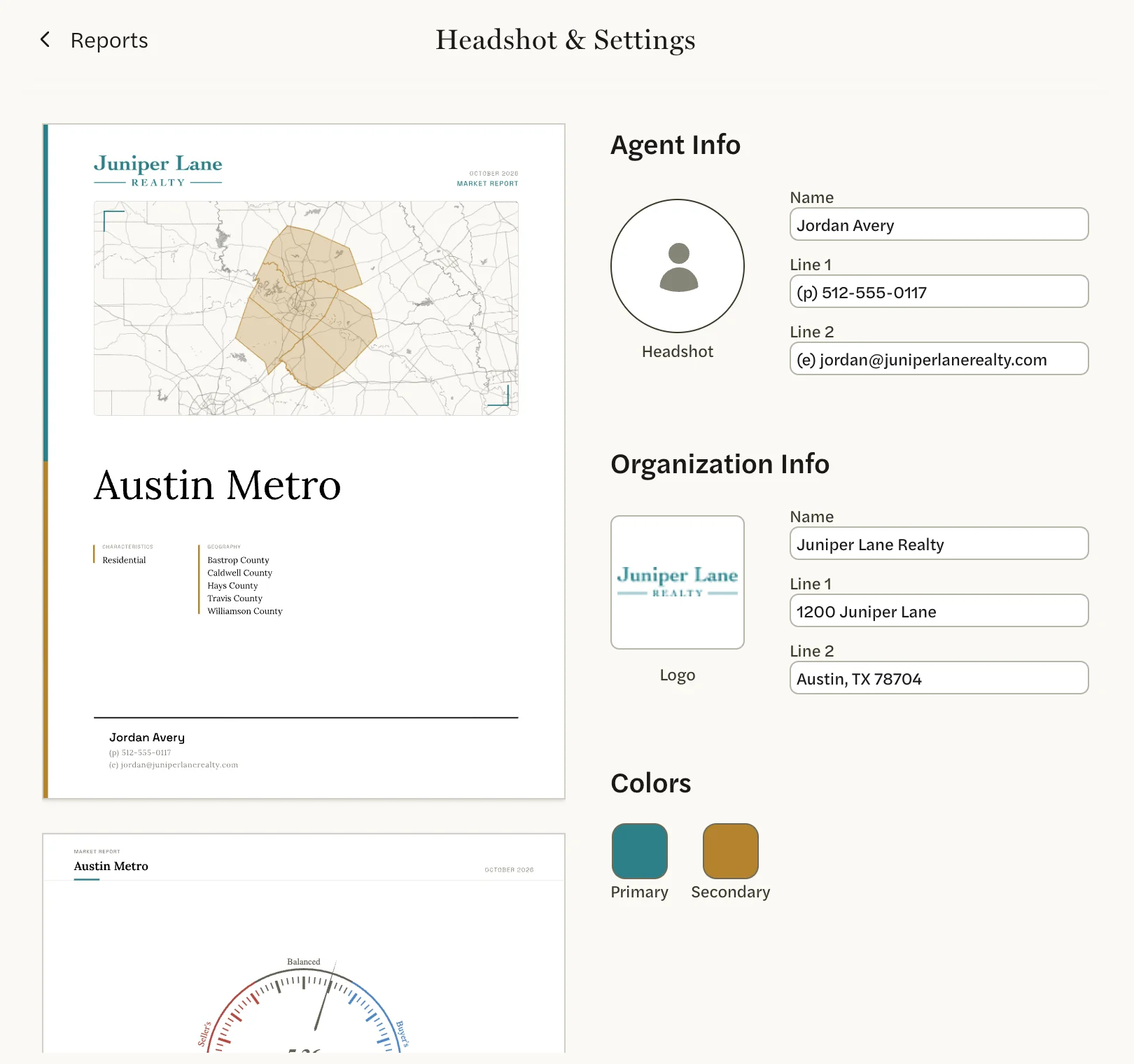
Under Colors, select the Primary or Secondary square.
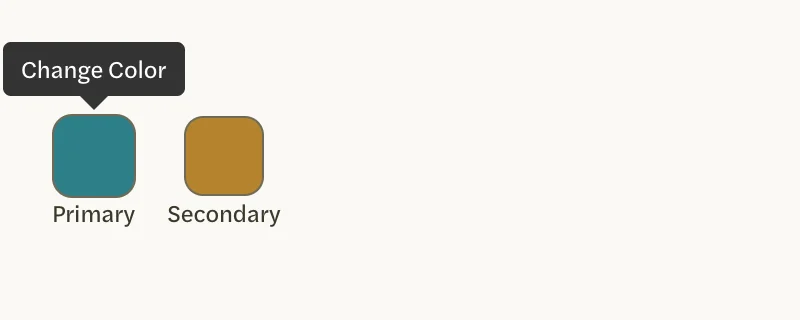
Type the full code, or pick the color on the wheel, then select update.
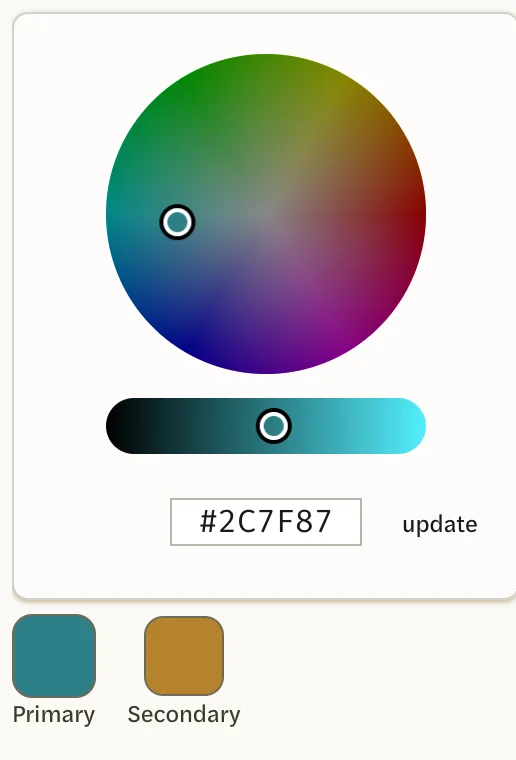
Selecting my headshot only lets me reframe it
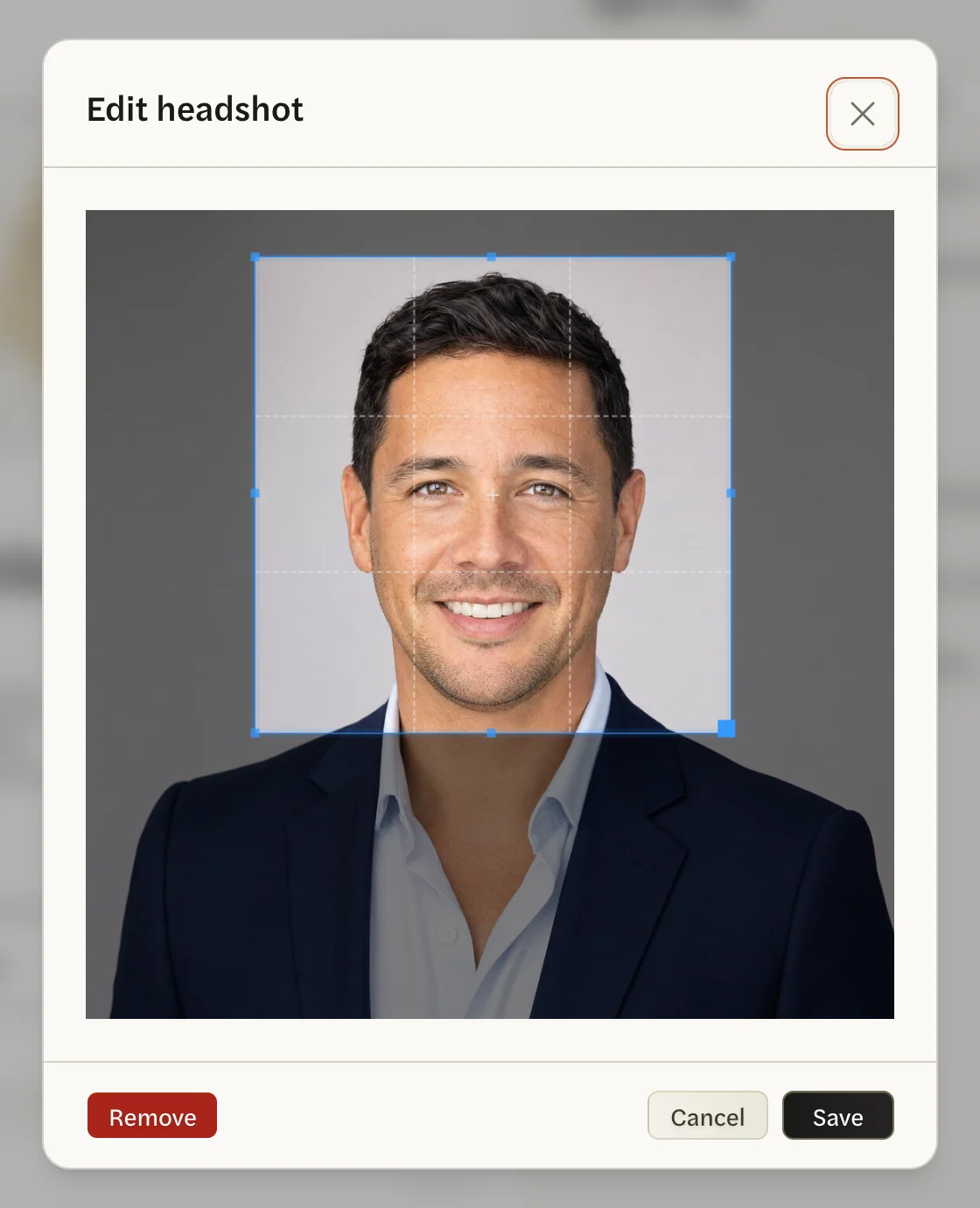
Once you have a headshot, the Headshot circle opens Edit headshot on your current photo. To use a different photo, drag the new file onto that window and select Save, or select Remove and add the new one. See Add or change your headshot.
My report shows my old phone number or email
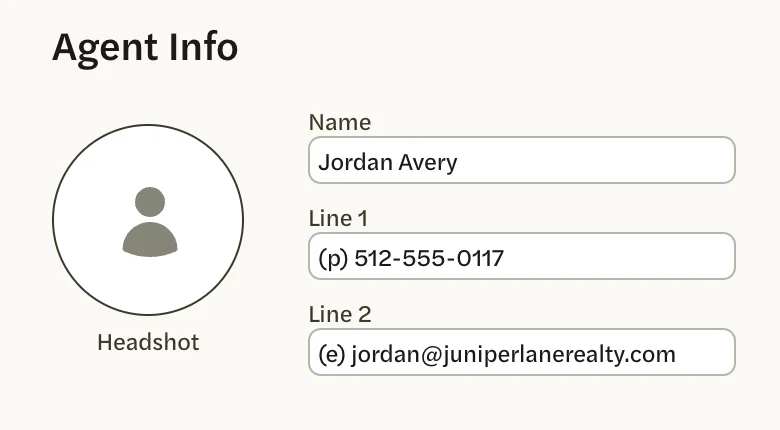
The lines on your reports are separate from your account, so changing your email or name in your account settings doesn’t change them. Edit them under Agent Info on the Headshot & Settings page. See Change your name and contact lines.
The photo or logo on my report isn’t mine
Your branding may have been filled in for you when you joined. You can change all of it: see Change anything that’s wrong. Reports you make afterwards use your changes.
I didn’t get the email saying my report is ready
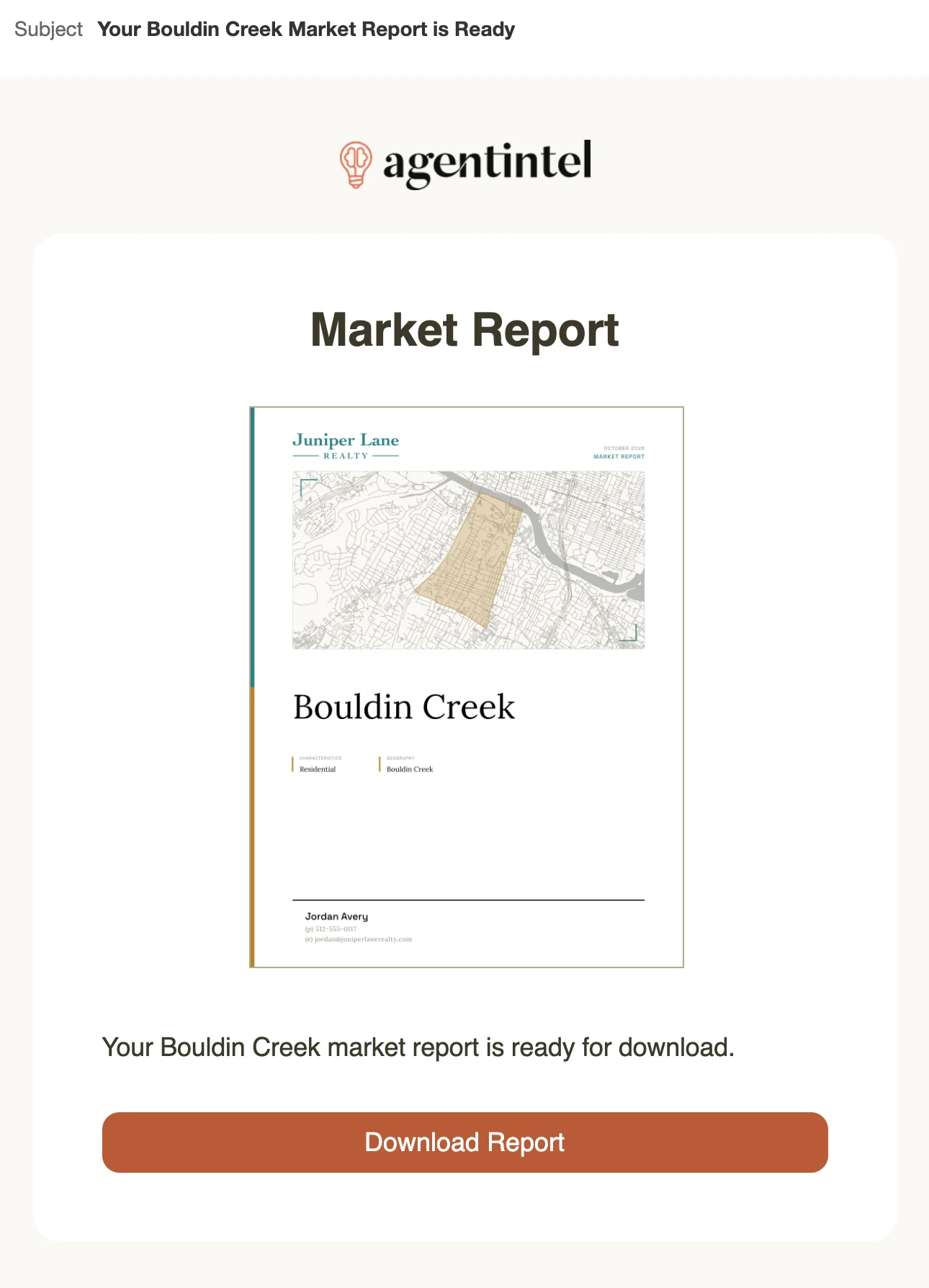
You don’t need the email to get your report: every report you make is on your Reports page, and selecting its card opens it.
Reports made by Claude or ChatGPT don’t send this email. For a report you made in AgentIntel, search your email for “Market Report is Ready”, including your spam or junk folder.
I don’t want an email every time I make a report
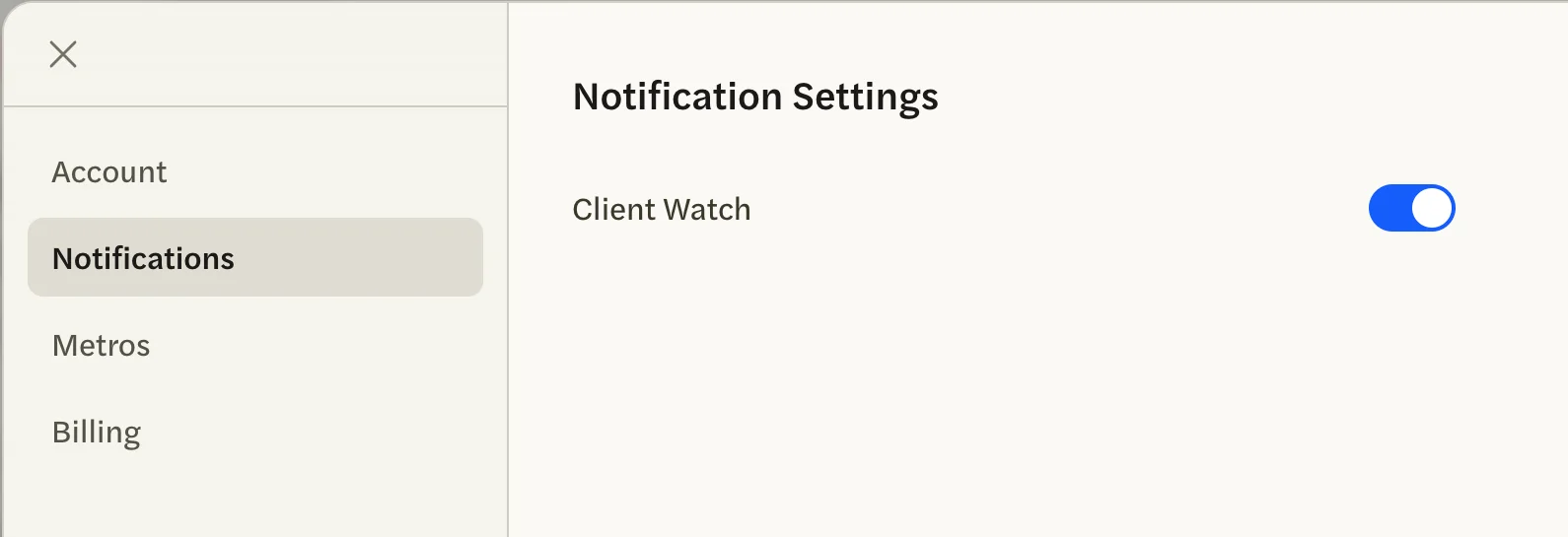
The email that a report is ready can’t be turned off. Settings has a Notifications tab, but its only choice is Client Watch. If you’d rather not see these emails, set up a filter in your email app for messages whose subject includes “Market Report is Ready”, and have it archive them or skip your inbox. Your reports are still on your Reports page.