When you join, AgentIntel fills in your report branding for you, from your MLS, your brokerage and public sources, so your first report already looks like yours. It is only a starting point: you can change all of it, and it never replaces anything you have set yourself.
What gets filled in, and from where
Where AgentIntel looks depends on how you joined.
If you connected your MLS
This happens when you claim your MLS profile at sign-up, or when you ask for the verification email to connect your MLS later.
- Your name and contact lines come from your MLS’s member roster: your name, your phone number after “(p)”, and the email address your MLS has on file after “(e)”.
- Your brokerage’s name and address come from your office’s entry on the same roster: the office name, its street address, and its city, state and zip code.
- Your logo and colors come from your brokerage’s own website. If your office belongs to a brand AgentIntel already has on file, that brand’s logo and colors are used instead.
- Your headshot is a photo of you found on public web pages, such as your brokerage’s website or your own. You can replace or remove it.
If you joined without connecting an MLS
When you set up your account, you were asked which brokerage you are with.
- Your name and contact lines are the name you gave, then your sign-in email after “(e)” on Line 1. Line 2 is left empty.
- If you picked your office from the search results, your brokerage’s name and address are the ones shown for that office, and your logo and colors come from its website (or from its brand, as above).
- If you typed your brokerage’s name because it wasn’t listed, only the brokerage name is filled in. You get a logo and colors only if the name matches a brand AgentIntel already has on file.
- Your headshot is a photo of you found on public web pages, such as your brokerage’s website or your own. You can replace or remove it.
If you are on a team
If your team sets branding for its agents, the team’s logo, colors and brokerage lines come first, and your MLS or brokerage fills in only what is still empty. If you joined the team after setting up your account, the team’s branding fills in only what is still empty. See Team branding for reports and social.
The rules it follows
- It fills only what’s empty. It never replaces a line, logo, photo or color you have set. Your two colors count as set as soon as you change either one from the default orange and blue.
- It’s a copy, not a link. If your brokerage changes its logo, or your phone number changes on the MLS roster, your reports don’t change. Update them yourself.
- It runs in the background, so some of it can appear a little after you sign up or connect your MLS.
- It runs again only when you connect another MLS profile or join a team, and again fills only what is empty.
- Every logo and color found for your brokerage is kept. Unless your team sets your branding, they are all added to your logos, so you can pick another one in the Logo Picker.
If nothing was found
A field AgentIntel found nothing for stays at its default:
- With no logo, reports print AgentIntel’s lightbulb mark in its place.
- With no colors, reports use AgentIntel’s orange and blue.
- With no headshot, reports print your name and contact lines without a photo.
Change anything that’s wrong
Everything filled in for you can be changed on the Headshot & Settings page: select Reports in the left menu, then customize.
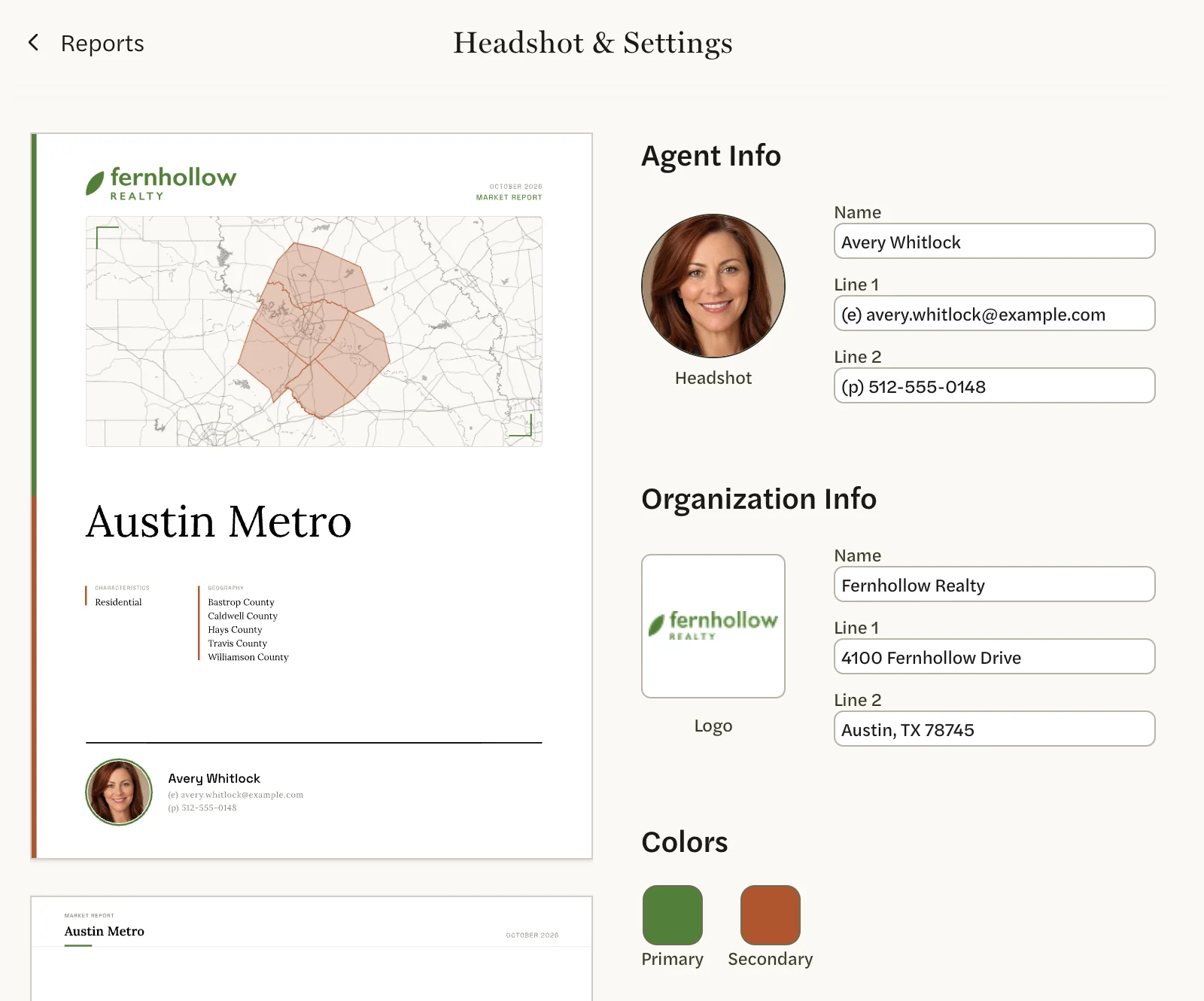
- The photo isn’t you, or you’d rather use another: select the Headshot circle, then Remove, and add your own. See Customize your report.
- It’s your logo, but the wrong version of it: select the Logo square and pick another version in the Logo Picker. See Add and choose a logo.
- It’s the wrong logo, such as your old brokerage’s: add your logo and select it, then remove the old one.
- The colors are wrong: change Primary and Secondary under Colors.
- A phone number, email or address is out of date: edit the lines under Agent Info or Organization Info.
Reports you have already made keep the branding they were made with. Make a new report to see your changes.