Select New Post on the Social page, choose your markets, check the design, then select Generate Post. AgentIntel makes one image for each market and writes a caption to go with them.
For a post that repeats every month, set up a schedule instead. See Set up a monthly schedule.
Make a post
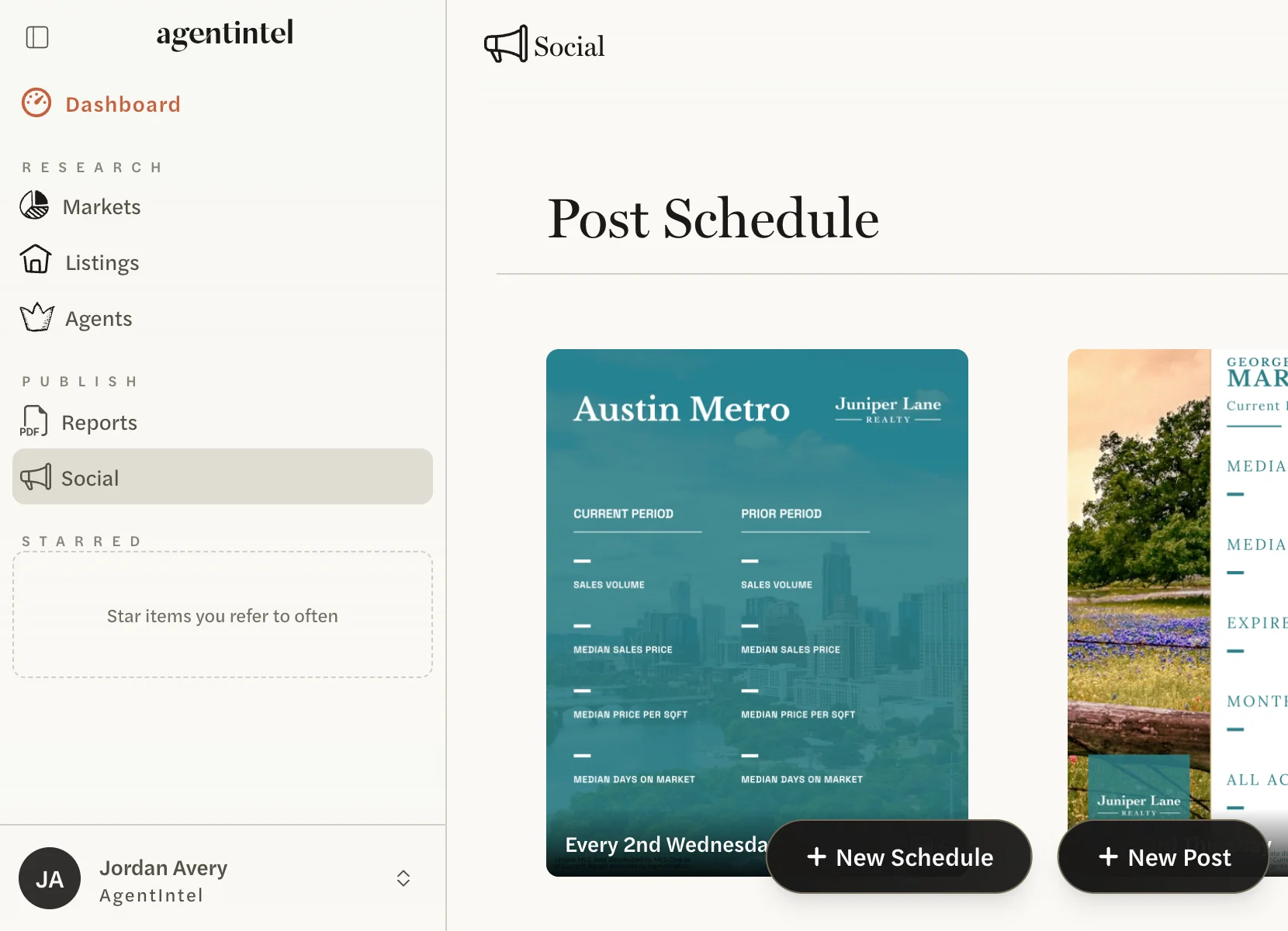
Select Social in the left menu, then New Post at the bottom of the page.
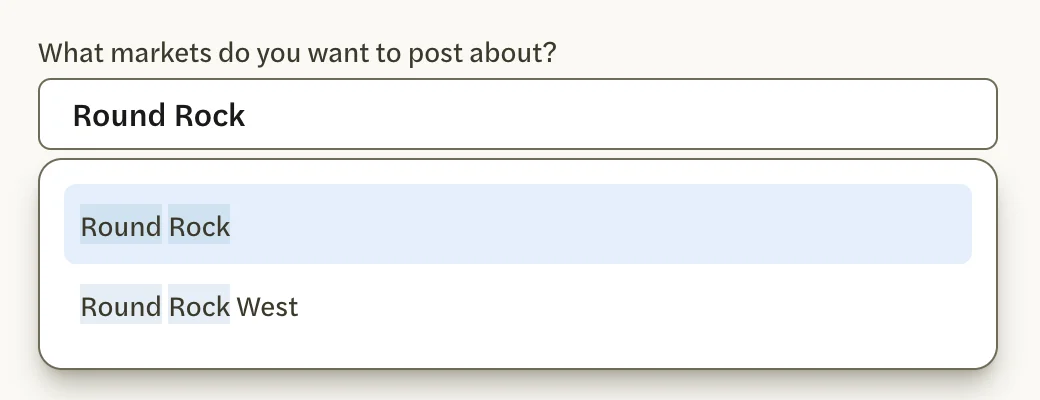
Under What markets do you want to post about?, type the name of a market and select it from the list. Before you type, the list shows the markets you opened most recently.
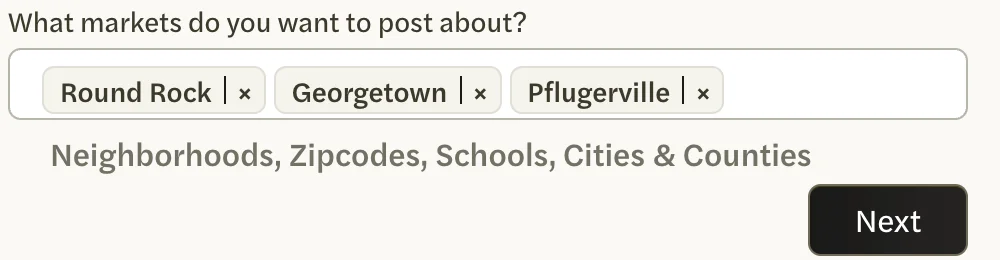
Add more markets the same way, up to 10. Each one becomes an image in the post, in the order you choose them. To take one out, select the × beside its name.
Choose at least one market before you select Next; with none chosen, the next page doesn’t open.
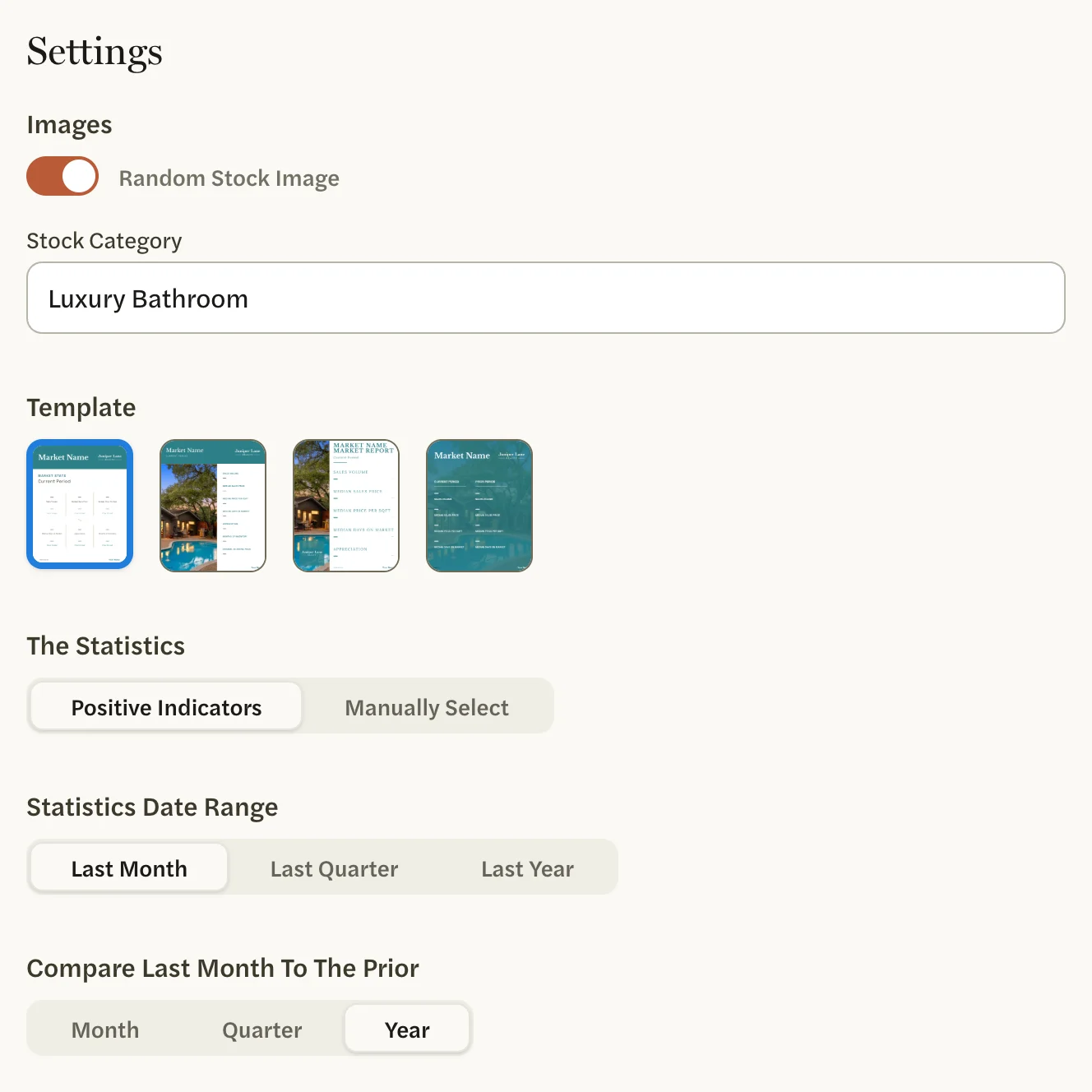
Select Next. The Design Your Post page opens, with an image for each market under Markets and the post’s settings under Settings.
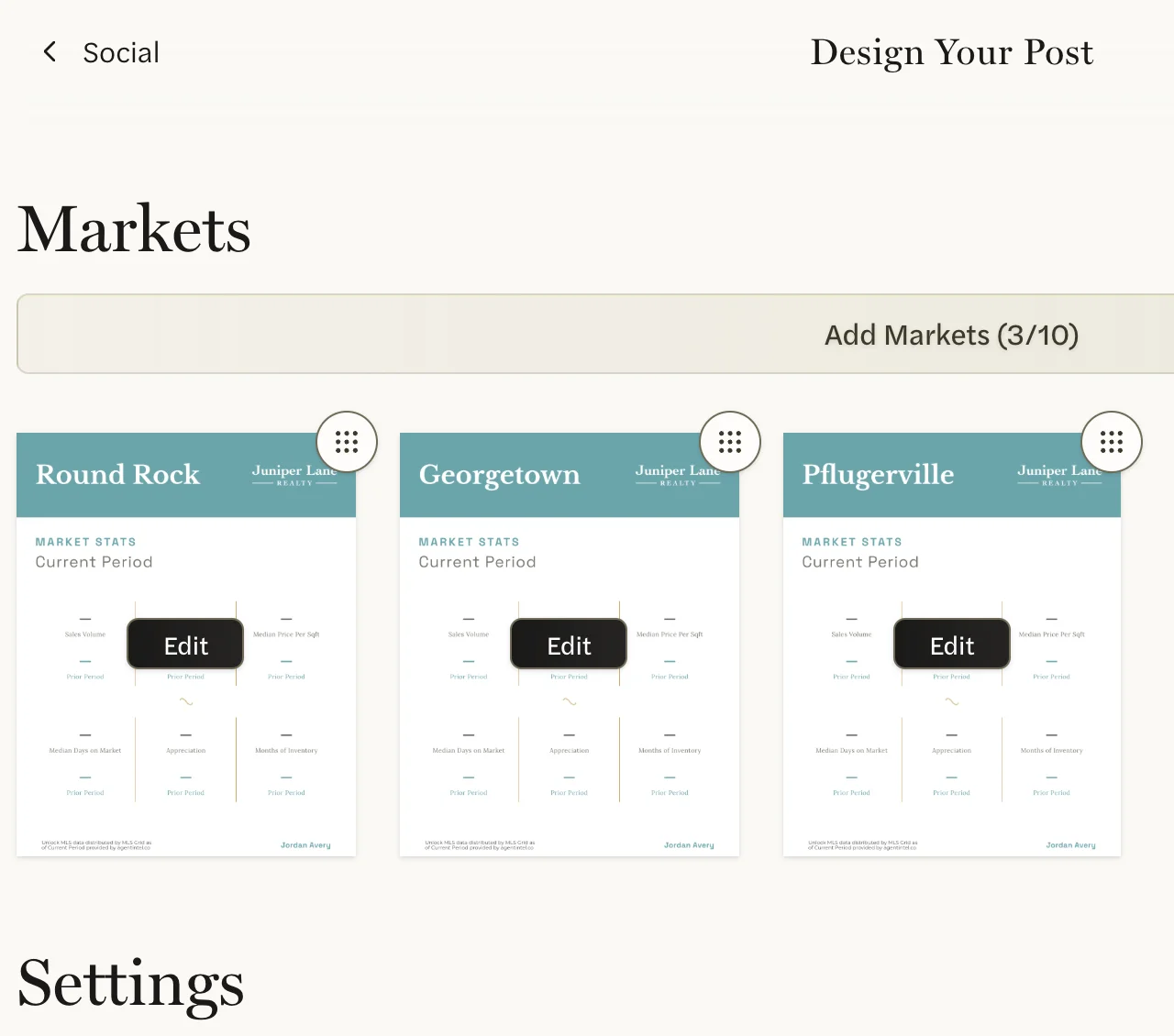
Change anything you want to. Changes save as you make them, except a market’s new name, which saves when you select Save.
- Add, rename, reorder or remove markets, and choose the statistics and their period. See Choose markets and statistics for a post.
- Choose the photo under Images. See Change the photo.
- Choose a look under Template. The four templates are shown as small pictures without names; a new post starts on the first, Two by Three. Their names are under customize on the Social page. See Style your templates.
Select Generate Post at the bottom of the page.
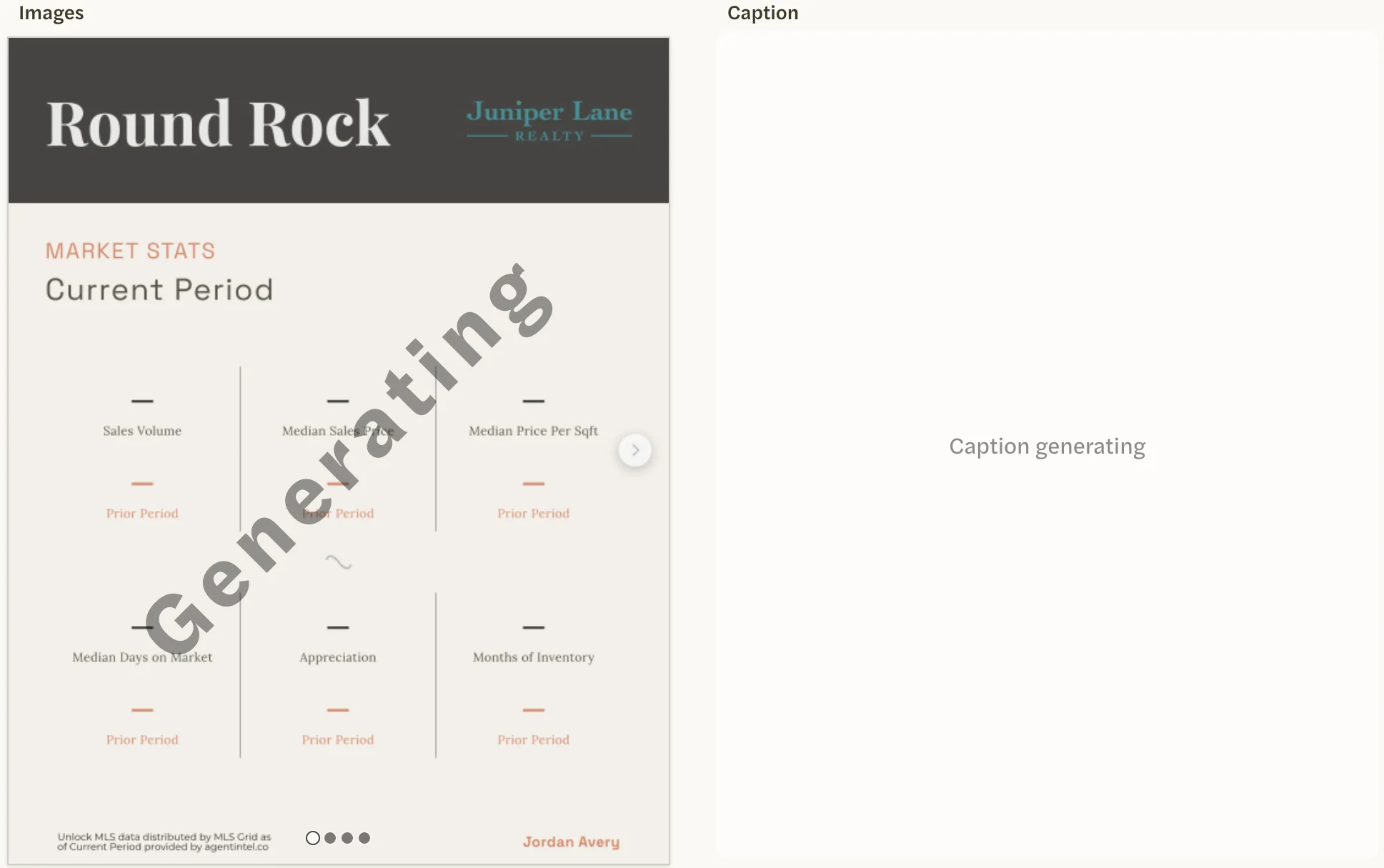
The post’s page opens, titled with today’s date, and the post is listed under Post History on the Social page straight away. While AgentIntel fills in the numbers and writes the caption, the images say Generating and the caption box says “Caption generating”.
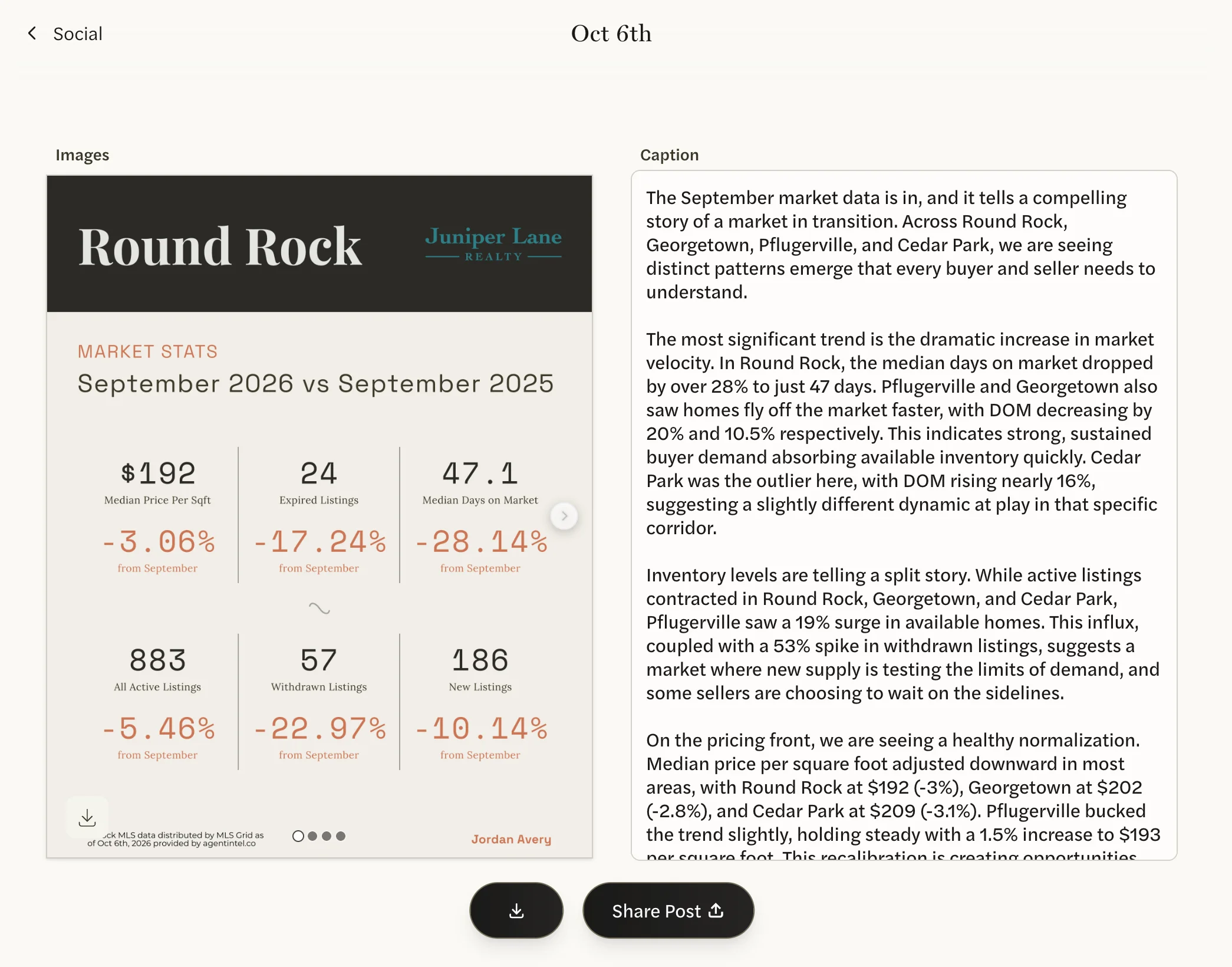
When the post is ready, its images and caption appear on this page, and we email you that it’s ready.
With an MLS Connection, you choose from your MLS’s markets: metro areas, counties, cities, zip codes and neighborhoods, the whole MLS, and your custom markets. Without one, you choose national markets: the whole country, states, metros, counties, cities, zip codes and neighborhoods.
What you can do with a finished post
- See every image. Use the arrow on the right of the image, or the dots under it, to move between markets.
- Edit the caption. Type in the Caption box; your changes are saved as you go.
- Download or share it. The download button saves every image and the caption to your computer. For Share Post, see Share a finished post.
Good to know
- The post is made only when you select Generate Post. If you leave the Design Your Post page before that, the post isn’t made and isn’t listed on the Social page. Start again with New Post.
- A finished post’s images don’t change. Only the caption can be edited. To change the markets, statistics or photo, make a new post.
- The statistics start on last month, compared with the same month a year earlier. Without an MLS Connection, a post that includes a city, zip code or neighborhood starts on the last 3 months instead. You can change both on the Design Your Post page.