AgentIntel turns your market statistics into posts for social media: a set of branded images, one for each market, and a caption written from the same numbers. AgentIntel makes the post and lets you know it’s ready; you share it yourself. It does not connect to Instagram, Facebook or any other network, and never posts for you.
Your Social page
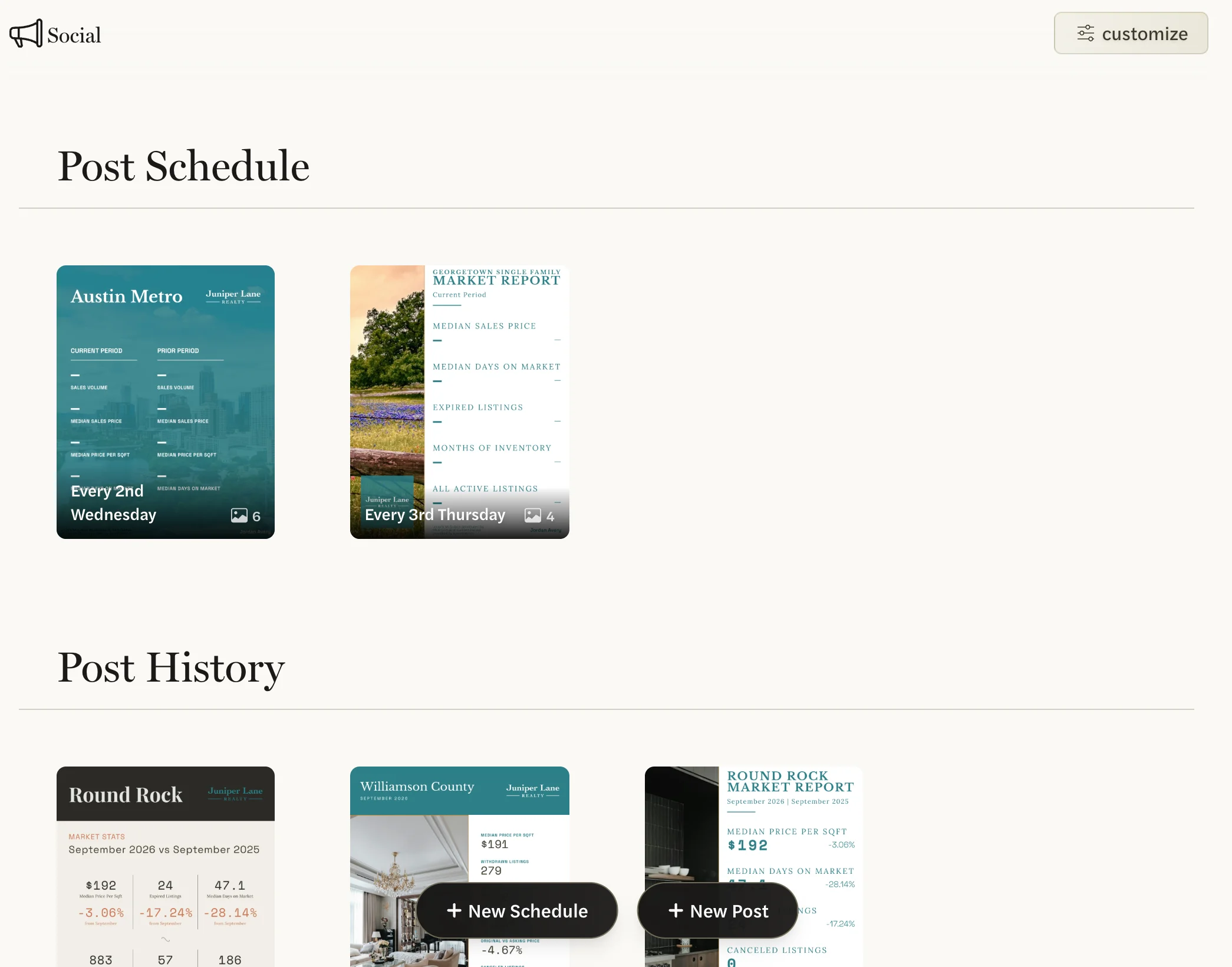
Select Social in the left menu. The page has two parts:
- Post Schedule holds your recurring schedules. Each tile shows the schedule’s next post and how often it repeats, such as Every 2nd Wednesday, with the number of images in the corner.
- Post History lists your posts, newest first, from the day each one is due.
New Schedule and New Post at the bottom start a monthly schedule or a single post. customize at the top right (just an icon on a narrow screen) opens your templates and your wordmark.
The schedules you start with
AgentIntel sets up your first schedules for you, once, so posts start arriving without you doing anything. If you signed up with your MLS profile, they come from your MLS and are set up when you sign up. If you signed up without it, they use national markets and are set up when you finish setting up your account. Connecting your MLS later doesn’t add starter schedules if you already have schedules.
- Each metro area you chose, on the 2nd Wednesday of every month: one image for the whole metro and one for each of several versions of it, such as Single Family or Condos. You get one of these schedules for every metro area.
- Up to 10 zip codes, on the 3rd Wednesday, and up to 10 neighborhoods, on the 4th Wednesday. On schedules from your MLS, these are the areas where you have been the listing agent, and they are not set up if you have no listings. On national ones, AgentIntel chooses areas in the metros you picked.
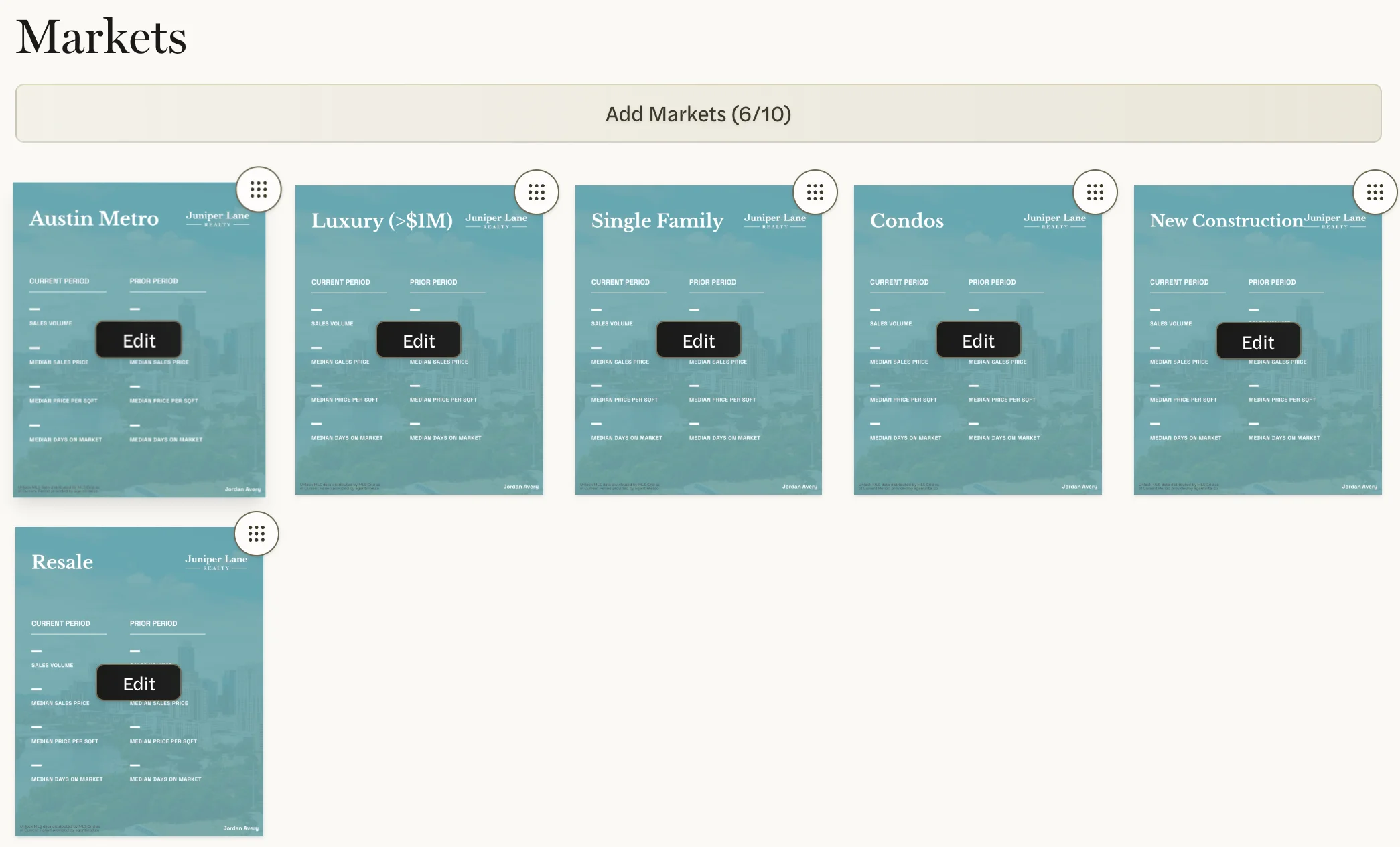
Each uses a different template, so they look different from one another. They are live from the start: every schedule makes a post each month until you delete it. You can change anything on them, from the markets to the day. See Set up a monthly schedule. To make a single post now, see Create a post.
What’s in a post
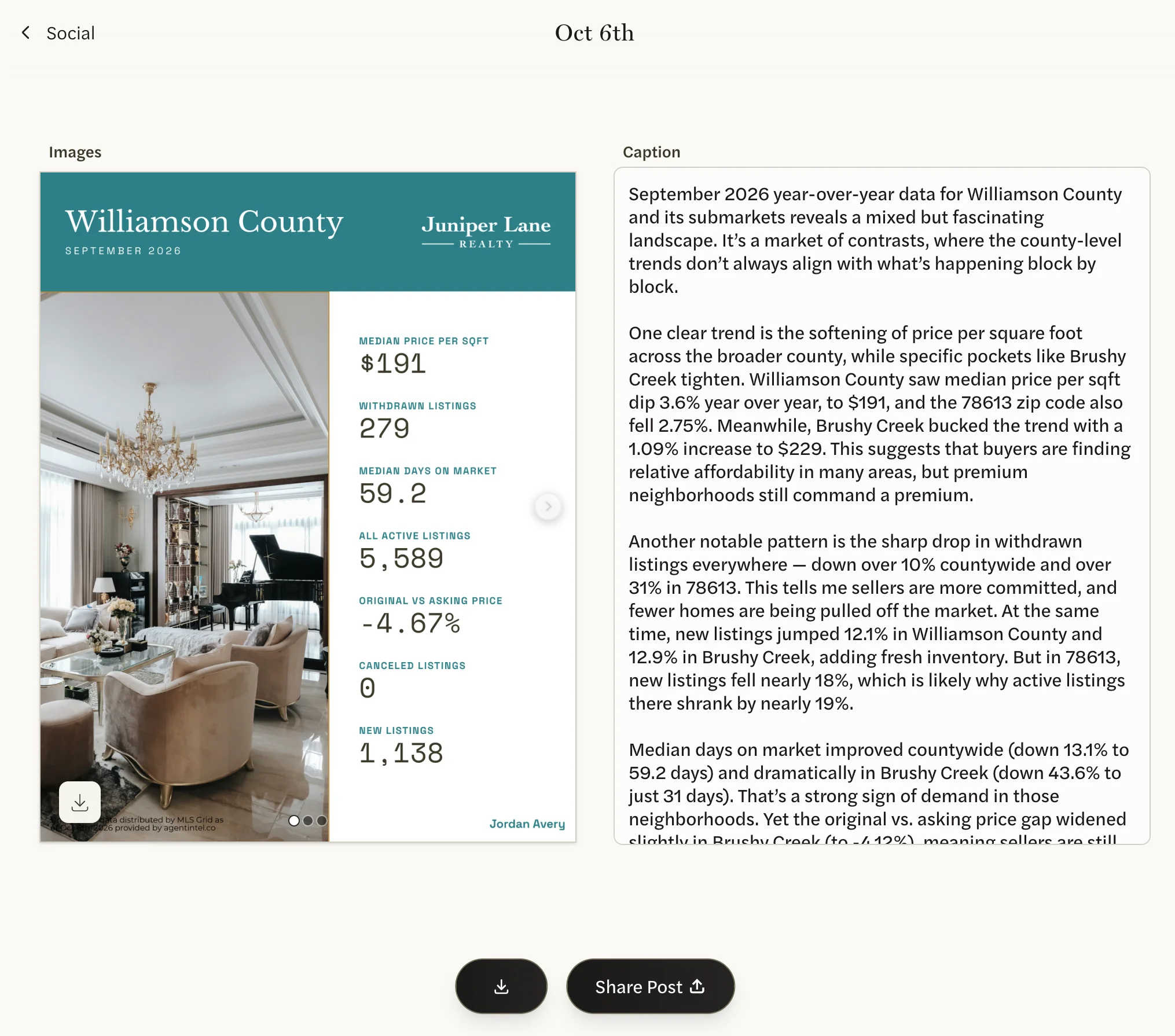
A post is a set of images and one caption.
- Images. One for each market in the post, up to 10, in the order you set. Each shows the market’s name, its statistics (in most templates compared with an earlier period), your logo, your wordmark, a small line naming the data source, and in most templates a photo. Images are 1080 × 1350 pixels, the portrait shape Instagram uses.
- Caption. Written for you when the post is made, from the numbers on the images. It points out the trends in those numbers and is written in the first person, as you. It closes by inviting readers to message you for a market report, followed by a final line that reads “statistics verified by @getagentintel”. You can edit any of it, including that line, before you share it.
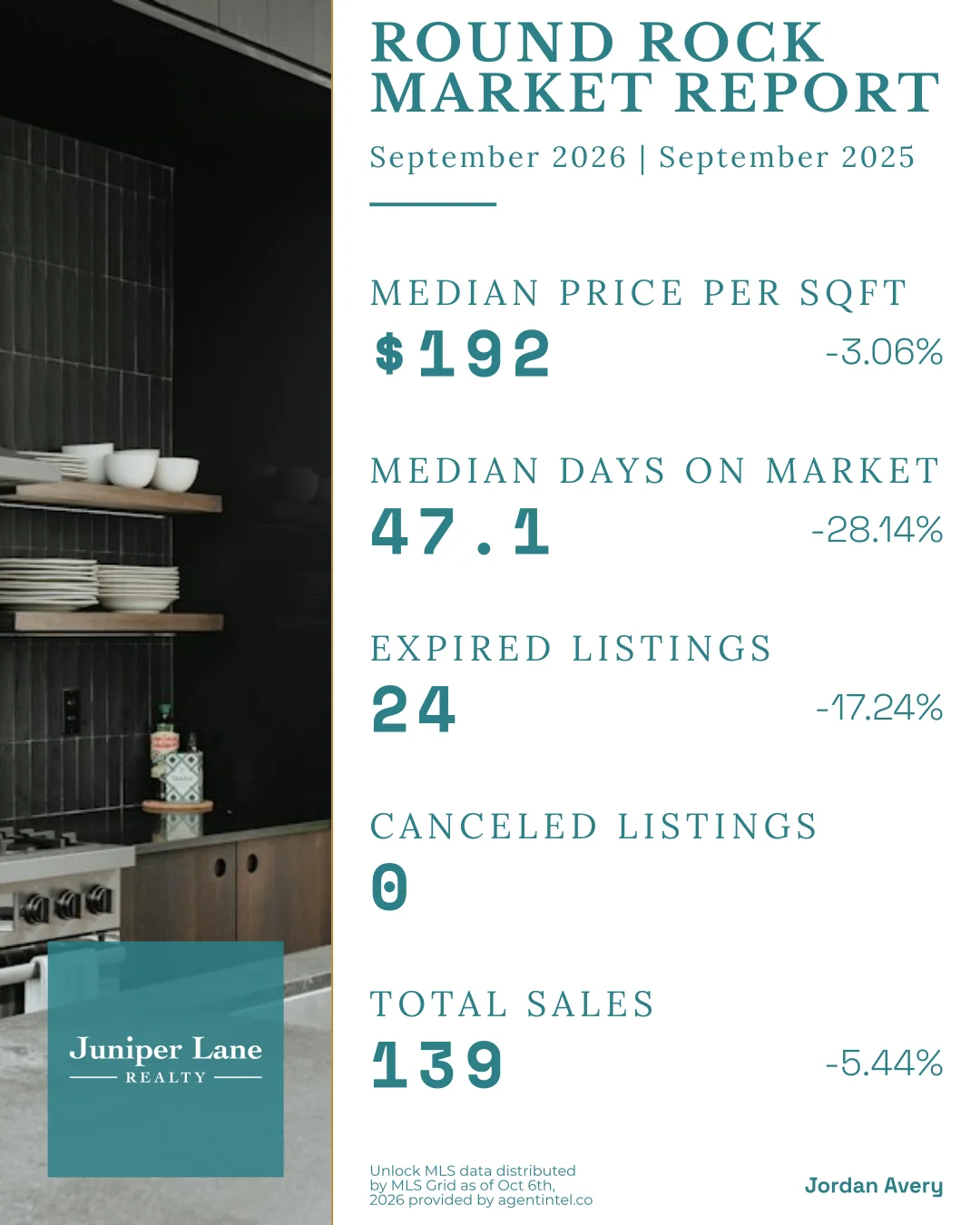
Which markets and statistics appear, and the period they cover, is up to you. See Choose markets and statistics for a post.
Templates and your branding
Every image uses one of four templates. Your logo, colors and fonts are saved on each template, and every post that uses a template takes its look.
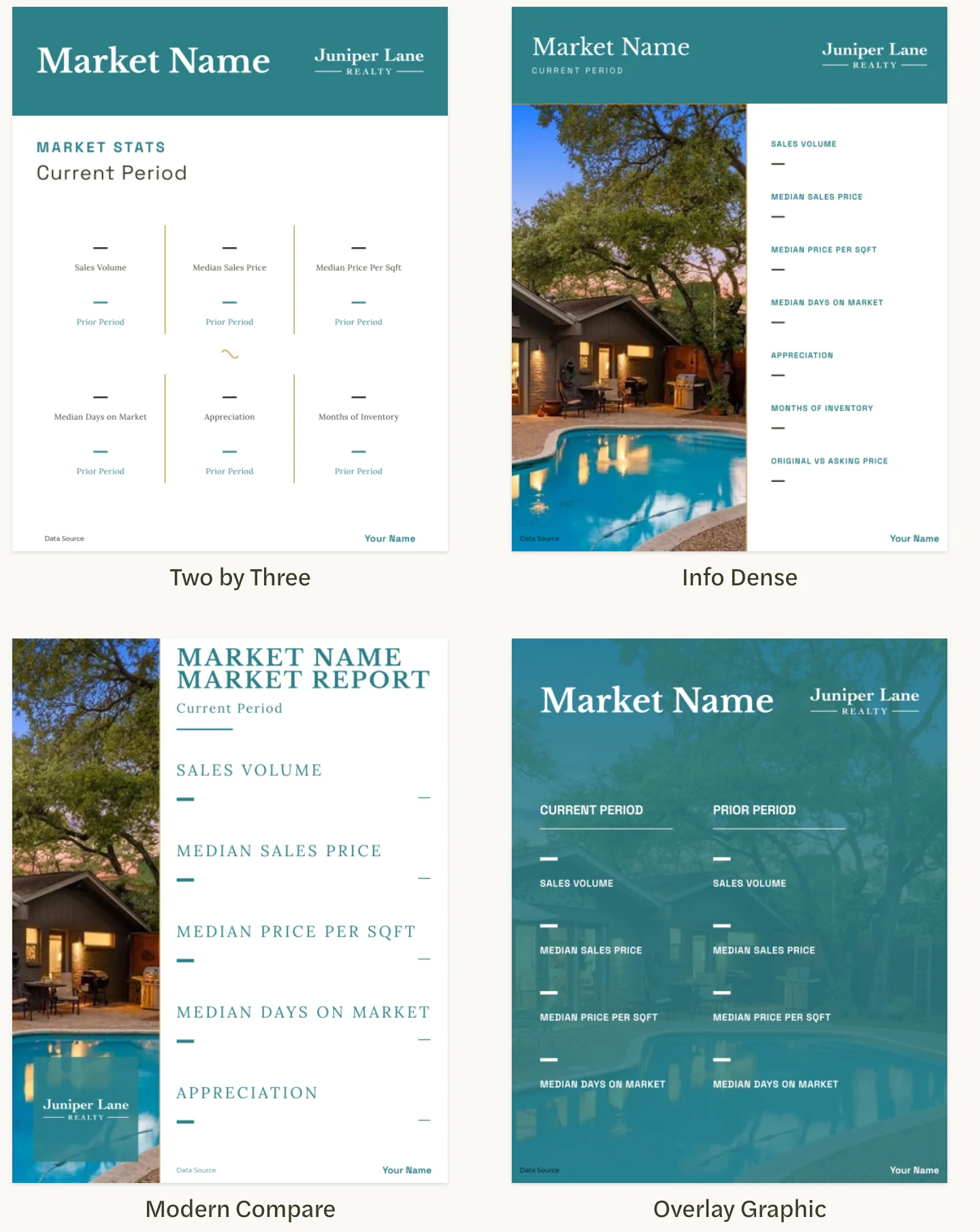
- Two by Three shows six statistics, each with its change since the earlier period underneath, and no photo.
- Info Dense shows seven statistics, without the earlier period, beside a photo.
- Modern Compare shows five statistics next to a strip of photo.
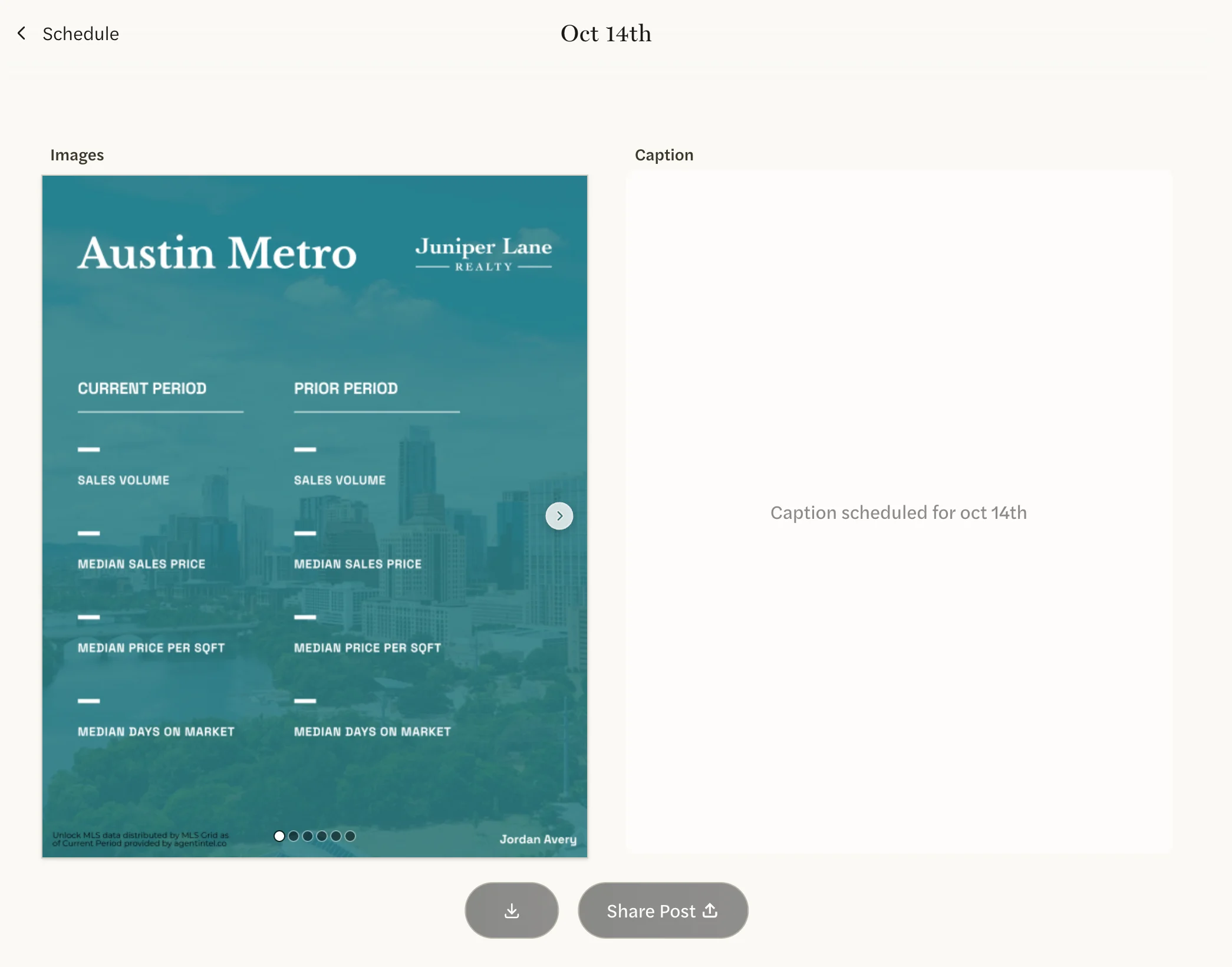
- Overlay Graphic shows four statistics in two columns, this period and the earlier one, over a full photo.
If a template has no logo chosen, AgentIntel’s own symbol is printed in its place. The wordmark is the name at the bottom of each image; it starts as your name. You change both under customize. See Style your templates.
From schedule to finished post
Before its day, a schedule’s next post can be previewed: select the schedule’s tile on the Social page, then Preview at the top right (just an eye icon on a narrow screen). The template and market names are there, with dashes where the numbers will go, and the caption is still to come. The download and Share Post buttons don’t work yet.
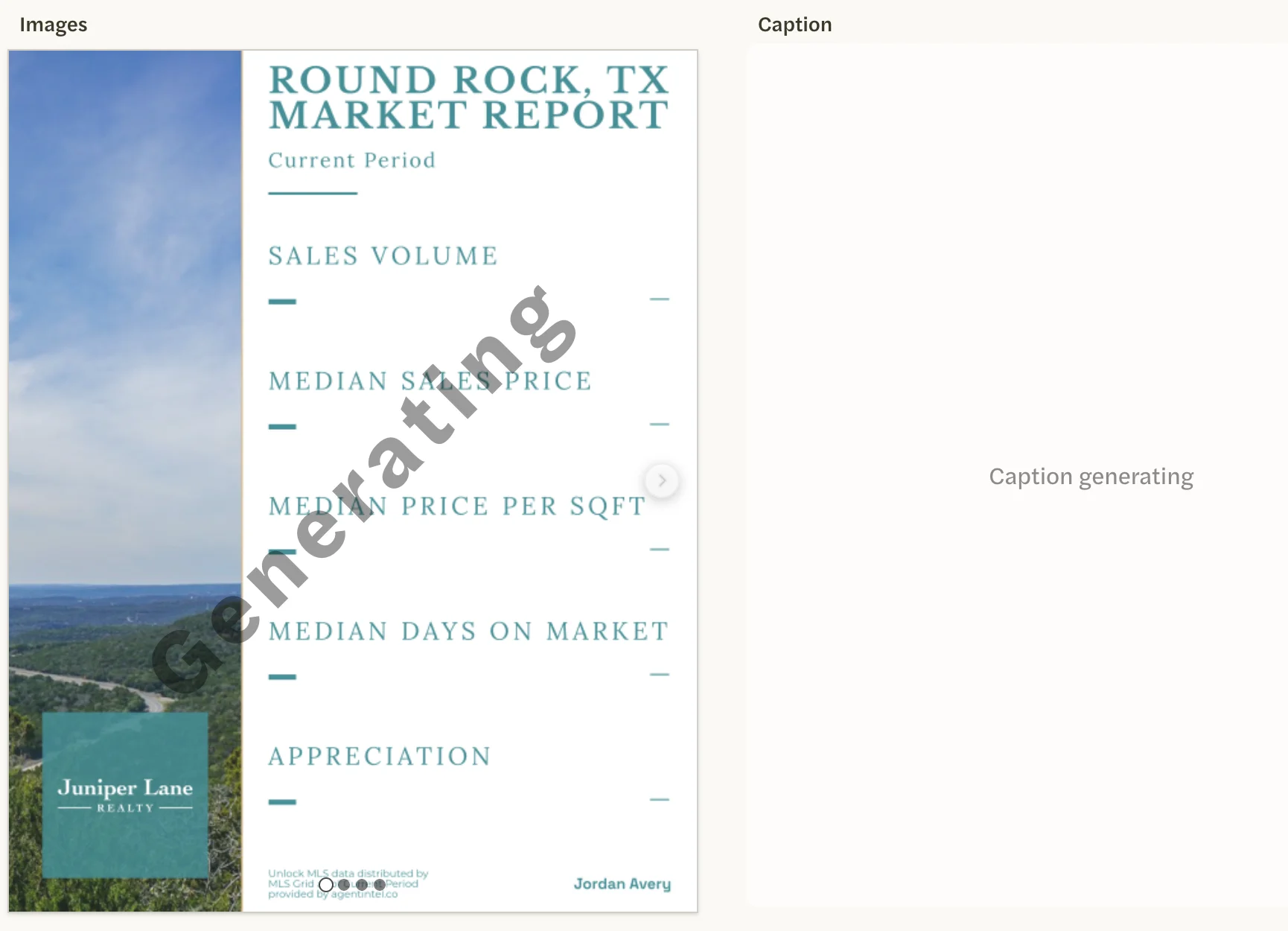
On its day, the post appears under Post History, marked Generating, and AgentIntel makes it: it fills in the latest numbers, puts the statistics in order, picks the photo and writes the caption. A schedule’s post is made on its date, at some point after midnight US Central time; there’s no set time of day. A single post starts as soon as you create it.
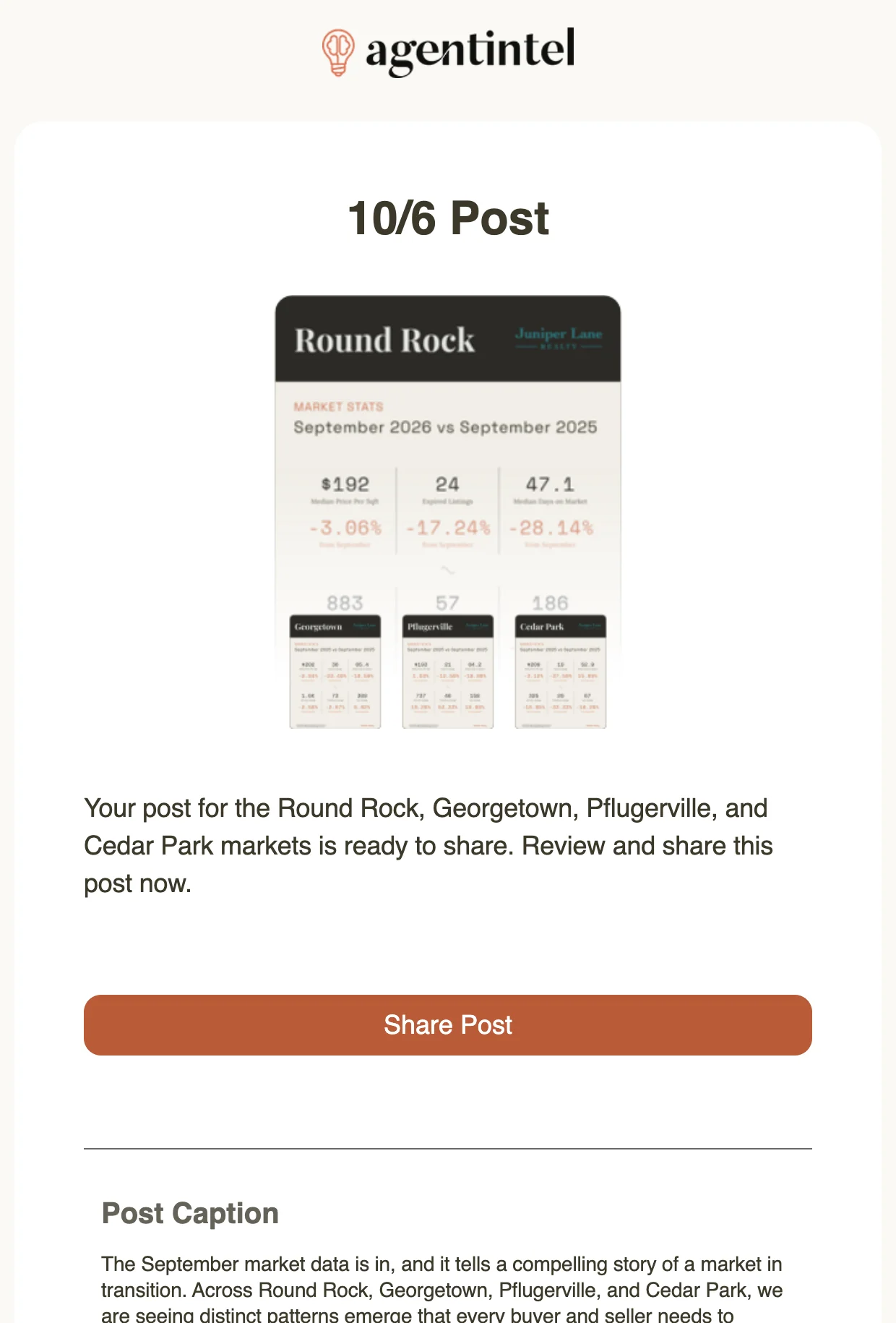
When it’s ready, the images and caption replace Generating, and we email you. The email is titled like “Your 10/14 Post is Ready to Share” and carries a preview, the caption and a Share Post button that opens the post.
Changes you make to a schedule or a template show up in the next post that is made.
Sharing is up to you
Open a finished post from Post History or from the email. From there you can download the images and caption, or send them to Instagram, Facebook or another app on your phone and post them from that app. See Share a finished post.
Good to know
- Posts are made while your subscription is active, including during a free trial. If your access ends, scheduled posts stop.
- With an MLS Connection, posts use your MLS’s markets and statistics. Without one, they use national markets and statistics. See MLS and national data.
- A schedule repeats monthly on a weekday you choose, such as the 2nd Wednesday. There is no weekly schedule and no fixed date of the month.
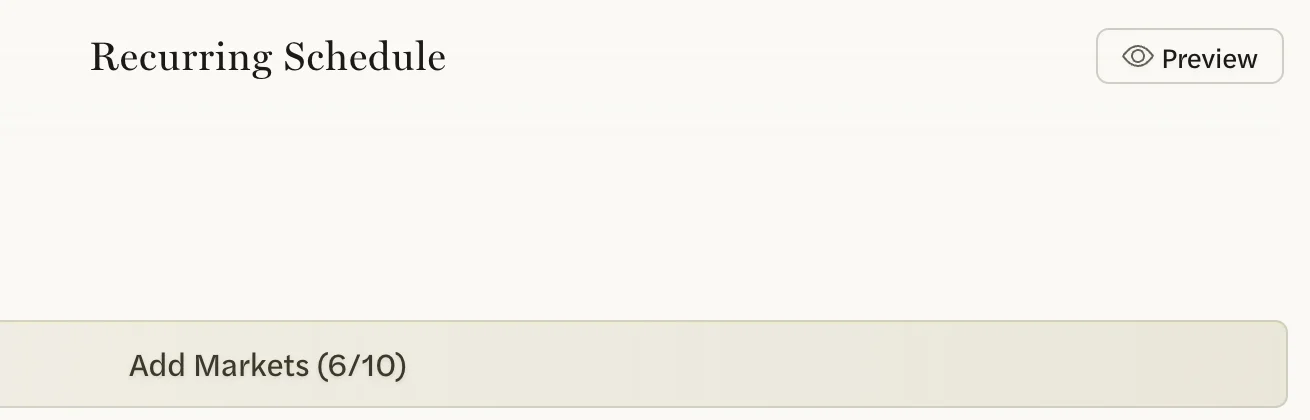
- A post holds up to 10 markets. For more, make a second post or schedule.
Something not working? See Troubleshooting social posts.