AgentIntel never posts for you. A finished post is a set of images and a caption, and you post them yourself, from Instagram, Facebook or any other app. On a phone, Share Post and then Share Now hand the images to your phone’s share options and copy the caption. On a computer, you can download everything, or open the post on your phone with a QR code and share it from there.
Open a finished post
Select Social in the left menu.
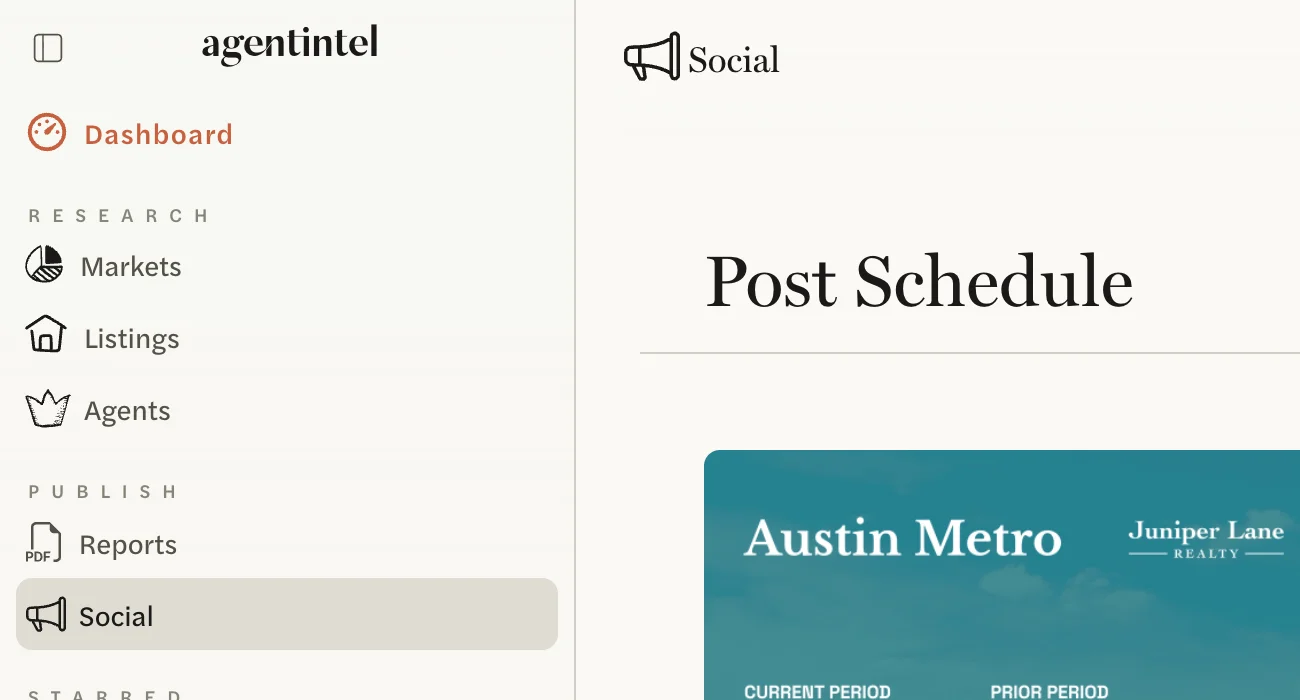
Under Post History, select the post.
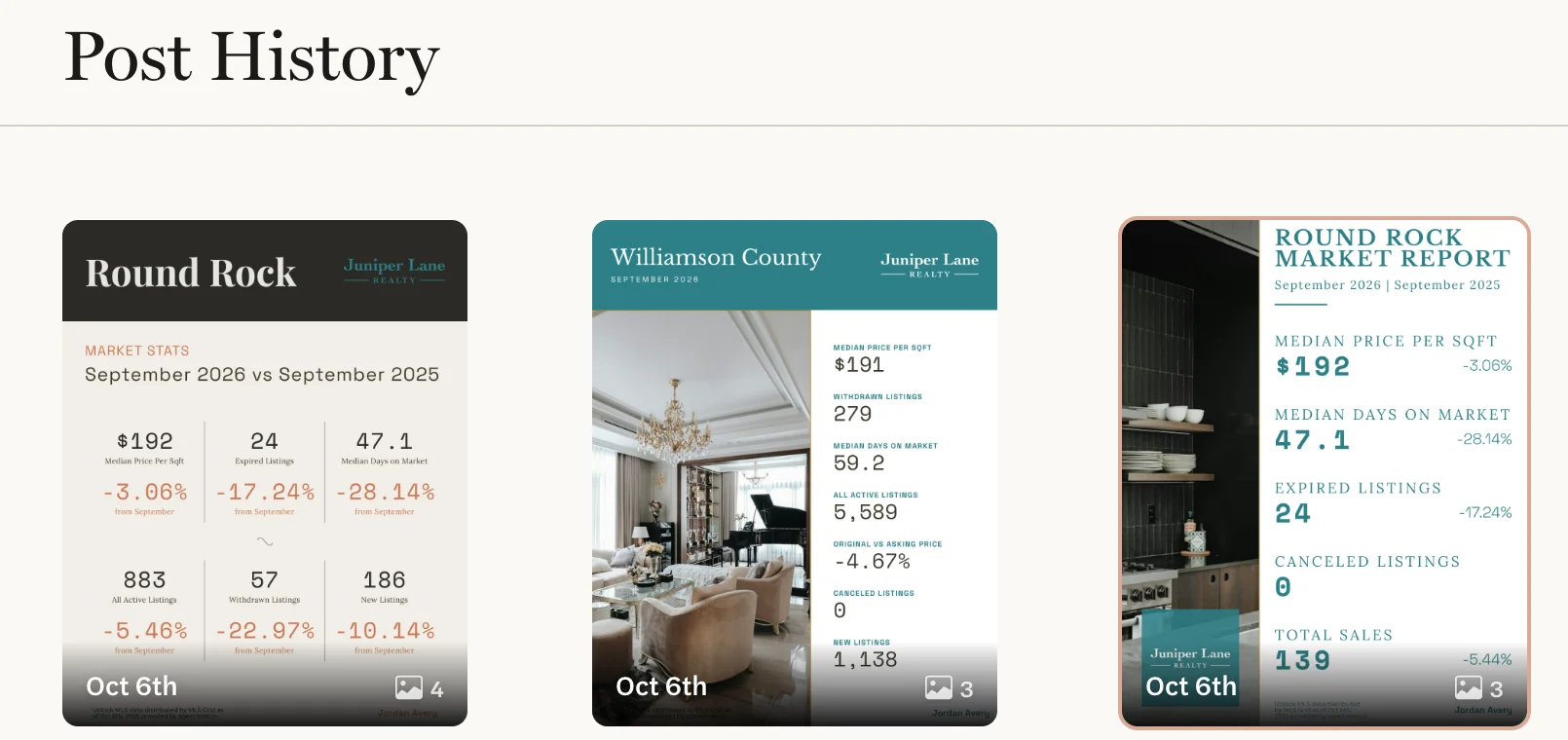
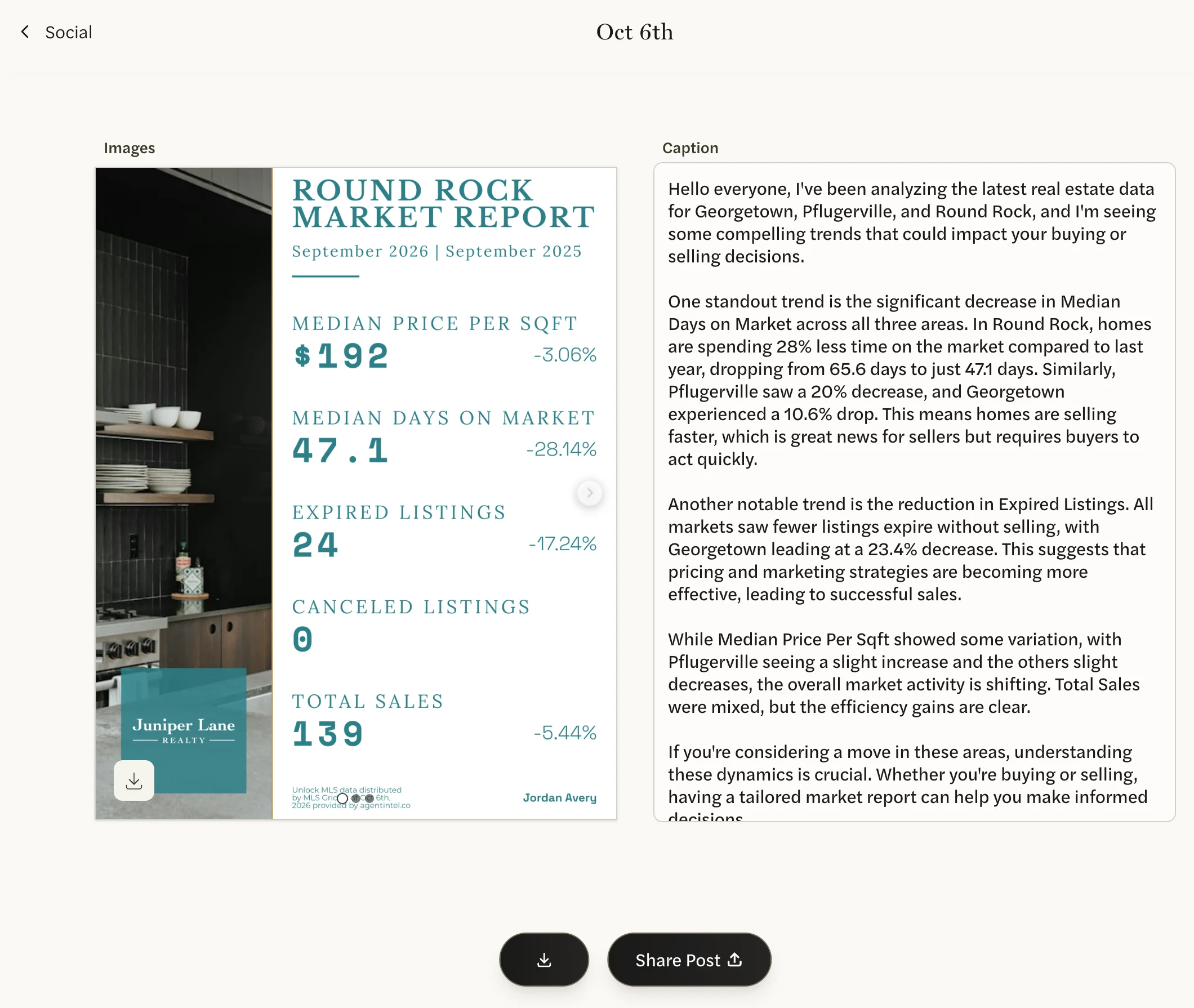
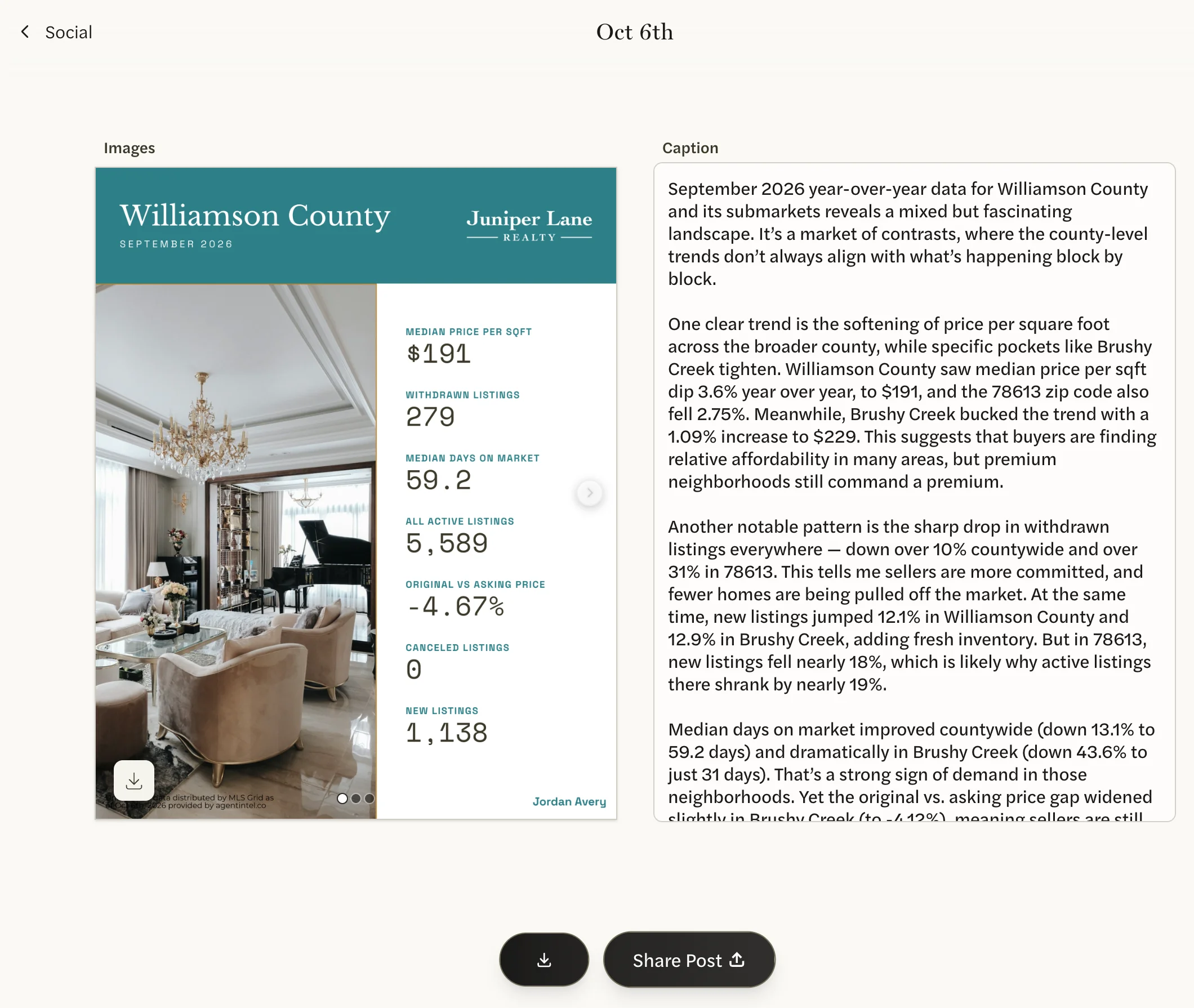
The post’s page opens, titled with the post’s date, with its Images and its Caption. The download button and Share Post are at the bottom of the page.
You can also select Share Post in the email we send when a post is ready. It opens the same page. If you aren’t signed in to AgentIntel on that phone or computer, you’re asked to sign in first.
Sharing and downloading work only once a post is made. Until then its images say Generating or show dashes in place of the numbers, and the buttons are grayed out.
Share from your phone
Open the post on your phone.
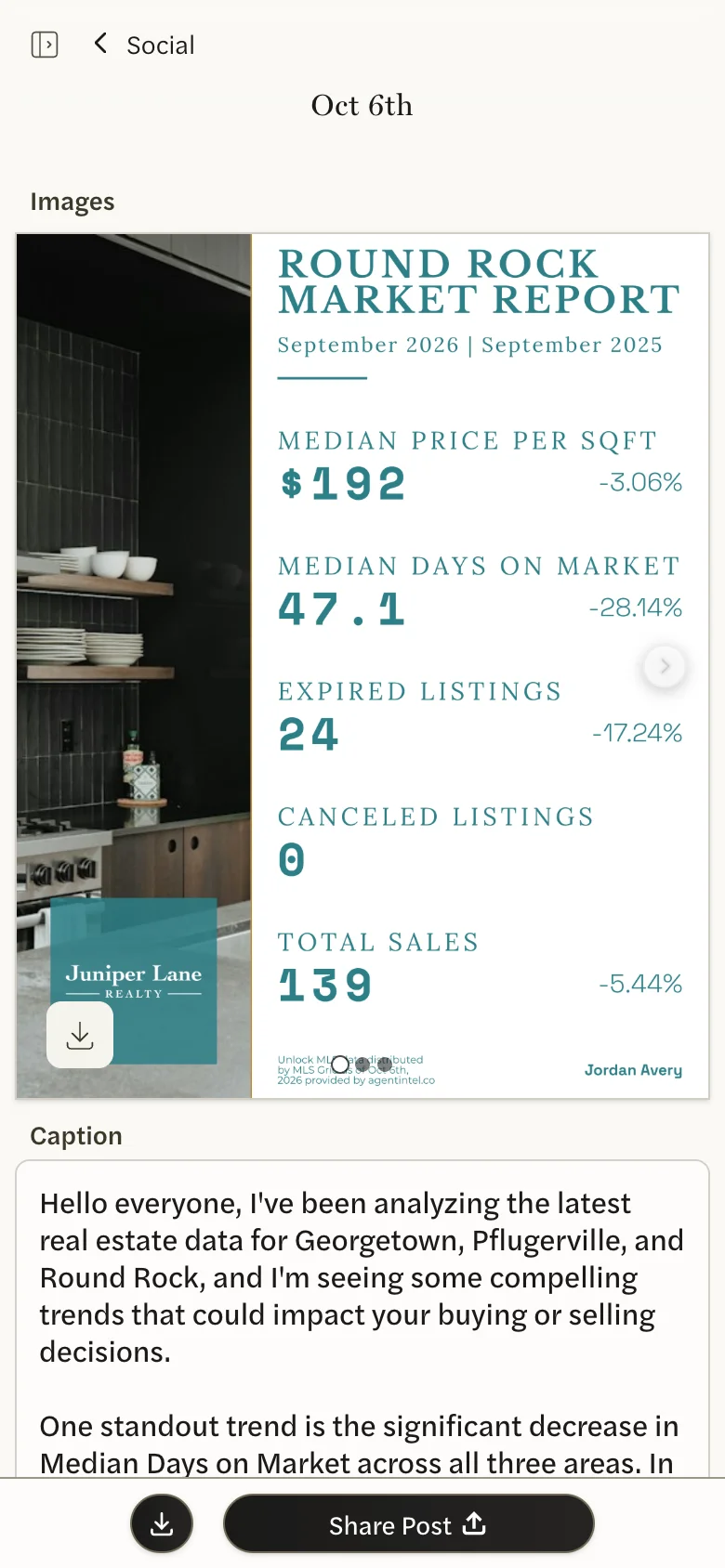
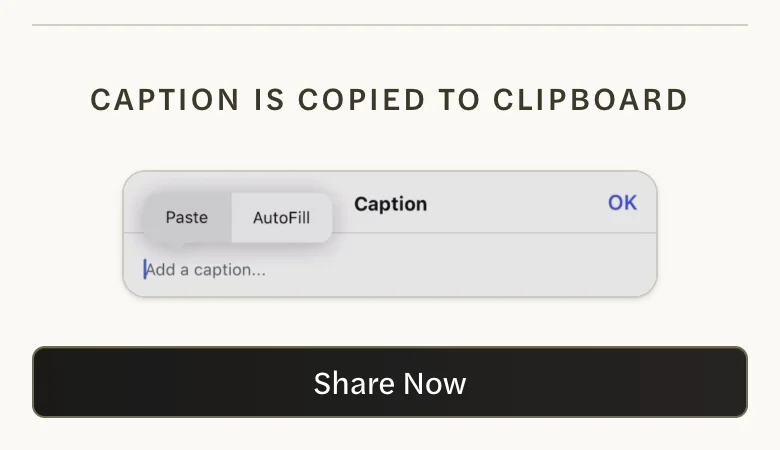
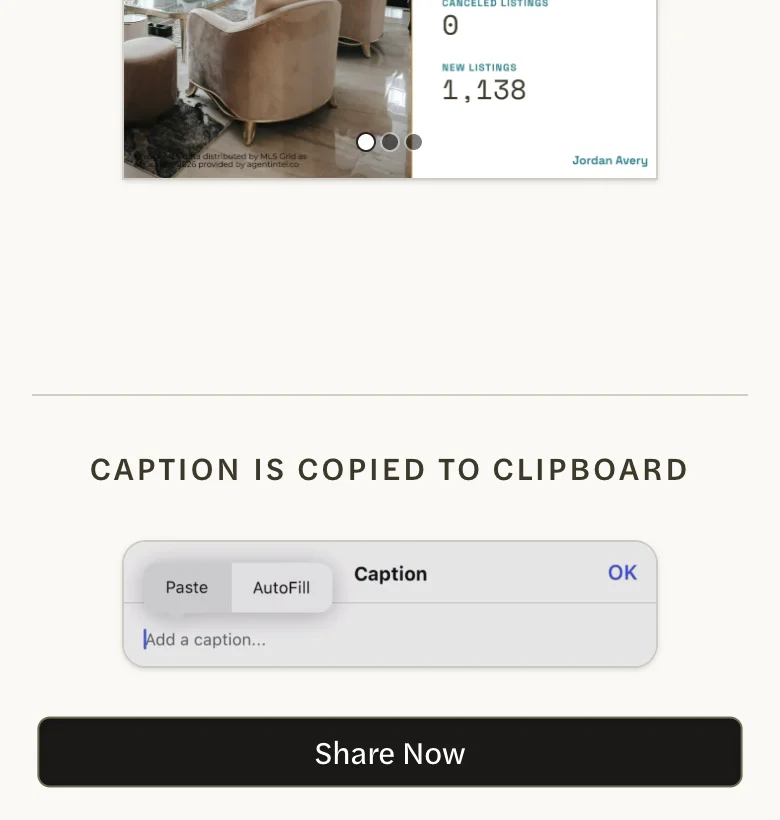
Select Share Post at the bottom of the page. AgentIntel’s Share Post window opens, with the post’s images, the note CAPTION IS COPIED TO CLIPBOARD, and Share Now.
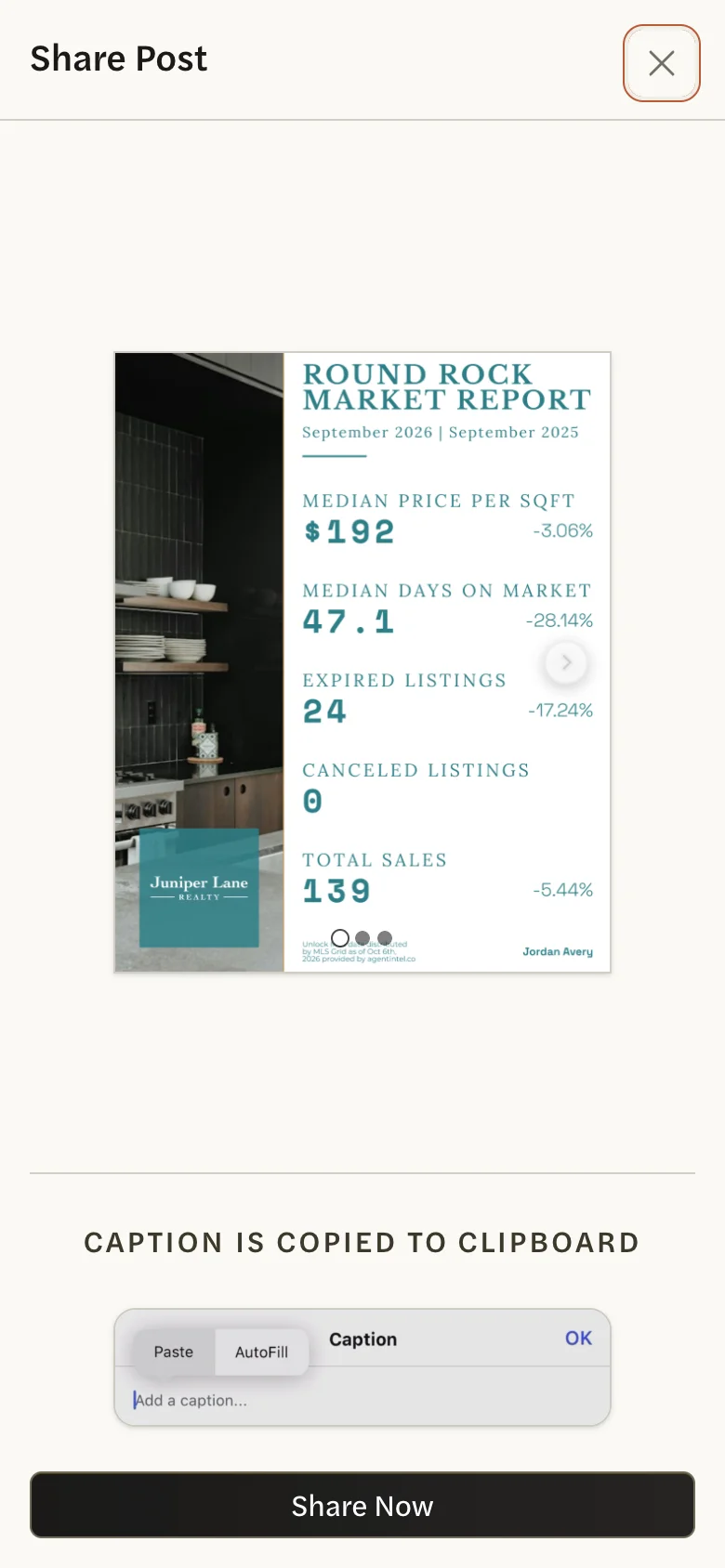
Select Share Now. Your phone’s own share options open with the post’s images, and AgentIntel copies the caption at the same moment.
- Choose the app you want to post with, such as Instagram or Facebook.
- In that app, paste the caption into its caption box if it isn’t there already, then finish the post as you normally would.
Everything after Share Now belongs to your phone and the app you choose, not to AgentIntel. Which apps are offered depends on what your phone has installed, and not every app takes the caption along with the images. That is why AgentIntel copies the caption for you to paste.
If the window has no Share Now, the browser you’re using can’t share from web pages. Open the post in another browser on your phone, or download the images instead (see below).
Share from your computer
On a computer, Share Post shows a QR code. It is there so you can open the post on your own phone, already signed in, and share it from there.
The QR code is a sign-in link to your AgentIntel account. Anyone who scans it is signed in to your account as you, and stays signed in on their phone afterwards.
- Scan it only with your own phone, and don’t let anyone else scan it.
- Don’t open the window while your screen is shared, recorded or in view of other people.
- Don’t take a screenshot or a photo of the code, and don’t send one to anyone. A picture of the code signs people in just as the code on your screen does, for the same 24 hours.
- Logging out of AgentIntel on your computer doesn’t sign out a phone that has scanned the code.
A new code is made every time a post’s page opens on your computer, whether or not you select Share Post. Each one works for 24 hours from then, as many times as it is scanned, and closing the window doesn’t stop it working.
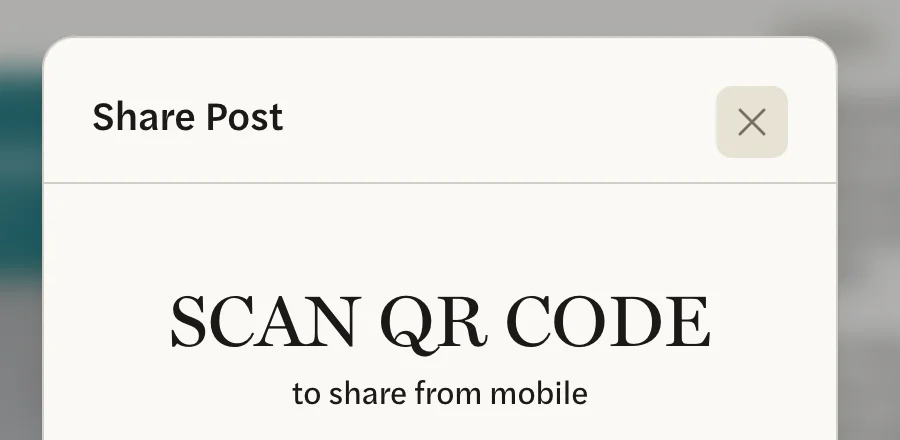
Open the post on your computer and select Share Post. A Share Post window opens: SCAN QR CODE to share from mobile, with the code below.
Point your phone’s camera at the code and open the link it finds. The post opens on your phone, signed in, with its Share Post window already open.
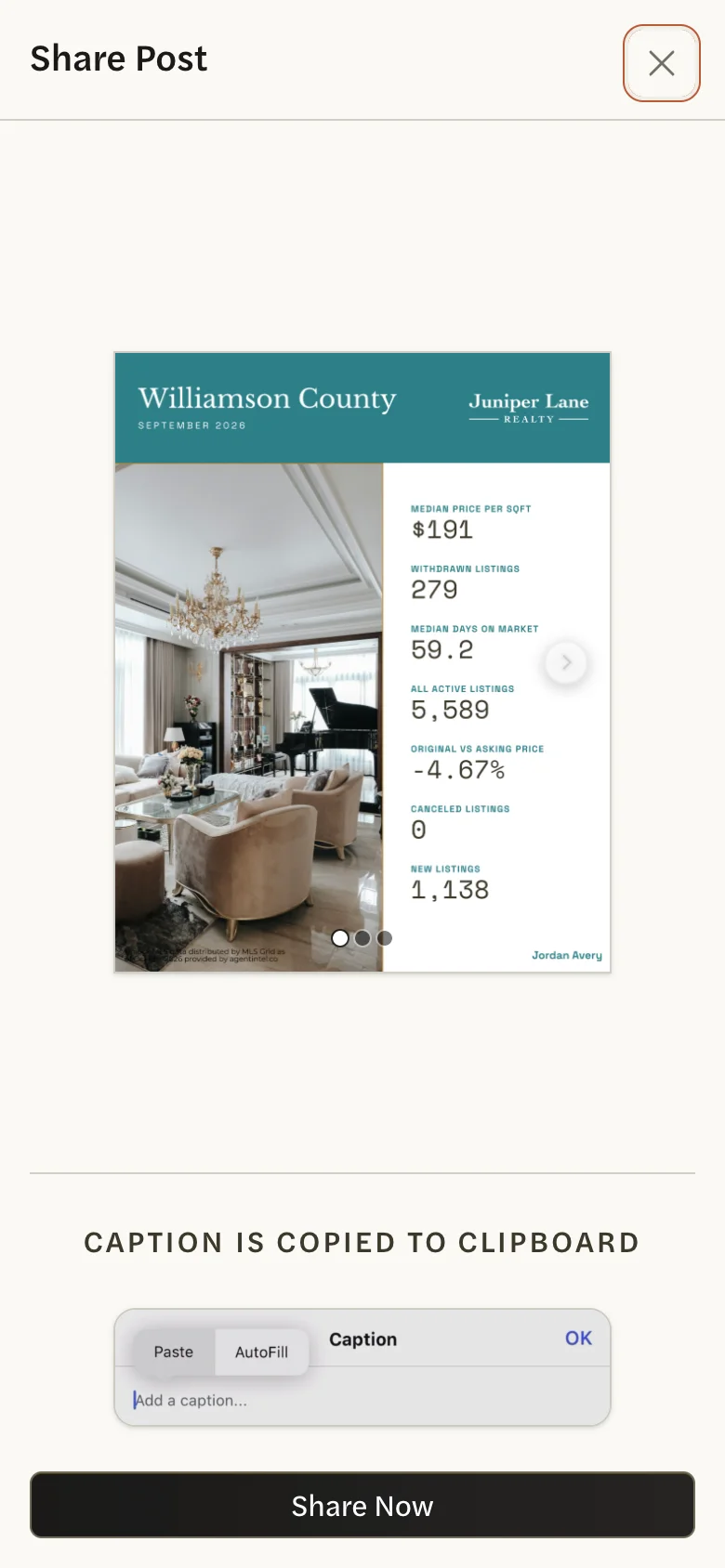
On your computer, close the window with the × at its top right.
On your phone, select Share Now and carry on from step 3 of Share from your phone.
If your browser can share, the window also has or share from desktop now below the code. It hands the images to your computer’s own share options and copies the caption, as Share Now does on a phone. What it offers depends on your computer.
Download the images and caption
Open the post.
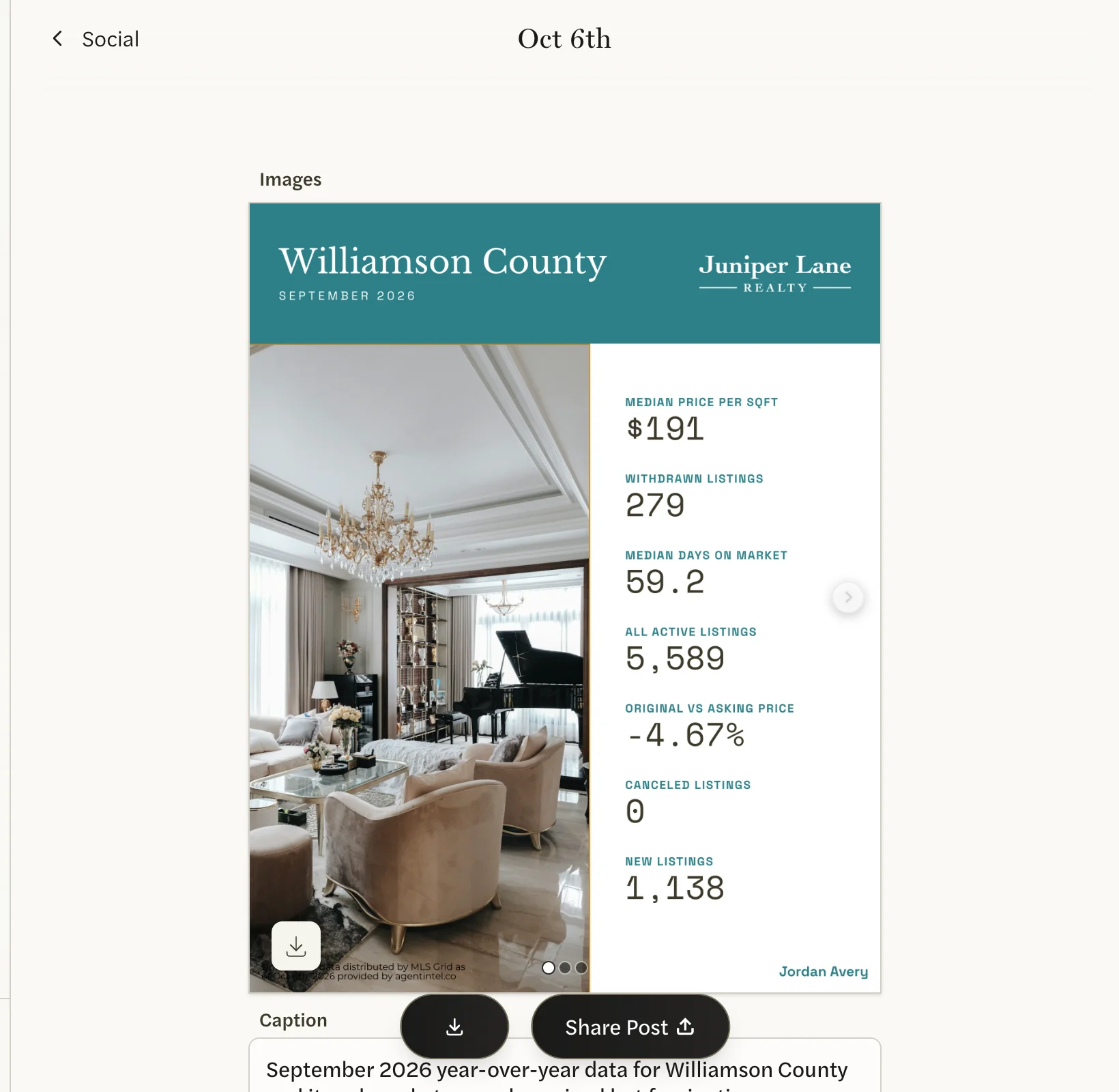
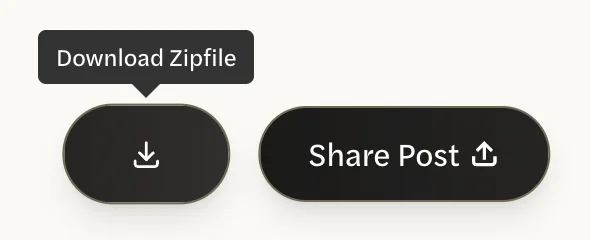
Select the download button at the bottom of the page, beside Share Post. When you point to it, it reads Download Zipfile.
Your browser saves a file named social-post.zip. Inside are the images, as JPG files 1080 × 1350 pixels, and caption.txt, which holds the caption as it is in the Caption box.
In the zip file, the images are named with random letters and numbers rather than market names, so your computer may list them in a different order from the post. To save them with their market names, download them one at a time.
Download one image
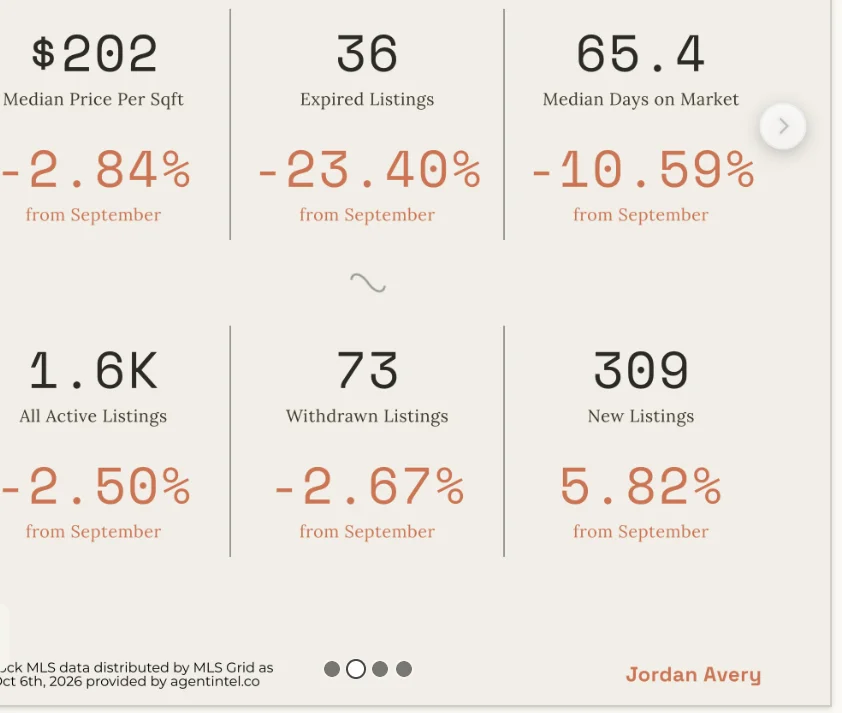
Move to the image you want with the arrow on the right of the image, or the dots along its bottom edge.
Select the download arrow at the bottom left of the image. When you point to it, it reads download image.
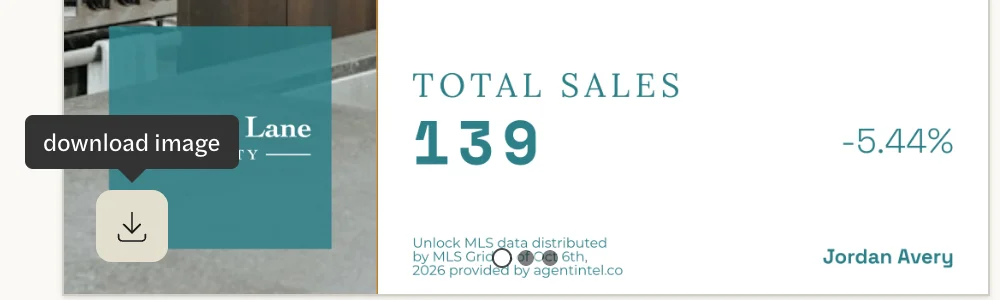
The image is saved with its market’s name, such as Round Rock.jpg.
Copy the caption
The caption is in the Caption box, beside the images on a computer and below them on a phone. Edit it first if you want to: your changes save as you type, and Share Post and the download button use the caption as it is in the box.
To copy it on a computer, select inside the box, press Cmd+A (Ctrl+A on Windows) to select all of it, then Cmd+C (Ctrl+C). On a phone, Share Now copies it for you.
Every caption ends with four short lines of a single dot each, then “statistics verified by @getagentintel”. Delete them before you copy if you don’t want them in your post.
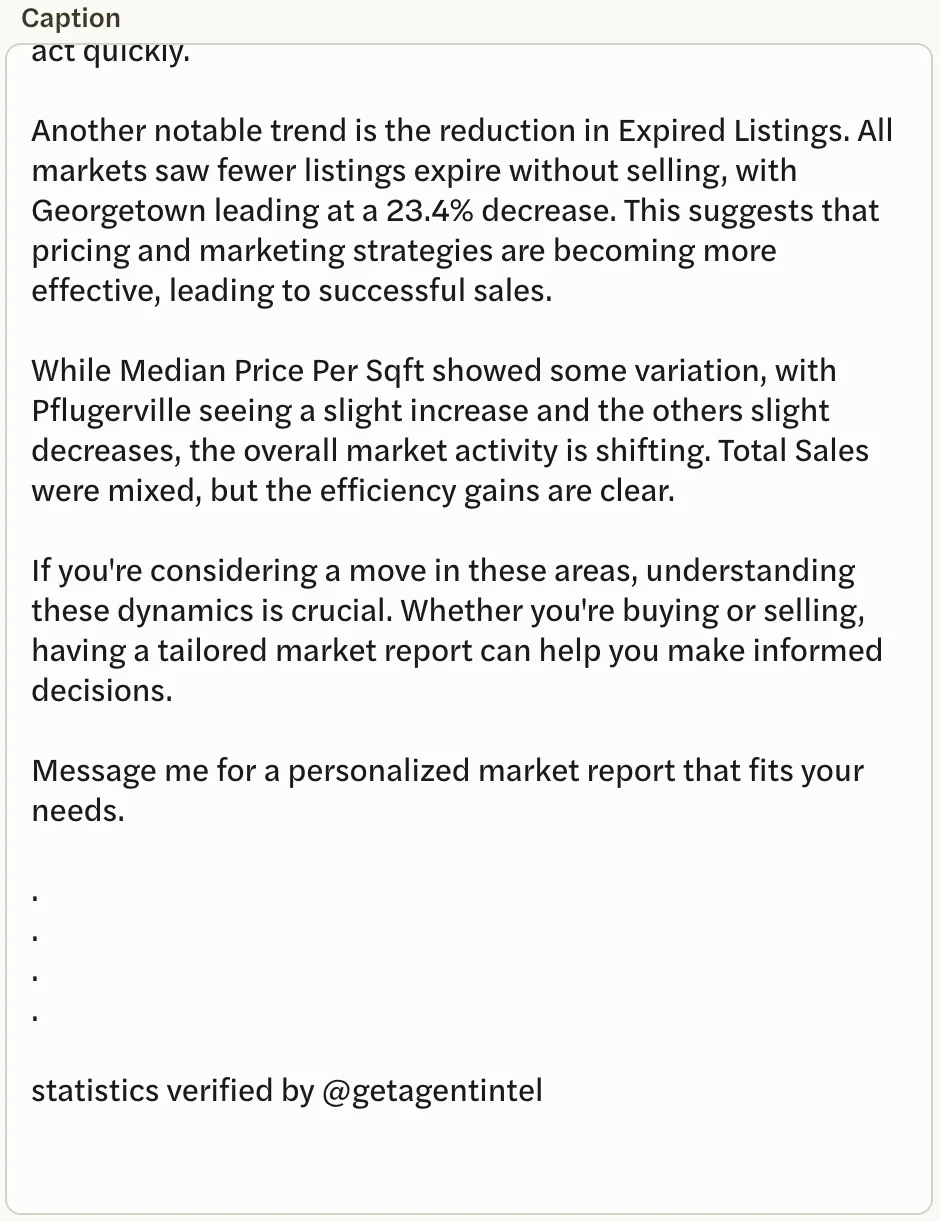
The email that tells you a post is ready also contains the caption, but it runs the paragraphs together and doesn’t include changes you made afterwards. Copy the caption from the post’s page instead.
The email when a post is ready
Each time a post is made, single or scheduled, we email you. The subject is “Your 10/6 Post is Ready to Share”, with the post’s date. The email has a small picture of the post’s images, a sentence naming its markets, a Share Post button, and the caption under Post Caption.
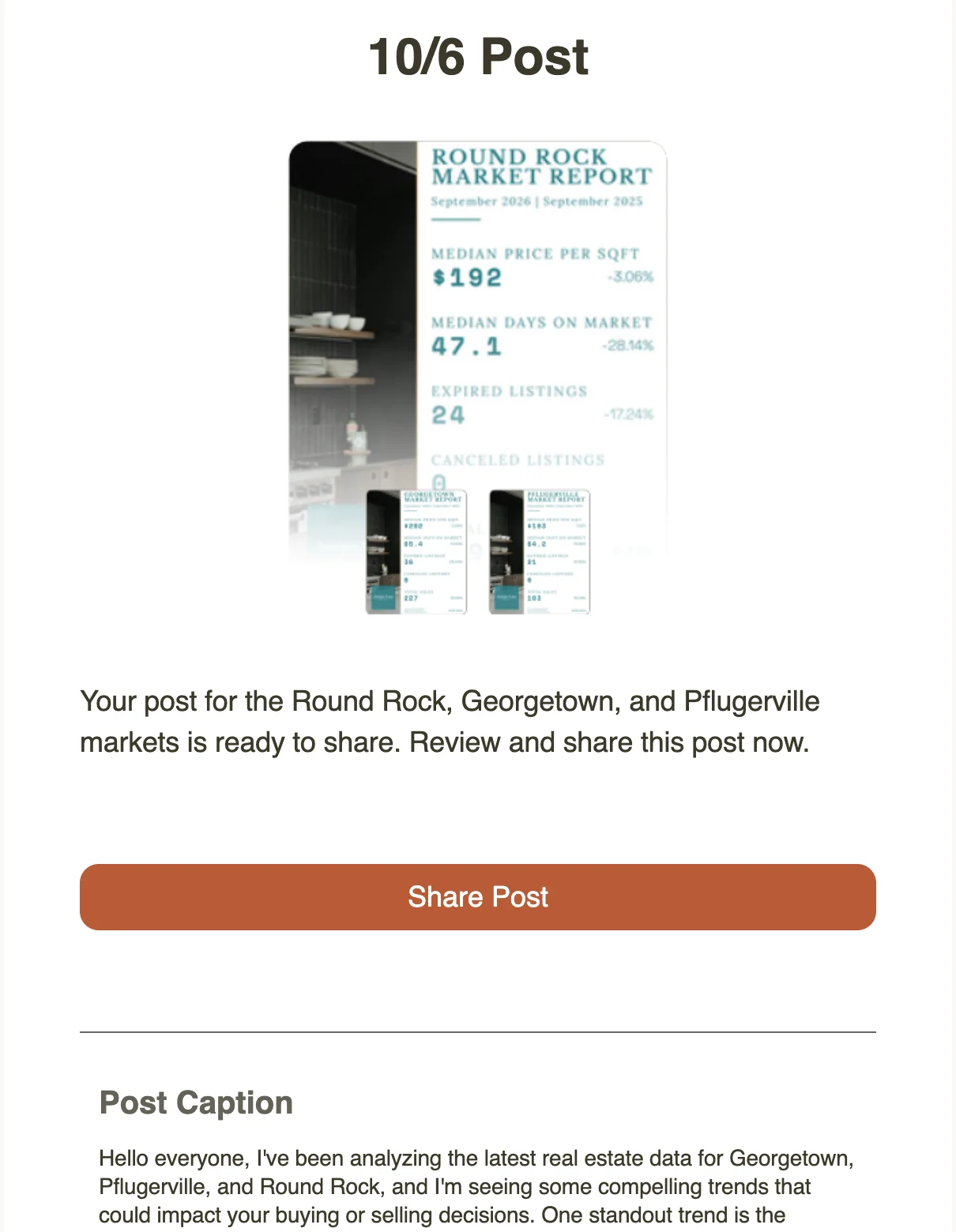
Share Post in the email opens the post’s page in AgentIntel. It isn’t a sign-in link, so you sign in as usual if you need to. This email can’t be turned off; see Stop or change emails. If it doesn’t arrive, see Troubleshooting social posts.
Good to know
- Only the caption can be changed once a post is made. For different images, make a new post. See Create a post.
- Every image is 1080 × 1350 pixels, the portrait shape Instagram uses. There are no other sizes.
- Once you’ve posted, any change or deletion happens in the app you posted with. AgentIntel has no connection to it.
Something not working? See Troubleshooting social posts.