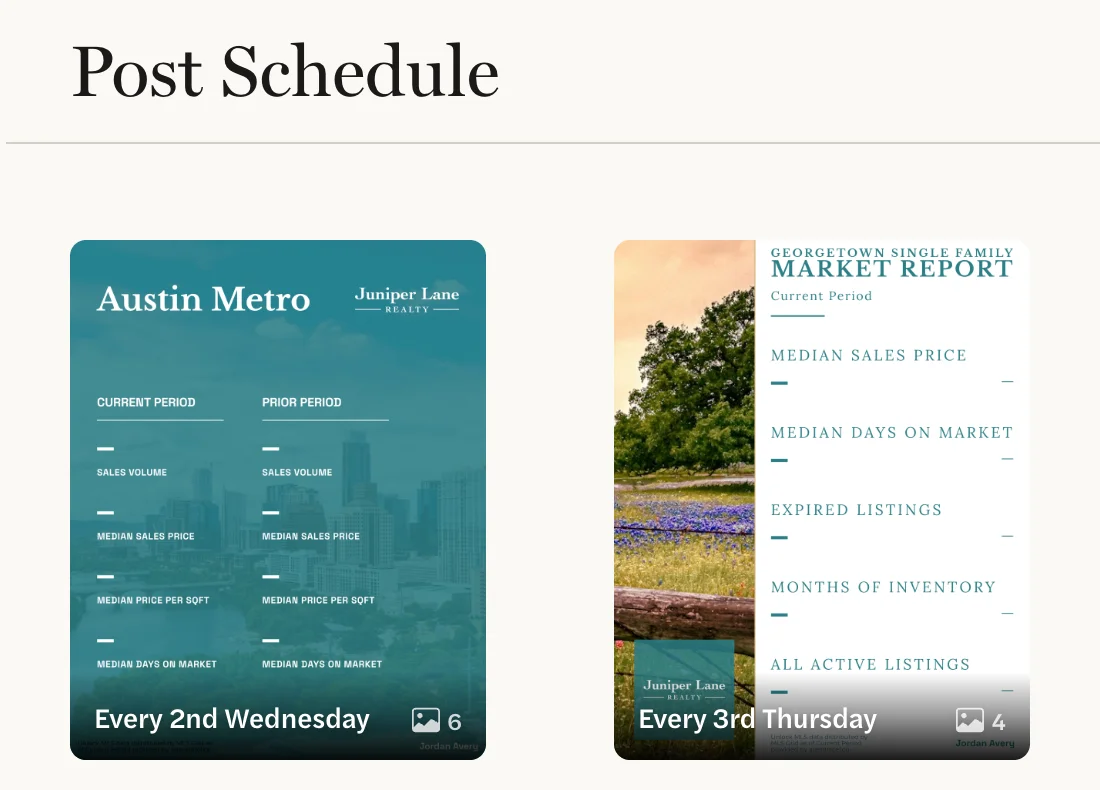
Find what you’re seeing below.
My post has said Generating for a long time
Reload the page first. The images and caption appear once the post is made, and a page you already have open may not show them until you reload it.
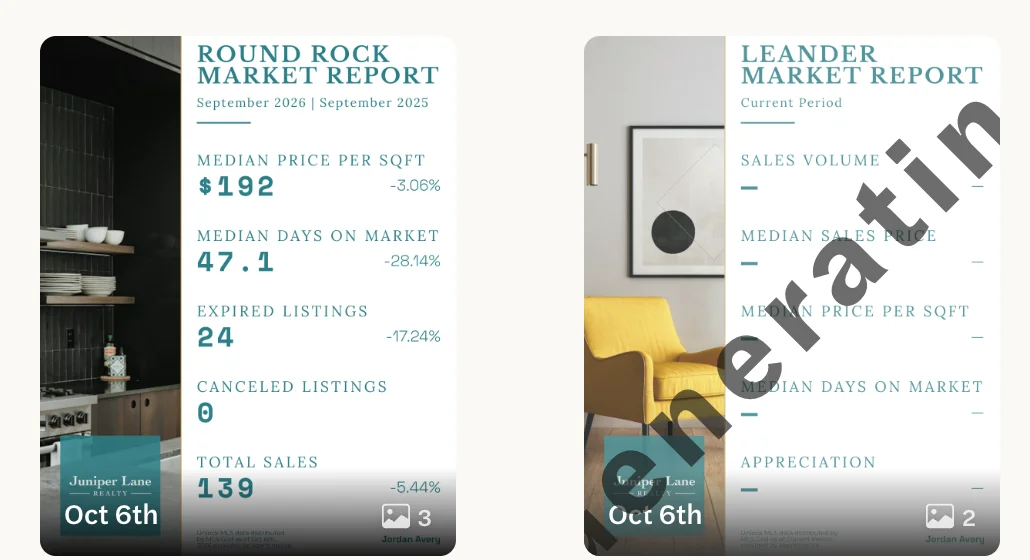
If it still says Generating:
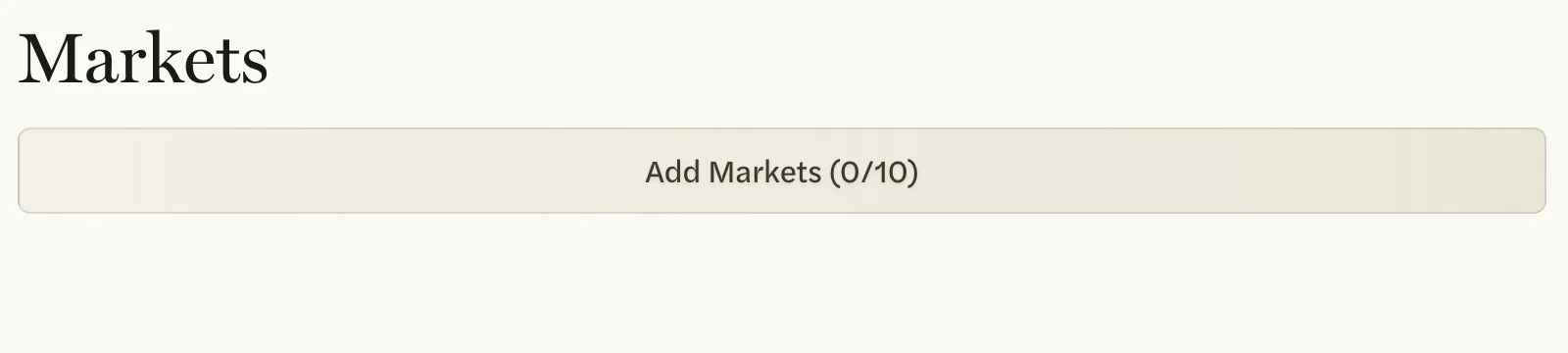
- On a schedule’s post, select the schedule’s tile on the Social page and check that it still has a market. A schedule with no markets can’t make posts, and its button reads Add Markets (0/10). Point to that button, search for a market and select it. The waiting post is then made within the hour, with the markets the schedule has then.
- Otherwise, AgentIntel tries again every hour until the post is made. You don’t need to do anything.
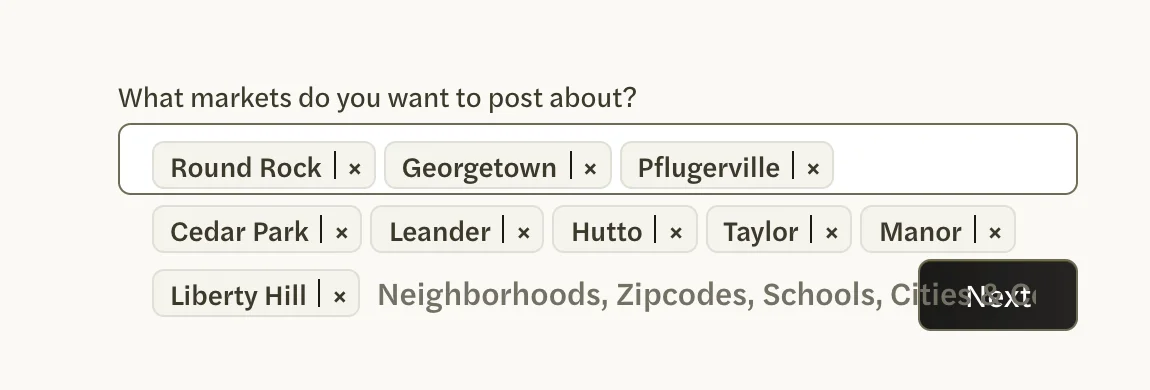
Selecting Next opens an error page
On New Post or New Schedule, Next opens an error page when no market is chosen, or when more than 10 are. Nothing is saved.
The markets you chose aren’t kept, and your browser’s back button takes you to the Social page. Start again from there with New Post or New Schedule, choosing between one and 10 markets.
Next does nothing after I choose a lot of markets
When the markets you’ve chosen fill several lines, the search box can sit over the middle of Next, so selecting it puts you back in the search box. Select the right-hand end of Next instead.
I started a post, but it isn’t on my Social page
A post is made only when you select Generate Post, and a schedule starts only when you select Create Schedule. If you left the page before that, nothing was made and it isn’t listed anywhere. Start again with New Post or New Schedule on the Social page.
My scheduled post didn’t show up on Instagram or Facebook
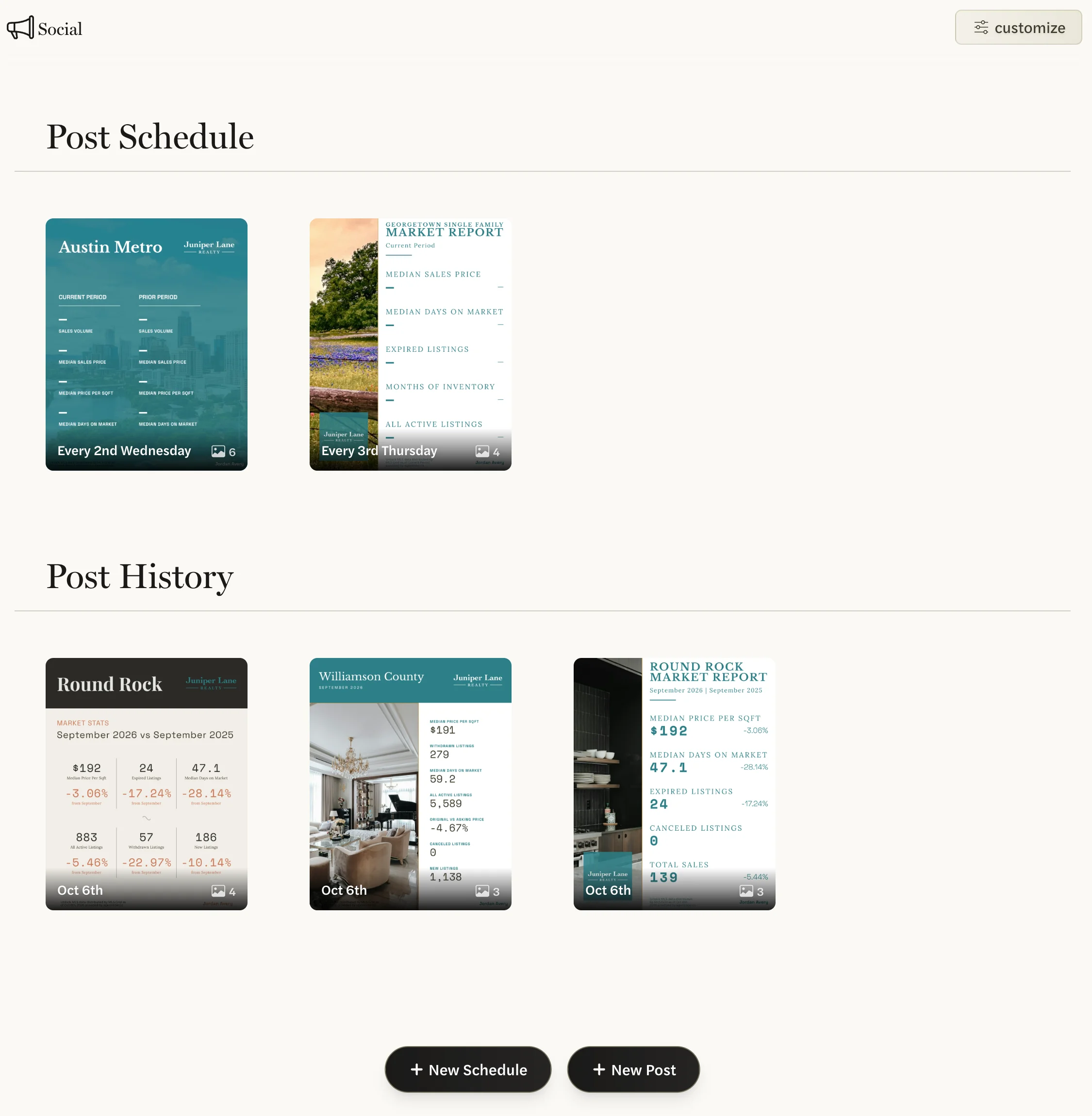
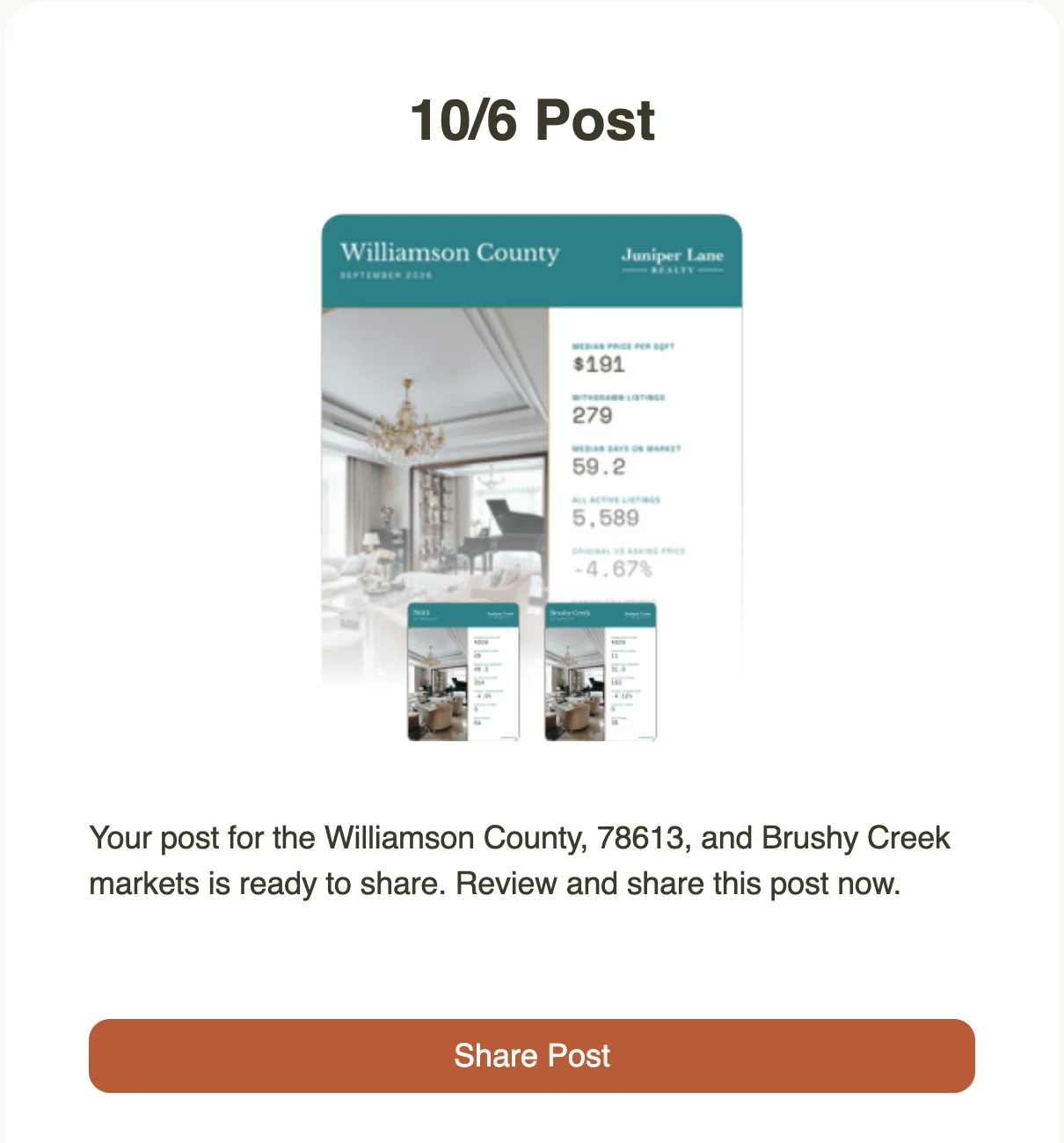
AgentIntel doesn’t post anywhere for you. On a schedule’s day, it makes the post, lists it under Post History on the Social page and emails you that it’s ready. You then share it yourself. See Share a finished post.
My schedule hasn’t made a post, or my posts stopped
Check these in turn:
-
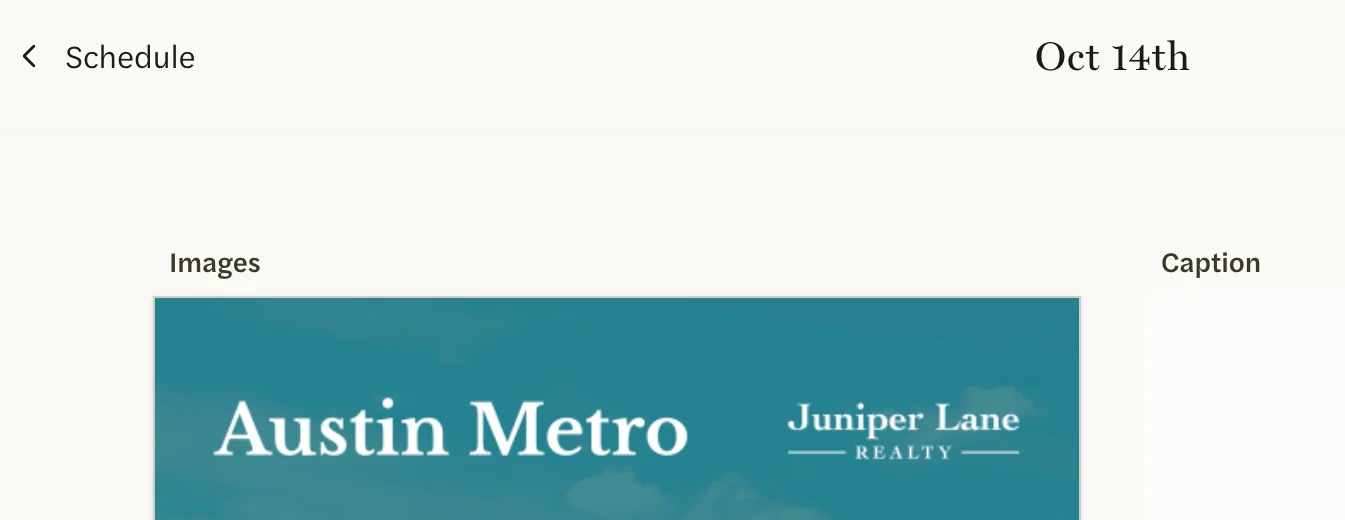
The day hasn’t come yet. A schedule makes its post on its day, such as the 2nd Wednesday. If that day had already passed this month when you set up the schedule or changed its day, the first post is next month. To see when the next post is due, select the schedule’s tile on the Social page, then Preview: the page that opens is titled with the date, such as “Oct 14th”.
- The schedule has no markets. Select its tile. If the button under Markets reads Add Markets (0/10), add a market back. See the fix under My post has said Generating for a long time.
- Your subscription isn’t active. Posts are made only while your subscription is active, including during a free trial. If it has ended or a payment failed, no posts are made. Once your subscription is active again, your schedules carry on. See Undo a cancellation or resubscribe or Payment failed.
- The schedule was deleted. A deleted schedule makes no more posts, and its earlier posts are gone too.
A post disappeared after I changed the schedule’s day
Changing the day under The Schedule on a day the schedule has already made a post clears that post: its images and caption are removed, it leaves Post History, and it waits for the new day. The images and caption can’t be brought back.
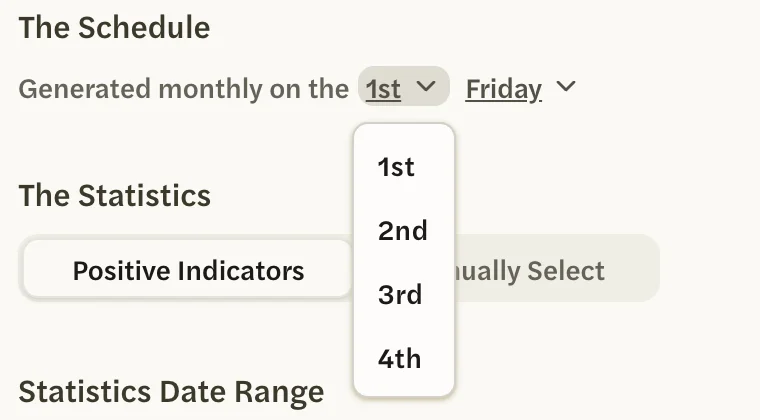
If it’s still the same day, you can have a post made again: change the day back to today’s. A new post is made straight away, with the latest numbers and a newly written caption; it isn’t the old post back, and we email you again when it’s ready. Change the day on another day, after you have shared the post. See Change a schedule.
I deleted a schedule and its posts are gone
Deleting a schedule also deletes every post it made, as the Delete Schedule? message warns. A deleted schedule and its posts can’t be brought back.
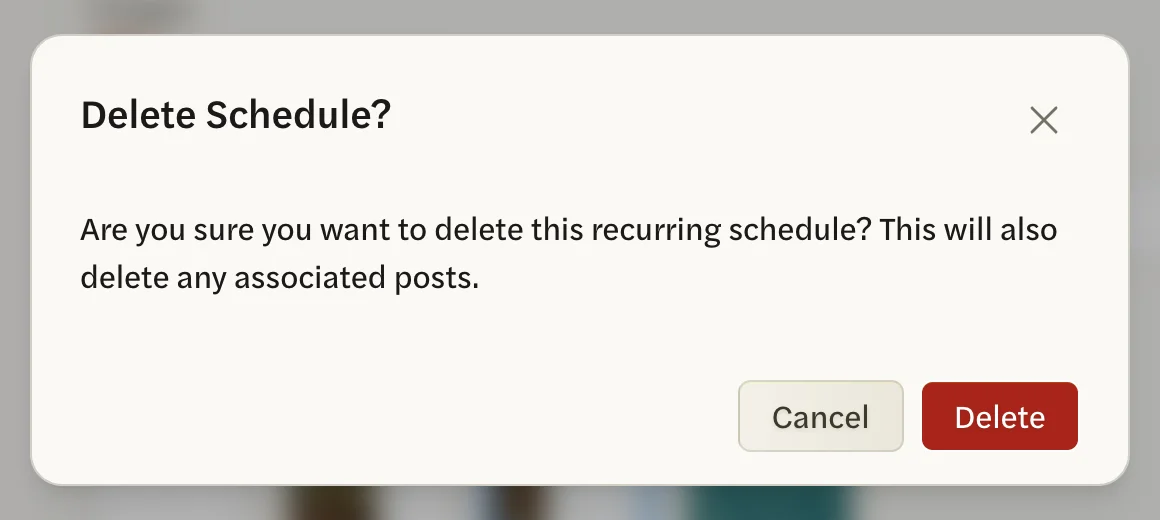
To post about the same markets again, make a new post with New Post, or set up a new schedule. New posts use the latest numbers. See Create a post.
I can’t delete a post or change its images
Neither is possible. A finished single post can’t be deleted, and once any post is made, its images, markets, statistics and photo stay as they are. Only the caption can be edited, in the Caption box on the post’s page.
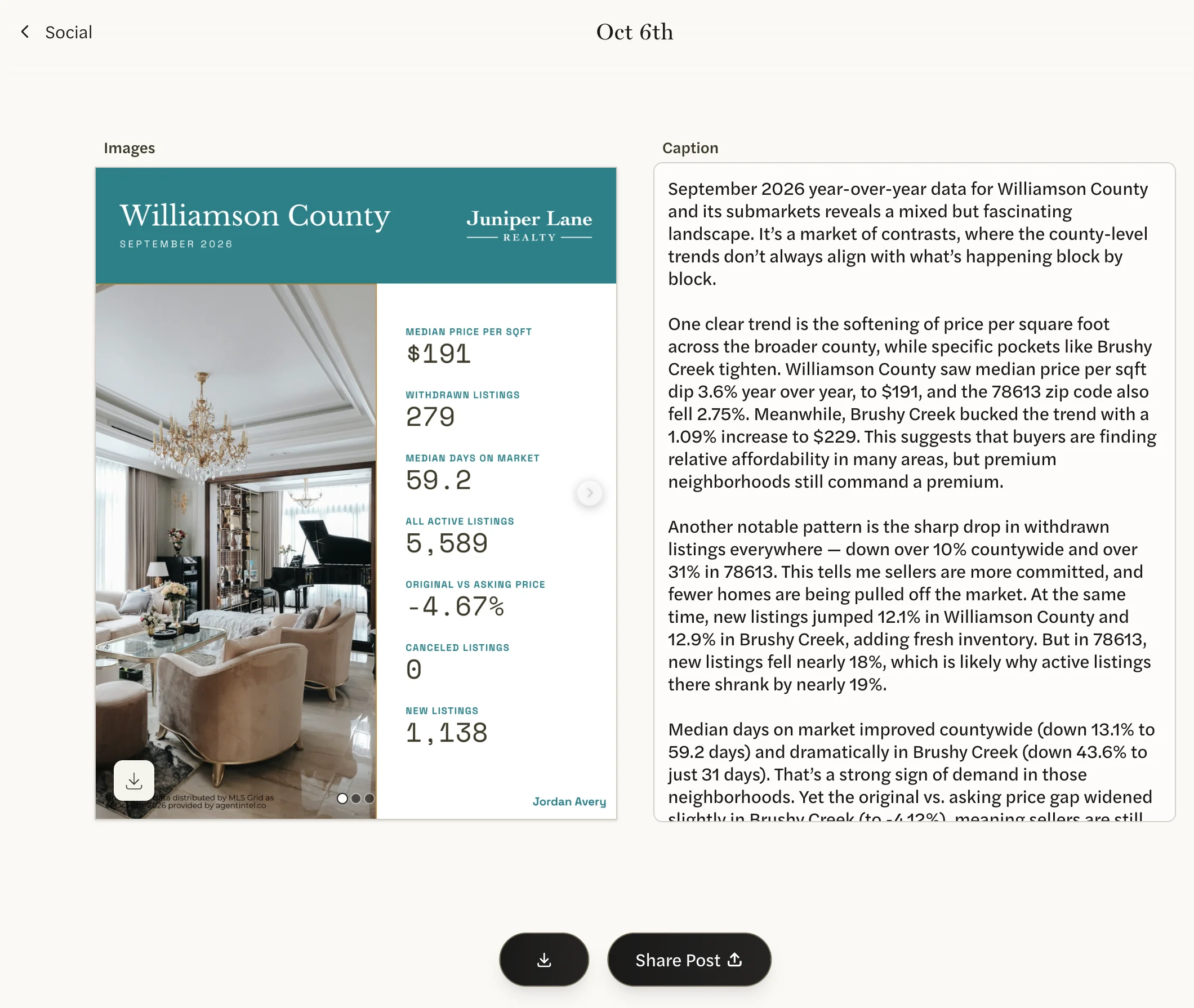
For different images, make a new post with New Post. A schedule’s posts are deleted only by deleting the schedule, which deletes all of them.
There’s an AgentIntel symbol on my images instead of my logo
That symbol is printed on a template that has no logo chosen. Each of your four templates has its own logo choice.
On the Social page, select customize, then the template the post or schedule uses.
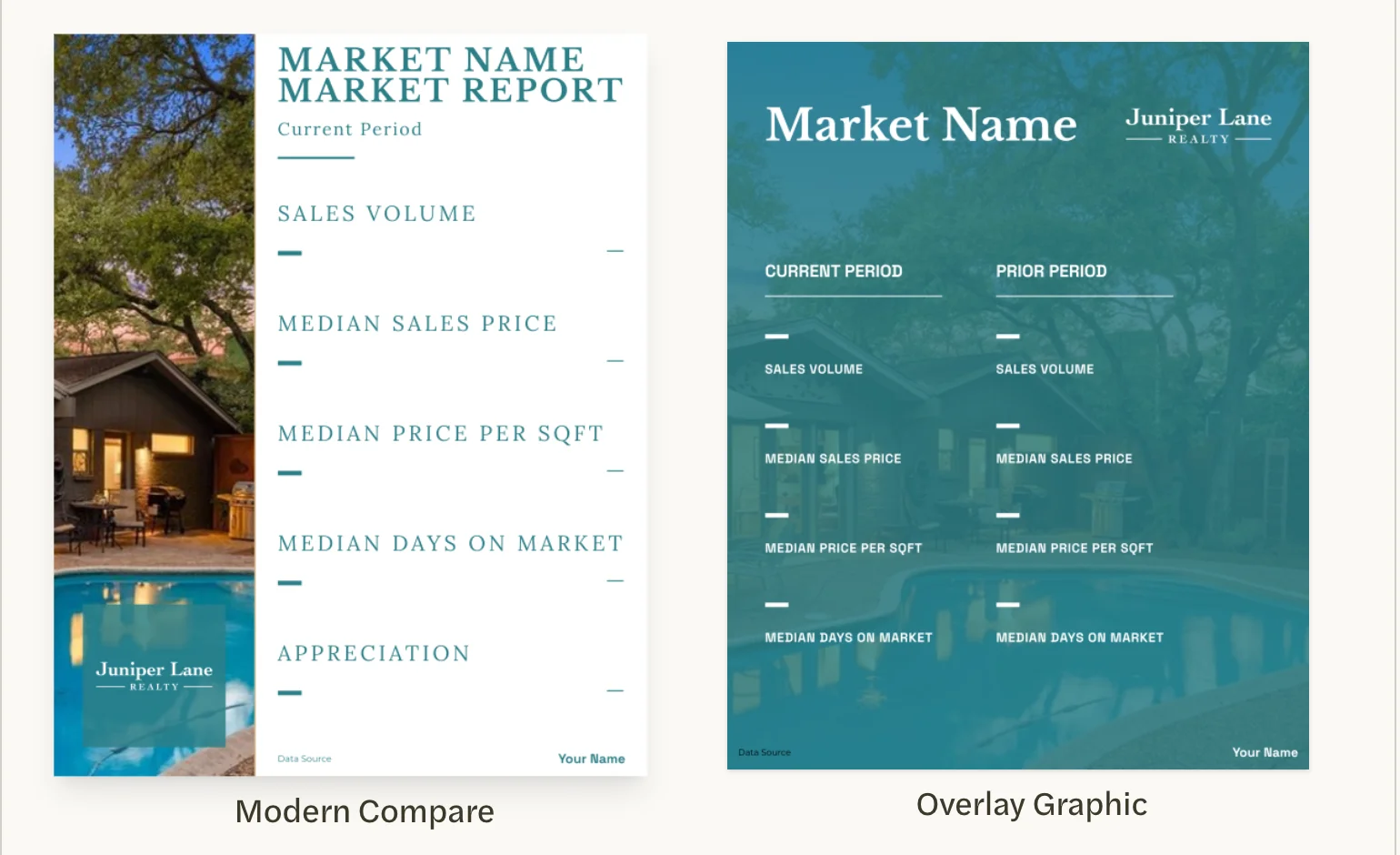
Select the Logo square, then a version of your logo in the Logo Picker.
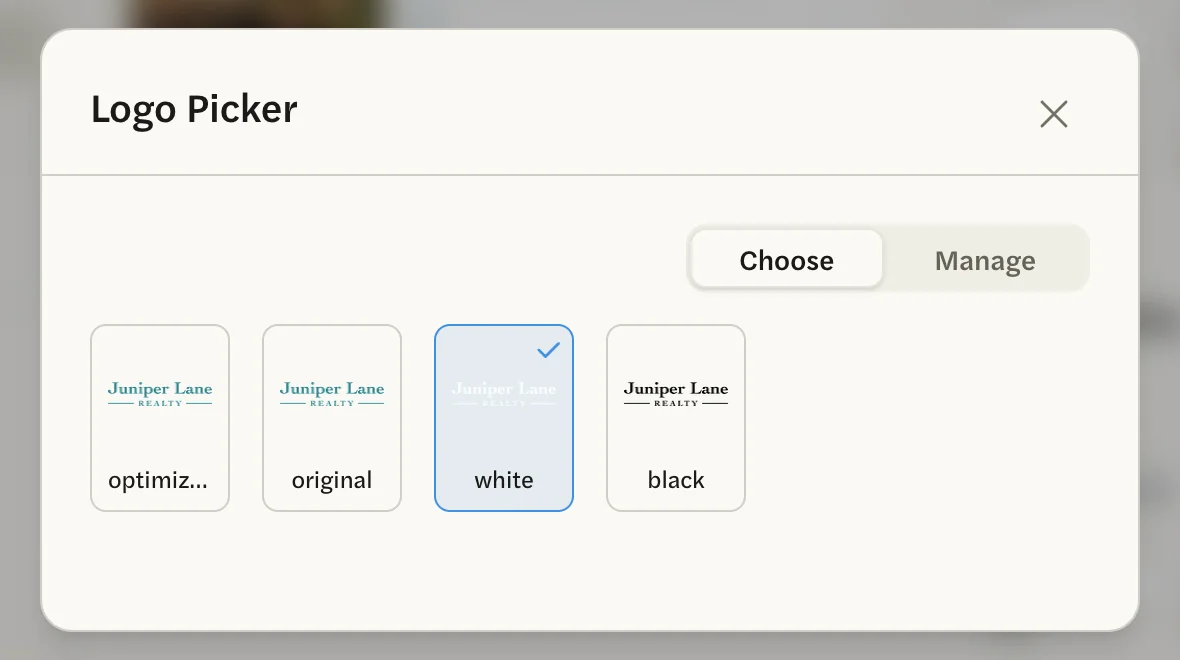
Posts made from then on carry your logo; posts already made keep the symbol. If you have no logo yet, add one first: see Add and choose a logo. For more, see Style your templates.
I can barely see my logo on the image
The version of your logo on that template is close in color to the background behind it. Open the template from customize on the Social page, select the Logo square, and choose another version in the Logo Picker: white on a dark or colored background, or black, original or optimized on a light one.
The Logo square is white, so a white logo is hard to see on it. Check the sample image on the left of the template’s page instead.
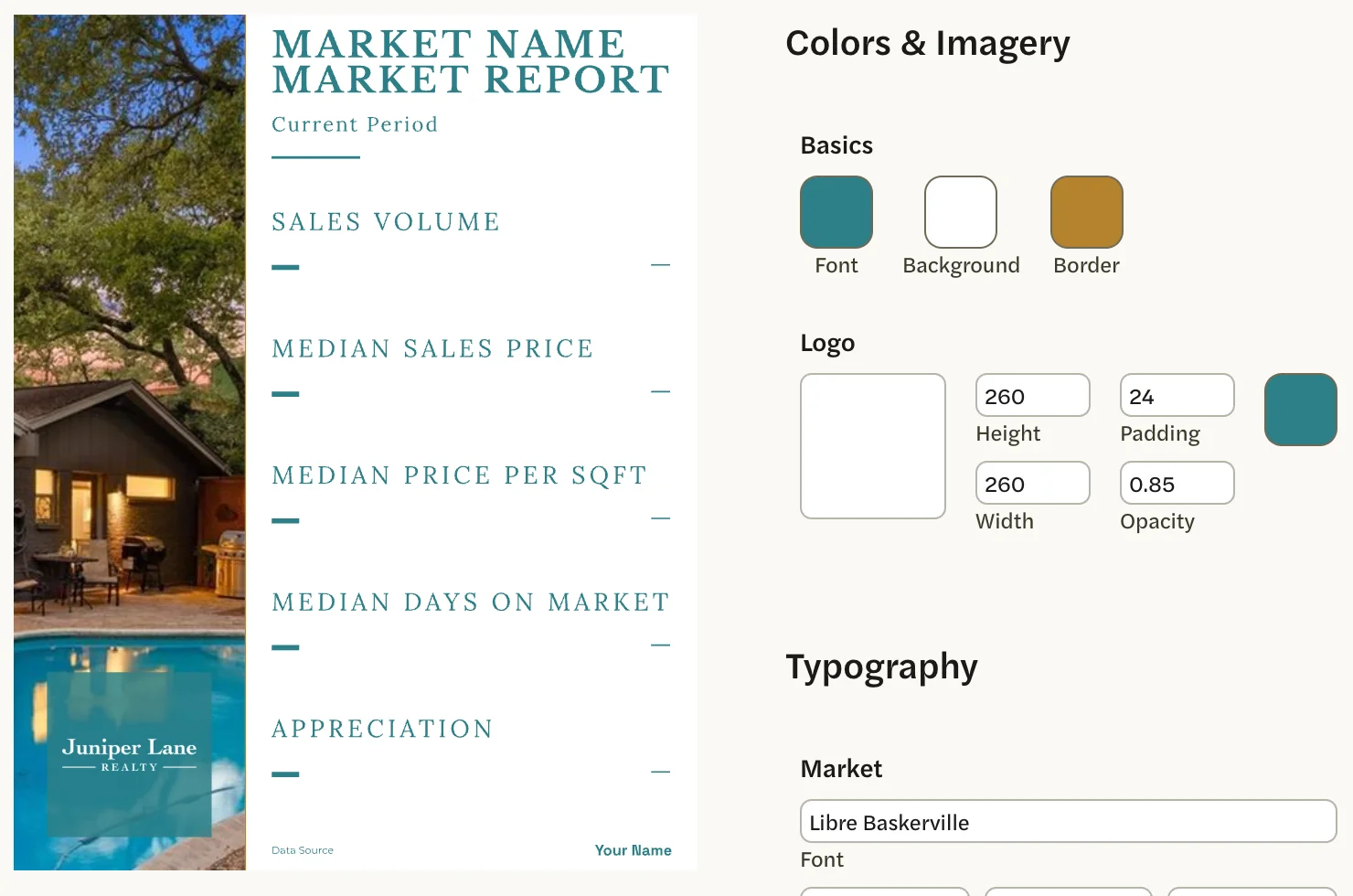
I changed my template, but my post still looks the old way
A post keeps the look it had when it was made. Changes to a template show in the next post made with it, and in the images on a schedule’s page straight away.
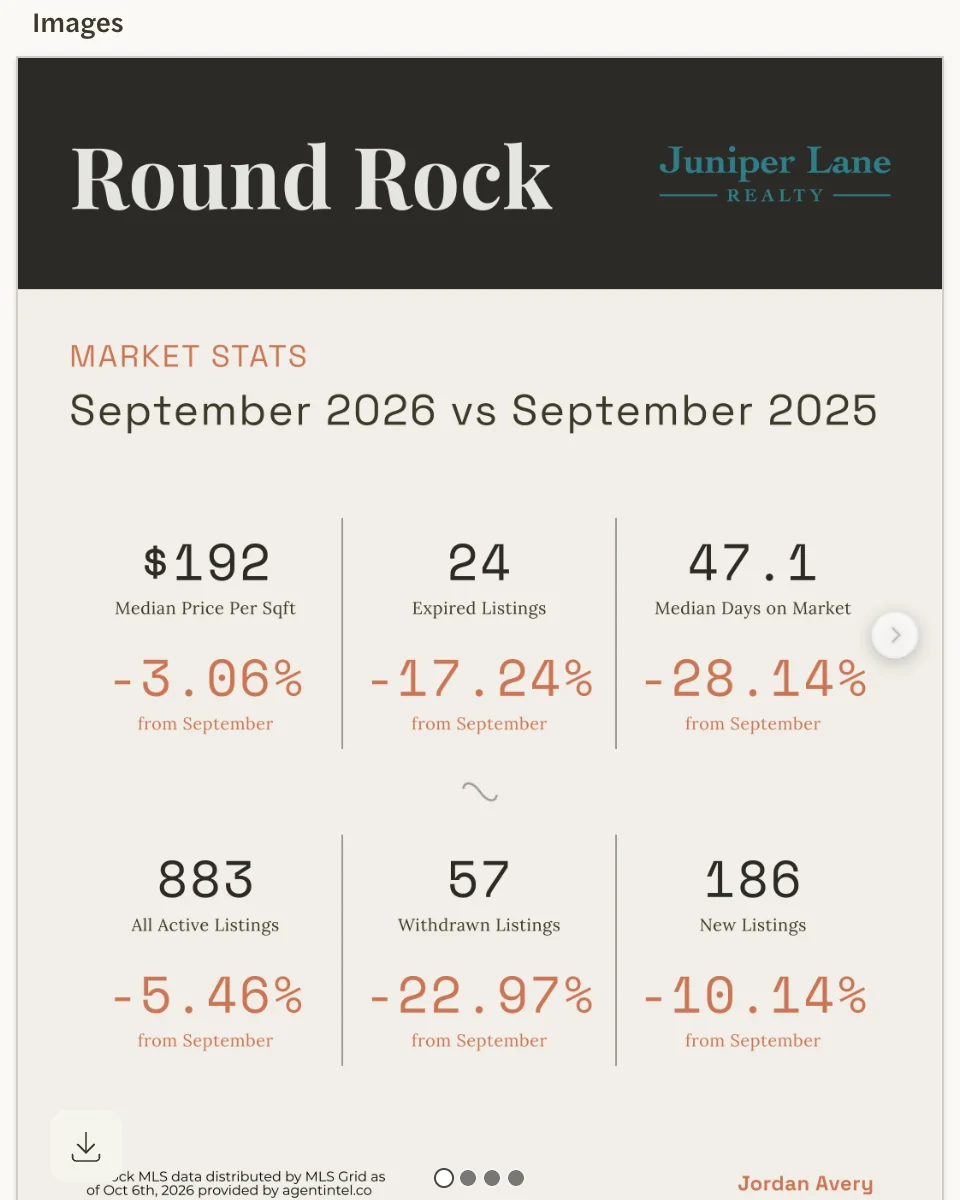
Each template is styled separately, so check you changed the one your schedule uses: it is the one selected under Template on the schedule’s page. See When your changes show up.
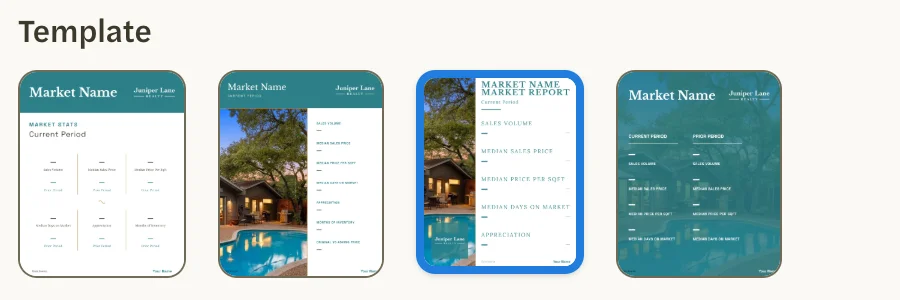
The preview shows dashes instead of numbers
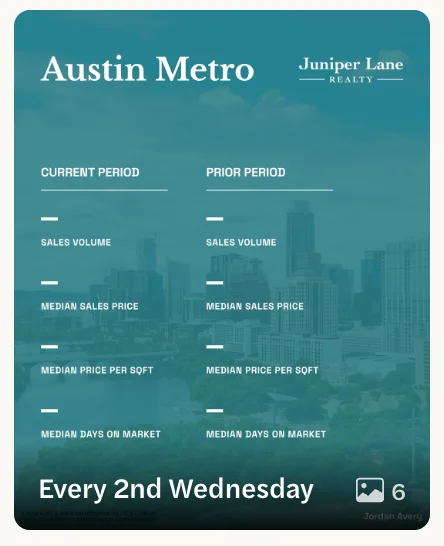
Until a post is made, its images show dashes where the numbers will go, and the caption box says when it’s due, such as “Caption scheduled for oct 14th”. The numbers and the caption are filled in when the post is made: on a schedule’s day, or when you select Generate Post.
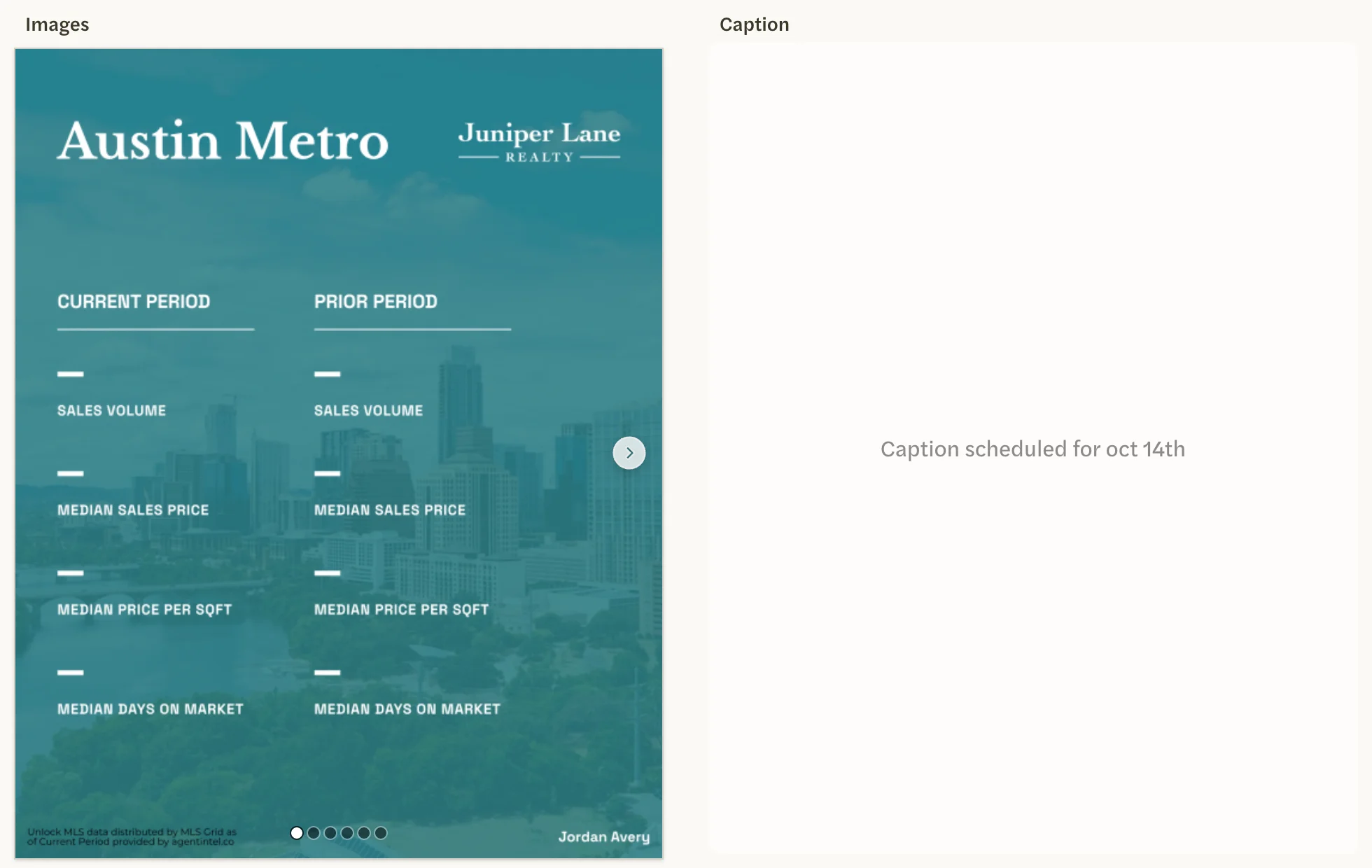
Every image has the same photo, or not the one I chose
With Random Stock Image on, AgentIntel picks one photo for the whole post when the post is made, and every image in it uses that photo. The photo you see before then is only a sample from the category, so the post usually gets a different one. While it is on, the photos you chose for each market aren’t used, and Edit market has no Stock or Upload tab.
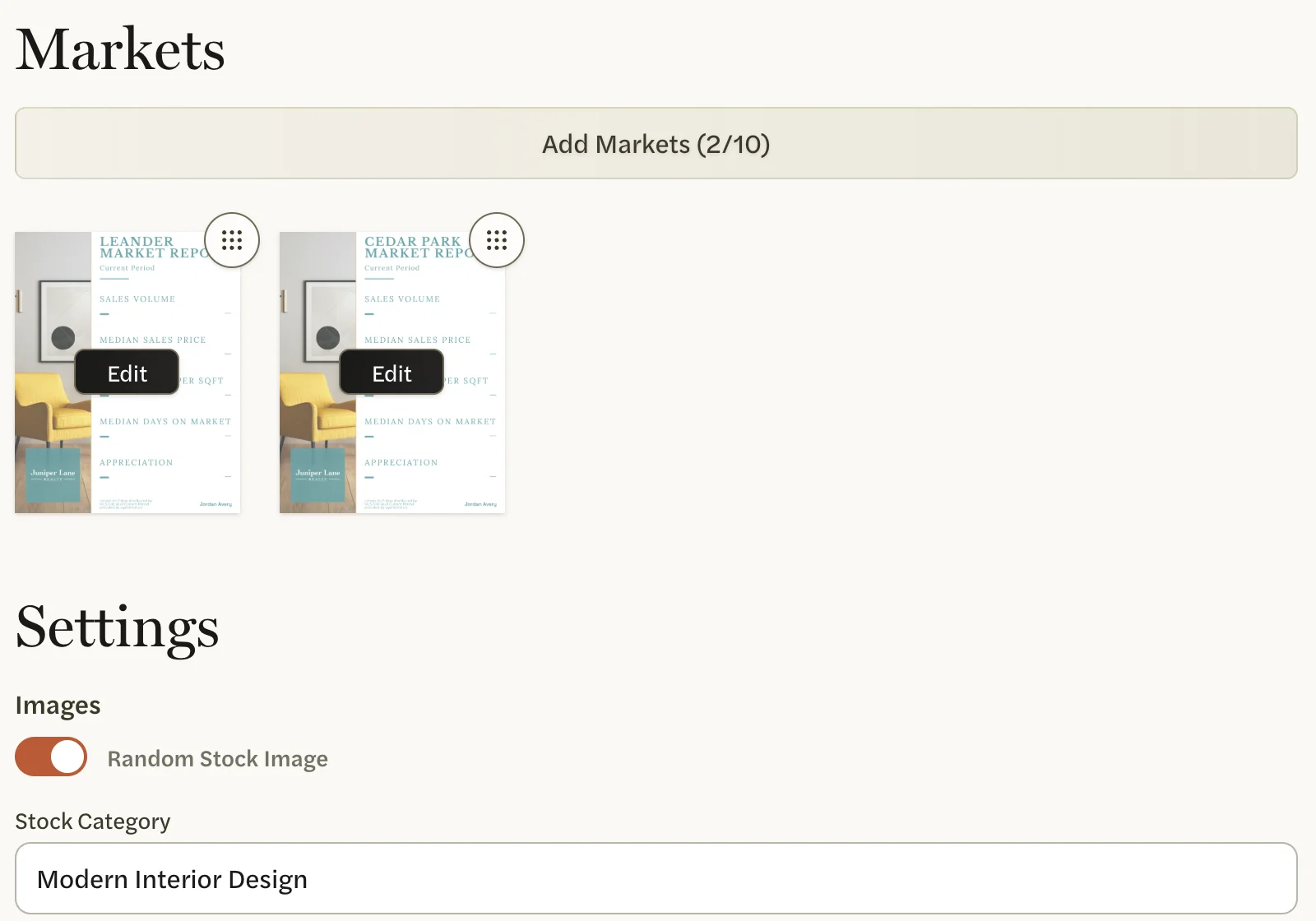
To give each market its own photo, or to use your own, switch Random Stock Image off under Images, then choose a photo for each market. See Change the photo.
The Two by Three template has no photo at all.
I can’t find a market, or a school, in the list
The list offers only these markets:
- With an MLS Connection, your MLS’s metro areas, counties, cities, zip codes and neighborhoods, the whole MLS, and your custom markets. Places outside your MLS aren’t offered.
- Without one, national markets: the whole country, states, metros, counties, cities, zip codes and neighborhoods.
There are no school markets, although the search box mentions schools. With an MLS Connection, you can make a custom market for a school’s area, choosing the school on its Areas tab, and then add it to your post: your custom markets are in the list. See Create a custom market.

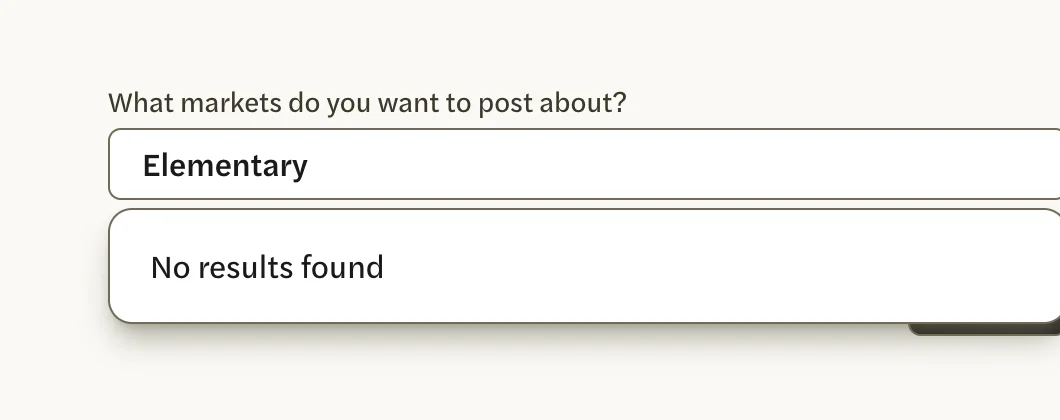
A post or schedule holds up to 10 markets. For more, make a second one.
The statistics or the period aren’t what I expected
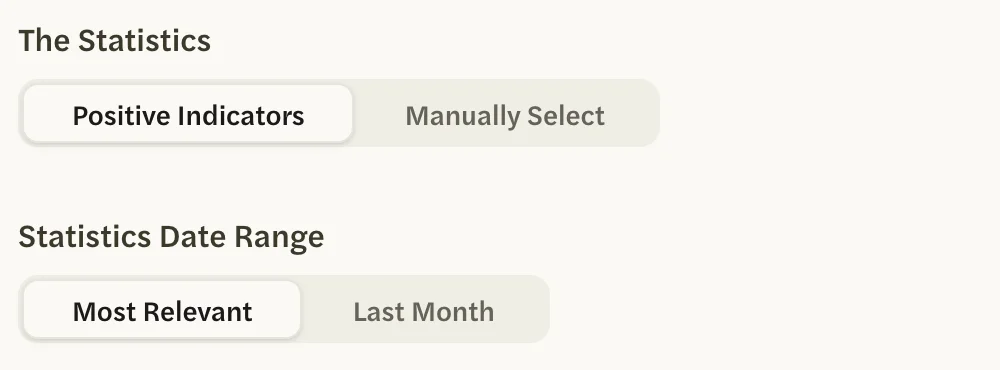
- The statistics changed. With Positive Indicators, AgentIntel picks the statistics when the post is made, so they can differ from the preview and from one month’s post to the next. To keep the same statistics in the same order, choose Manually Select and drag them into order.
- The period is an earlier month, not this one. The numbers cover complete months. With an MLS Connection and Last Month, a post made in October covers September, compared with the September before. National figures run one to two months behind, so without an MLS Connection the latest month can be earlier still. See Where the data comes from and how fresh it is.
- A schedule’s period changed. Most Relevant, the starting choice on a schedule, covers the last year in January; the last quarter in April, July and October; and the last month in any other month. Choose Last Month to keep it the same.
- Without an MLS Connection, a post or schedule that includes a city, zip code or neighborhood can’t use Last Month. A post starts on Last 3 Months, and Most Relevant uses three months in every month but January.
See Choose markets and statistics for a post.
The choice of what to compare with is missing
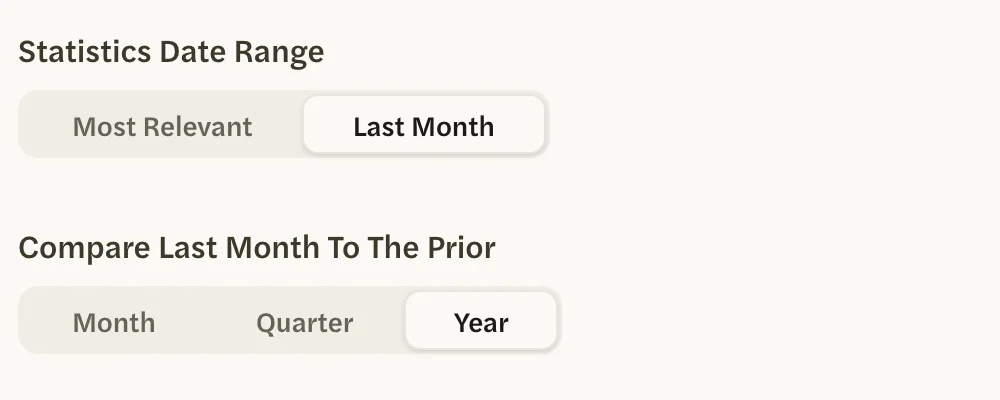
The heading that names your period, such as Compare Last Month To The Prior, and its choices Month, Quarter and Year aren’t shown in two cases: when the period is Most Relevant, which always compares with the same period a year earlier, and when the template is Info Dense, which shows no comparison.
My caption ends with a line I didn’t write
AgentIntel ends every caption with four short lines of a single dot each, then “statistics verified by @getagentintel”. They can’t be turned off, but you can delete them: select them in the Caption box on the post’s page and delete them. Your change saves as you type, and Share Post and the download button use the caption as it is in the box.
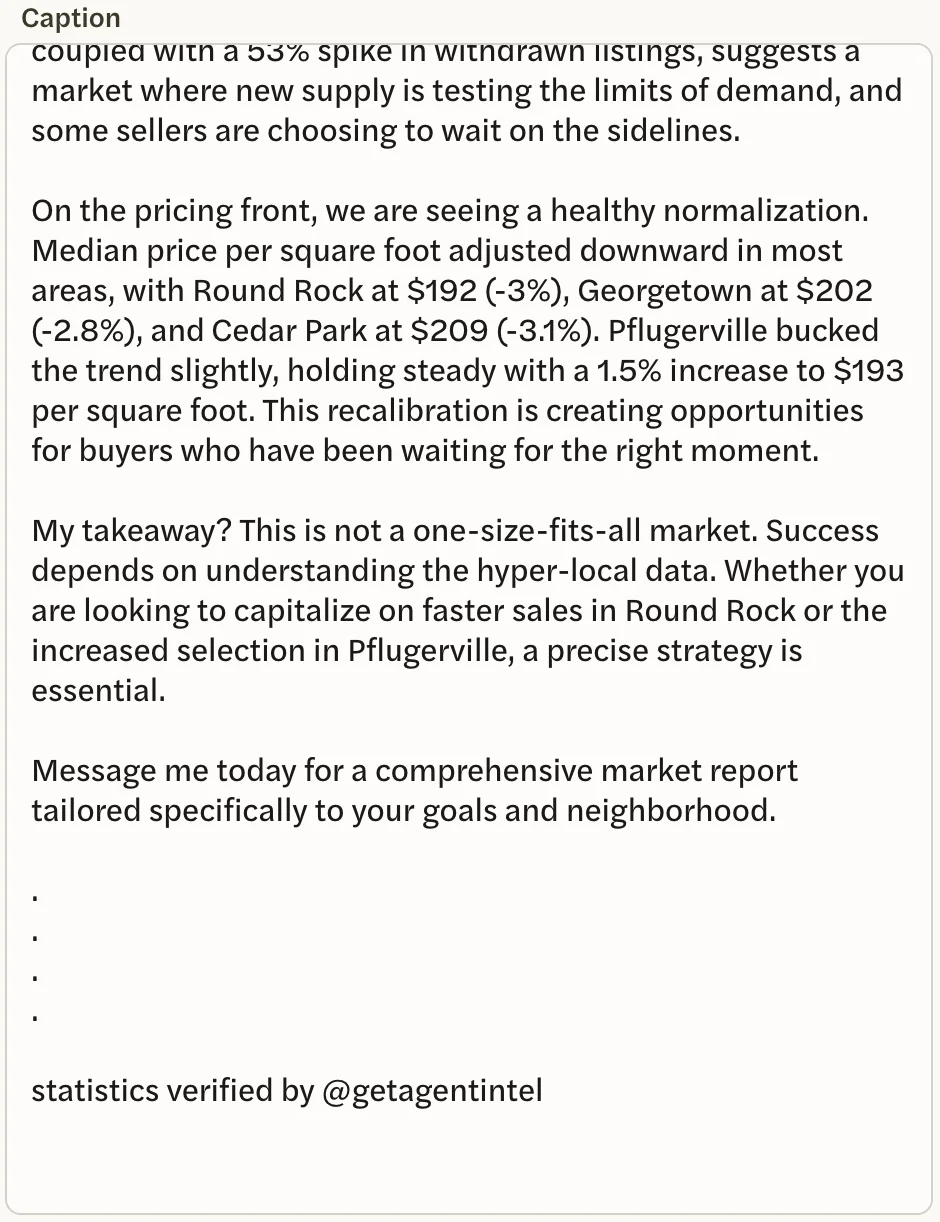
A caption can’t be rewritten for you. To change anything in it, edit it by hand in the same box.
Share Post shows a QR code, or nothing happens
On a computer, Share Post shows a QR code. It opens the post on your own phone, signed in, so you can share from there. The code signs in whoever scans it as you, so don’t let anyone else scan it. See Share from your computer, or download the images and caption instead.
If Share Post is grayed out, the post hasn’t been made yet.
I didn’t get the email saying my post is ready
You don’t need the email: every post is under Post History on the Social page, and selecting it opens the post.
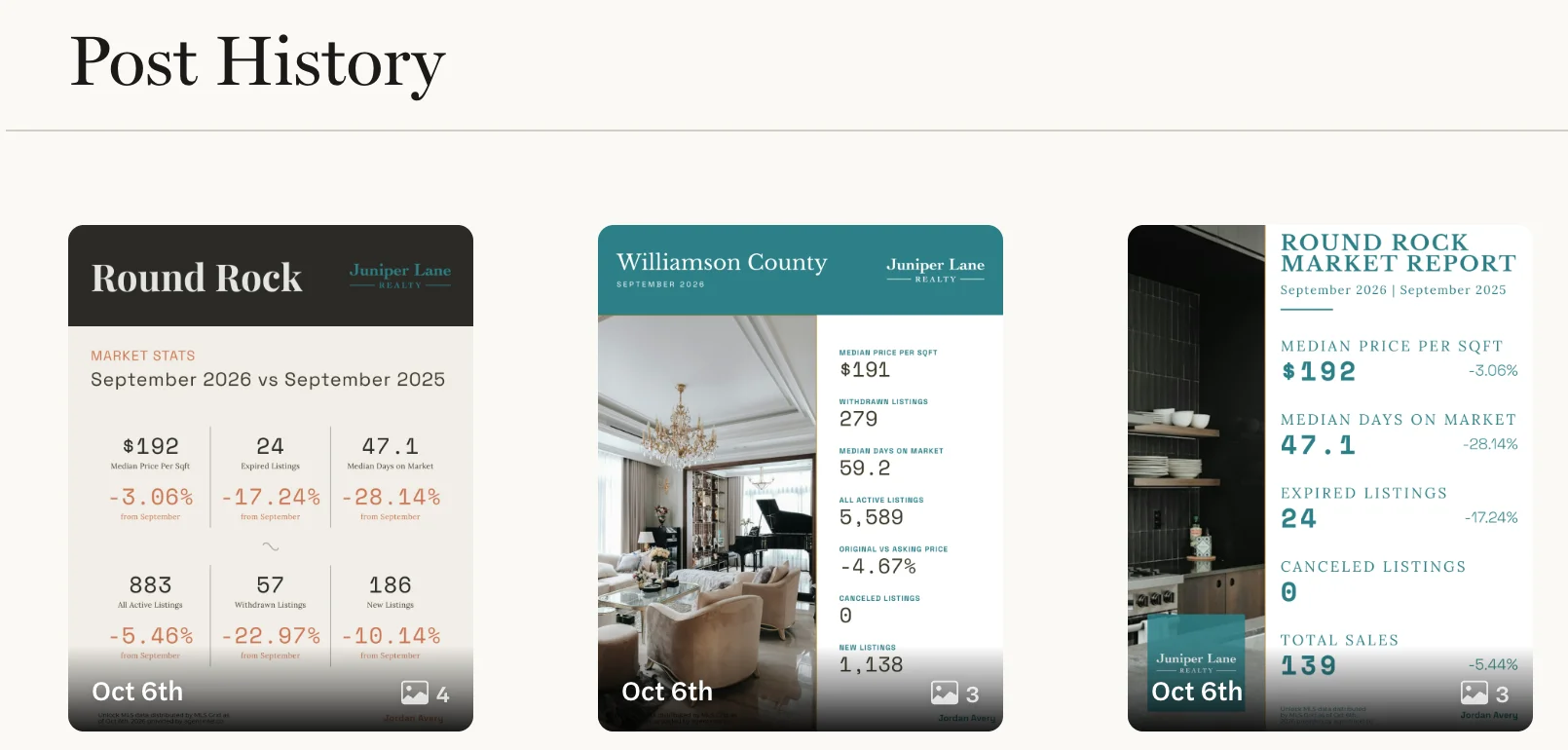
- Check that the post has been made. A post still marked Generating, or a schedule whose day hasn’t come, hasn’t sent its email yet.
- Search your email for “Post is Ready to Share”, including your spam or junk folder.
- Check the address. The email goes to your account’s email address. If you’ve changed it and haven’t yet confirmed the new one, it still goes to the old address. See Change your name or email.
I get post emails for schedules I didn’t set up
AgentIntel sets up your first schedules for you, and each one emails you when it makes a post. See The schedules you start with.
The email can’t be turned off. To stop a schedule’s posts and their emails, delete the schedule; this also deletes the posts it has made. See Stop or delete a schedule. To keep the schedules but not see the emails, set up a filter in your email app for messages whose subject includes “Post is Ready to Share”.
I need a different image size
Every image is 1080 × 1350 pixels, the portrait shape Instagram uses, as a JPG file. There is no square, story or landscape size.
I want to post more often than once a month
A schedule makes one post a month, on the weekday you choose. For more, set up more than one schedule, such as one on the 1st Wednesday and another on the 3rd, or make single posts whenever you like with New Post. See Set up a monthly schedule.