Open the market and select customize at the top right of its page. The filters you built it with open again, with its name in a box at the top. Change anything, then select Update Filters.
Change a custom market’s filters
Open the market. A custom market built on a single place is a button on that place’s card on the Markets page; any other is in the recent row at the top of that page, on the Recent page and in Search Markets. See Find it again.
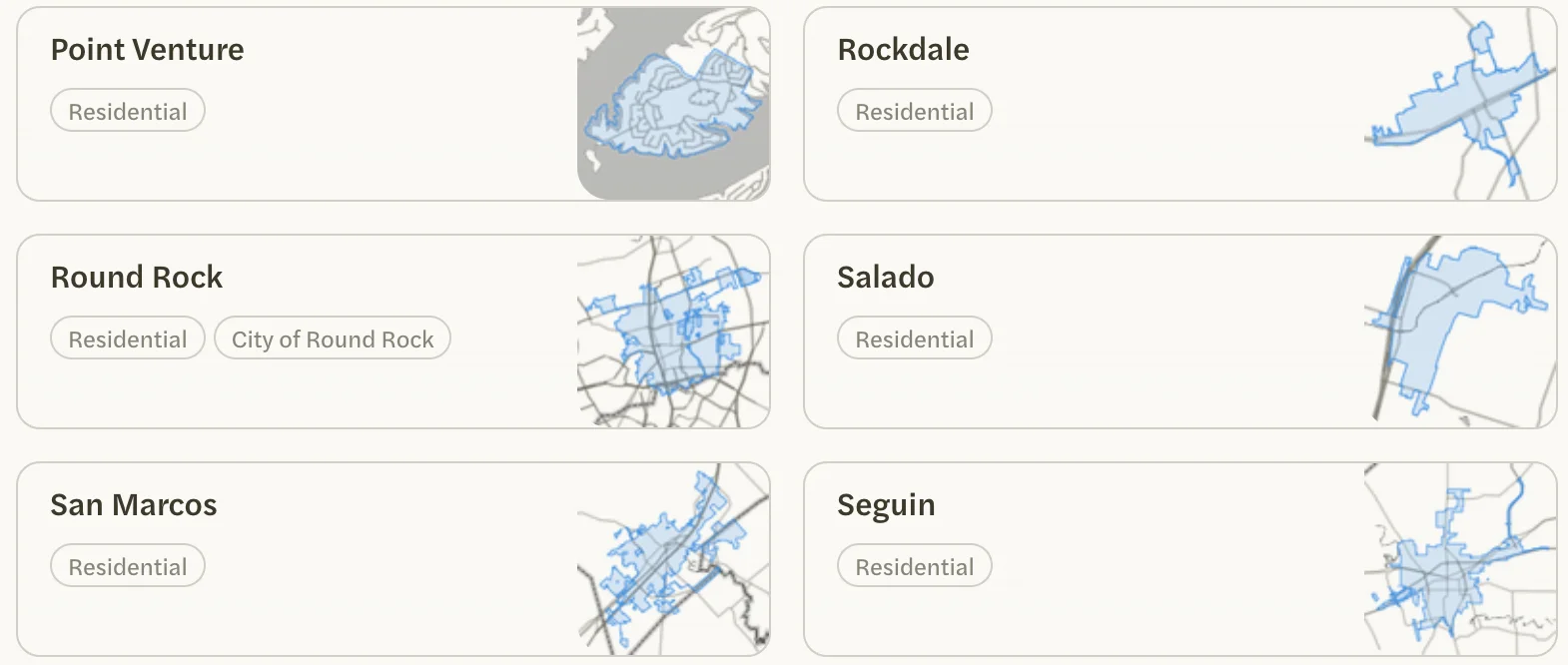
Select customize at the top right of the market’s page.

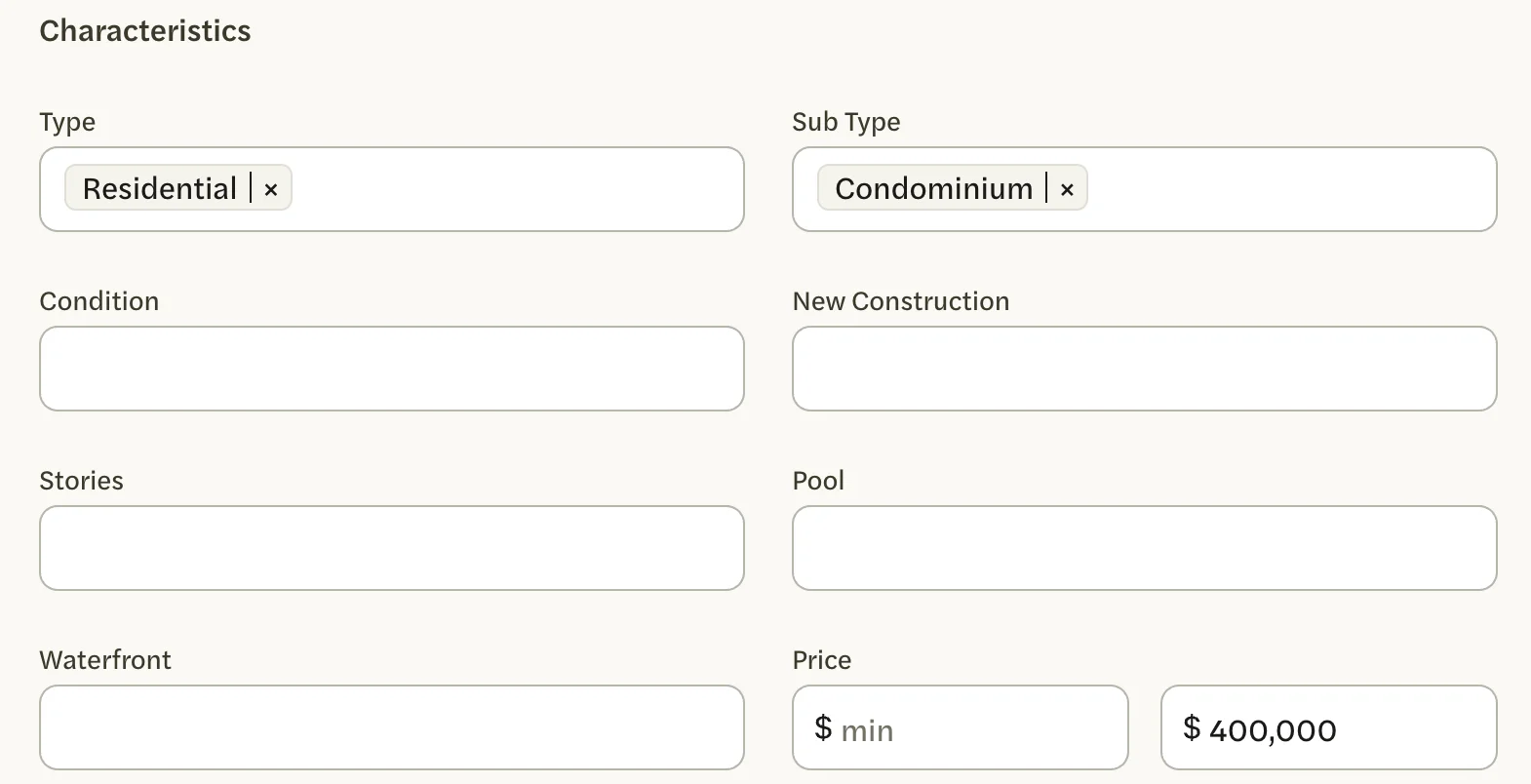
Change the filters or the area. They work as they do when you create a market; see Choose the area. As there, only the Areas or Map tab that is open when you save is used.
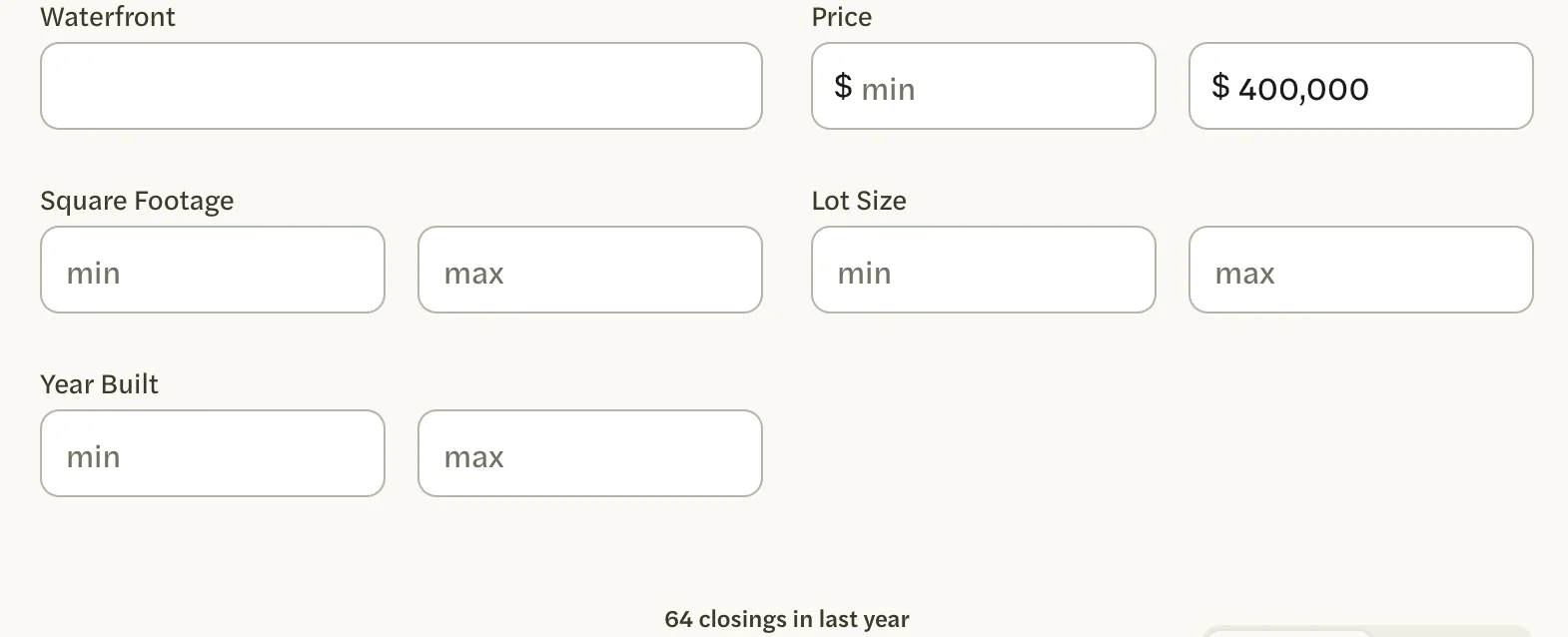
Check the count at the bottom of the page. Like Create Market, Update Filters stays gray under 30 closings in the last year.
Select Update Filters.
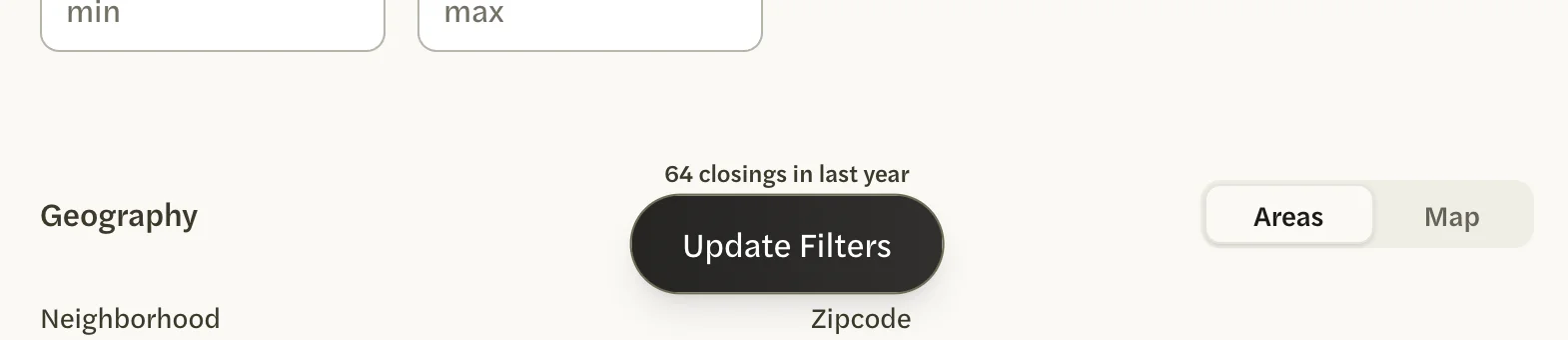
The market’s page opens again with its new filters. To leave without saving, select the X at the top right instead.
A shape you drew can’t be reshaped. On the Map tab, select Clear and draw it again.
Rename a custom market
Select customize on the market’s page.

Select the box at the top of the page. Until you name the market, it shows the name AgentIntel gave it.

Type a name, then select Update Filters.
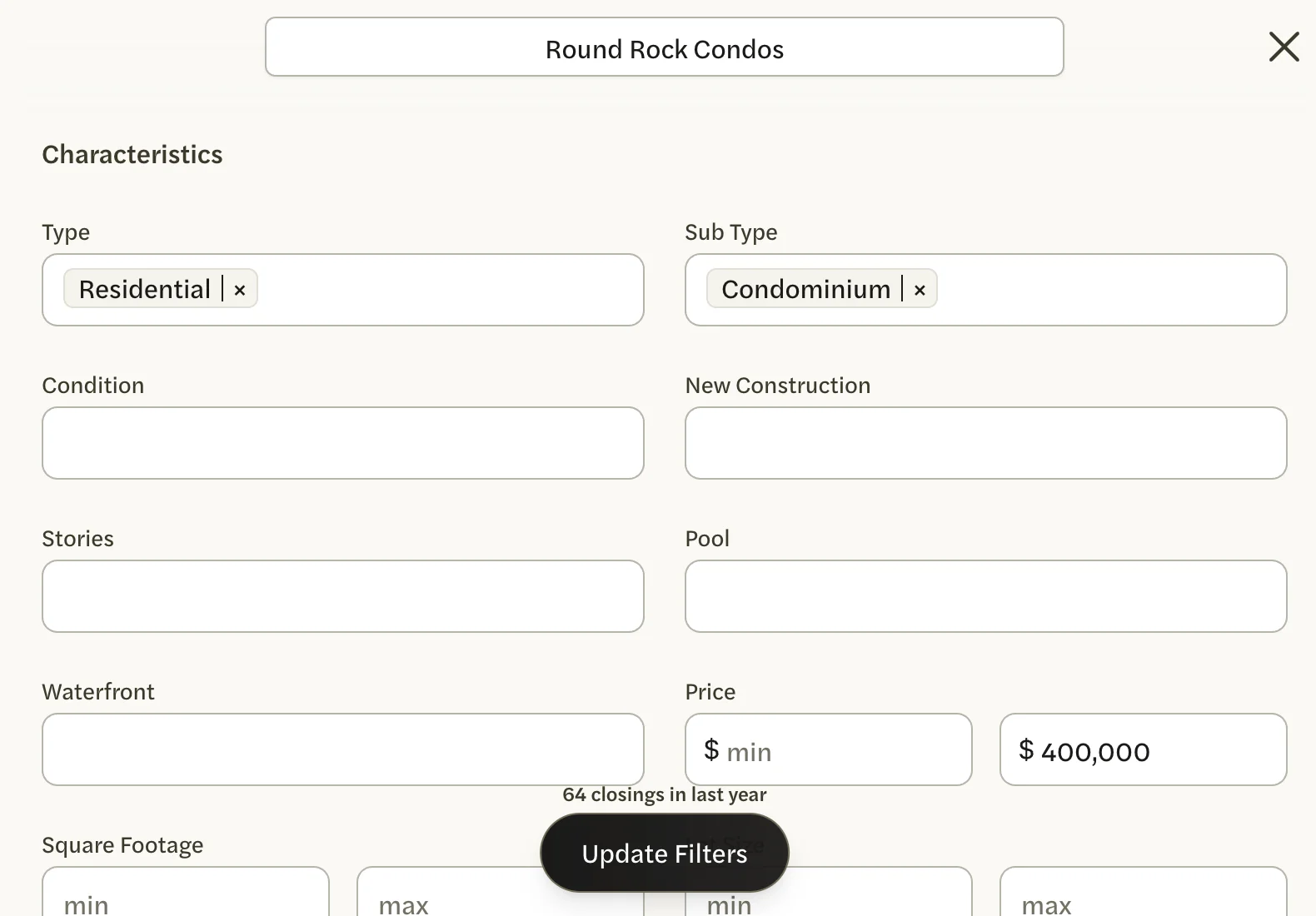
The new name becomes the market’s heading. On the card of the place it is built on, its button carries the new name too, so a name such as Georgetown Single Family reads better there than City of Georgetown.
While the box is empty, the suggested name follows the filters as you change them. To go back to it, clear the box and select Update Filters.
Customize a market AgentIntel made
Every market from your MLS has customize, including the ones you didn’t build, such as a city or your metro’s Single Family version. What happens when you select Update Filters depends on what you changed:
- Its filters. Your changes are saved as a custom market of your own. The original isn’t changed for you or anyone else, and stays on the Markets page beside yours. For example, customizing San Marcos to add Single Family Residence under Sub Type gives the San Marcos card two buttons: Residential, the original, and City of San Marcos, your custom market. To undo it, select customize on your version, put the filters back as they were, and select Update Filters.
- Only its name. The market keeps its filters but carries your name, for you only: its heading and its card on the Markets page show the name you typed, and the original name no longer appears there. To get the original name back, select customize, clear the name box and select Update Filters.
Delete a custom market
Select customize on the market’s page.

Select the trash can beside Update Filters.

In Remove Market?, select Remove.
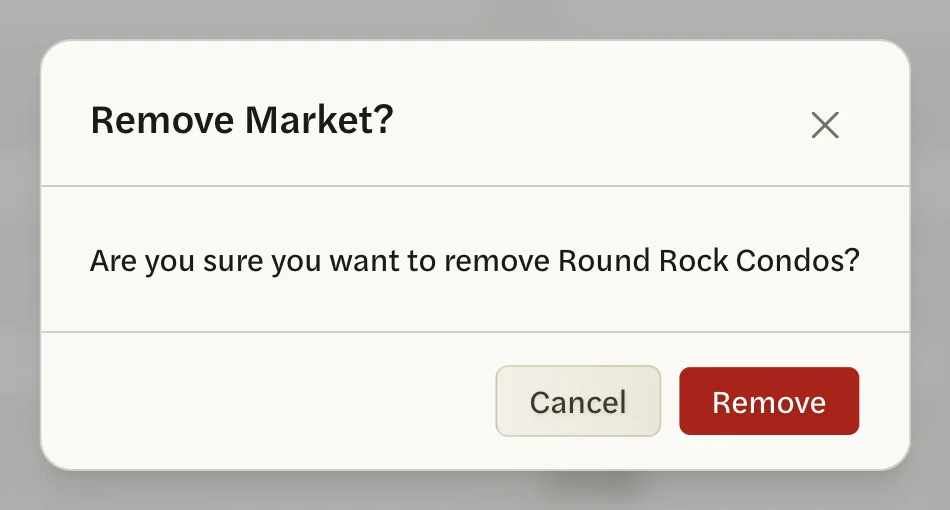
You return to the Markets page. If the market is still listed there, reload the page. Deleting can’t be undone; to have it back, create it again.
- Only custom markets have a trash can. A market AgentIntel made has none while its filters and name are as they were. Once you change either, it is your own custom market and can be deleted; deleting it leaves the original in place.
- Reports you already made from it are kept.