A custom market is one you define yourself: the kind of home, such as single-family homes under a certain price, in an area you pick by name or draw on a map. It is built from your MLS’s listings and needs at least 30 closings in the last 12 months, the same as every market from your MLS.
Create a custom market
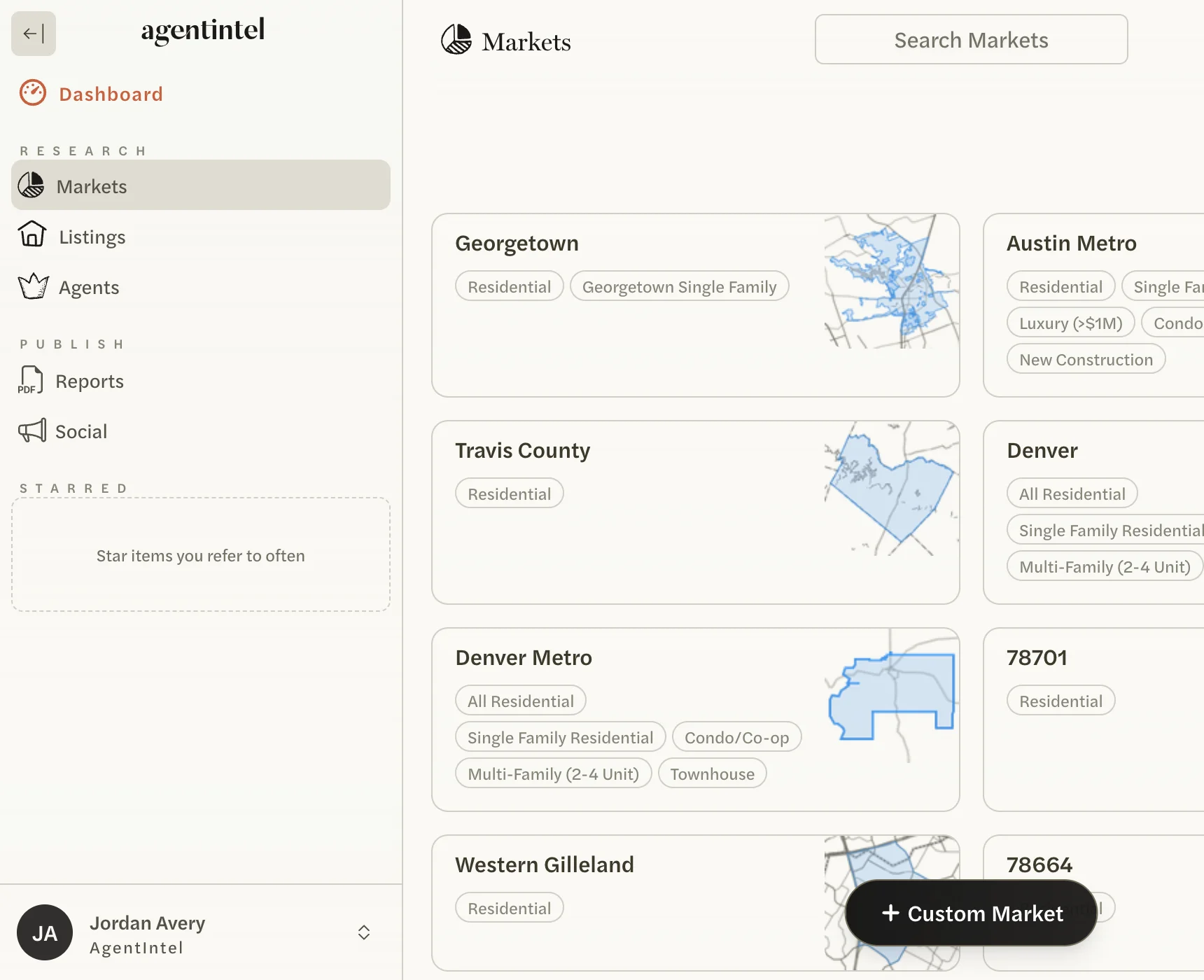
Select Markets in the left menu, then Custom Market at the bottom of the page.
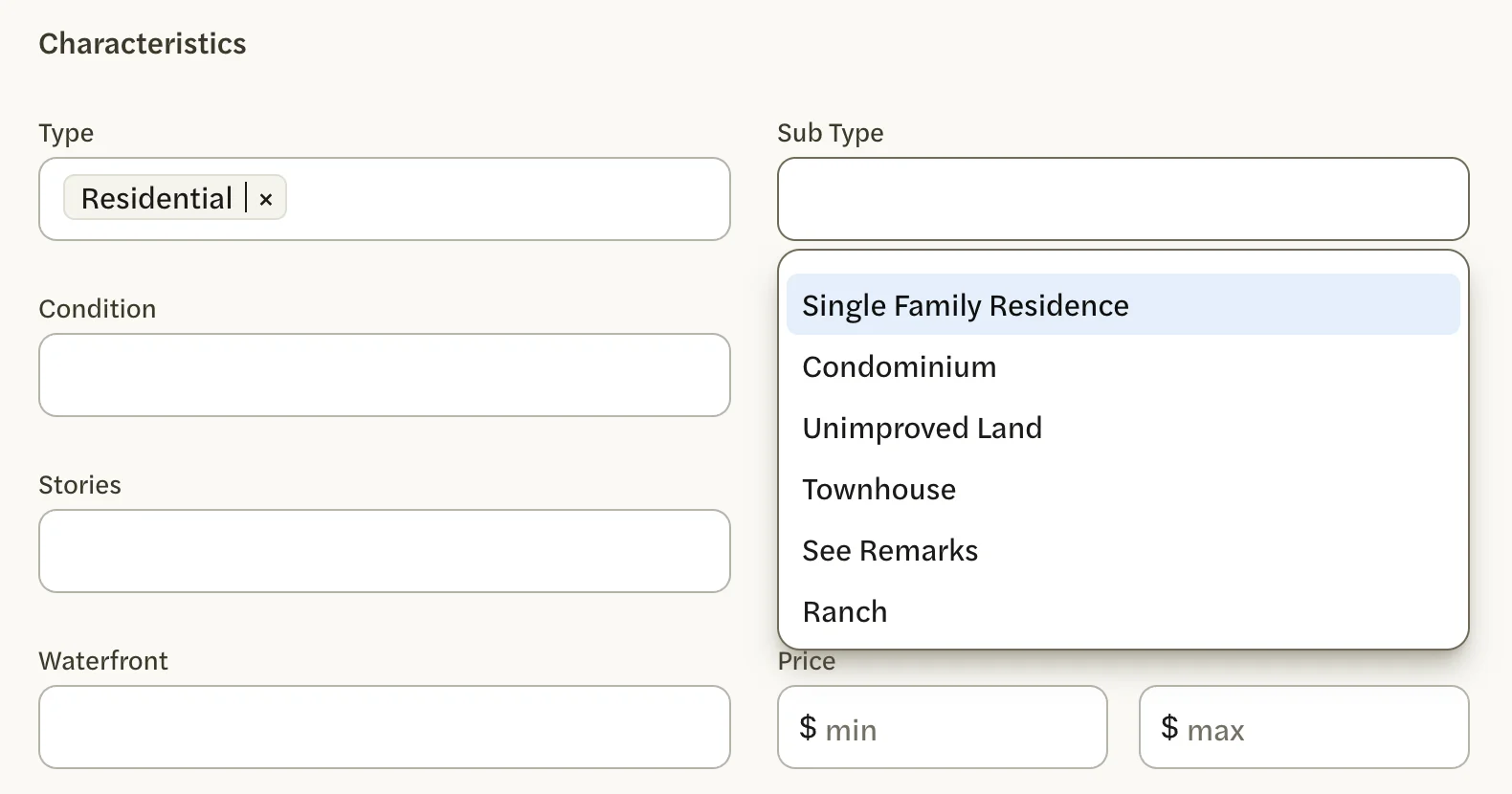
Under Characteristics, choose the homes to include. Type starts on Residential. Add a Sub Type such as Single Family Residence, a Price range or any other field. A field you leave empty doesn’t limit the market.
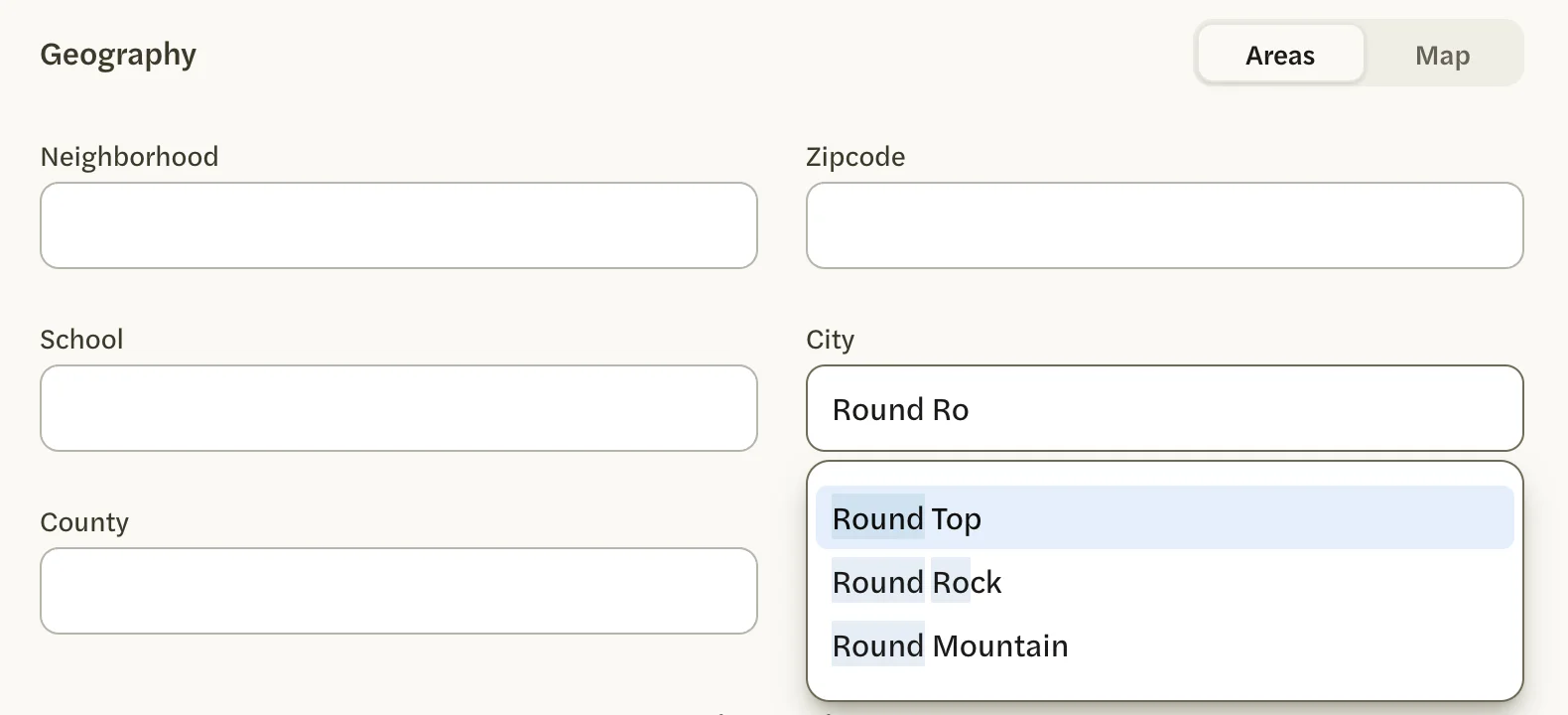
Under Geography, pick the area by name on the Areas tab, or draw it on the Map tab; see Choose the area. With no area, the market covers your whole MLS.
Use one tab or the other. Only the tab that is open when you select Create Market is used, and the count follows whichever tab is open: a city you chose on Areas drops out if you finish on Map, and a shape you drew drops out if you finish on Areas.
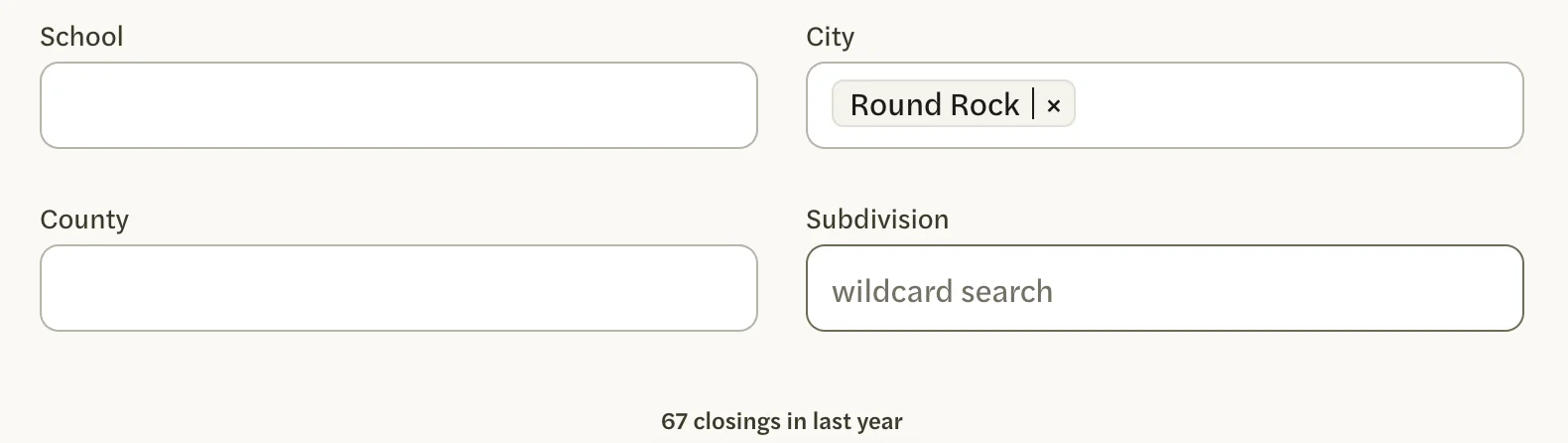
Check the count at the bottom of the page. It is the number of homes matching your choices that closed in the last year, and it changes as you change them.
Select Create Market.
The new market’s page opens. Its charts can show calculating while its statistics are worked out for the first time; they fill in on their own, without a reload. The page reads like any other market’s; see Read a market page.
If the count reads AT LEAST 30 CLOSINGS REQUIRED, Create Market stays gray. Widen the market, with a bigger area, a wider price range or fewer filters, until a number of closings shows again.
Custom markets are built from your MLS’s listings, so they need an MLS Connection. Without one, Custom Market isn’t on the Markets page, and national markets can’t be customized. See Connect your MLS.
What you can filter by
Characteristics has Type, Sub Type, Condition, New Construction, Stories, Pool, Waterfront, Price, Square Footage, Lot Size and Year Built.
- The choices in each list are the values your MLS uses, so their wording follows your MLS.
- Choosing more than one value in a list includes all of them: Single Family Residence and Townhouse together cover both.
- Lot Size is in square feet, not acres.
- There is no filter for bedrooms or bathrooms.
Choose the area
By name
On the Areas tab, select Neighborhood, Zipcode, School, City or County and start typing to find a place.
Subdivision works differently: type part of a subdivision’s name, and the market includes every subdivision whose name contains what you typed. A short entry can pick up other subdivisions with similar names, so type enough of the name and watch the count.
- Several values in one field add together. Zip codes 78665 and 78681 cover both zip codes.
- Different fields narrow each other. City Round Rock with Zipcode 78681 covers only the part of Round Rock inside 78681.
On a map
Select the Map tab. The map opens on your metro. Drag it to move around, and use + and − to zoom.
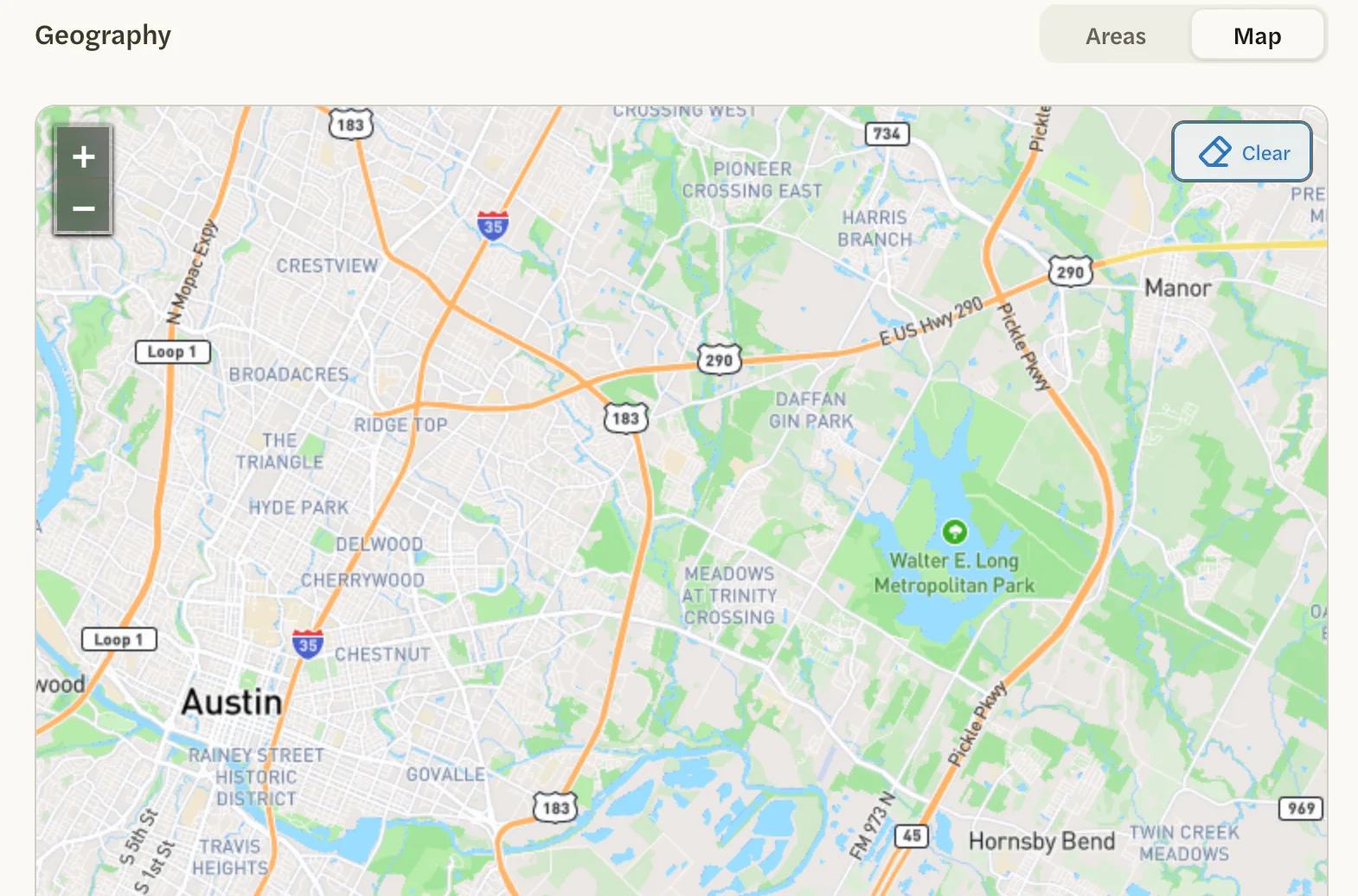
Select the map at each corner of the area you want.
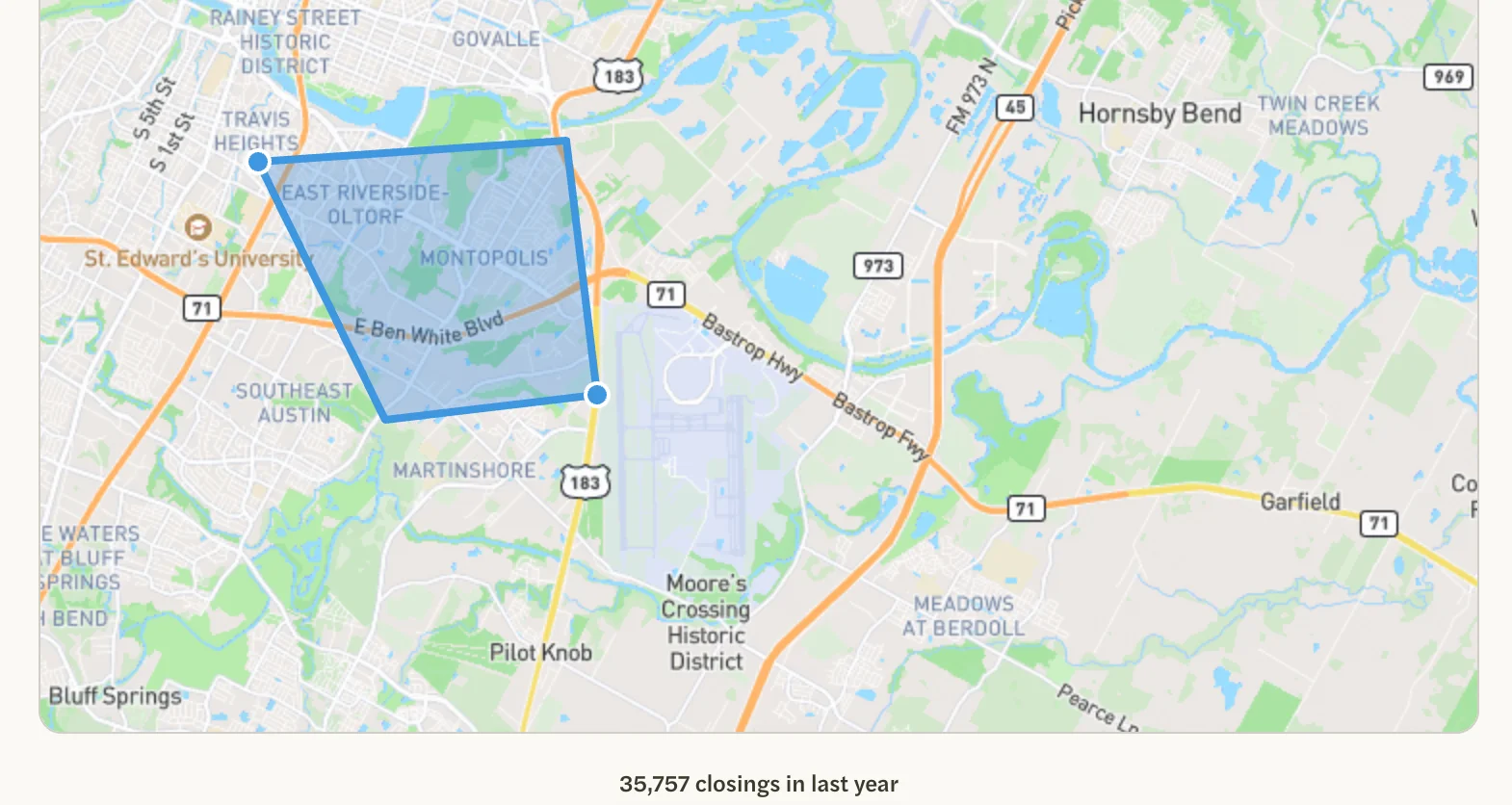
Select the first corner again, or press Enter, to close the shape. The count updates once the shape is closed.
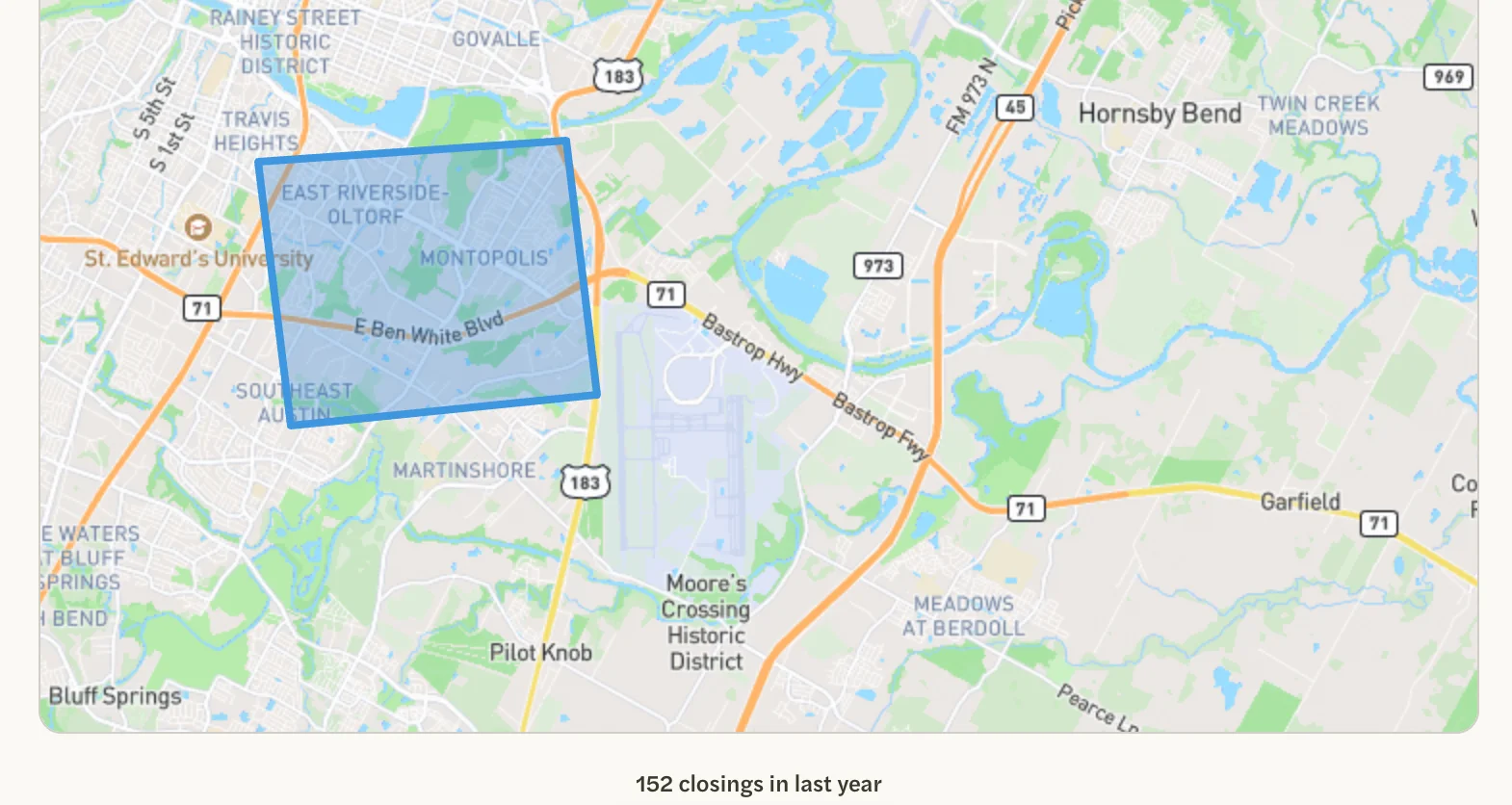
- To add another area, draw another shape. The market includes all of them.
- A shape can’t be moved or reshaped once it is closed. Select Clear to remove every shape, then draw again.
Its name
There is no name box while you create a market. AgentIntel names it after its area: for example City of Georgetown, 2 Zipcodes, Multiple Geographies, the name of the school or subdivision you entered, or Custom Map for an area you drew. To give it a name of your own, see Rename a custom market.
Find it again
Where a custom market shows up depends on its area:
-
Built on one neighborhood, zip code, city or county, it is a button on that place’s card on the Markets page, labeled with its name. It also joins the list under the heading of that place’s market page.
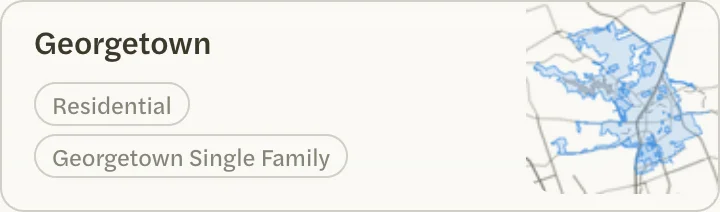
- With no area, covering your whole MLS, it is a button on your MLS’s own card under Regional.
- Drawn on a map, or built from a subdivision, a school or more than one area, it isn’t in any of the five sections of the Markets page. Find it in the row of starred and recent markets at the top of that page, on the Recent page, or by typing its name in Search Markets.
To keep a custom market one click away, star it on its page and it appears under STARRED in the left menu. Your custom markets are yours alone: no one else on your team sees them.
To change, rename or remove one, see Edit or delete a custom market.