Find what you’re seeing below.
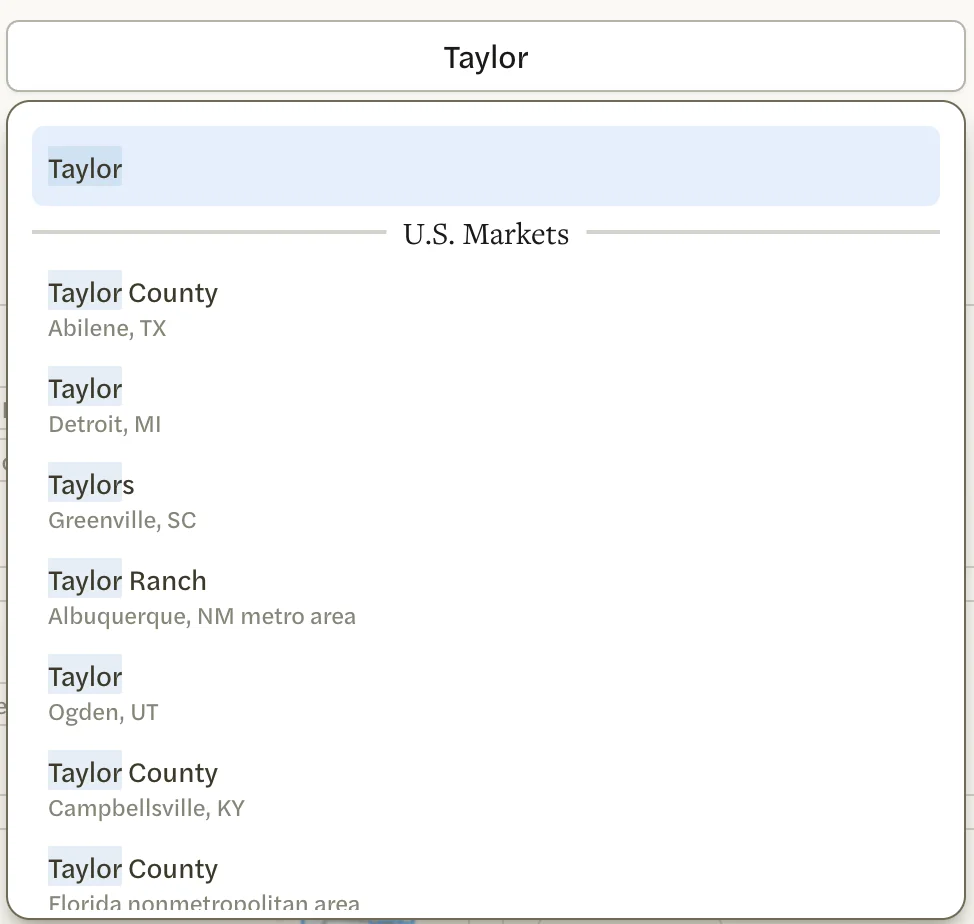
A place I’m looking for isn’t on the Markets page or in search
- It has too few sales. A market from your MLS is listed only when it had at least 30 closings in the last 12 months, and that is rechecked on the 28th of each month. A national market needs 30 sales in a year and five years of history, and so does each of its property types.
- It isn’t in one of your metros. The Markets page lists the markets of the metros you chose. Search Markets still finds national markets anywhere. To browse another area, add its metro; see Choose your metros.
- Your MLS covers it. With an MLS Connection, U.S. Markets leaves out places your MLS already covers, and you see your MLS’s market for that place instead.
- It’s outside your MLS’s area. Your MLS’s markets cover the counties your MLS serves. A place outside them is available as a national market.
- It isn’t a standard area. A subdivision, a school zone or an area you draw yourself can be built as a custom market.
See Find a market.
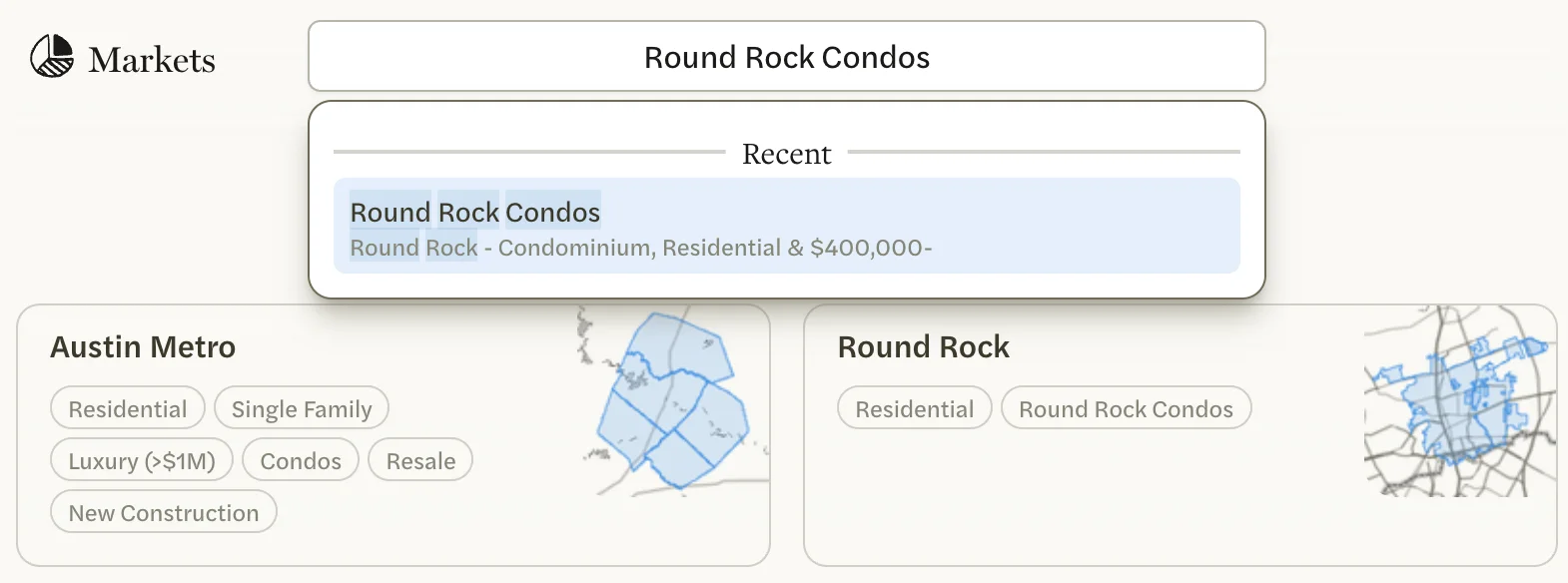
The same place is listed twice
- On the Markets page, after you add a metro next to your MLS’s, a place both cover, such as a county on the edge of both, can appear twice: your MLS’s card first, then the national one. Your MLS’s card has buttons such as Residential; the national card’s start with All Residential.
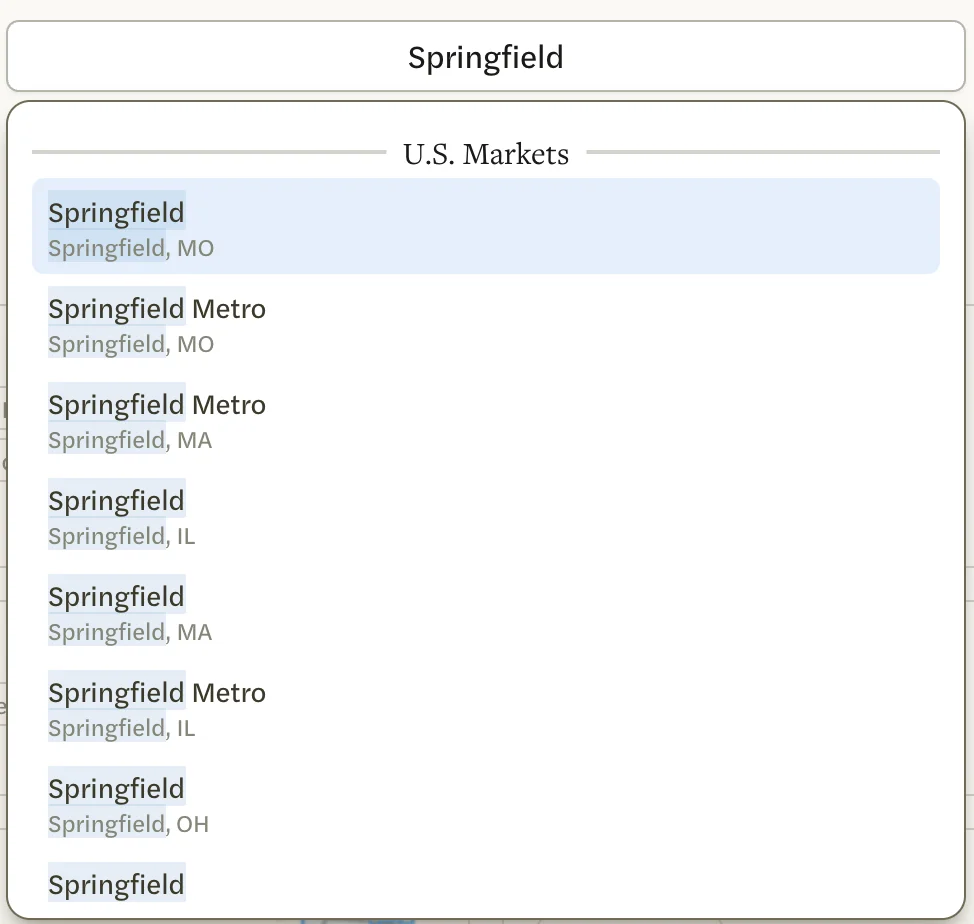
- In search, many national places share a name, so each one shows its metro area underneath. A few share both the name and the metro. Open each and compare the map at the top of its page.
My market says calculating
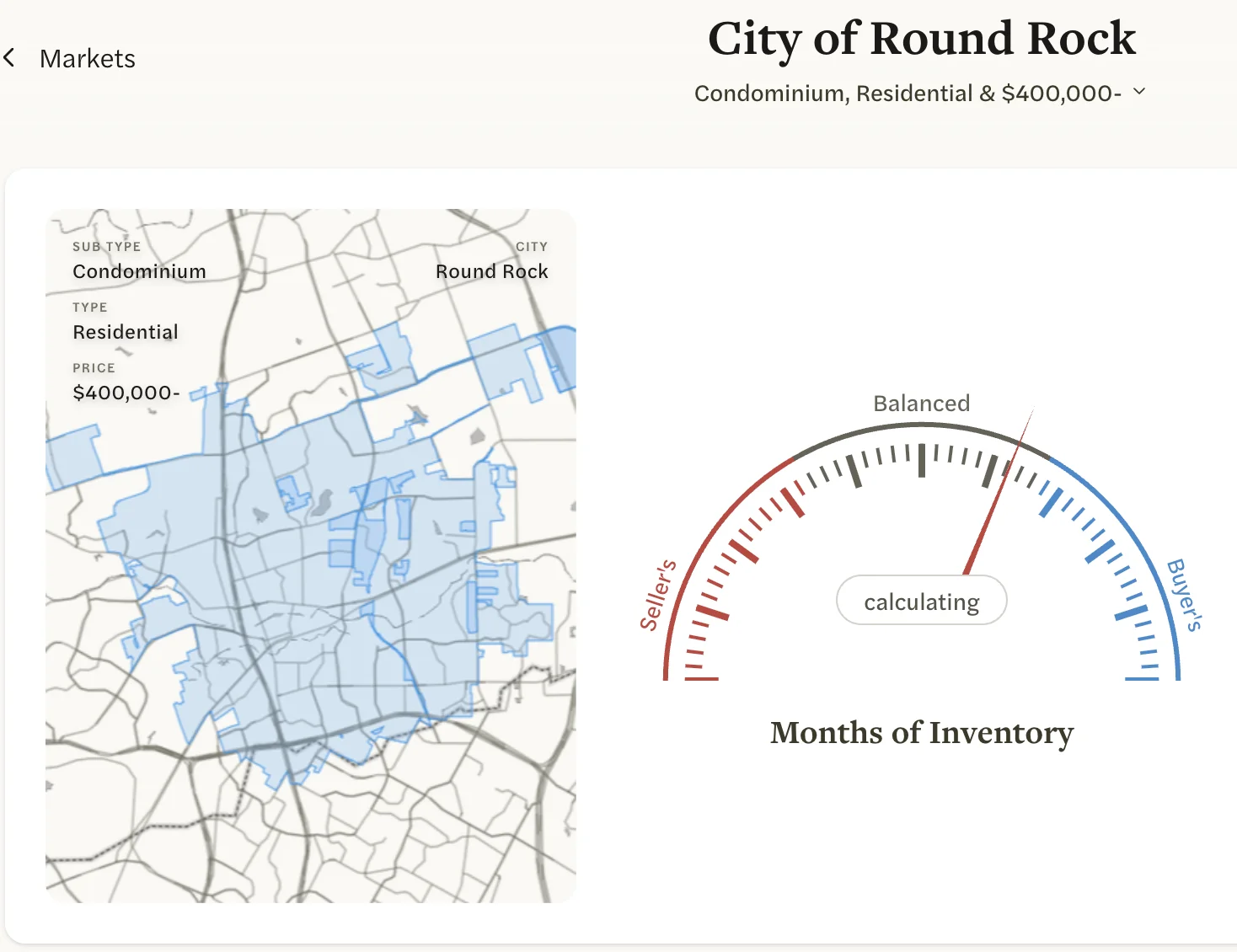
calculating shows over a chart while its figures load, and usually goes in a few seconds.
A market whose figures have never been worked out, such as a custom market you have just created or changed, is calculated when you open it. The page fills in by itself once the figures are ready, so you don’t need to reload it.
Create Market stays gray, or my custom market covers the wrong area
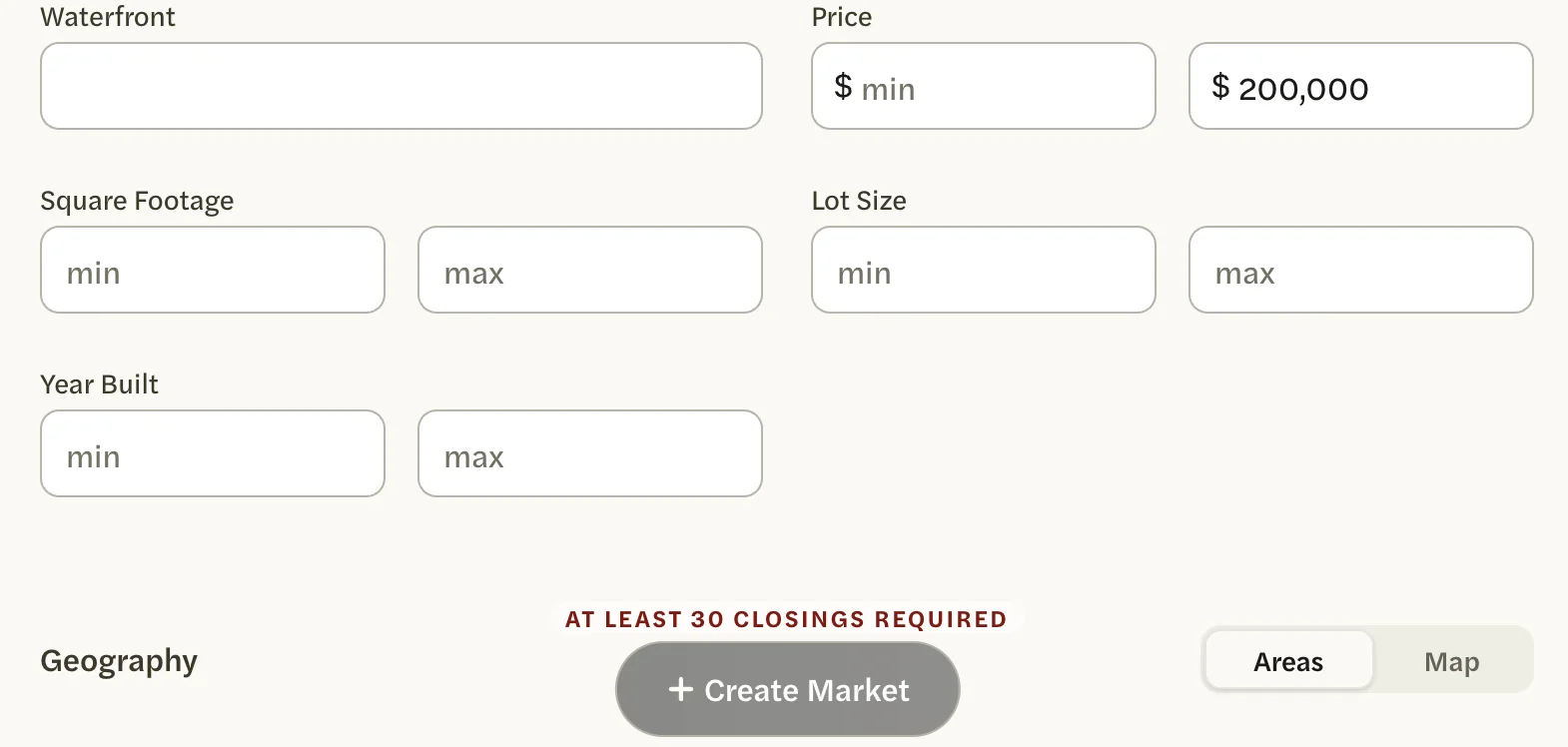
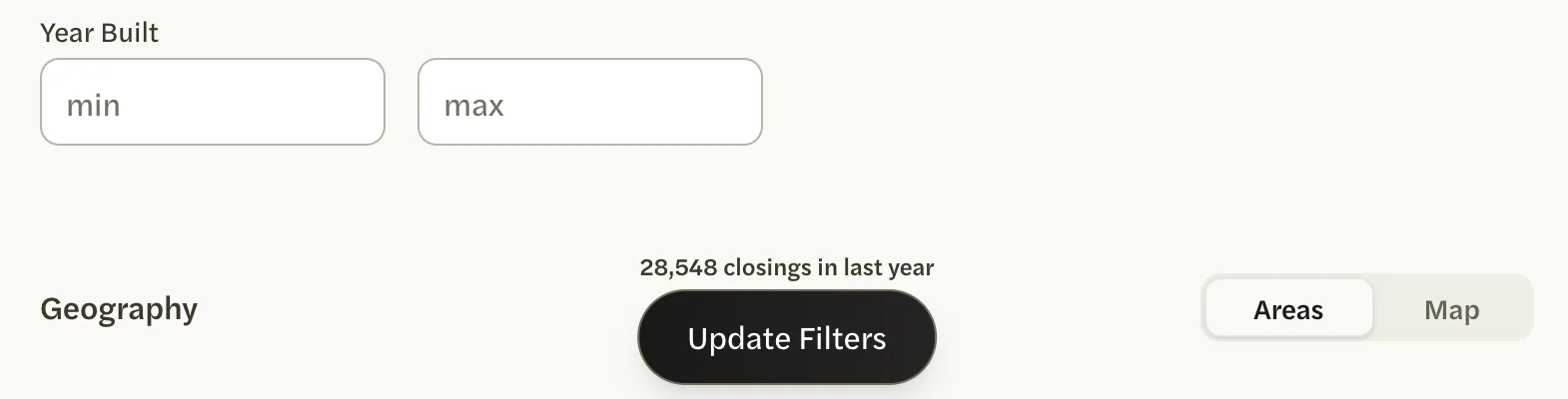
- AT LEAST 30 CLOSINGS REQUIRED at the bottom of the page means the filters match too few sales. Widen the market, with a bigger area, a wider price range or fewer filters, until a number of closings shows. Update Filters works the same way.
- Only the open tab of Geography counts. If you picked places on Areas and then drew on Map, or the other way round, only the tab that is open when you save is used, and the count shows what that tab gives. Open the tab you mean before you select Create Market. To fix a market you have saved, select customize on its page, open the right tab, check the count and select Update Filters.
I can’t find a custom market I made
- Built on one neighborhood, zip code, city or county, it is a button on that place’s card on the Markets page.
- Drawn on a map, or built from a subdivision, a school or more than one area, it isn’t in any of the sections of the Markets page. Find it in the row of starred and recent markets at the top of that page, on the Recent page, or by typing its name in Search Markets.
To keep it one click away, star it on its page and it appears under STARRED in the left menu. See Find it again.
There’s no trash can on my market
- Only custom markets can be deleted. A market AgentIntel made, such as a city or your metro’s Single Family version, has no trash can while its filters and name are as they were.
- A market you have only just saved can take a moment to show its trash can. Close the page and select customize again.
My numbers don’t match my MLS, Redfin or a national market
Expect some difference. Neither number is wrong; they measure different things.
- A national market counts differently. It uses Redfin’s data: other homes, other boundaries, some statistics defined differently, and figures a month or two older. See MLS and national data.
- Your MLS’s own reports may define a statistic differently. MLS statistics has AgentIntel’s definitions. A sale counts in the month it closed, once that month is over. City, county and zip code markets count the listings your MLS records under that name, and neighborhoods follow a boundary on a map.
- Figures are updated overnight, so they change at most once a day. See Where the data comes from and how fresh it is.
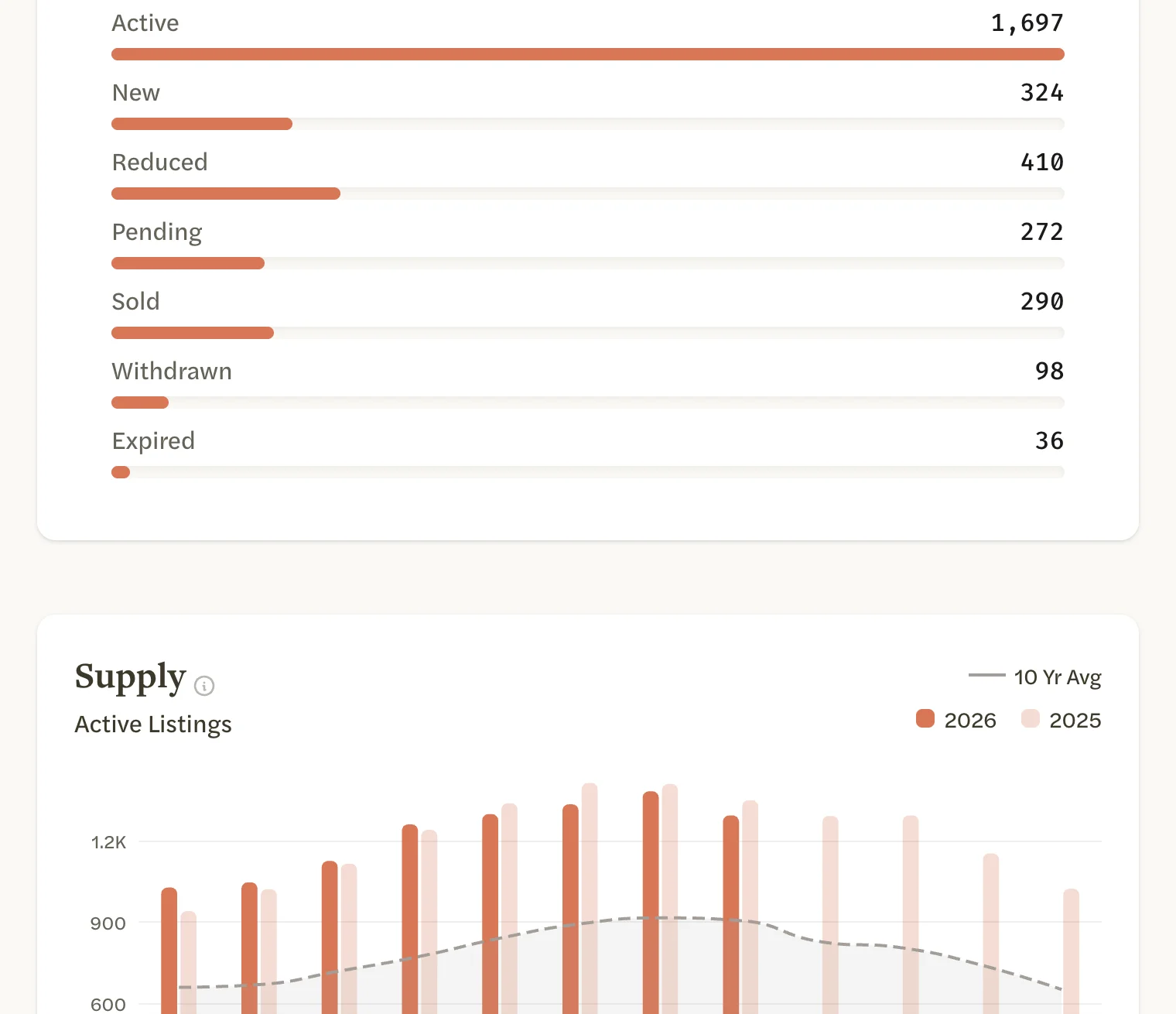
- Active beside the gauge is higher than the Supply chart. Active counts every listing that was active at any time in the period; Supply counts the listings still active on the last day of each month. See Read a market page.
The figures end a month earlier than I expected
- Last Month is the last complete month. In October, Last Month is September, and a home that closes in October is counted once October is over. Last Quarter and Last Year are the last complete calendar quarter and year.
- A market with no change in your MLS yet this month ends a month earlier until something in it changes. Early in a month, a report can be a month newer than the market’s page.
- National markets run one to two months behind, and end with the latest month Redfin has published.
See Which months each period covers.
A chart or a count is missing from a market page
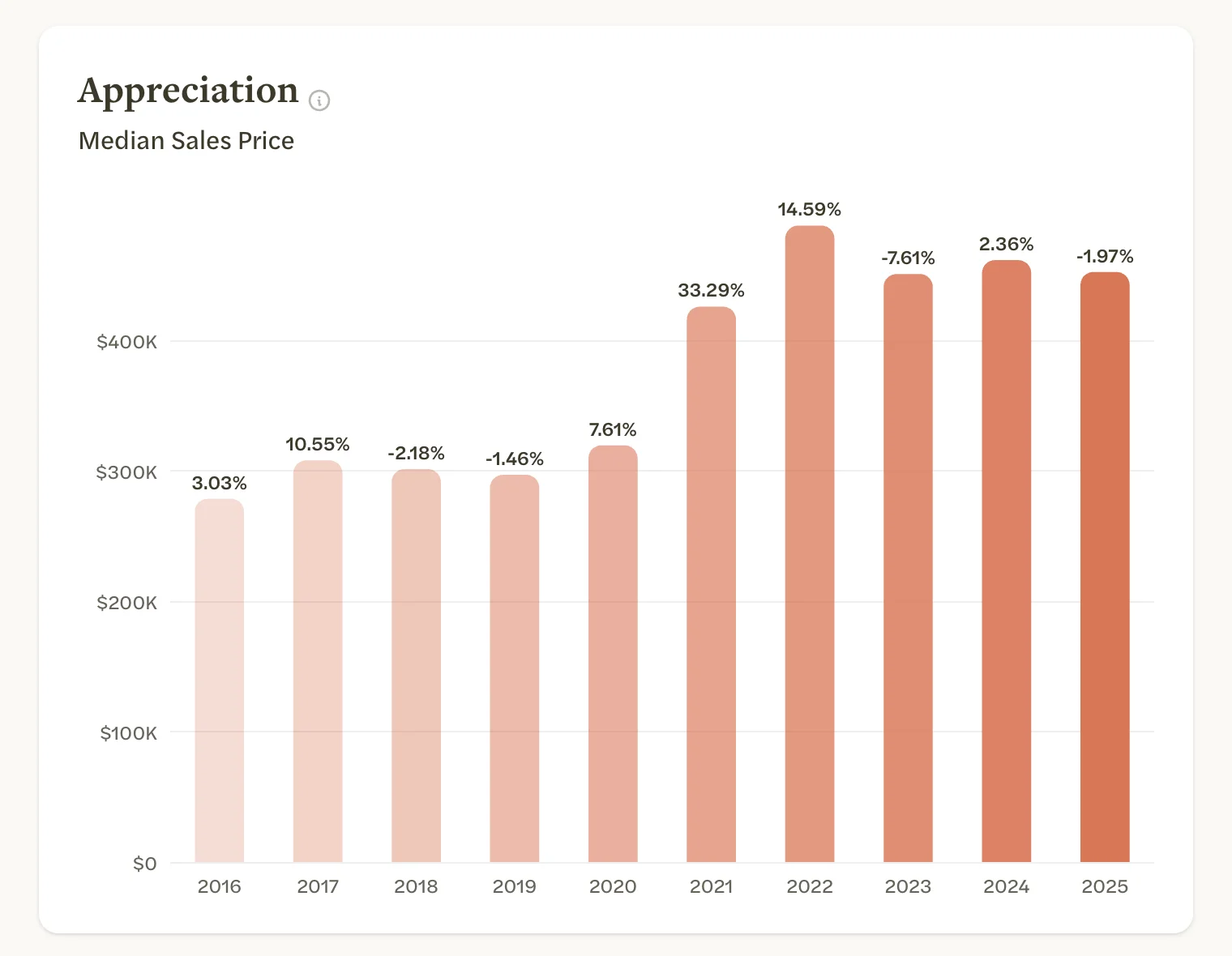
- There’s no Appreciation chart on a market with a price limit, such as Luxury (>$1M). Open a version without one, such as Residential.
- Appreciation has no bar for this year. It shows complete calendar years, so this year appears once it is over.
- A status is missing from the listing counts, or a statistic from Indicators, when there is nothing to count in the period on a market from your MLS. A longer period can bring it back.
The version list shows other names, or the place’s name is gone from the heading
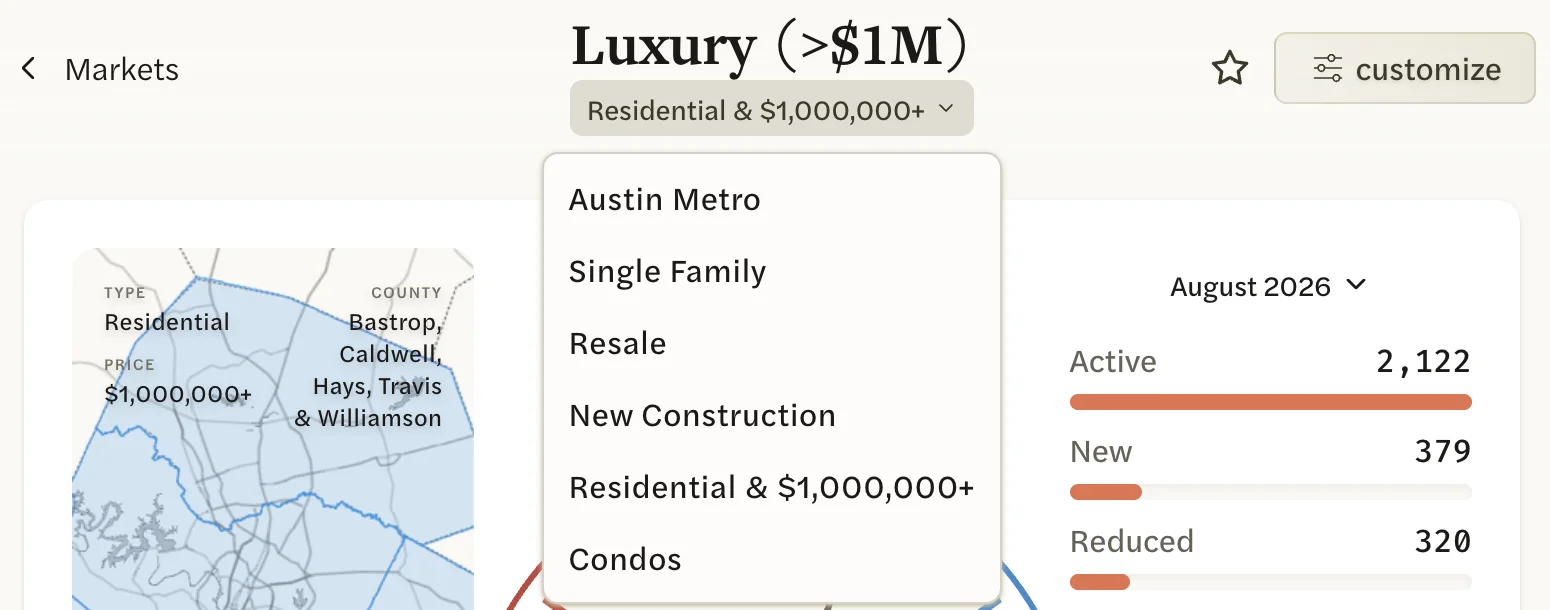
On any version but Residential, such as Luxury (>$1M), the heading shows the version’s name instead of the place’s, and the list under it names the versions differently. On Austin Metro, the list reads Residential, Single Family, Resale, New Construction, Luxury (>$1M) and Condos. Open Luxury (>$1M), and the same list reads Austin Metro, Single Family, Resale, New Construction, Residential & $1,000,000+ and Condos.
They are the same versions. In that list, the place’s own name, Austin Metro, is its Residential version, and the description, Residential & $1,000,000+, is the version you have open. To see a place’s versions under their usual names, go back to the Markets page: the place’s card carries its name and a button for each version.
A street address finds nothing, or the wrong home
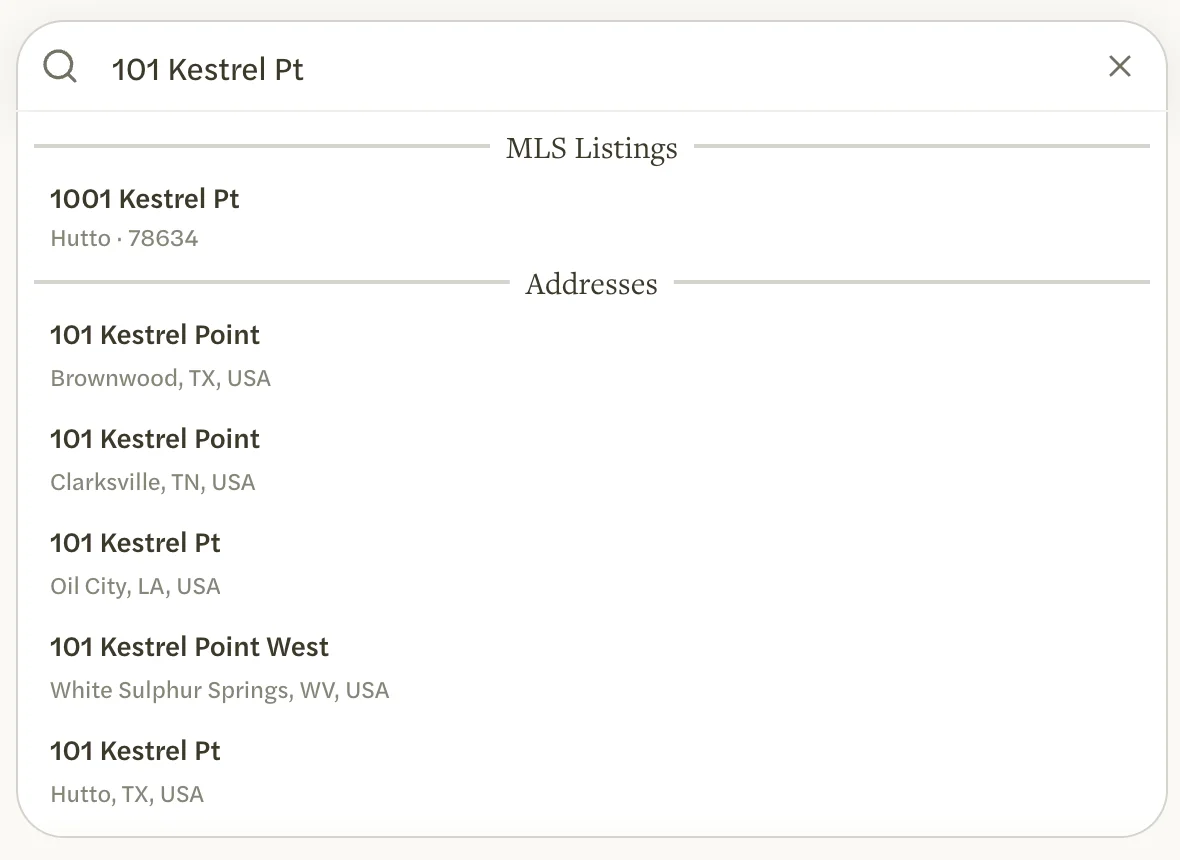
- For a home in your MLS, type only the house number and street name, written the way your MLS writes them. Adding the city or zip code, or spelling out “Trl” as “Trail”, finds nothing under MLS Listings.
- Check the house number and the city before you select. MLS Listings isn’t ordered by how closely each home matches, and it can include homes whose house number only partly matches what you typed, so the home you want may not be first.
- Up to 20 homes are listed, current listings first. If a sold home isn’t there, type more of its address.
- Only residential listings can be searched.
- An address you added is saved with its street name in full, such as “West” and “Street”, even when the list showed it abbreviated. Typing “123 W Main” won’t find “123 West Main Street” among your own homes. Type it as it was saved, or choose it again under Addresses, which opens the same entry.
- Addresses appears once you type a house number and part of the street. It lists U.S. street addresses only, not the names of buildings or businesses.
- Without an MLS Connection, only Addresses is offered.
- On some team and brokerage accounts whose plan leaves out national data, Addresses isn’t offered, and Add Listing accepts only addresses in your MLS’s area. Any other address gets “That address is outside your MLS coverage.”
- Searched the same words earlier today? Search keeps its results for the same words for the rest of the day, so a home you have added or opened since doesn’t come up among your own homes, and a listing that has reached your MLS since doesn’t come up under MLS Listings. Choose the home again under MLS Listings or Addresses, which opens the same entry, find it on your Listings page, or type the address a little differently.
See Look up a listing or address.
Recent on the Listings page takes me back to the Dashboard
Without an MLS Connection, the Recent page of Listings doesn’t open, and you are taken back to your Dashboard with “MLS access is required for this section.” Your most recent homes, up to 18, are in the row at the top of the Listings page, and every address you have added is under Pre-MLS on the same page.
My own listings aren’t under My Listings
- My Listings and My Buyers need an MLS Connection.
- They fill in by themselves. AgentIntel adds your listings once you ask to connect your MLS, and after that whenever your MLS records a listing, or a change to one, with you on it.
- Only listings under the MLS ID you connected with are added. A teammate’s listing appears only if you are on it too.
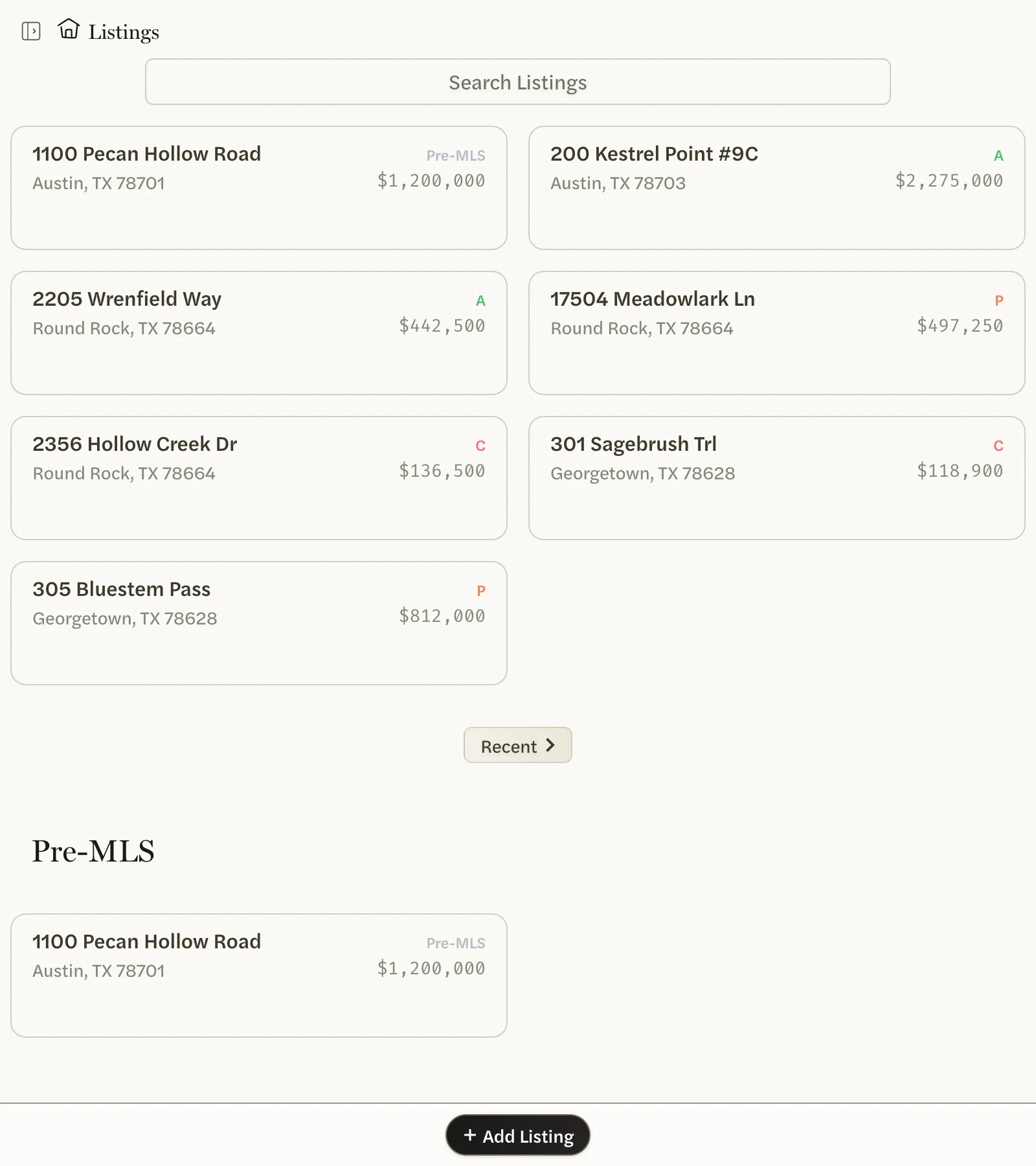
To add one of your own listings now, look it up and choose it under MLS Listings, not Addresses. It then shows under My Listings, or My Buyers if you represented the buyer. An address chosen under Addresses goes under Pre-MLS instead. See My Listings, My Buyers and Pre-MLS.
I added the wrong address, or want a home off my Listings page
A home can’t be removed from Listings, whether you added it, opened it or AgentIntel added it for you. An address you added stays under Pre-MLS.
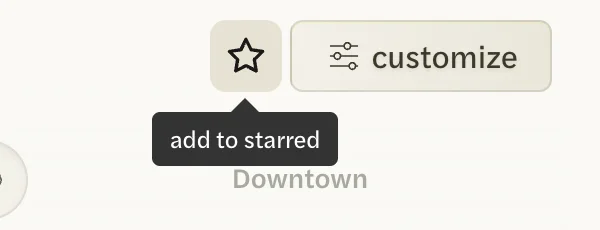
- Keep the homes you use in front. Star them: open the home and select the star at the top right. Starred homes come first on the Listings page and appear under STARRED in the left menu. The row at the top of the page holds the homes you starred or opened most recently, so an entry you don’t use moves down it as you open others.
- If you chose a home in your MLS under Addresses by mistake, look it up again and choose it under MLS Listings. That adds the full listing, with its details and status, beside the address you added.
Custom Market or Agents isn’t on my screen
- Custom Market, at the bottom of the Markets page, needs an MLS Connection. National markets can’t be customized.
- Agents, in the left menu, needs an MLS Connection, and appears only where agent data is available for your MLS.
See Connect your MLS.