Listings in the left menu holds the homes you work with. With an MLS Connection, AgentIntel adds your own listings under My Listings and the listings where you represented the buyer under My Buyers. Pre-MLS holds the addresses you add yourself, such as a home you are about to list, which you can describe so it falls into the right markets.
What’s on the Listings page
Select Listings in the left menu. From top to bottom:
- The homes you starred or opened most recently, up to 18, starred ones first. With an MLS Connection, select Recent below them to see the listings you have opened, month by month.
- My Listings: listings on which your MLS names you as the listing agent or co-listing agent, current listings first.
- My Buyers: listings on which your MLS names you as the buyer’s agent or co-buyer’s agent, the most recent change of status first.
- Pre-MLS: the addresses you have added.
My Listings, My Buyers and Pre-MLS each show six homes, then a line such as and 4 more that opens the rest. A section with nothing in it isn’t shown, so until you have listings in your MLS or have opened or added a home, the page holds only Search Listings at the top and Add Listing at the bottom.
Each home shows its street address, city, state and zip code, its price, and its status in initials, such as A for Active, P for Pending and C for Closed. A gray C is Canceled. The price is the sale price once a home has sold, and the asking price before that. An address you added shows Pre-MLS instead of a status, and a price once you give it one.
Select a home to open its page of markets; see Look up a listing or address.
How your listings get there
- My Listings and My Buyers fill in by themselves. As soon as you ask to connect your MLS, AgentIntel adds every listing it has from your MLS with you on it as listing, co-listing, buyer’s or co-buyer’s agent, whatever its status. After that, a listing is added when your MLS records it, or records a change to it, with you on it.
- To add one of your own listings straight away, look it up and choose it under MLS Listings. It shows under My Listings or My Buyers at once.
- They follow the MLS ID you connected with. A listing is added only when your MLS records you on it under that ID. A teammate’s listing appears only if you are on it too.
- Homes you open are added at the top. That includes a home you open from search or from the dots on a market page’s Negotiations and Price Adjustments charts.
- You can’t remove a home from Listings. To keep the ones you use most in reach, open the home and select the star at the top right. Starred homes come first on the page and appear under STARRED in the left menu. Select the star again to remove it.
My Listings and My Buyers need an MLS Connection. Without one, the Listings page holds the addresses you add, under Pre-MLS, with the ones you opened most recently at the top, and each opens with national markets. See Connect your MLS.
Add a home that isn’t listed yet
Select Listings in the left menu, then Add Listing at the bottom of the page.

Under Street Address, type the house number and street name, then choose the address from the list. There is no save button: choosing the address adds it.
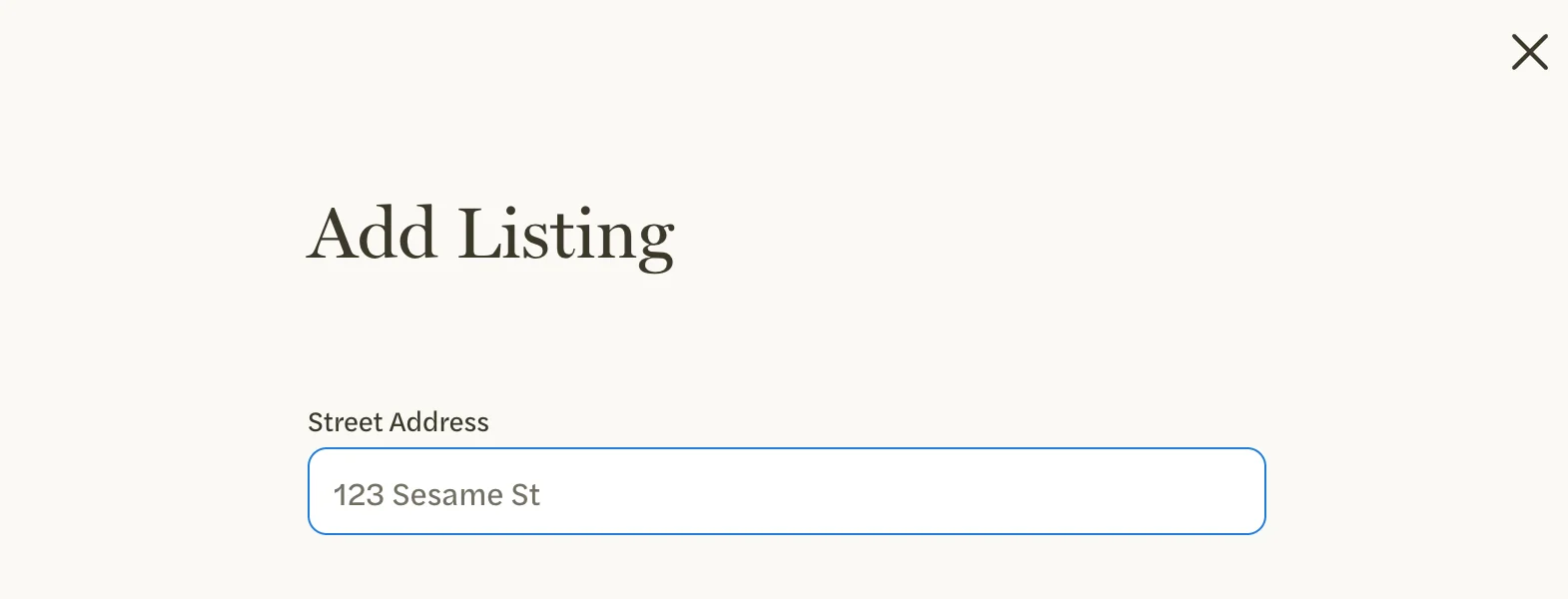
The home’s page opens with a tab for each market around it, and the home is listed under Pre-MLS. You can also add an address from the search on your Dashboard; see Look up a listing or address.
Describe the home
A new address fits only the Residential markets of its area, because AgentIntel knows nothing else about the home. Describe it so it also falls into the versions and custom markets it belongs to, such as Single Family or Luxury (>$1M).
On the home’s page, select customize at the top right. On a phone, it is an icon of sliders without the word. The Pre-MLS Listing page opens.
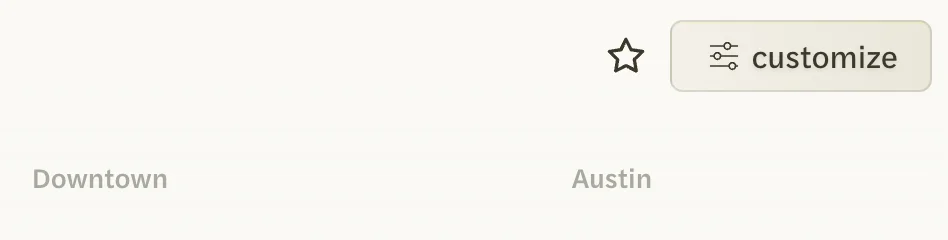
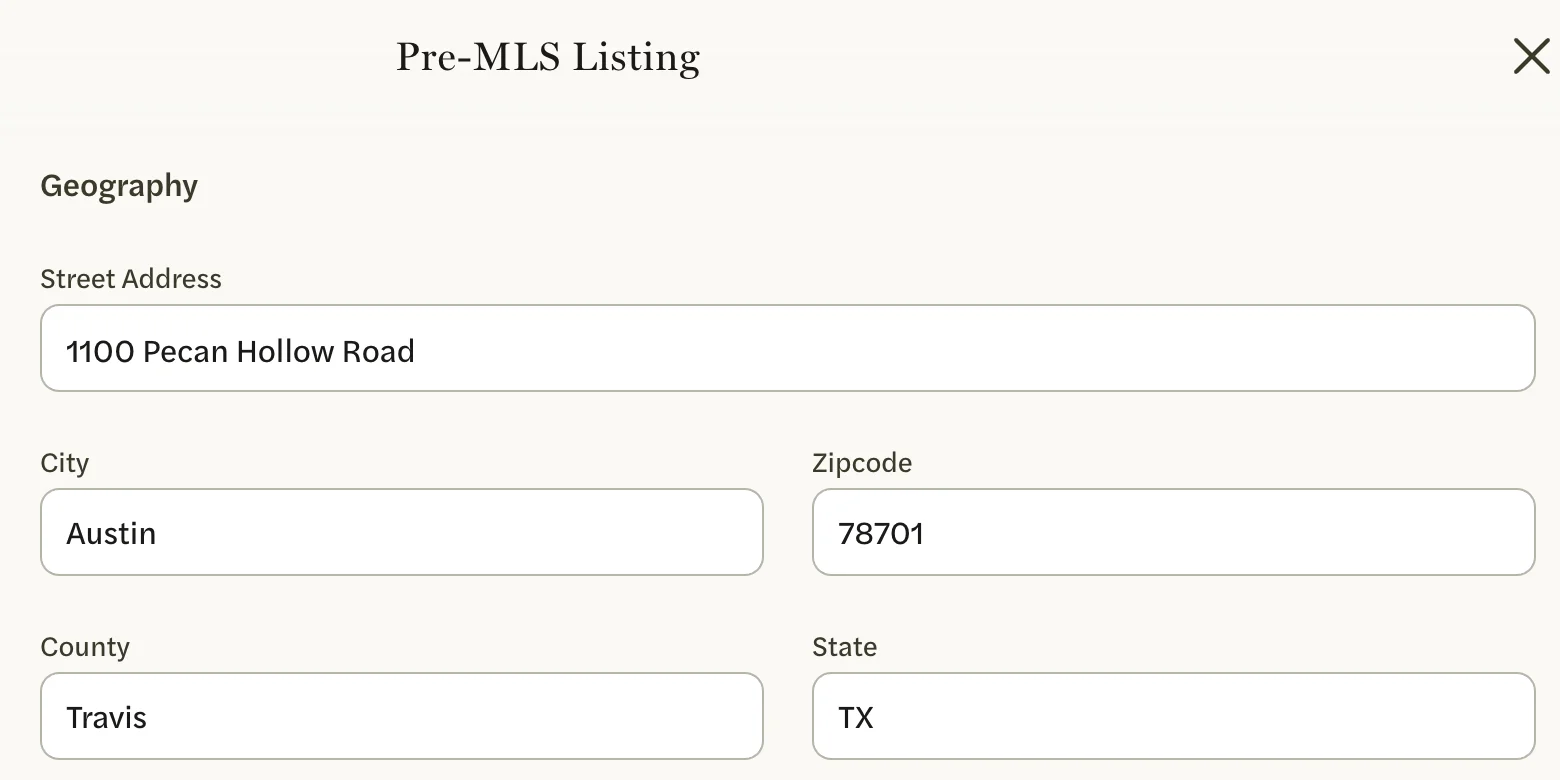
Under Characteristics, fill in what you know: Sub Type, Condition, New Construction, Stories, Pool, Waterfront, Price, Square Footage, Lot Size (sqft) and Year Built. A market that depends on a field you leave empty, as Single Family depends on Sub Type, won’t include the home.
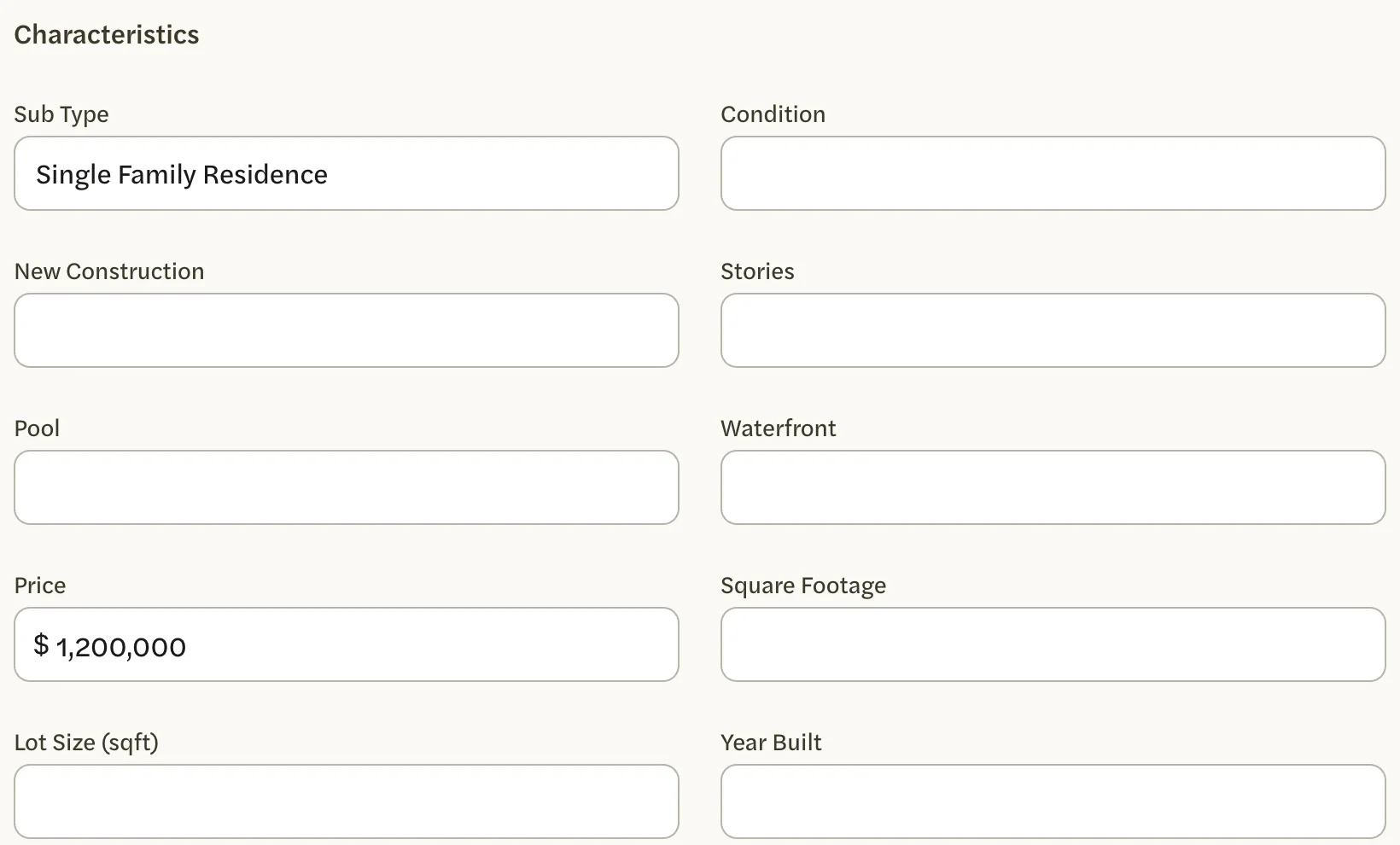
Select Update Attributes.
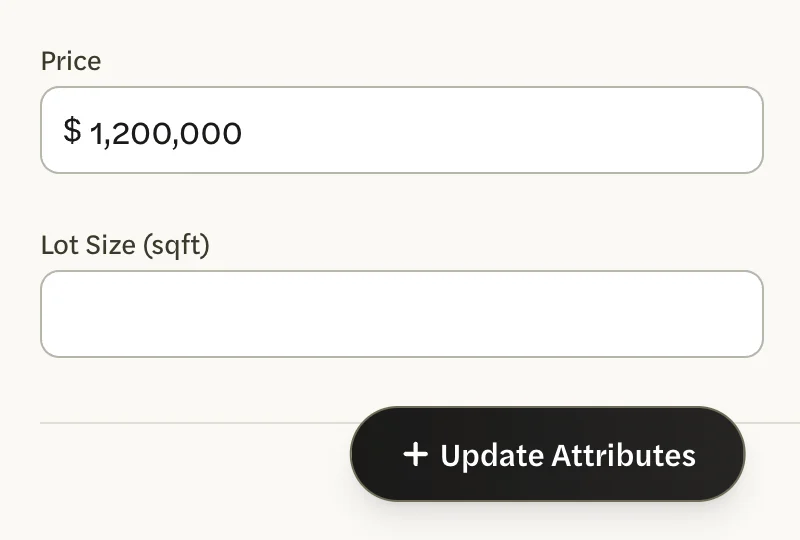
The home’s page opens again, with a tab for each market it now fits. Giving a home in Austin’s 78701 zip code a Sub Type of Single Family Residence and a Price of $1,200,000, for example, added Single Family and Luxury (>$1M) to its tabs.
Geography, above Characteristics on the same page, holds the address, filled in from the one you chose.
customize appears on a home in a zip code your MLS covers. An address anywhere else opens with national markets, which can’t be narrowed.
When the home is listed
Your Pre-MLS entry stays as it is: AgentIntel doesn’t link it to the new MLS listing. If you are the listing agent, the MLS listing is added under My Listings once your MLS records it, and from then on it is the one that follows your MLS.
Change the details of a listing from your MLS
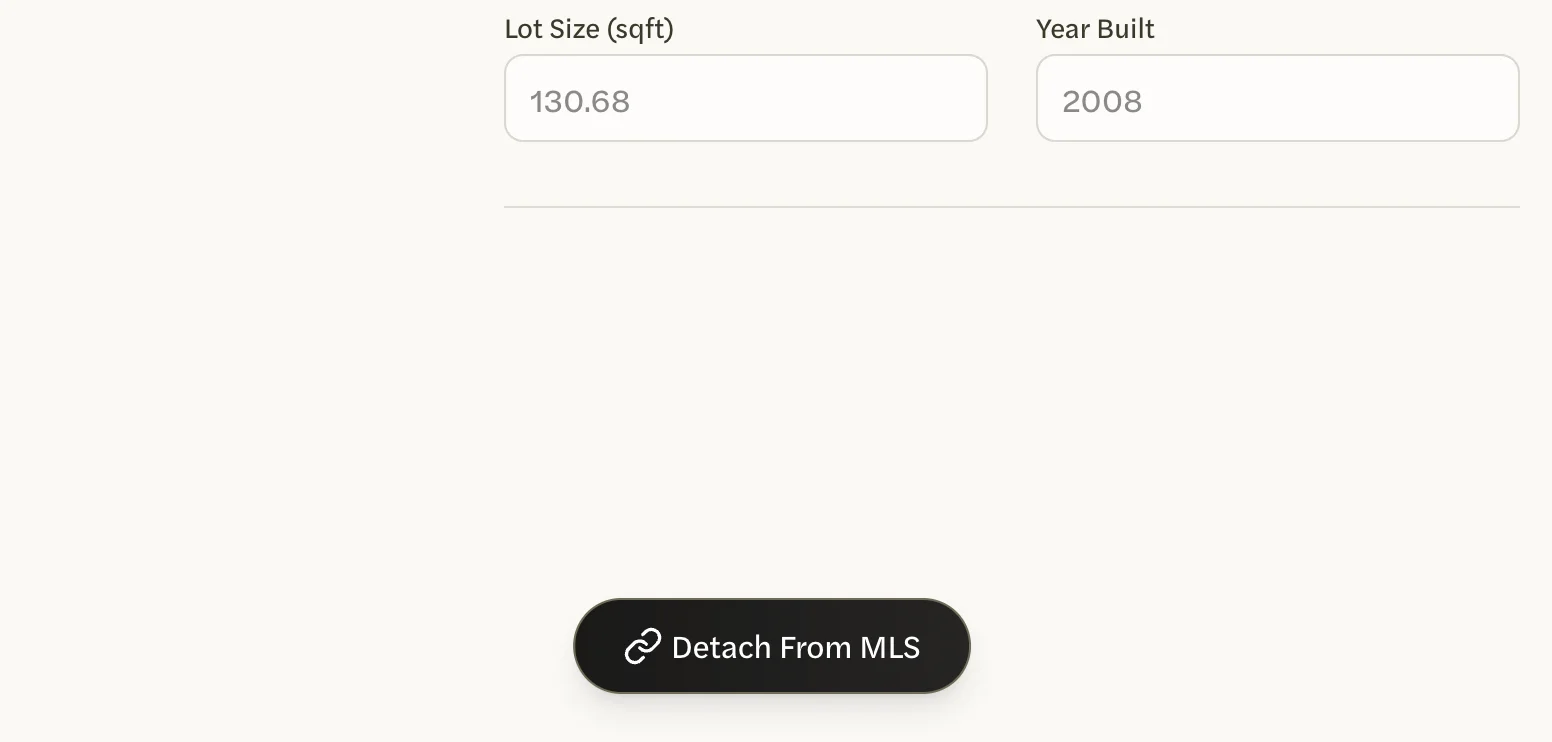
On a listing from your MLS, customize opens a page titled with its MLS number. The listing’s details are shown grayed out, because they come from your MLS and change when it changes them. To change them yourself, detach the listing from your MLS.
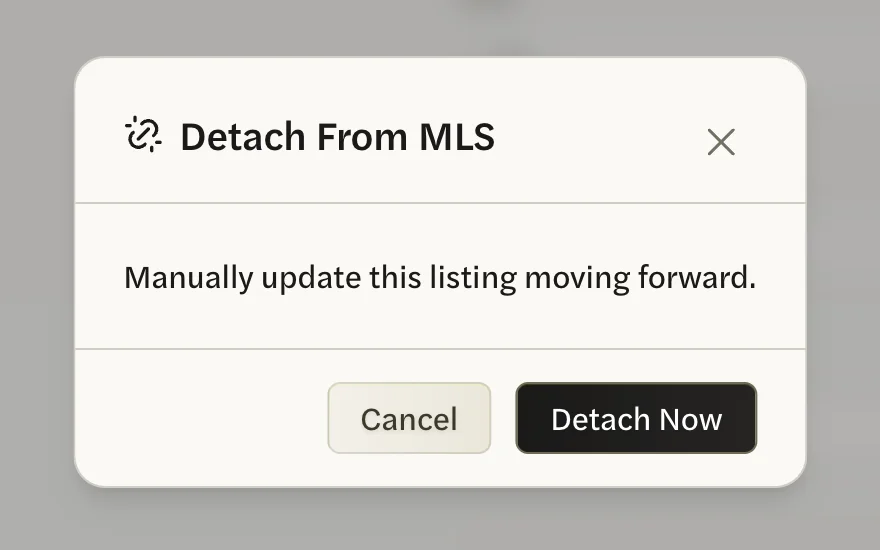
Detaching can’t be undone. The listing becomes your own copy, and that copy no longer follows your MLS.
On the listing’s page, select customize.
Select Detach From MLS at the bottom of the page.
In the window that opens, select Detach Now.
The page opens again as Pre-MLS Listing. The listing is now your own copy, listed under Pre-MLS, and you can change its details and save them with Update Attributes, as in Describe the home. What happens to the MLS listing depends on whether you are on it:
- If you are an agent on the listing, AgentIntel adds the MLS listing back under My Listings or My Buyers by itself shortly afterwards, beside your copy. The detach has still worked: your copy is the one under Pre-MLS.
- If you aren’t, only your copy stays. To follow the MLS listing again, look it up and choose it under MLS Listings; it is added as a separate entry beside your copy.
Client Watch
Your active listings, and the purchase anniversaries of buyers you represented, also go into the weekly Client Watch email, with numbers from each home’s market. Selecting a home in the email opens it under Listings. See The Client Watch email.