Type the street address in the search box on your Dashboard. Choose a home listed in your MLS, or any U.S. street address, and it opens on a page of the markets around it. AgentIntel also keeps it under Listings in the left menu, so you can come back to it.
Look up a listing or address
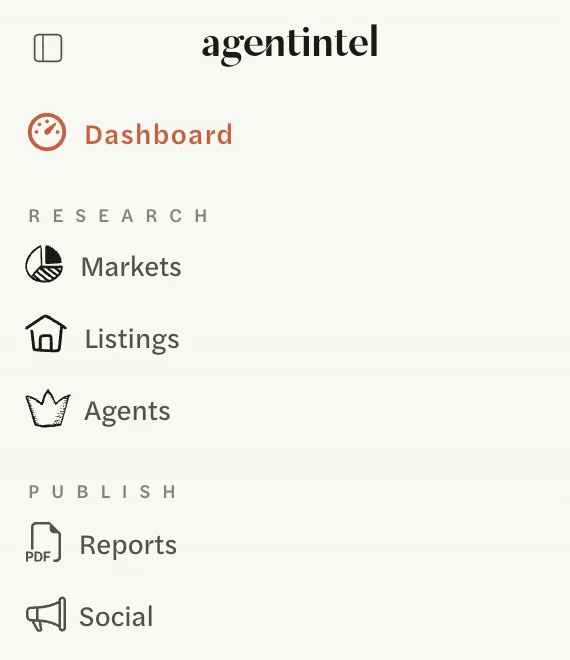
Select Dashboard in the left menu.
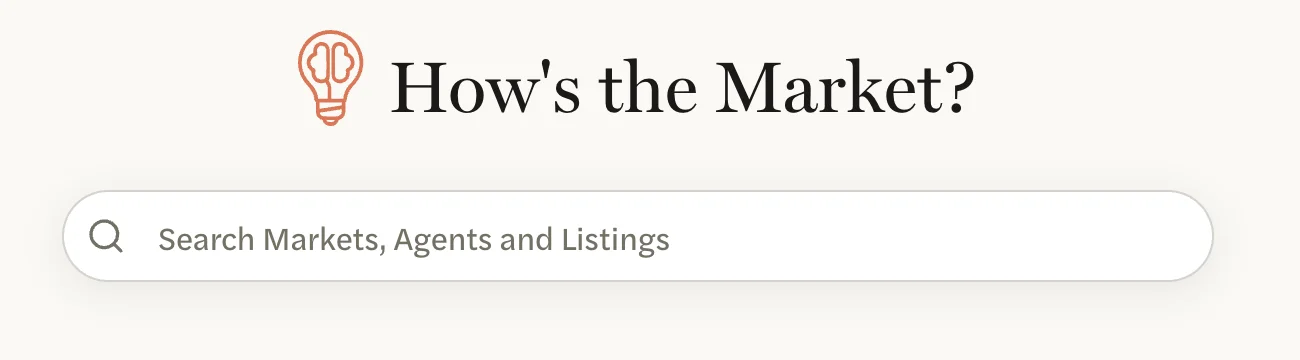
In the box under How’s the Market?, type the house number and street name, such as “123 Main St”.
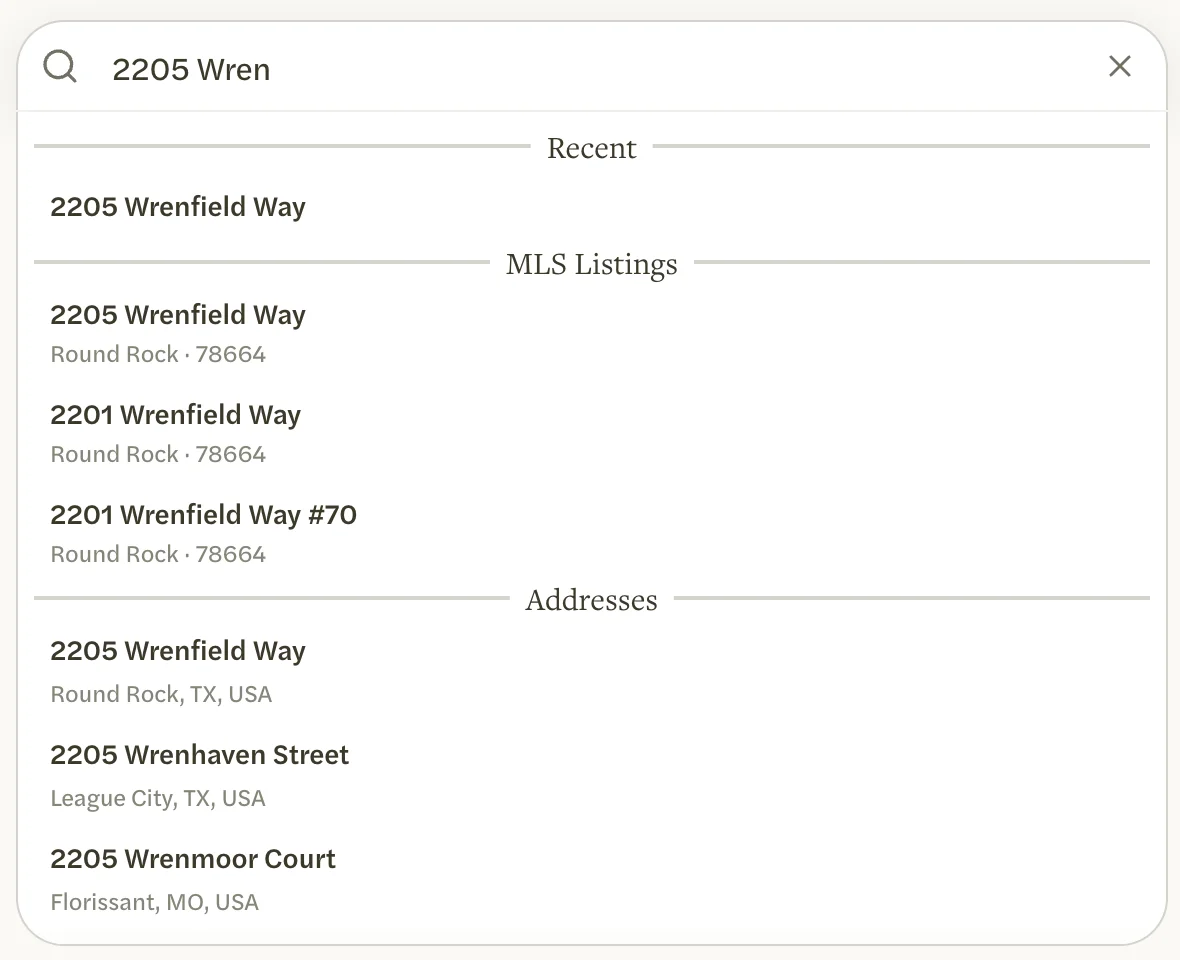
Choose the home from the results:
- Homes you have already opened, starred or added, and your own listings, come first, under Recent, Starred, Pre-MLS, My Listings or My Buyers.
- MLS Listings lists homes in your MLS. You can also find one by typing its MLS number. The list isn’t ordered by how closely each home matches, and it can include homes whose house number only partly matches what you typed, so check the house number and the city before you select one.
- Addresses lists U.S. street addresses once you have typed a house number and part of the street. Check the city and state under each one: the list can include streets of the same name in other states.
The home’s page opens. Its street address is at the top, and below it is a row with one tab for each market the home sits in. The first is open.
The Search Listings box at the top of the Listings page works the same way. There, homes in your MLS are grouped under Listings, and street addresses under Addresses.
Without an MLS Connection, the results include Addresses but not MLS Listings, and every address opens with national markets. See Connect your MLS.
Tips for finding a home in your MLS
- Type only the house number and street name, written the way your MLS writes them. Adding the city or zip code, or spelling out “Trl” as “Trail”, finds nothing under MLS Listings, though the same home can still show under Addresses.
- If the home is in your MLS, choose it under MLS Listings, not Addresses. An address you choose under Addresses is saved as your own entry, without the MLS listing’s details, status or price, so it matches fewer of your markets. See My Listings, My Buyers and Pre-MLS.
- Check the house number and city before you select. The closest match isn’t always first.
- Up to 20 homes are listed, current listings first. A home that sold can come after 20 active listings on the same street, so type more of the address until it appears.
- A home with more than one listing under the same address appears once.
- Only residential listings can be searched.
The listing’s page
The tabs are the markets the home is in. Select a market’s name, or the arrows on either side of the open tab, to switch. Each tab shows that market’s page; see Read a market page.

Which markets you see depends on where the home is:
- A home in your MLS, or an address in a zip code your MLS covers, shows the markets from your MLS that include it, such as its neighborhood, zip code, city, county and metro, and your whole MLS. It also shows the versions it fits, such as Single Family or Luxury (>$1M), and any custom market of yours that includes it. Small markets, such as a neighborhood, generally come first and your whole MLS last. An address you added yourself fits only the Residential markets until you describe the home; see My Listings, My Buyers and Pre-MLS.
- Any other address shows national markets, from its neighborhood up to the whole country, each for All Residential. Without an MLS Connection, every address opens this way. National markets can’t be narrowed, so these pages have no customize button.
At the top right, the star adds the home to STARRED in the left menu.
A listing opens on its first tab each time, whichever tab you had open before. Choosing the same home again opens the same page; it isn’t added to Listings twice.
Make a report for a listing
Open the tab for the market you want, then select Generate Report at the bottom of the screen. The report covers that market and is titled with the street address, such as “123 Main St”, instead of the market’s name. See Generate a report.
Find a listing again
The homes you open or add are listed on your Listings page, with the ones you starred or opened most recently at the top. See My Listings, My Buyers and Pre-MLS.