Every charge for your subscription has an invoice, listed under Invoices in your billing settings. Each one opens on a page from Stripe, our payment processor, where you can download the invoice and a receipt as PDF files.
Download an invoice or receipt
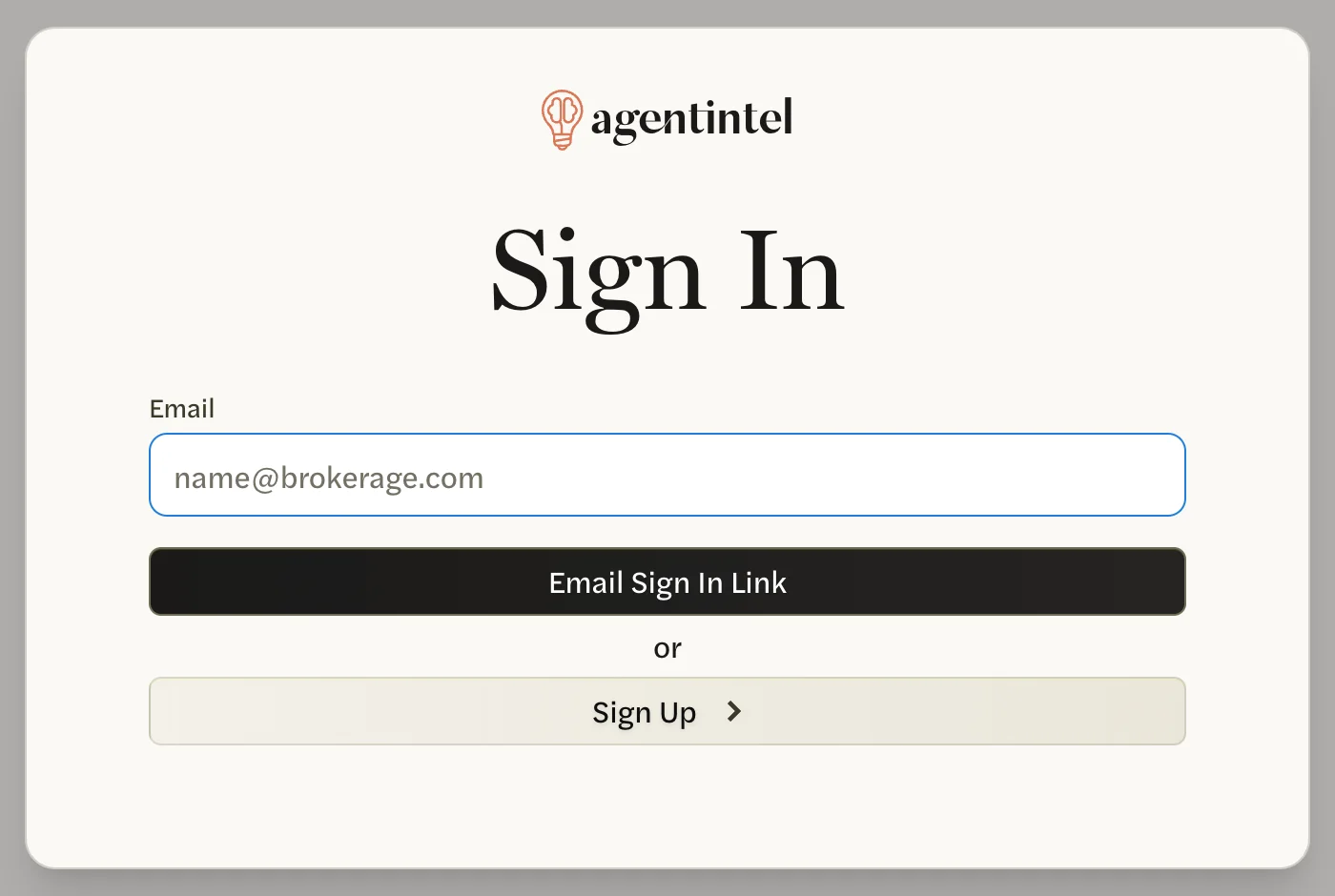
Sign in at app.agentintel.co.
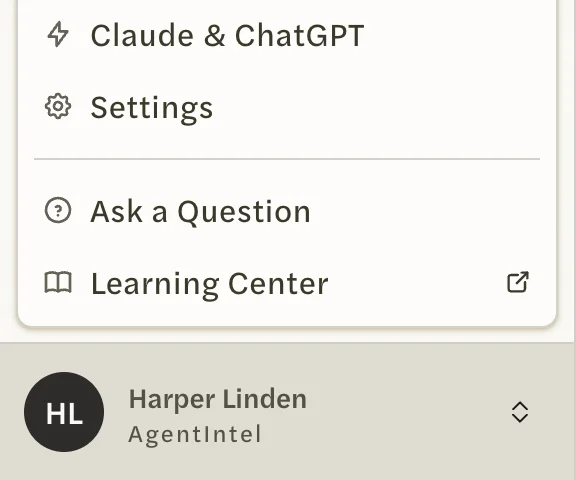
Select your name at the bottom of the left menu, then Settings.
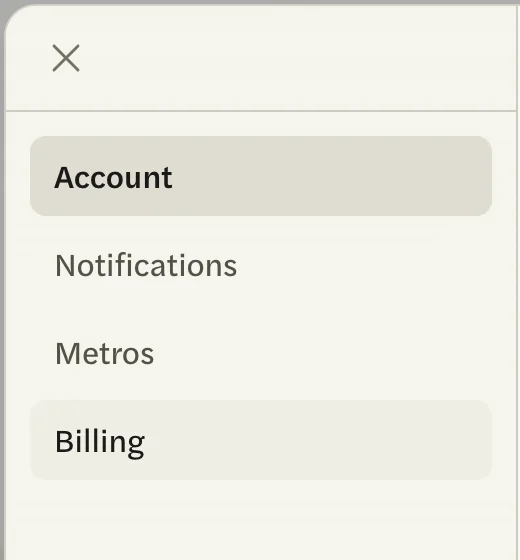
Open the Billing tab.
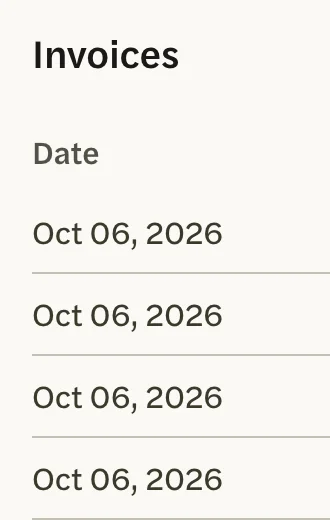
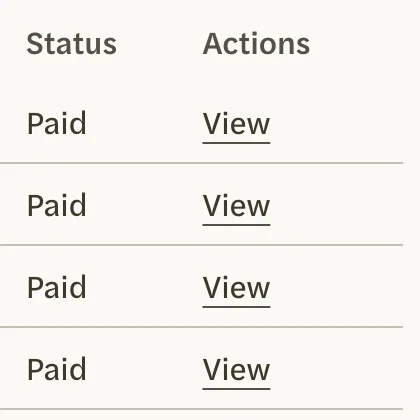
Under Invoices, find the charge by its date. The newest is at the top. If you have more than ten, select Load more at the bottom of the list to see older ones.
Select View in that row. The invoice opens on Stripe’s page in a new browser tab, and AgentIntel stays open in the tab you were in.
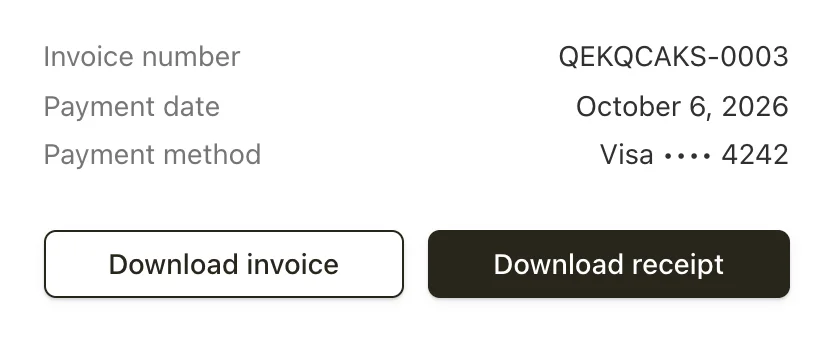
Select Download invoice or Download receipt. Each one saves as a PDF.
When you’re done, close Stripe’s tab to go back to AgentIntel.
On a team or brokerage account, only the account owner has a Billing tab and sees the invoices. If you need one, ask your account owner.
What’s on them
- The invoice lists what you were billed for, the dates it covers, and the total.
- The receipt confirms the payment: the date it was paid, the amount and the card it was charged to.
- Both are addressed to you, with the name and email address on your account.
To check an invoice without downloading it, select View invoice and payment details on Stripe’s page. It shows each item, the dates it covers, and the payment made against it.