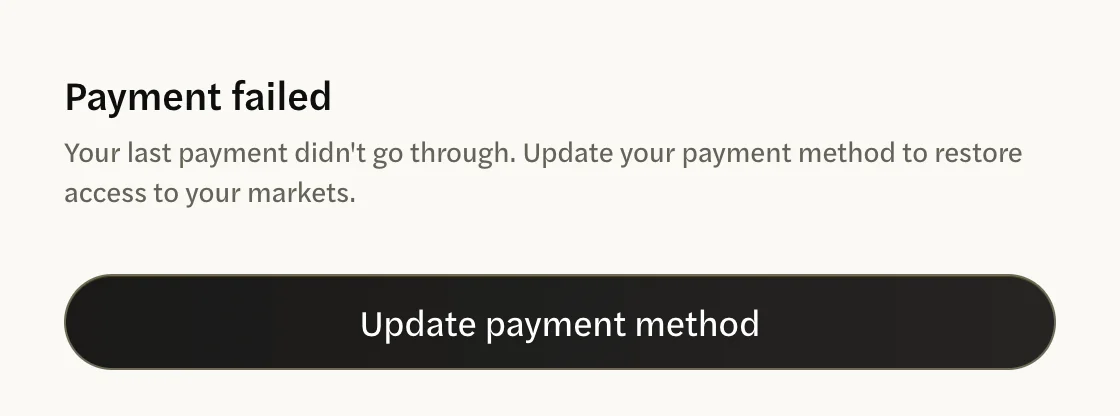
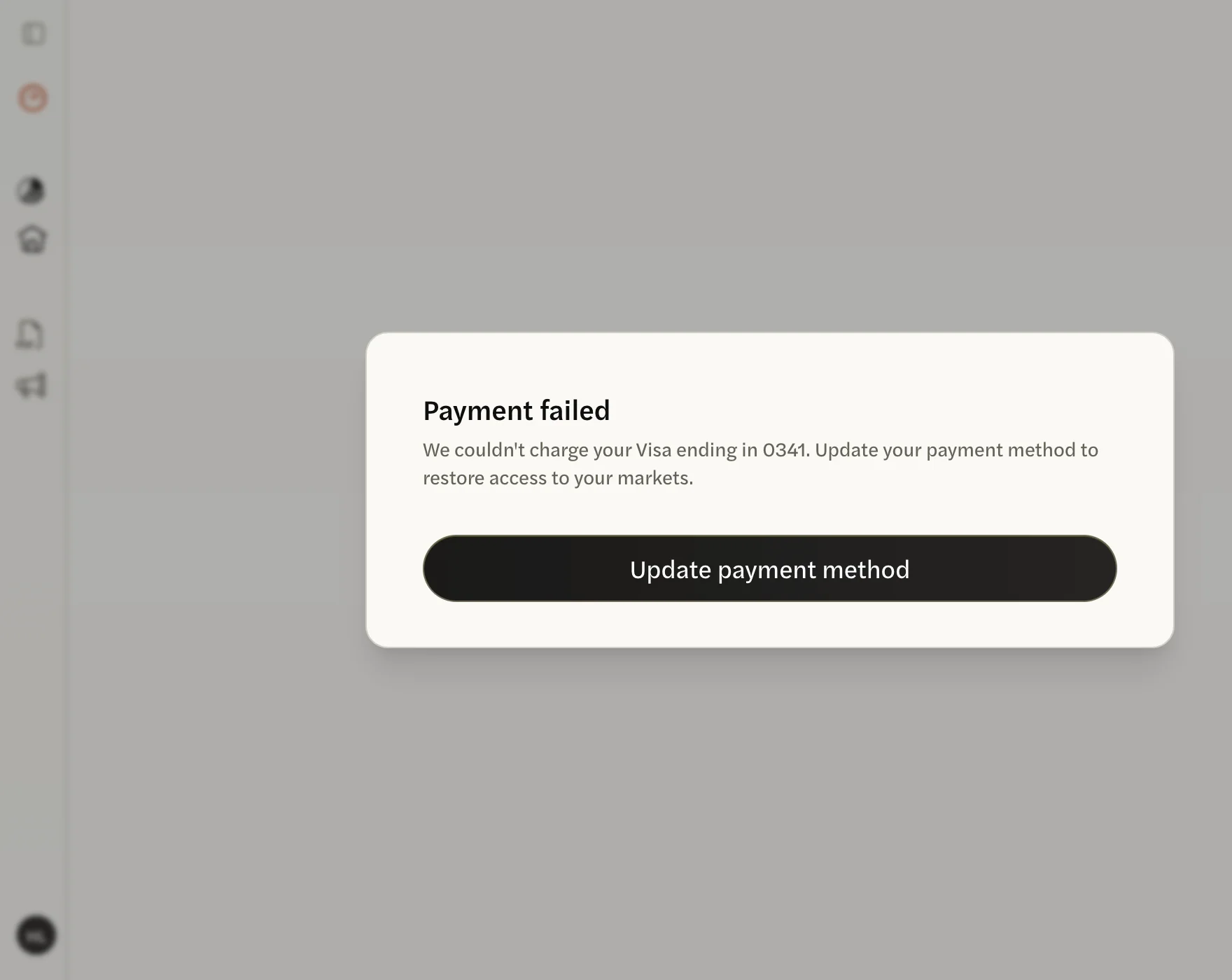
If your card is declined when your plan renews or your free trial ends, AgentIntel shows a Payment failed screen in place of your pages. Your access stops as soon as the charge fails and comes back once it is paid. To get back in, add a working card and pay the failed amount on Stripe’s pages, as below.
AgentIntel says “Payment failed”
Every page shows this screen until the payment goes through. Nothing is deleted in the meantime: your markets, reports and settings are waiting for you.
Adding a card doesn’t pay the failed charge by itself, so carry on past step 3 until Stripe shows your next billing date. You’re back in only once that payment goes through.
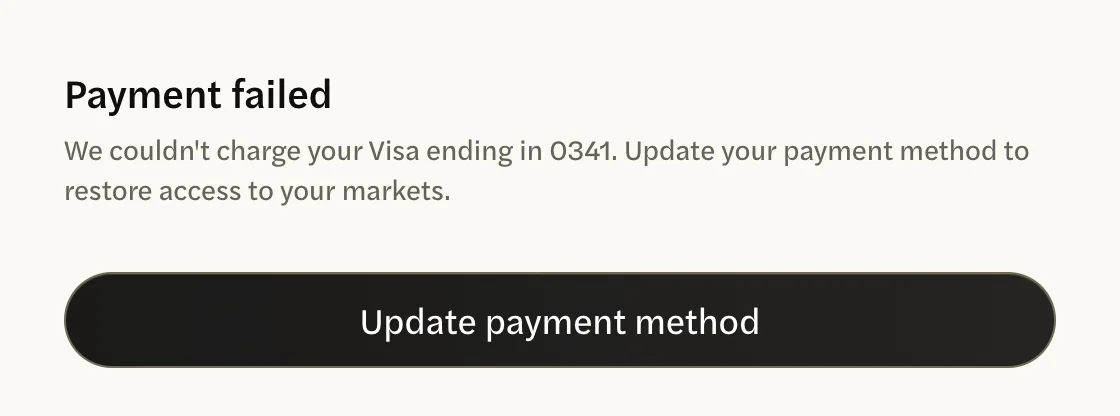
On the Payment failed screen, select Update payment method. A page from Stripe, our payment processor, opens, titled Update payment method.
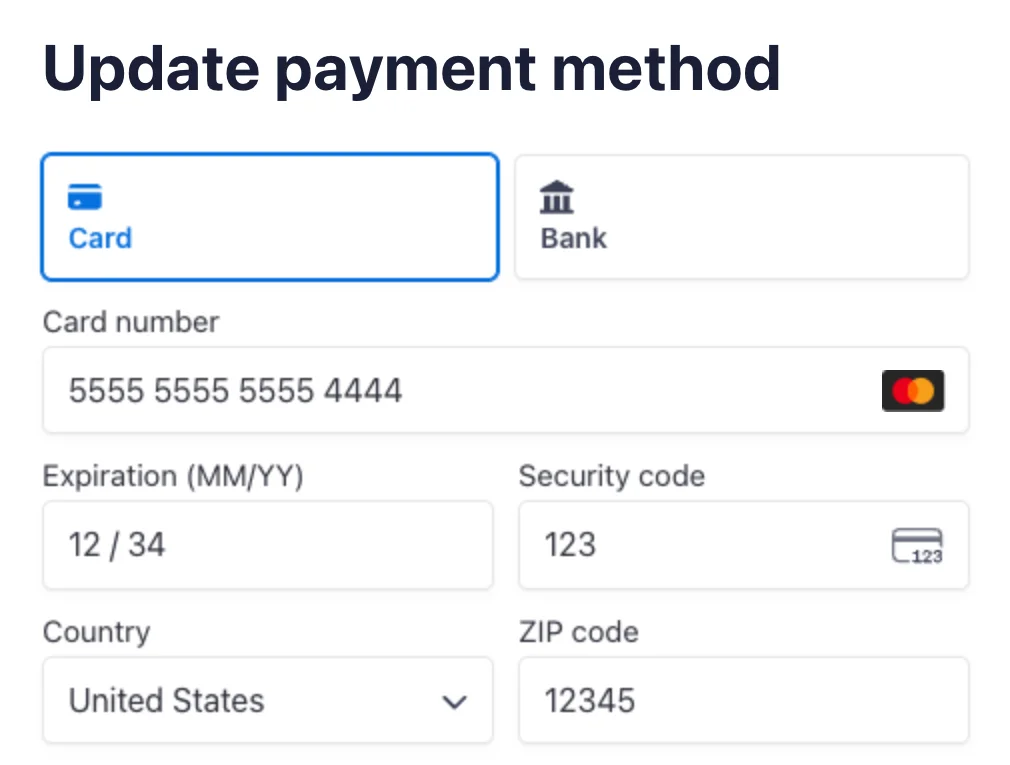
With Card selected, enter your card’s details, then select Add.
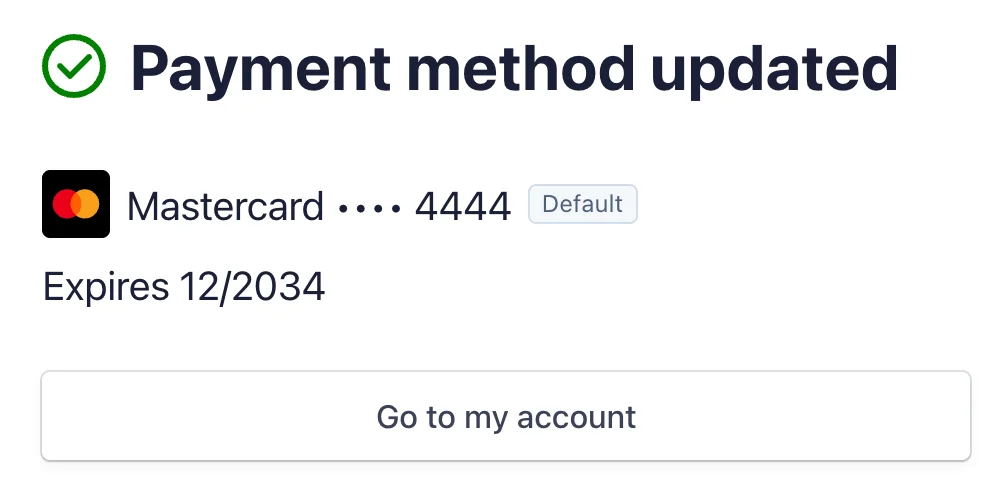
Stripe confirms with Payment method updated. Select Go to my account.
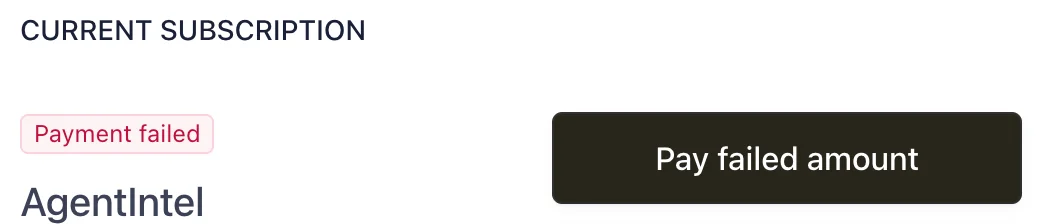
Stripe’s page shows your subscription marked Payment failed, with a dark button beside it. Select that button: it reads either Pay failed amount or Update payment method.
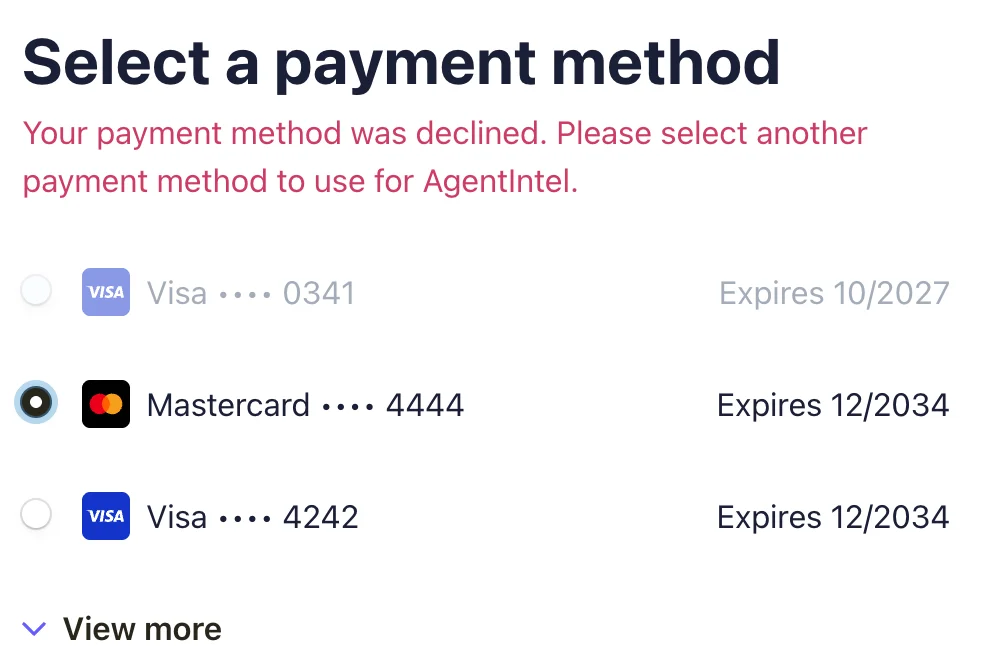
Stripe opens Select a payment method. Select the card you just added, even if another card is already selected, then select Continue.
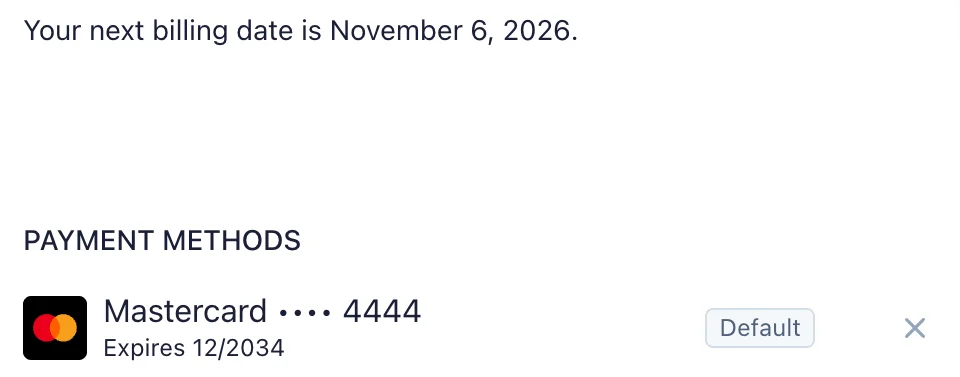
Stripe charges the card straight away. When it goes through, the Payment failed label is gone and the page shows Your next billing date is, followed by the date.
Select the return link at the top left of Stripe’s page to come back to AgentIntel.
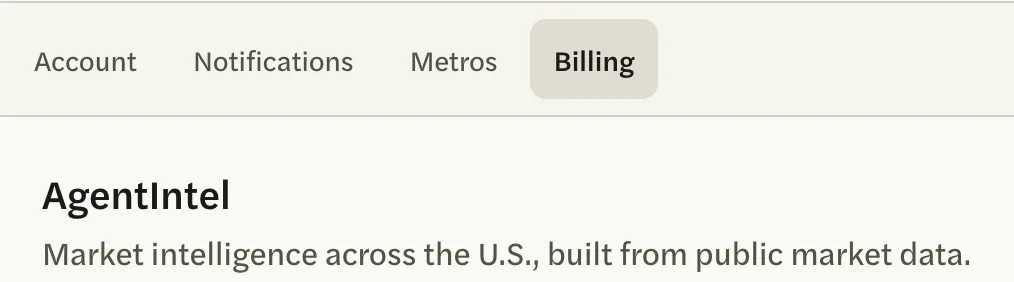
AgentIntel opens with your Billing tab showing, and all your pages are back. If it still shows Payment failed, wait a moment and reload the page.
Your plan and renewal date stay as they were, and future charges go to the card you paid with.
On a team or brokerage account, only the account owner can pay a failed charge. If you see Account Deactivated, ask your account owner.
I updated my card, but it still says “Payment failed”
Adding a card doesn’t pay the charge that failed. The screen may still name the declined card, or say “Your last payment didn’t go through.” instead.
Do all the steps above from the start. Adding the same card a second time is fine. After Go to my account, select the dark button beside Payment failed, then select the card you added before you select Continue.
Stripe also tries the failed charge again on its own later, but you stay locked out until a payment goes through, so pay it yourself to get back in now.
I can’t get to Settings or log out
The Payment failed screen covers the whole window, so the menu at the bottom left can’t be opened. To log out, go to app.agentintel.co/signout. The Sign In page opens. When you sign in again, the Payment failed screen is still there until the payment goes through.
It says “Welcome back” instead
If AgentIntel shows a screen that says Welcome back. Your markets are ready. instead of Payment failed, your subscription has ended. Subscribe again to get back in; your markets, reports and settings are still there. See Subscribe again after your access ends.

To change your card when nothing has failed, see Update your card.