You can change the card on file for your subscription at any time from your billing settings. You enter the new card on a page from Stripe, our payment processor.
Update your card
Sign in at app.agentintel.co.
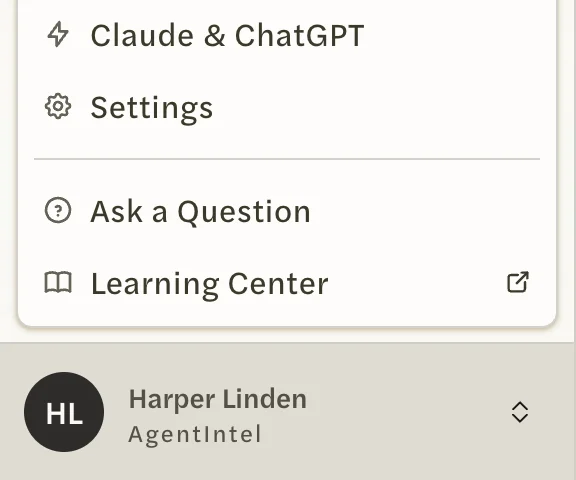
Select your name at the bottom of the left menu, then Settings.
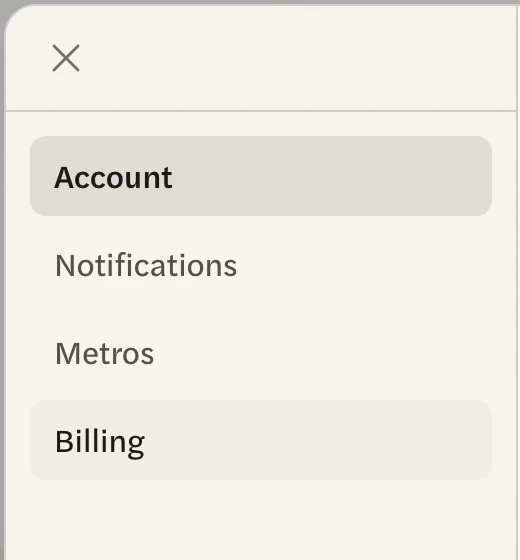
Open the Billing tab.
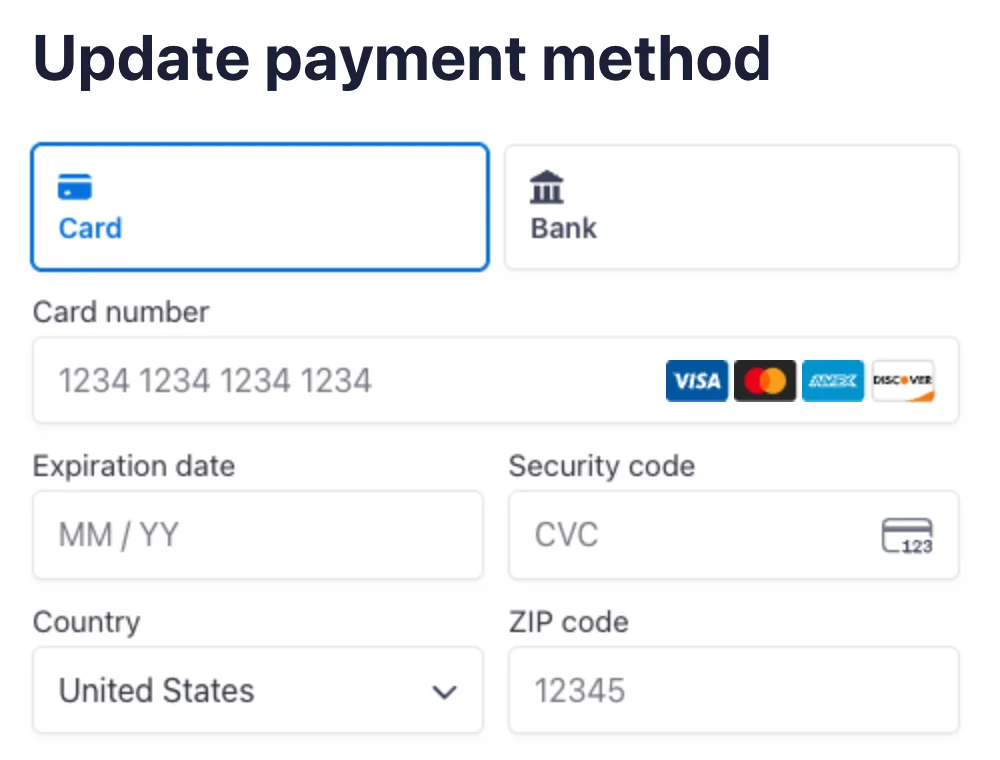
Under Payment, select Update. A page from Stripe opens, titled Update payment method.

With Card selected, enter your new card’s details, then select Add.
Stripe confirms with Payment method updated and shows your new card marked Default.

Select the return link on that page to come back to AgentIntel, where the Billing tab opens again. The Go to my account button stays on Stripe instead.

Nothing is charged when you change your card, and your plan and your renewal date stay as they were.
On a team or brokerage account, only the account owner has a Billing tab. If you don’t see it, ask your account owner to make the change.
If a charge has already failed, see Payment failed.