You change your name and email address on the Account tab of your settings. A new name is saved straight away. A new email address takes over only once you select the link we send to it; until then, keep signing in with your current one.
Change your name
Sign in at app.agentintel.co.
Select your name at the bottom of the left menu, then Settings. The Account tab opens.
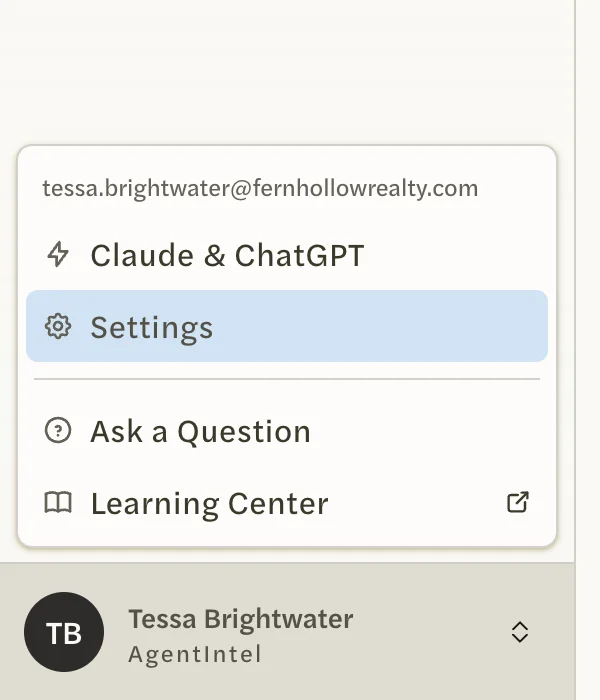
Change Name, then select Update Account.
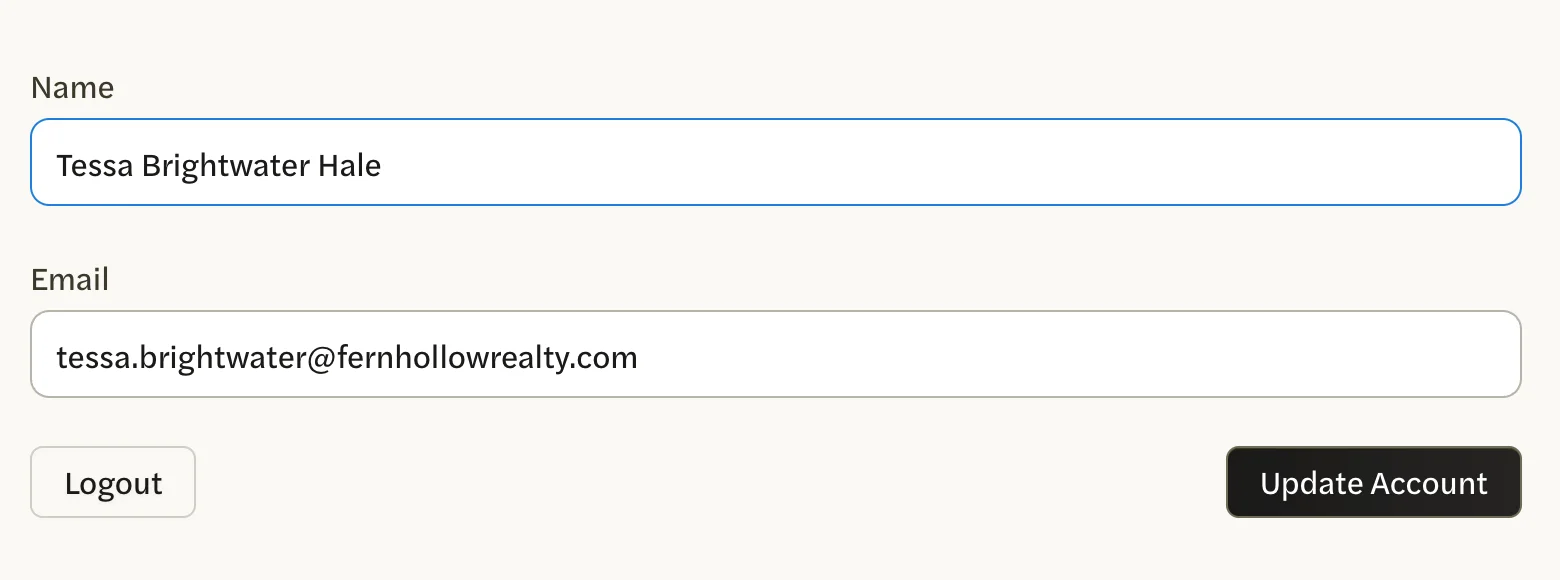
No message appears. The box keeps your new name, and the menu at the bottom left shows it once you open another page.
Change your email address
Sign in at app.agentintel.co.
Select your name at the bottom of the left menu, then Settings. The Account tab opens.
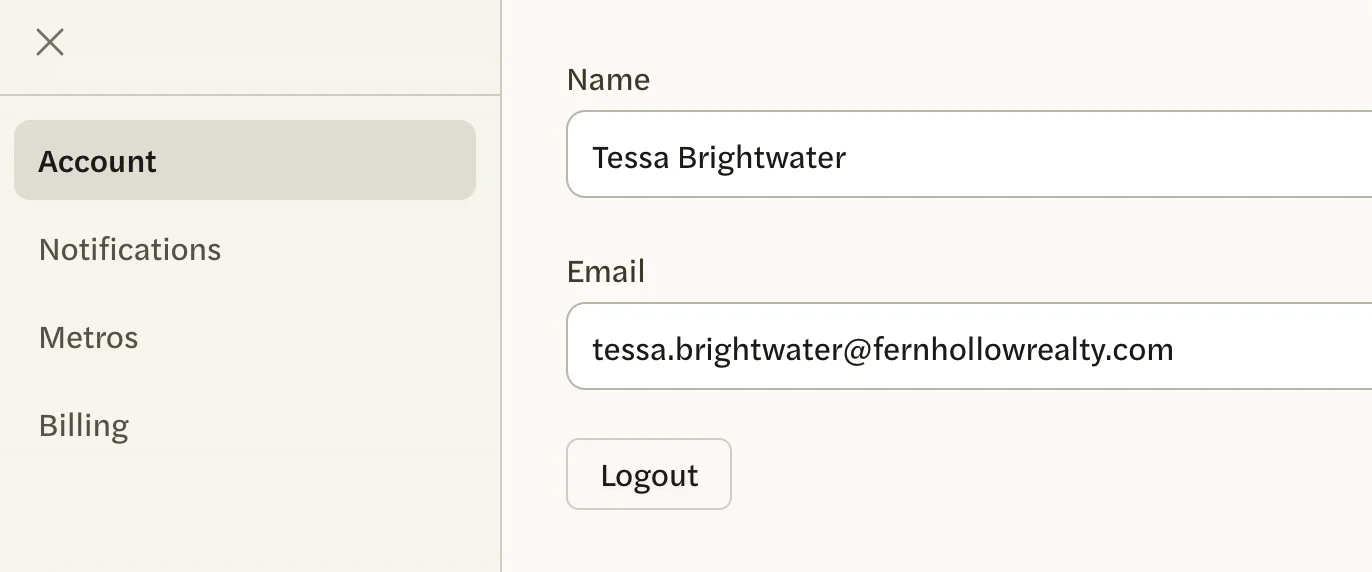
Replace the address under Email with your new one, then select Update Account.
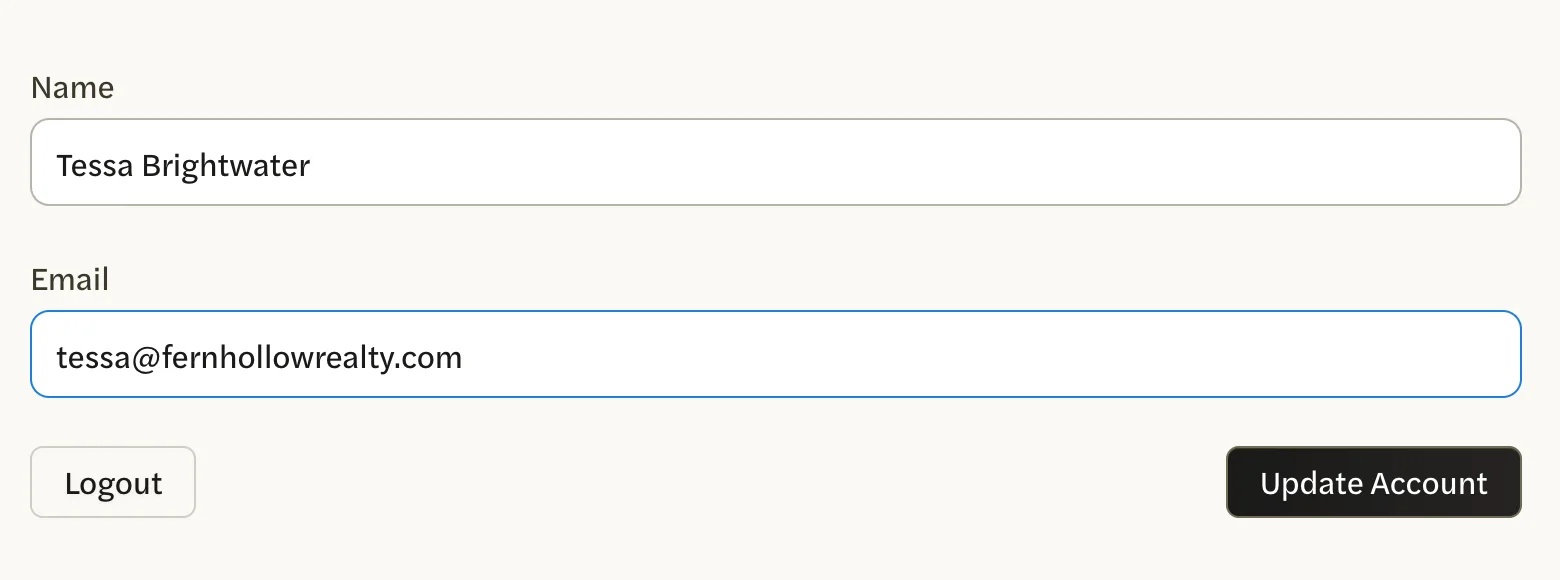
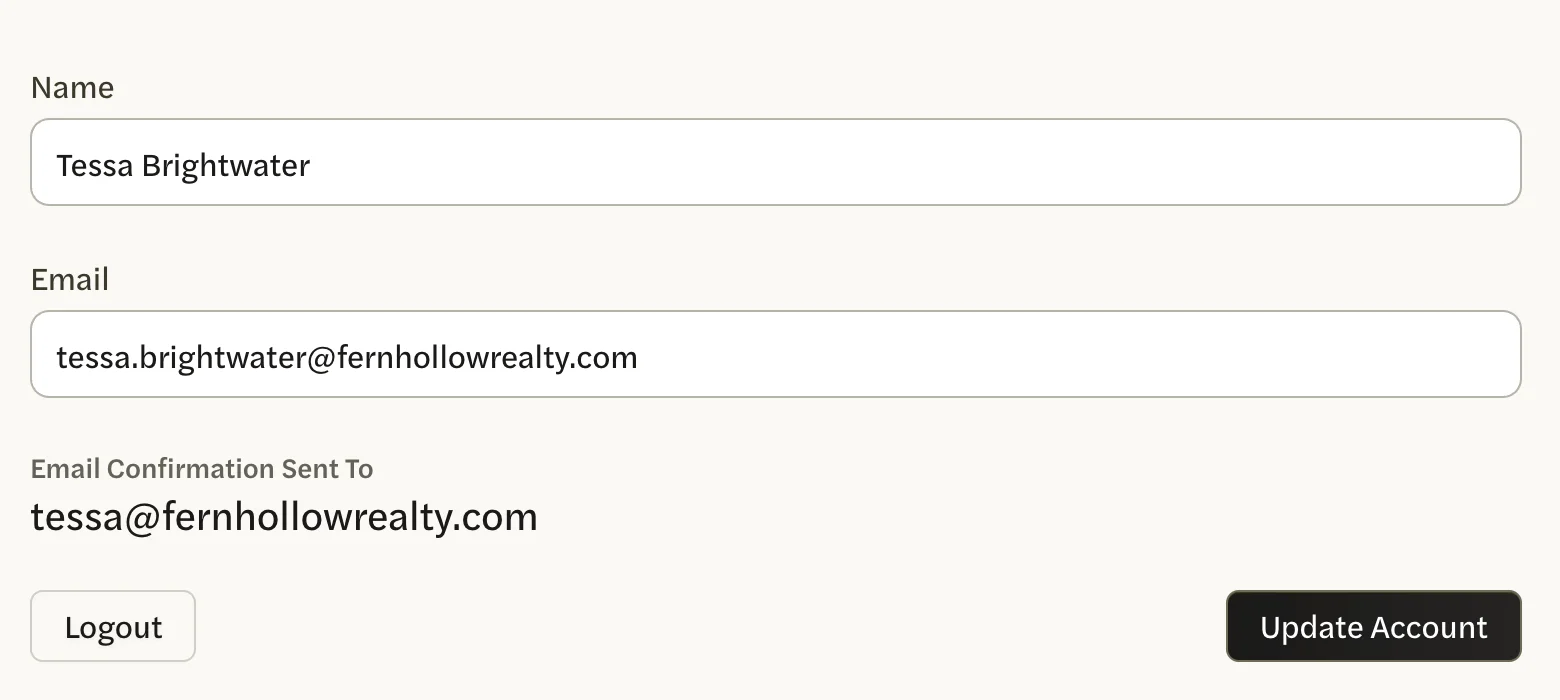
Check that Email Confirmation Sent To now appears below the boxes, with your new address. The Email box goes back to showing your current address until you confirm.
If that line doesn’t appear, nothing was saved, even though the box still shows what you typed. The address may already belong to another AgentIntel account.
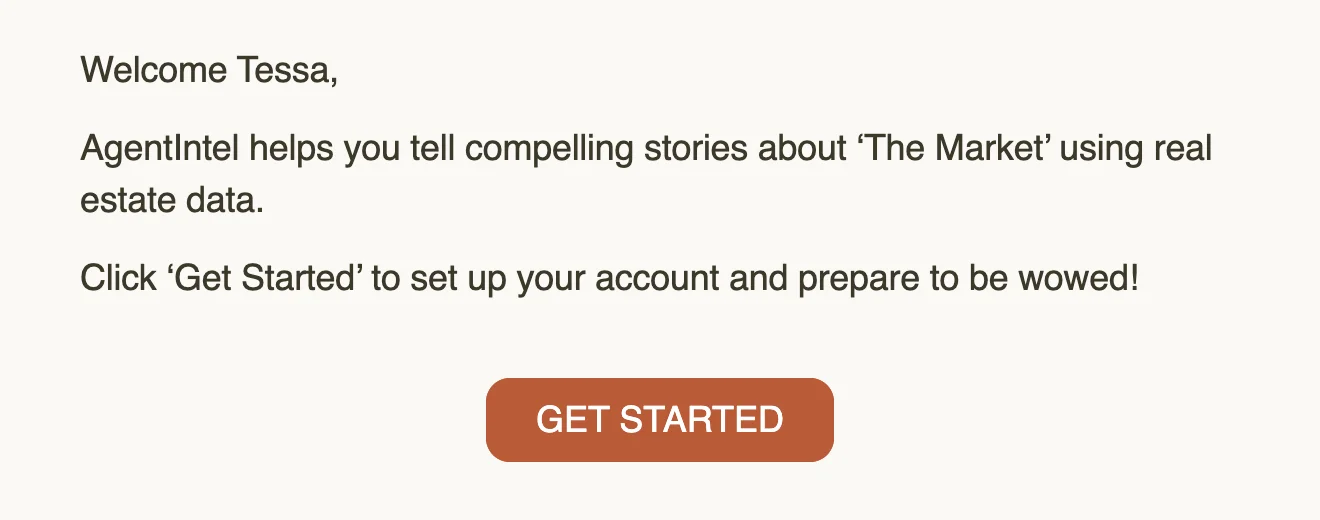
Open the email we sent to your new address and select GET STARTED. It is our welcome email, with a subject that starts “You’re in!”, sent again to confirm the new address. If you entered a new address more than once, use the newest of these emails: the link in an earlier one won’t work.
AgentIntel opens on your Dashboard. From now on you sign in with the new address, and the old one no longer works on the Sign In page. The new address is shown at the top of the menu that opens from your name.
Before you confirm
- Keep signing in with your current address. The new one isn’t recognized on the Sign In page until you select GET STARTED.
- To send the email again, or to fix a typo, enter the address again and select Update Account. Then use the newest email, as in step 5.
- Changed your mind? Ignore the email. Your current address keeps working.
If the email doesn’t arrive, the checks in Didn’t get the email apply to it too.
What changes and what doesn’t
- Our emails go to the new address once you have confirmed it.
- Your invoices and receipts from then on carry your new name and email address. See Invoices and receipts.
- Your reports don’t change. The name and contact lines printed on your reports are set separately. See Customize your report.